Google Local Services Ads Login: Access, Dashboard, Fixes
Categories: Legal Marketing Strategies
 Abram Ninoyan
Founder & Senior Performance Marketer
Credentials: Google Partner, Google Ads Search Certified, Google Ads Display Certified, Google Ads Measurement Certified, Google Analytics (IQ) Certified, HubSpot Inbound Certified, HubSpot Social Media Marketing Certified, Conversion Optimization Certified
Expertise: Google Ads, Meta Ads, Conversion Rate Optimization, GA4 & Google Tag Manager, Lead Generation, Marketing Funnel Optimization, PPC Management
LinkedIn Profile
You need to check your leads, pause your budget, or update your business profile, but you can't find the Google Local Services Ads login page. It's a frustrating spot to be in, especially when Google...
Key Takeaways
- Google Local Services Ads Login: Access, Dashboard, Fixes
- What you need before you log in
- Use the correct Google Local Services Ads login URL
- Get to the LSA dashboard and key screens
Google Local Services Ads Login: Access, Dashboard, Fixes
You need to check your leads, pause your budget, or update your business profile, but you can't find the Google Local Services Ads login page. It's a frustrating spot to be in, especially when Google keeps reshuffling where things live. You're not alone. Attorneys across the country run into this exact issue more often than you'd think.
This guide gives you the direct login link, walks you through the dashboard, and covers the most common access problems, from permission errors to account recovery. Whether you manage your own LSA campaigns or delegate them to your team, everything here is written with law firms in mind, because that's all we do at GavelGrow. We've managed LSA campaigns for over 500 law firms since 2015, and login and access issues are some of the first fires we put out for new clients.
Here's how to get into your account and stay in control of it.
What you need before you log in
Before you even attempt the google local services ads login, make sure you have the right pieces in place. Showing up at the login page with the wrong Google account or an unverified profile is the fastest way to waste 20 minutes going in circles. Two things trip people up most often: using a personal Gmail instead of the business account tied to the LSA profile, and forgetting which email address was used during the original LSA setup.
The Google account linked to your LSA profile
Your LSA account is tied to a specific Google account, and that is the only account that will get you in. If your office administrator or marketing manager set up the LSA profile, they may have used their own work email, which means logging in with the managing partner's personal Gmail won't get you anywhere. Check with whoever completed the initial setup or look for the original verification email Google sent when your profile was approved.
If you're not sure which Google account is connected, search your inboxes for an email from [email protected], which is the address Google uses for all LSA notifications.
Many law firms create a dedicated Google Workspace account (for example, [email protected]) specifically for their LSA profile. If yours does this, use that address instead of a personal one. You'll also need the password for that account ready before you navigate to the login page, so confirm access with your admin first.
Your LSA verification status
Google won't give you a functional dashboard for a profile that hasn't cleared verification. Before you log in, confirm that your firm completed the background check, license verification, and insurance requirements that Google mandates for legal service providers. If your profile is suspended or under review, you can still log in, but you'll land on a restricted dashboard with limited controls.
Here's what Google requires law firms to have in order to maintain an active, accessible LSA profile:
A browser and device that won't cause problems
Use Google Chrome when accessing LSA. The platform is built by Google, and Chrome gives you the fewest compatibility issues. Safari and Firefox work in most cases, but you're more likely to run into redirect loops or blank dashboard screens with those browsers, especially if you have privacy extensions installed. Disable ad blockers and tracking protection for the Google Ads domain before you log in.
Cookies must be enabled, and you should avoid logging in through a private or incognito window. LSA uses session-based authentication that depends on stored cookies, so private browsing mode will break the session and force you to log in again repeatedly.
Use the correct Google Local Services Ads login URL
The single biggest reason people can't complete the google local services ads login is that they land on the wrong Google product. Google Ads, Google Business Profile, and Google Local Services Ads are three separate platforms with three separate dashboards. Typing the wrong address wastes time and often sends you in a redirect loop that feels like the account doesn't exist.
The direct login link
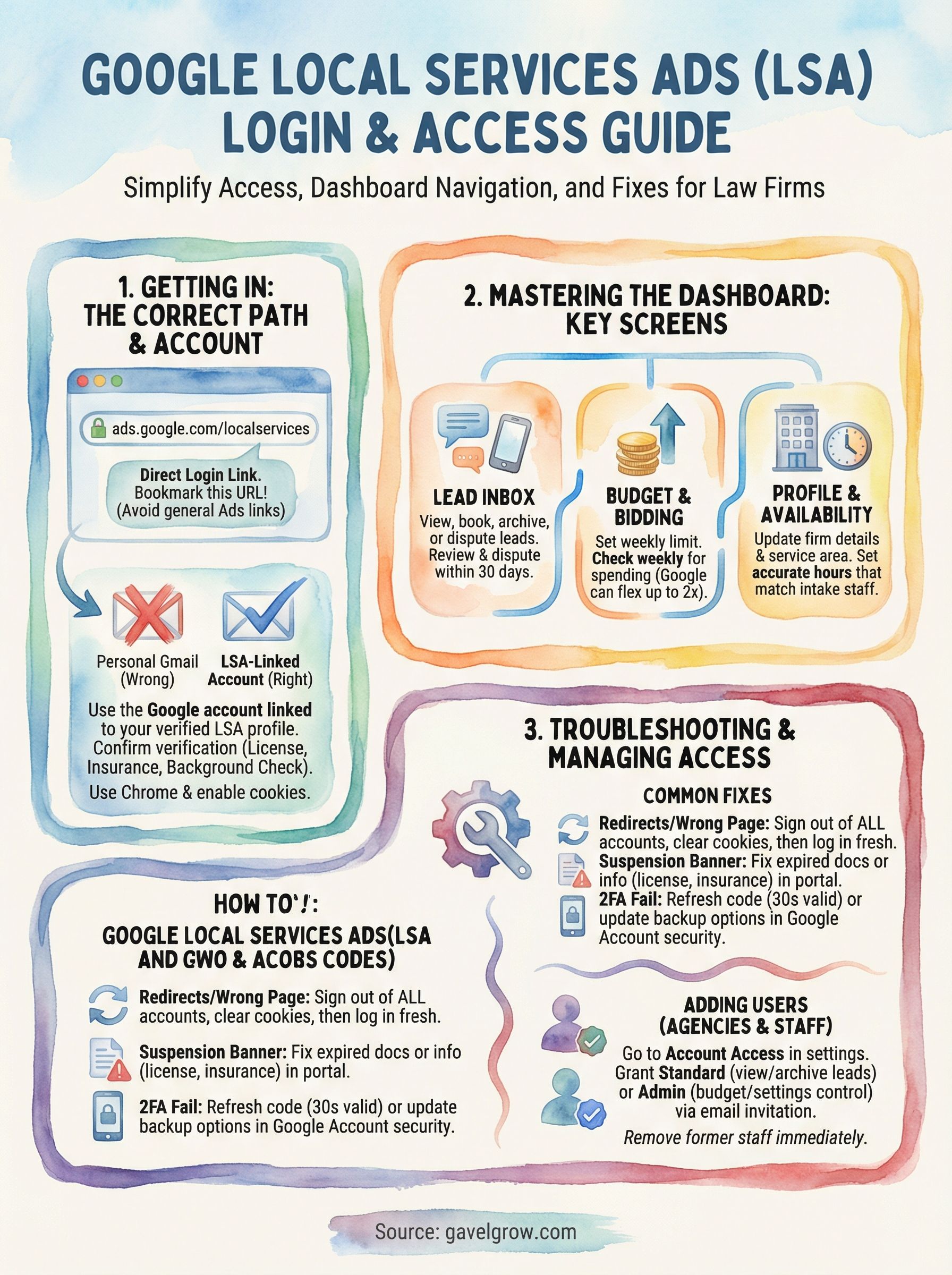
Go directly to ads.google.com/localservices to reach the LSA login page. Bookmark that URL right now so you don't search for it again. When you land there, Google will prompt you to sign in with the Google account linked to your LSA profile. Once you authenticate, the platform routes you straight to your leads and budget dashboard without additional navigation.
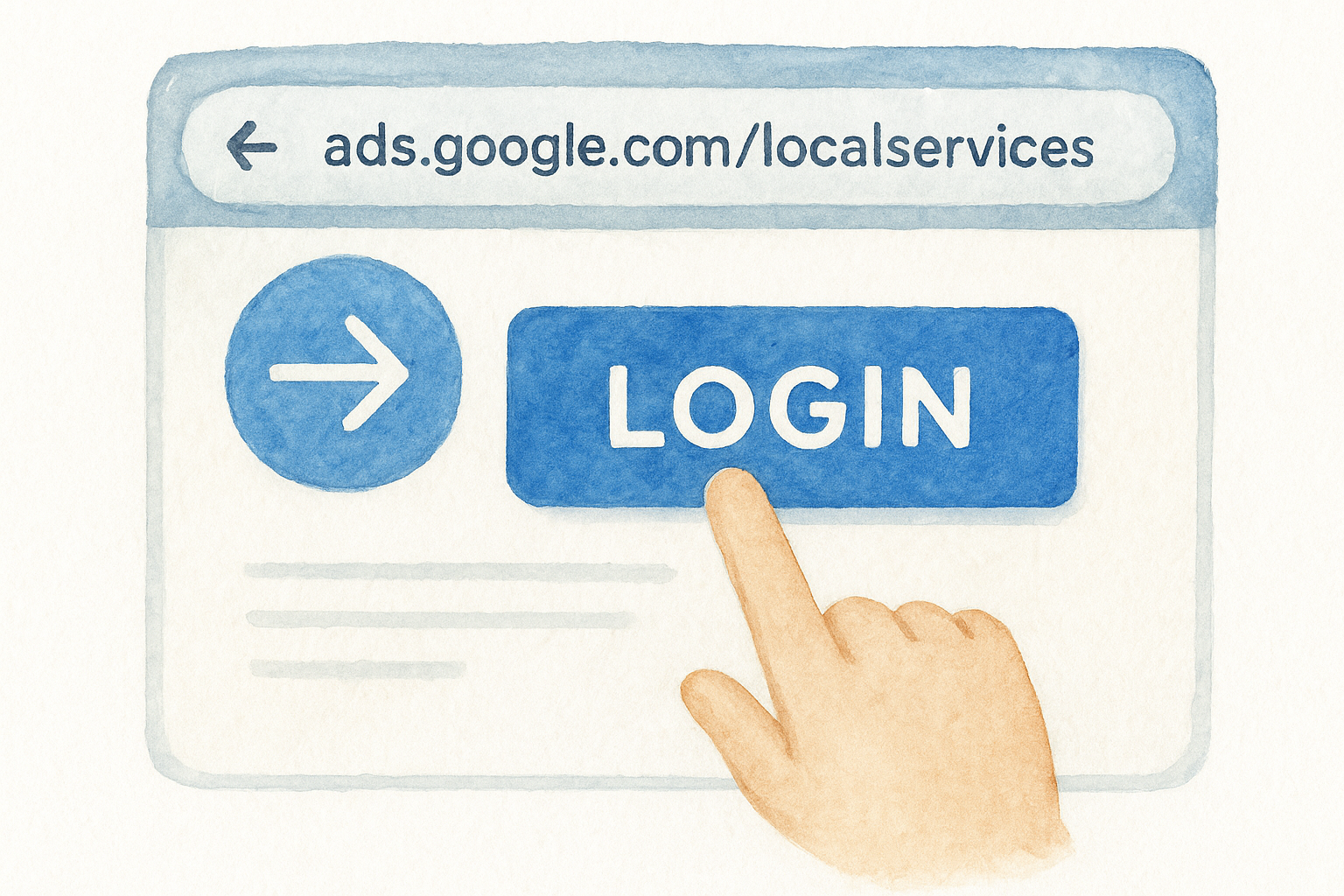
Do not use the standard google.com/ads or ads.google.com entry point for LSA. Those take you to the Google Ads interface, which is a different product entirely and will not show your Local Services leads.
Here is the full login path broken down step by step:
Open Google Chrome and go to ads.google.com/localservices
- Click Sign in in the top right corner
- Enter the Google account email tied to your LSA profile
- Complete any two-factor authentication prompt
- You land on the Local Services Ads dashboard showing your lead inbox and weekly budget
What to do if the URL redirects you elsewhere
Some law firms find that the URL above redirects them to a generic Google Ads page. This usually means your Google account is already signed into a different Google product, and the browser session is carrying that context forward. Sign out of all Google accounts in Chrome, then revisit the URL and sign in fresh with only the LSA-linked account.
Your browser history or saved passwords may also auto-fill the wrong credentials. Clear autofill suggestions for the Google sign-in field before you type, and confirm you're entering the address associated with your verified LSA profile.
Get to the LSA dashboard and key screens
Once you complete the google local services ads login, you land on a dashboard that looks simple but controls everything that matters for your firm's lead flow. Knowing where each screen lives saves you time and prevents you from missing leads or accidentally leaving your budget set wrong.
The lead inbox
Your lead inbox is the first screen you see after login, and it's the most important one. Every call and message lead Google routes to your firm appears here, sorted by date. You can mark leads as booked, archived, or disputed directly from this screen. If you want to dispute a lead that doesn't match your practice area, open the lead card and select "Report issue" before the 30-day dispute window closes.
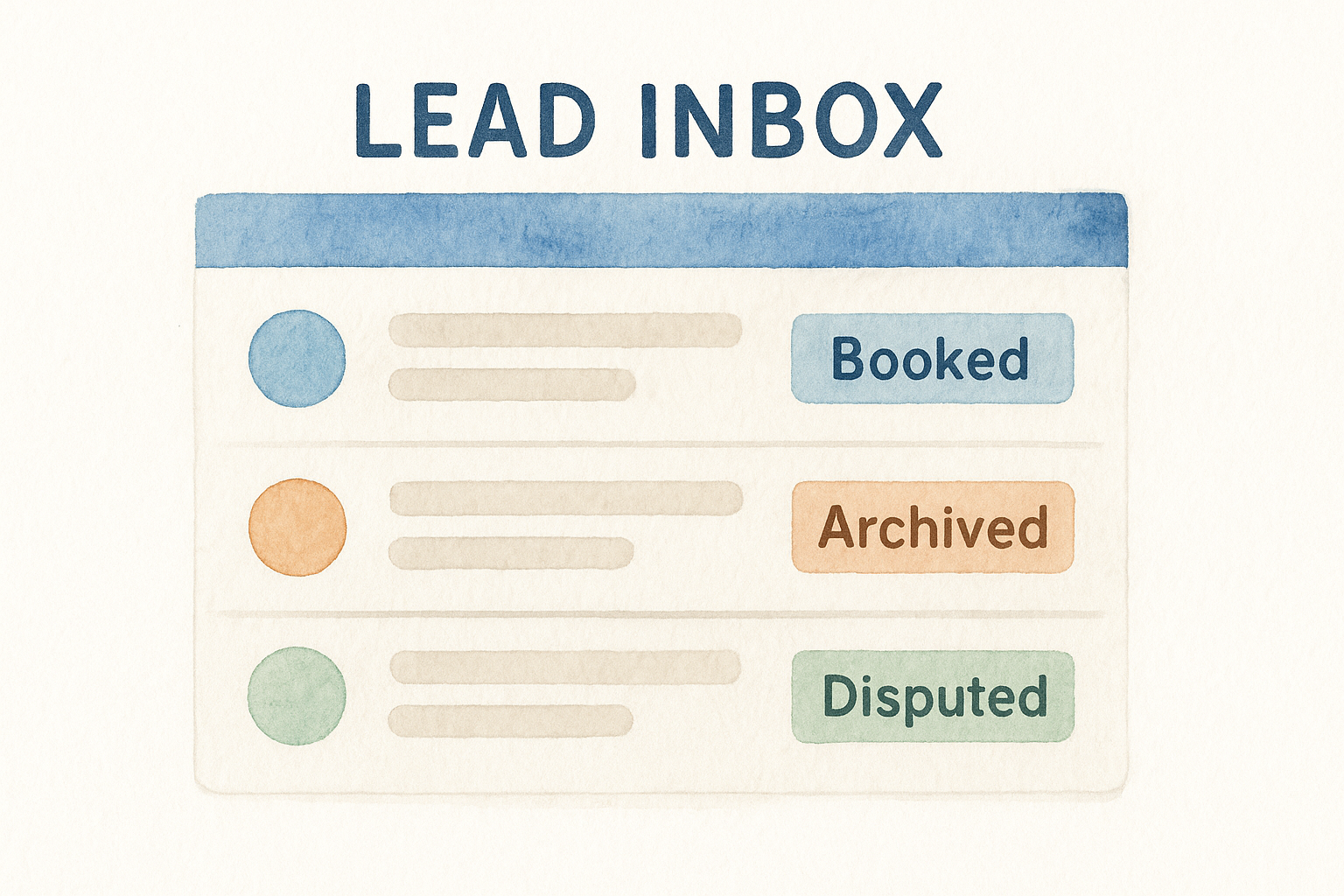
Google only credits disputed leads that clearly fall outside your verified service area or practice type, so review each one before disputing.
Budget and bidding controls
The budget screen sits under the "Budget" tab in the left navigation panel. This is where you set your weekly spending limit and review how much Google has charged against it. Google uses a flexible billing model, meaning it can spend up to twice your weekly budget in a single week to capitalize on high-demand periods, then pull back the following week. Check this screen weekly so you catch overages before they hit your card unexpectedly.
Business profile and availability settings
Your business profile screen controls what potential clients see before they call you. From here, you update your firm name, practice areas, service area by ZIP code, and office hours. Setting your availability hours accurately is critical because Google uses those hours to determine when to serve your ads. If your intake team only handles calls Monday through Friday, set your hours to match. Running ads outside staffed hours drives calls that go unanswered, which damages your lead response score and lowers your ad visibility over time.
Fix login, redirect, and access problems
Most google local services ads login failures come down to a short list of repeatable problems. Before you contact Google support, work through the fixes below in order. You'll resolve the issue faster on your own than waiting in a support queue.
Wrong account, wrong profile, or suspended status
Your browser likely auto-signed you into a personal Gmail before you reached the LSA login page. Google then tries to load your LSA dashboard under that account, finds nothing, and either redirects you or shows a blank screen. Sign out of every Google account in Chrome, clear your cookies, then visit ads.google.com/localservices again and sign in only with the address tied to your verified LSA profile.
If your firm's LSA profile is suspended, you can still log in, but your dashboard will show a banner explaining the suspension reason, and your ads will not run until you resolve it.
A suspended profile is a separate issue from a login problem, and Google handles it differently. Here are the most common suspension triggers for law firms and how to fix each one:
Two-factor authentication failures
If Google blocks your sign-in at the two-factor step, the authenticator code likely expired before you entered it. Codes are only valid for 30 seconds. Open your authenticator app, wait for a fresh code to generate, then enter it immediately without switching tabs.
Some attorneys use an older phone number for two-factor verification and no longer have access to it. In that case, go to myaccount.google.com, navigate to Security, and update your recovery phone or use a backup code to regain access before attempting to log back into LSA.
Add agencies and staff with the right permissions
If you work with an outside agency or have staff members who need to review leads, you can grant access without sharing your login credentials. Google Local Services Ads uses an access management system that keeps your master account secure while letting others complete specific tasks. Sharing your primary account password creates unnecessary risk and makes it harder to remove access later when roles change.
Add an agency to your account
To give an agency access after you complete the google local services ads login, navigate to the Account Access section in your LSA profile settings. Google requires you to enter the agency's Google account email address, then assign a permission level. The agency receives an email invitation and must accept it before they can view or manage anything in your account.
Follow these steps to add an agency:
Log in at ads.google.com/localservices
- Click your profile icon in the top right corner
- Select Account Access from the dropdown
- Click Add user and enter the agency's Google account email
- Choose the permission level (Admin or Standard)
- Click Send invitation
Only grant Admin access to people who need to change budgets and settings. Standard access works for anyone who only needs to review leads.
Manage staff access levels
Internal staff members like intake coordinators or marketing administrators can receive Standard access so they can view and archive leads without touching your budget or billing. Admin access lets a user modify budgets, update the business profile, and add other users, so reserve it for people you fully trust with those controls.
Remove access for a staff member the same day they leave your firm. Access does not expire on its own, and a former employee retaining rights to your LSA account is both a security risk and a potential compliance issue your firm cannot afford to ignore.
Next steps for keeping access smooth
You now have everything you need to complete the google local services ads login, navigate your dashboard, and resolve the most common access issues. Bookmark ads.google.com/localservices today, confirm which Google account owns your profile, and audit who currently has Admin access to remove anyone who no longer needs it.
From here, treat your LSA account like any other critical business system. Review your lead inbox daily, check your budget tab weekly, and update your availability hours any time your intake schedule changes. Set a quarterly reminder to verify that your license, insurance, and background check documentation are current so Google never suspends your profile over an expired document.
If you want a team that handles all of this for you, speak with a legal marketing specialist at GavelGrow to get a custom LSA strategy built around your practice area and local market.
Frequently Asked Questions
What is the correct URL for the Google Local Services Ads login?
Go directly to ads.google.com/localservices to reach the LSA login page, then sign in with the Google account linked to your LSA profile. Do not use google.com/ads or ads.google.com, because those open the standard Google Ads interface, which is a separate product and will not display your Local Services leads. Bookmark the localservices URL so you don't have to search for it again.
Why does my Local Services Ads login keep redirecting to a generic Google Ads page?
This usually happens because your browser is already signed into a different Google account, and the session carries that context forward. Sign out of all Google accounts in Chrome, clear your cookies, then revisit ads.google.com/localservices and sign in fresh with only the account tied to your verified LSA profile. Avoid incognito mode, since LSA relies on stored cookies for session-based authentication.
How do I dispute a bad lead in Local Services Ads?
Open the lead card in your lead inbox, select "Report issue," and submit it before the 30-day dispute window closes. Google generally only credits leads that clearly fall outside your verified service area or practice type, so review each one before disputing. Marking leads accurately also helps keep your account in good standing.
Can I give my marketing agency access to my LSA account without sharing my password?
Yes. In your LSA profile settings, open the Account Access section, click Add user, enter the agency's Google account email, and choose a permission level before sending the invitation. Grant Admin access only to people who need to change budgets and settings; Standard access is enough for anyone who only reviews leads. This keeps your master account secure and makes it easy to remove access later.
Why is my Local Services Ads dashboard restricted or showing a suspension banner?
Google limits dashboard controls and pauses your ads when your profile is suspended or still under review, often because of a lapsed license, insurance, or background-check requirement. You can still log in, but a banner will explain the reason and ads will not run until it is resolved. Setting a quarterly reminder to confirm your verification documents are current helps prevent surprise suspensions.
Frequently Asked Questions
What is the correct URL for the Google Local Services Ads login?
Go directly to ads.google.com/localservices to reach the LSA login page, then sign in with the Google account linked to your LSA profile. Do not use google.com/ads or ads.google.com, because those open the standard Google Ads interface, which is a separate product and will not display your Local Services leads. Bookmark the localservices URL so you don't have to search for it again.
Why does my Local Services Ads login keep redirecting to a generic Google Ads page?
This usually happens because your browser is already signed into a different Google account, and the session carries that context forward. Sign out of all Google accounts in Chrome, clear your cookies, then revisit ads.google.com/localservices and sign in fresh with only the account tied to your verified LSA profile. Avoid incognito mode, since LSA relies on stored cookies for session-based authentication.
How do I dispute a bad lead in Local Services Ads?
Open the lead card in your lead inbox, select "Report issue," and submit it before the 30-day dispute window closes. Google generally only credits leads that clearly fall outside your verified service area or practice type, so review each one before disputing. Marking leads accurately also helps keep your account in good standing.
Can I give my marketing agency access to my LSA account without sharing my password?
Yes. In your LSA profile settings, open the Account Access section, click Add user, enter the agency's Google account email, and choose a permission level before sending the invitation. Grant Admin access only to people who need to change budgets and settings; Standard access is enough for anyone who only reviews leads. This keeps your master account secure and makes it easy to remove access later.
Why is my Local Services Ads dashboard restricted or showing a suspension banner?
Google limits dashboard controls and pauses your ads when your profile is suspended or still under review, often because of a lapsed license, insurance, or background-check requirement. You can still log in, but a banner will explain the reason and ads will not run until it is resolved. Setting a quarterly reminder to confirm your verification documents are current helps prevent surprise suspensions.