Google Rich Results Test: Fix Every Schema Error
Categories: Legal Marketing Strategies
 Abram Ninoyan
Founder & Senior Performance Marketer
Credentials: Google Partner, Google Ads Search Certified, Google Ads Display Certified, Google Ads Measurement Certified, Google Analytics (IQ) Certified, HubSpot Inbound Certified, HubSpot Social Media Marketing Certified, Conversion Optimization Certified
Expertise: Google Ads, Meta Ads, Conversion Rate Optimization, GA4 & Google Tag Manager, Lead Generation, Marketing Funnel Optimization, PPC Management
LinkedIn Profile
Structured data can make the difference between a plain blue link and an eye-catching search listing that displays star ratings, FAQs, or practice area details. The Google Rich Results Test is the go-...
Key Takeaways
- Google Rich Results Test: How To Validate Schema Markup
- What the Rich Results Test checks and misses
- Step 1. Run the test by URL or code
- Step 2. Read results, errors, and warnings
Google Rich Results Test: How To Validate Schema Markup
Structured data can make the difference between a plain blue link and an eye-catching search listing that displays star ratings, FAQs, or practice area details. The Google Rich Results Test is the go-to tool for checking whether your schema markup is set up correctly and eligible for those enhanced listings. For law firms competing in crowded local markets, rich results directly influence click-through rates, and ultimately, how many potential clients reach your intake page.
At GavelGrow, we implement and validate structured data for law firms as part of every SEO engagement. It's one of those technical details that most attorneys never think about, but it consistently moves the needle on organic visibility. If your competitors show star ratings and you don't, you're losing clicks before anyone even reads your page title. That's real revenue left on the table.
This guide walks you through exactly how to use the Rich Results Test to validate your schema markup, interpret the results it gives you, and fix common errors. Whether you're a managing partner checking on your agency's work or a legal marketing manager handling SEO in-house, you'll leave with a clear process you can repeat every time you publish or update a page.
What the Rich Results Test checks and misses
The Google Rich Results Test scans your page for structured data markup that Google recognizes and can display as enhanced search features. Think of it as a structured data linter: it reads your markup, validates it against Google's supported schema types, and tells you exactly which rich result features your page qualifies for. The tool works with both live URLs and raw HTML code snippets, which gives you flexibility depending on your workflow and where you are in the publishing process.
What the tool actually checks
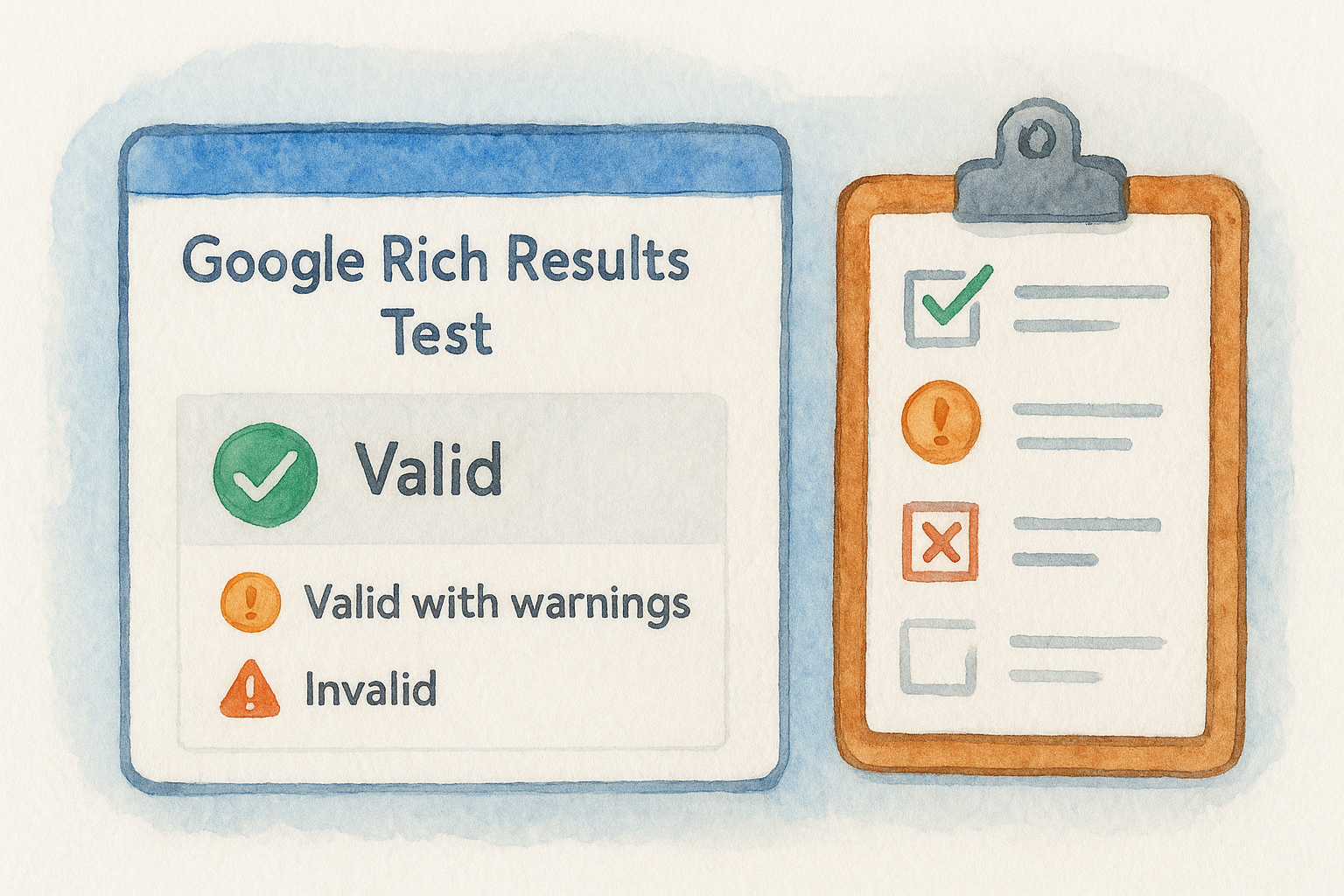
Your markup gets validated against Google's requirements for specific rich result types. For law firms, the most relevant schema types include FAQPage, LegalService, LocalBusiness, and Review. The tool tells you which properties are present, which required properties are missing, and whether each detected item is valid or invalid. It also generates a preview of how the rich result might appear in search, so you can verify the output before the page goes live.
The test supports structured data written in these three formats:
- JSON-LD (Google's recommended format for most use cases)
- Microdata
- RDFa
A valid schema item in the Rich Results Test does not guarantee Google will display the rich result, but an invalid item guarantees they won't.
What the tool won't catch
The Rich Results Test has real limitations you need to account for in your workflow. It does not verify whether your structured data matches the actual visible content on the page, which Google requires as a core accuracy standard. Mismatched data can trigger a manual action even when the test shows a green check. Beyond that, the tool won't flag schema types that Google does not surface as rich results, meaning you could have perfectly valid JSON-LD that produces no visual enhancement in search because Google simply doesn't support that type for display. Knowing these gaps helps you use the tool correctly rather than treat a passing result as a full guarantee.
Step 1. Run the test by URL or code
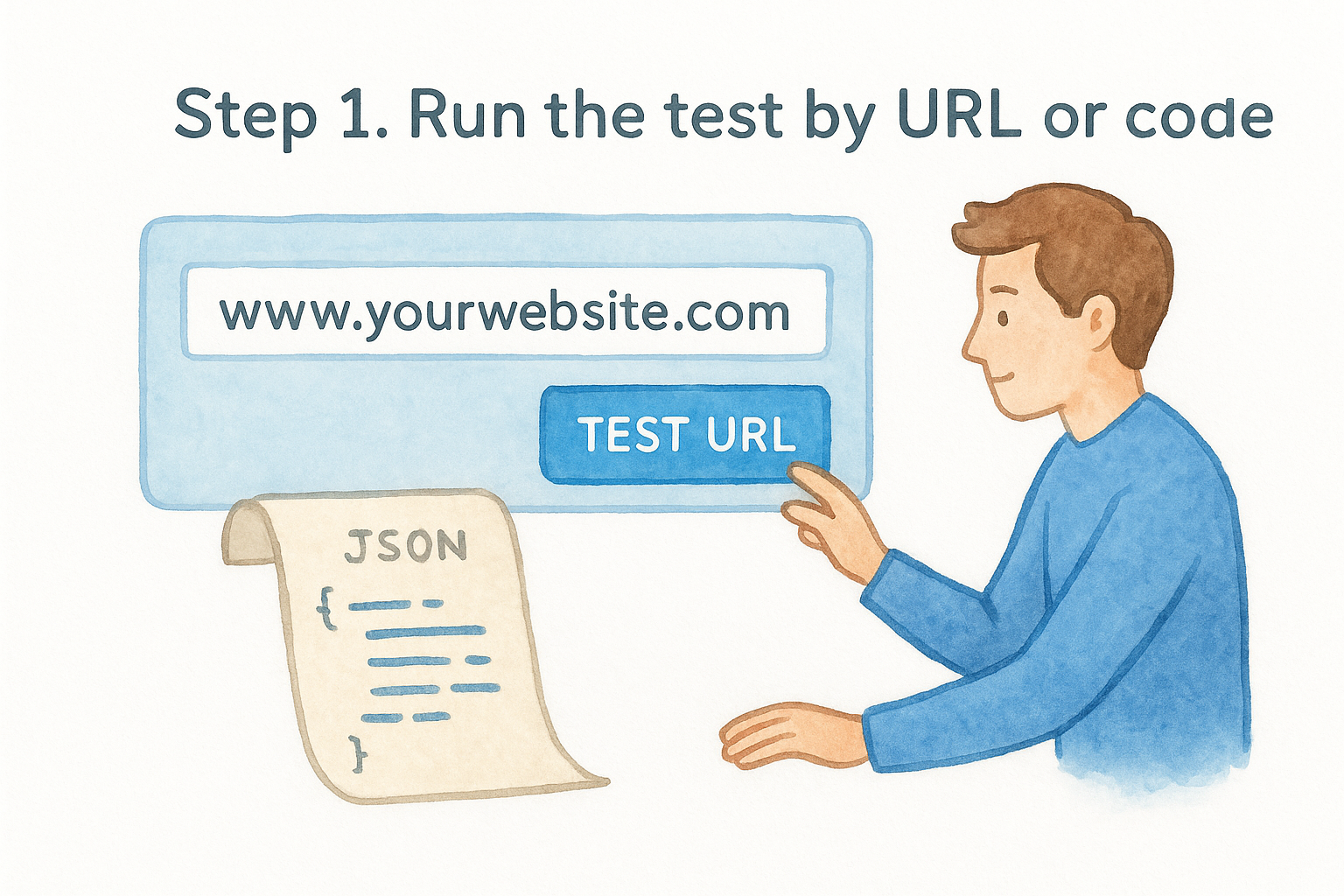
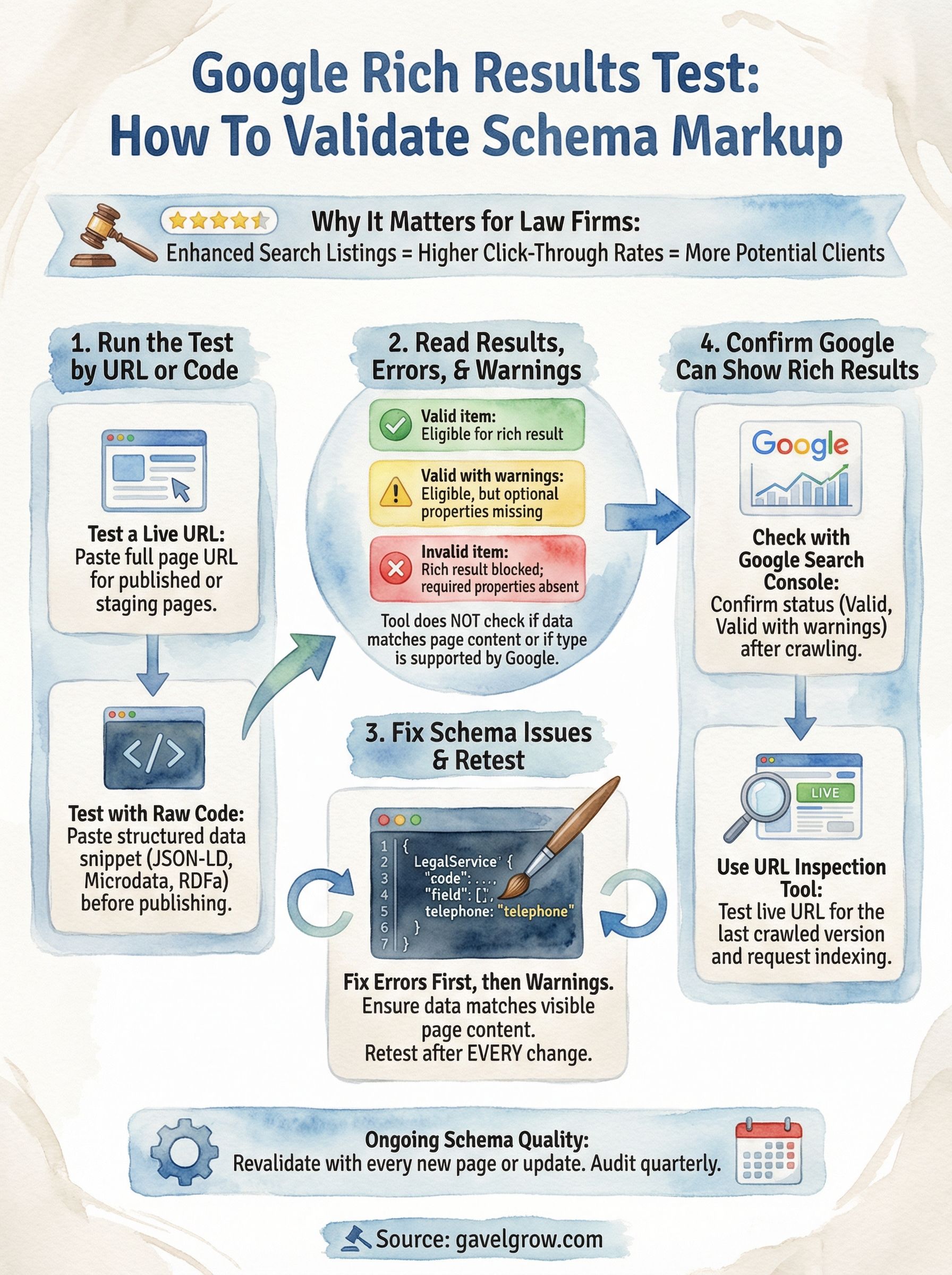
The Google Rich Results Test gives you two entry points: a live URL or a raw code snippet. Navigate to search.google.com/test/rich-results and you'll see both options on the same screen. Choose based on where your page is in the publishing process.
Test a live URL
Type or paste your page's full URL into the input field and click "Test URL." The tool fetches the page the same way Googlebot would, which means it picks up dynamically rendered markup that a static HTML inspector might miss. Use this method for published or staging pages where the final markup is already in place.
Always test the exact URL you want to rank, not your homepage, unless the homepage is the page you're optimizing.
Test with raw code
Paste your structured data directly into the "Code" tab to validate markup before you publish. This is the faster option when you're building or editing schema. Here's a minimal LegalService JSON-LD block you can use as a starting template:
- {
- "@context": "https://schema.org",
- "@type": "LegalService",
- "name": "Your Law Firm Name",
- "url": "https://yourfirm.com",
- "telephone": "+1-555-000-0000",
- "address": {
- "@type": "PostalAddress",
- "streetAddress": "123 Main St",
- "addressLocality": "Chicago",
- "addressRegion": "IL",
- "postalCode": "60601"
- }
- }
Paste that into the code tab, click "Test Code," and the tool validates it immediately without needing a live page.
Step 2. Read results, errors, and warnings
After the test runs, the results panel loads on the right side of the screen. The tool groups its findings by detected schema item, so if your page has multiple structured data blocks, each one appears as a separate card. Read through each card before drawing any conclusions.
Understanding the three result states
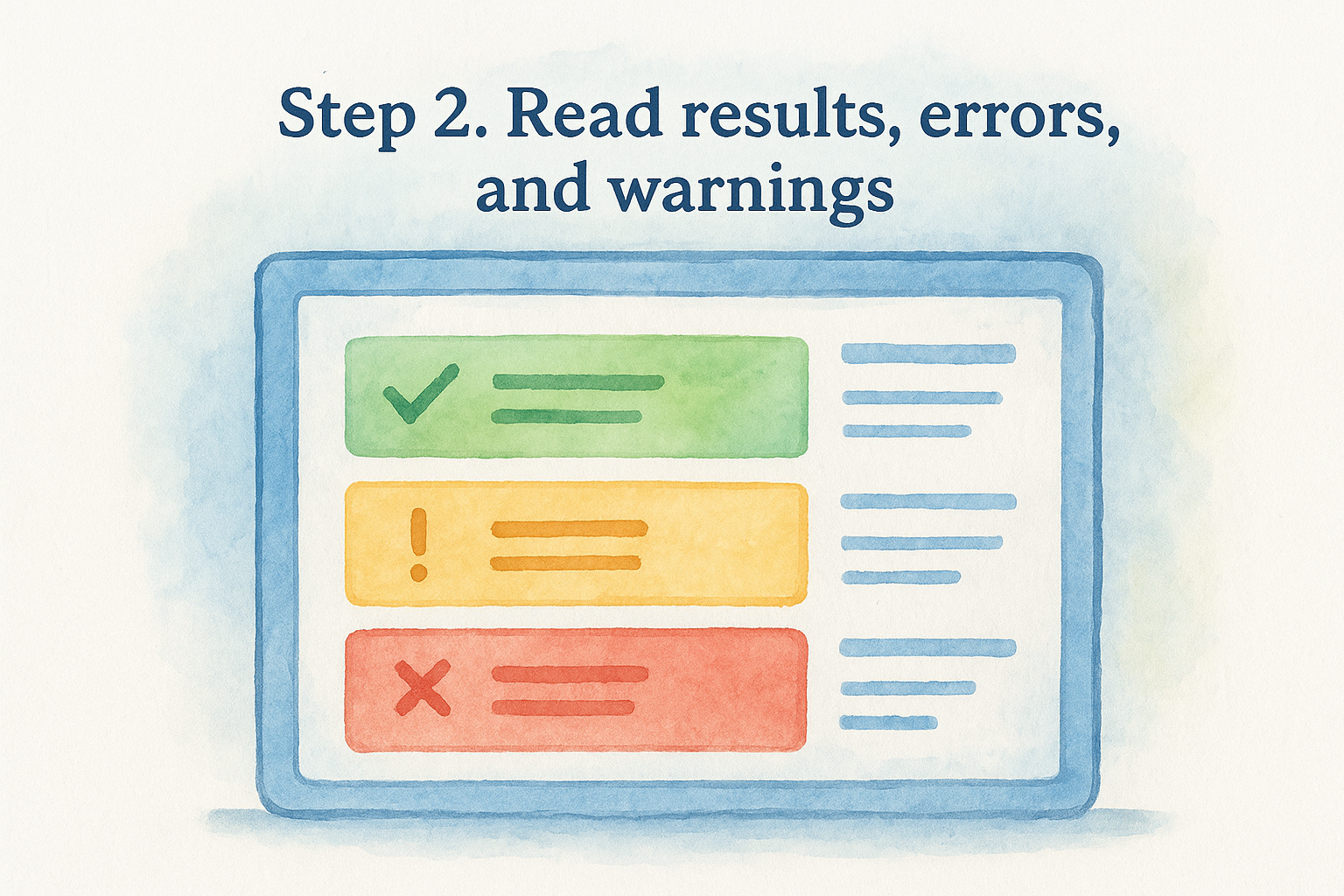
The tool uses three distinct labels to categorize your markup. Each label tells you something specific about what Google found and whether it can use that data for a rich result.
What errors and warnings mean
Errors block a rich result entirely, so fix these first. A common example for LegalService markup is a missing address property, which Google flags as required. Warnings indicate optional properties like openingHours or priceRange that improve the richness of the result but won't prevent it from showing.
Treat warnings as a checklist for improvement, not as urgent fixes the way you treat errors.
When you run the Google Rich Results Test on a law firm page, check each card's property list to confirm every required field has a green checkmark before moving to fixes.
Step 3. Fix schema issues and retest
Once you identify errors in the Google Rich Results Test, fix them in order of severity. Start with every invalid item before touching warnings, because a single missing required property blocks the entire rich result regardless of how polished the rest of your markup looks. Open your CMS or schema plugin, locate the structured data block for that page, and add the missing property with accurate, page-matching content.
Common fixes for law firm schema
Missing required properties are the most frequent error on law firm pages. If the tool flags a missing telephone or address field on a LegalService block, add them directly to your JSON-LD like this:
- "telephone": "+1-312-555-0199",
- "address": {
- "@type": "PostalAddress",
- "streetAddress": "456 West Madison St",
- "addressLocality": "Chicago",
- "addressRegion": "IL",
- "postalCode": "60661"
- }
Every property value in your schema must match the visible content on that page, or Google may ignore the markup entirely.
Retest after every change
After saving your fix, return to the Rich Results Test and run a fresh test on the same URL or updated code snippet. Confirm the previously flagged error no longer appears before addressing any remaining warnings. Repeat this loop for each issue until all required properties clear without errors.
Step 4. Confirm Google can show rich results
Passing the Google Rich Results Test verifies your markup is technically valid, but it doesn't confirm that Google has actually crawled and indexed that schema on your live page. You still need to cross-check your structured data inside Google's own tools to make sure the enhanced listing can appear in search.
Check with Google Search Console
Google Search Console is where you confirm eligibility after Google actually crawls your page. Open the Enhancements section and select your schema type. The report sorts your pages into three statuses:
- Valid: Eligible for rich results
- Valid with warnings: Eligible, but missing optional properties
- Error: Blocked from rich results
A passing score in the Rich Results Test combined with a Valid status in Search Console confirms that Google can display your enhanced listing.
Use the URL Inspection Tool
Run the URL Inspection tool on your specific page to see the last crawled version Google has on file. Follow these steps to verify your schema is current:
- Enter your page URL in the Search Console search bar
- Click "Test Live URL" to trigger a fresh fetch
- Check the "Structured Data" section for your detected schema types
- Click "Request Indexing" if the cached version shows outdated markup
Next steps for ongoing schema quality
Running the Google Rich Results Test once gets you to a valid state, but schema quality is an ongoing maintenance task, not a one-time fix. Every time you publish a new practice area page, update your contact information, or add FAQs, you need to revalidate your structured data. Set a recurring reminder to audit your schema at least once per quarter using the Rich Results Test alongside Google Search Console's Enhancements report.
Treating schema as a living part of your SEO strategy keeps your law firm's listings competitive as Google updates its supported rich result types and requirements. Small errors introduced through CMS updates or plugin conflicts can silently break your eligibility. Building a simple checklist into your content publishing workflow catches those issues before Google does.
For law firms that want structured data handled as part of a full legal SEO strategy, get your free GavelGrow strategy consultation and see exactly where your schema stands.
Frequently Asked Questions
What is the Google Rich Results Test?
The Google Rich Results Test, at search.google.com/test/rich-results, scans a page for structured data that Google recognizes and can display as enhanced search features like star ratings or FAQs. Think of it as a structured data linter: it validates your markup against Google's supported schema types and tells you which rich result features your page qualifies for. It works with live URLs and raw code snippets.
Which schema types matter most for law firm websites?
For law firms, the most relevant schema types include FAQPage, LegalService, LocalBusiness, and Review. The Rich Results Test validates your markup against Google's requirements, showing which properties are present, which required ones are missing, and whether each item is valid. It supports JSON-LD, which is Google's recommended format, along with Microdata and RDFa.
Does passing the Rich Results Test guarantee rich results in search?
No. A valid schema item does not guarantee Google will display the rich result, though an invalid item guarantees it won't. The tool also does not verify that your structured data matches the visible content on the page, which Google requires; a mismatch can trigger a manual action even with a green check. Confirm eligibility separately in Google Search Console after Google crawls the page.
How do I fix schema errors on a law firm page?
Fix errors in order of severity, addressing every invalid item before touching warnings, because a single missing required property blocks the entire rich result. Open your CMS or schema plugin, find the structured data block, and add the missing property with accurate, page-matching content. A common LegalService fix is adding a missing telephone or address field. Retest after every change until all required properties clear.
What is the difference between an error and a warning in the Rich Results Test?
Errors block a rich result entirely, so fix them first; a common example is a missing required address property on LegalService markup. Warnings flag optional properties like openingHours or priceRange that enrich the result but won't prevent it from showing. Treat warnings as an improvement checklist rather than urgent fixes, and always clear errors before addressing them.
Frequently Asked Questions
What is the Google Rich Results Test?
The Google Rich Results Test, at search.google.com/test/rich-results, scans a page for structured data that Google recognizes and can display as enhanced search features like star ratings or FAQs. Think of it as a structured data linter: it validates your markup against Google's supported schema types and tells you which rich result features your page qualifies for. It works with live URLs and raw code snippets.
Which schema types matter most for law firm websites?
For law firms, the most relevant schema types include FAQPage, LegalService, LocalBusiness, and Review. The Rich Results Test validates your markup against Google's requirements, showing which properties are present, which required ones are missing, and whether each item is valid. It supports JSON-LD, which is Google's recommended format, along with Microdata and RDFa.
Does passing the Rich Results Test guarantee rich results in search?
No. A valid schema item does not guarantee Google will display the rich result, though an invalid item guarantees it won't. The tool also does not verify that your structured data matches the visible content on the page, which Google requires; a mismatch can trigger a manual action even with a green check. Confirm eligibility separately in Google Search Console after Google crawls the page.
How do I fix schema errors on a law firm page?
Fix errors in order of severity, addressing every invalid item before touching warnings, because a single missing required property blocks the entire rich result. Open your CMS or schema plugin, find the structured data block, and add the missing property with accurate, page-matching content. A common LegalService fix is adding a missing telephone or address field. Retest after every change until all required properties clear.
What is the difference between an error and a warning in the Rich Results Test?
Errors block a rich result entirely, so fix them first; a common example is a missing required address property on LegalService markup. Warnings flag optional properties like openingHours or priceRange that enrich the result but won't prevent it from showing. Treat warnings as an improvement checklist rather than urgent fixes, and always clear errors before addressing them.