Semrush Site Audit: Step-by-Step Fixes for Common SEO Errors
Categories: Legal Marketing Strategies
 Abram Ninoyan
Founder & Senior Performance Marketer
Credentials: Google Partner, Google Ads Search Certified, Google Ads Display Certified, Google Ads Measurement Certified, Google Analytics (IQ) Certified, HubSpot Inbound Certified, HubSpot Social Media Marketing Certified, Conversion Optimization Certified
Expertise: Google Ads, Meta Ads, Conversion Rate Optimization, GA4 & Google Tag Manager, Lead Generation, Marketing Funnel Optimization, PPC Management
LinkedIn Profile
A law firm website riddled with broken links, slow pages, and crawl errors is quietly bleeding rankings, and potential cases, every single day. Running a Semrush Site Audit is the fastest way to surfa...
Key Takeaways
- Semrush Site Audit: Step-by-Step Fixes for Common SEO Errors
- What Site Audit checks and what to prep first
- Step 1. Set up a project and run your first crawl
- Step 2. Understand Site Health and prioritize fixes
Semrush Site Audit: Step-by-Step Fixes for Common SEO Errors
A law firm website riddled with broken links, slow pages, and crawl errors is quietly bleeding rankings, and potential cases, every single day. Running a Semrush Site Audit is the fastest way to surface those hidden technical SEO problems before they tank your visibility on Google. But pulling a health score is only half the job. Knowing what to fix first, and how, is where most firms get stuck.
At GavelGrow, we run technical audits for law firms as part of our managed SEO services, and Semrush's Site Audit tool is one of the workhorses in that process. After optimizing sites across 500+ U.S. law firms, we've seen the same errors show up again and again, duplicate title tags, mixed content warnings, slow-loading pages, orphaned URLs. Most of them are straightforward to fix once you know where to look.
This guide walks you through the entire Semrush Site Audit process step by step: setting up your project, interpreting the health score, prioritizing errors versus warnings, and applying concrete fixes for the issues that hurt law firm sites the most. Whether you're handling SEO in-house or just want to understand what your agency is reporting, you'll leave with a clear action plan.
What Site Audit checks and what to prep first
The Semrush Site Audit tool crawls your website the same way Googlebot does, following links from page to page and cataloging everything it finds. It checks over 140 technical and on-page SEO issues, organized into three severity levels: errors (most urgent), warnings (moderate impact), and notices (low priority). Understanding what falls into each bucket before you start saves you from chasing low-impact fixes while critical problems go unaddressed.
What the crawler actually checks
Semrush's crawler covers six main categories of checks during an audit. Each category can surface issues that directly affect how Google crawls, indexes, and ranks your site.
For law firms, crawlability and indexability errors almost always carry the highest impact, because Google can't rank pages it can't reach or index in the first place.
Fix errors in crawlability and indexability before touching anything else. Ranking signals mean nothing if Googlebot is blocked from seeing your pages.
What to prepare before you run the crawl
Before you set up your project, gather three things so your results are accurate from the start. First, confirm you have access to Google Search Console for your domain. Semrush can pull GSC data directly, which layers real-world crawl and index data on top of its own crawler findings. Second, locate your XML sitemap URL (usually yoursite.com/sitemap.xml), because you'll submit it during project setup to ensure the crawler finds every page. Third, check whether your site sits behind any IP-based restrictions, staging passwords, or bot-blocking rules.
Spending five minutes on these three items prevents you from re-running the entire crawl because incomplete setup produced a misleadingly clean health score.
Step 1. Set up a project and run your first crawl
Log into your Semrush account and click Site Audit in the left sidebar. Select "Create project," enter your root domain, and give the project a recognizable name. This setup takes under two minutes, and getting it right now prevents misleading results later.
Configure crawl settings before you start
Once your project exists, Semrush opens the Site Audit settings panel before the crawl begins. This is where most people rush, and it is where configuration mistakes happen. Set your crawl source to "Website," confirm the start URL is your root domain, and set the crawl limit to match your actual page count. For most law firm sites, 500 to 2,000 pages covers the full site.
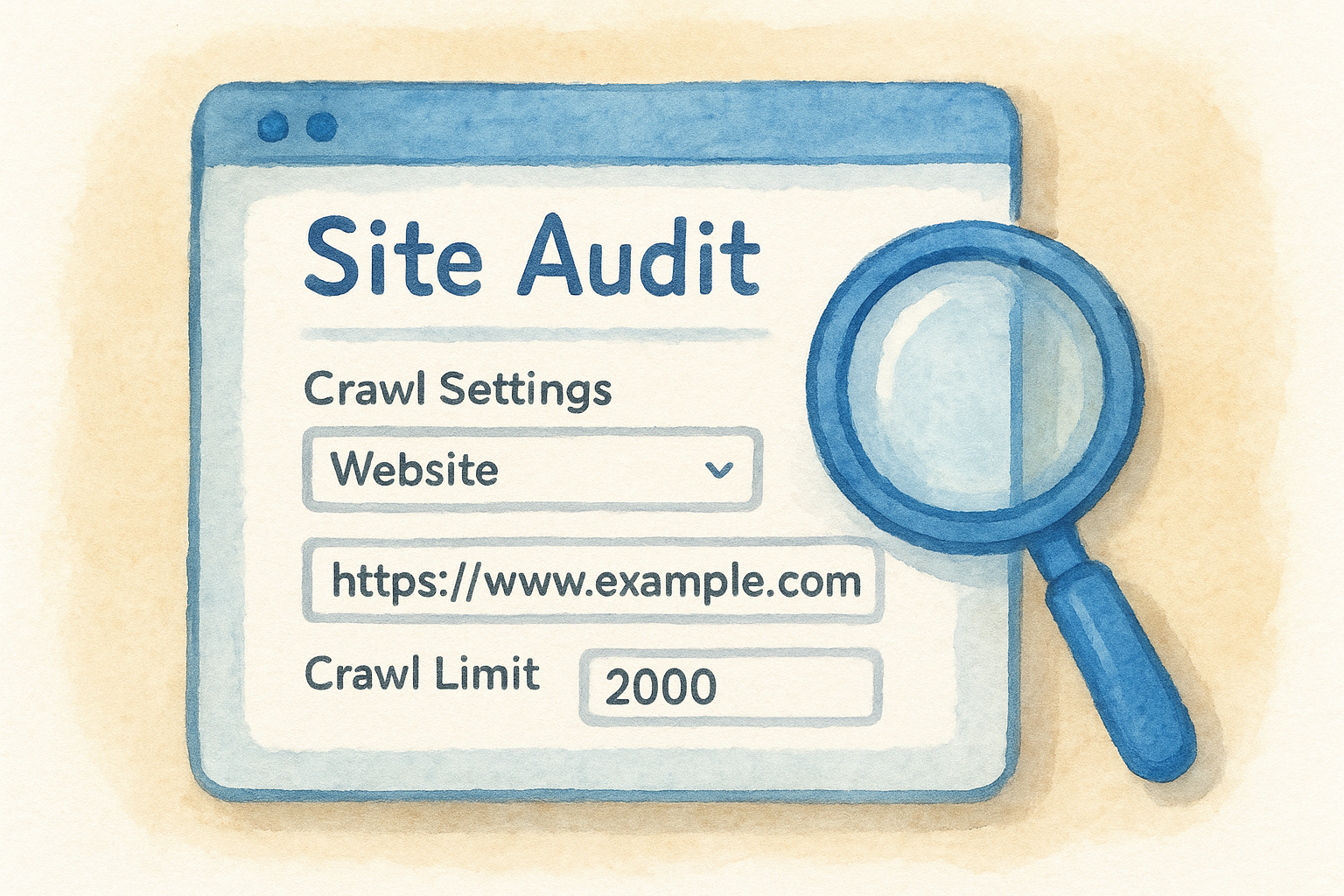
Connect Google Search Console during this step. Semrush layers real GSC index data on top of its own crawler findings, giving you a fuller picture of what Google actually sees.
Work through this checklist before starting:
- Match your Allow/Disallow rules to your robots.txt so the crawler respects the same boundaries as Googlebot.
- Submit your sitemap URL in the "Sitemap" field to help the crawler reach every page.
- Keep "Crawler respects robots.txt" enabled unless you specifically need to audit blocked pages.
Run the crawl and read the summary
After saving settings, click Start Site Audit. The crawl takes two to fifteen minutes depending on page count. When it finishes, you will see your Site Health score alongside a breakdown of errors, warnings, and notices ranked by severity.
Bookmark this project URL so you return to the same dashboard each week rather than restarting with different settings.
Step 2. Understand Site Health and prioritize fixes
The Site Health score Semrush displays after your crawl runs on a scale of 0 to 100. A score above 80 is generally solid for a law firm site, but the number itself is less important than the distribution of errors versus warnings underneath it. Focus on what is pulling the score down most, not the score itself.
Treat the Site Health score as a directional signal, not a pass/fail grade. Two sites can share an 85-point score while one has five critical crawl blocks and the other only has minor image-alt issues.
How Semrush categorizes issues
The Semrush site audit report splits every issue into three tiers. Errors are the most damaging and always get addressed first. Warnings carry moderate SEO impact and should follow once errors are cleared. Notices are informational and rarely require immediate action.
How to prioritize fixes inside the report
Click "Errors" to filter the report to the highest-severity issues only. For each error, Semrush shows you the affected URLs, a plain-English description of the problem, and a "Why and how to fix it" link. Work through errors grouped by type rather than one page at a time. Fixing one root cause, like a misconfigured redirect, often resolves dozens of URLs simultaneously and moves your health score more than any single-page patch would.
Step 3. Fix crawlability and indexability errors first
Crawlability and indexability errors sit at the top of any Semrush site audit priority list because they directly prevent Google from reaching or ranking your pages. A page blocked by a bad robots.txt rule or a misplaced noindex tag earns zero rankings regardless of how strong its content or backlink profile is. Clear these before touching anything else.
Fix broken pages and redirect chains
Broken pages return a 404 status code, which wastes crawl budget and kills any link equity pointing at that URL. Inside the audit report, filter errors by "broken internal links" to see every affected URL. For each broken URL, either restore the page, update the internal link to point to the correct live URL, or set up a 301 redirect to the most relevant existing page.
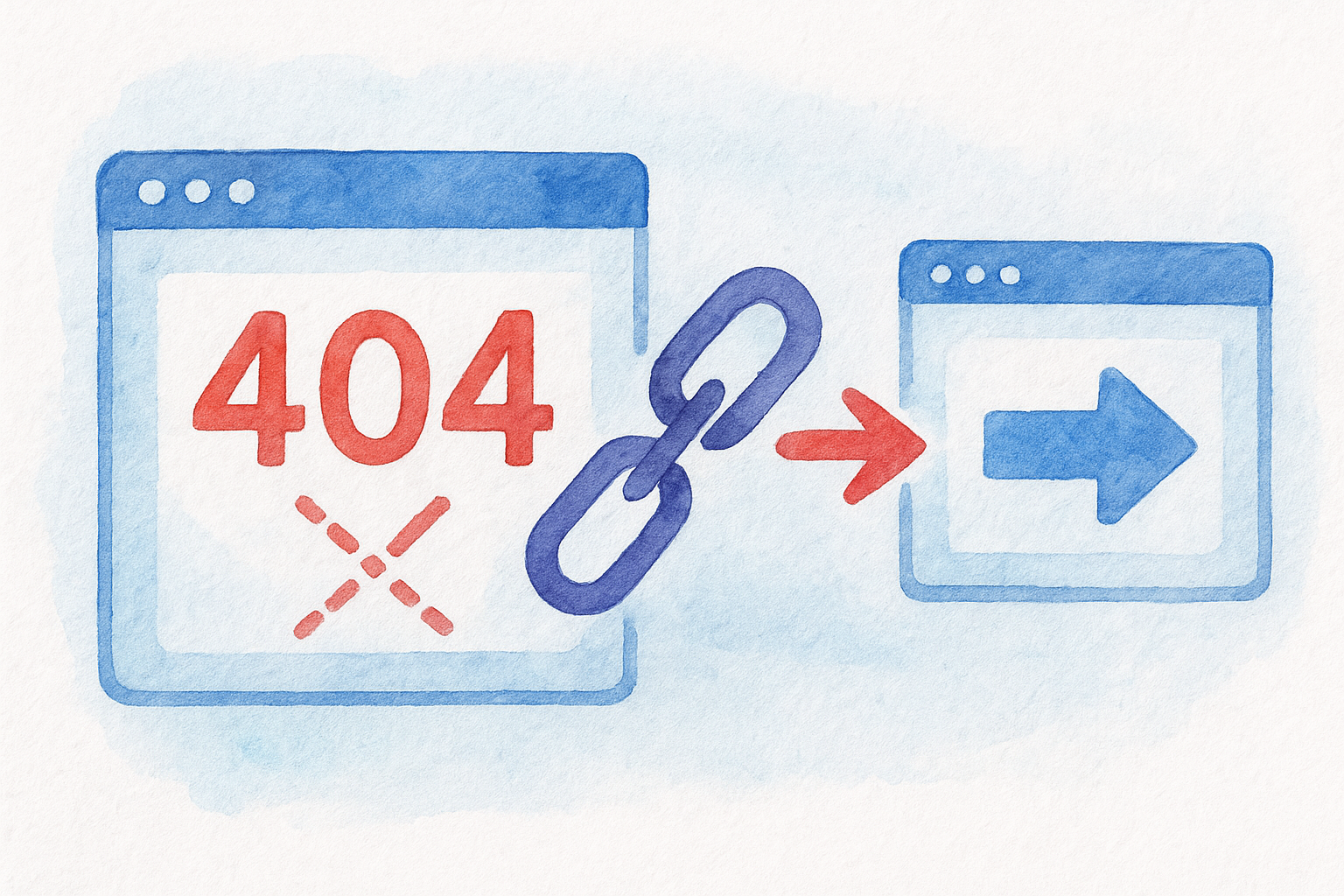
Redirect chains, where one redirect points to another redirect, slow crawling and dilute link equity. Flatten any chain longer than one hop so the original URL points directly to the final destination.
Never let a redirect chain exceed a single hop. Each additional redirect adds latency and risks losing PageRank that would otherwise flow to your target page.
Resolve canonical and noindex conflicts
A canonical tag conflict happens when a page points its canonical to a different URL while also being the one you want Google to index. Check the "Canonicalization" section of the audit and confirm every canonical tag points to the authoritative version. Use this quick checklist to work through both issue types:
- Remove noindex tags from practice area, location, and attorney bio pages you intend to rank
- Set canonical tags on paginated pages to the first page in the series
- Confirm your XML sitemap contains only indexable, canonical URLs with no redirect targets
Step 4. Fix on-page, links, and performance issues
After clearing crawlability errors, your Semrush site audit surfaces on-page, internal linking, and performance problems that chip away at rankings over time. These issues rarely block Google outright, but they signal a low-quality site and suppress click-through rates from search results. Work through them in this order: on-page first, then links, then performance.
Fix title tags and meta descriptions
Your title tag is the most influential on-page signal Google reads, and duplicate or missing ones cost you ranking potential on every affected page. Filter the audit report by "duplicate title tags," then rewrite each flagged title using this template:
[Primary Keyword] | [Practice Area] [City] | [Firm Name]
Keep titles between 50 and 60 characters. For meta descriptions, write a unique 140-to-160-character summary for every practice area and location page. Strong descriptions do not directly change rankings, but a well-written description consistently improves click-through rates from organic results.
Improve internal links and fix orphaned pages
Orphaned pages receive no internal links, which means Google struggles to discover or assess their importance. Open the "Internal Linking" section of the audit and pull the full orphaned URL list. Add at least one contextual link from a relevant, high-traffic page on your site to each orphaned URL you want Google to rank.
Prioritize linking to your highest-converting practice area pages. Even one well-placed internal link moves a previously invisible page into Google's regular crawl rotation.
Compress images and remove render-blocking resources
Large uncompressed images are the most common performance drag on law firm sites. Compress every flagged image to under 100KB, then add descriptive alt text that includes your target keyword naturally. For render-blocking scripts flagged in the performance section, load them after the main page content using the defer attribute:
<script src="example.js" defer></script>
Keep your audit clean week after week
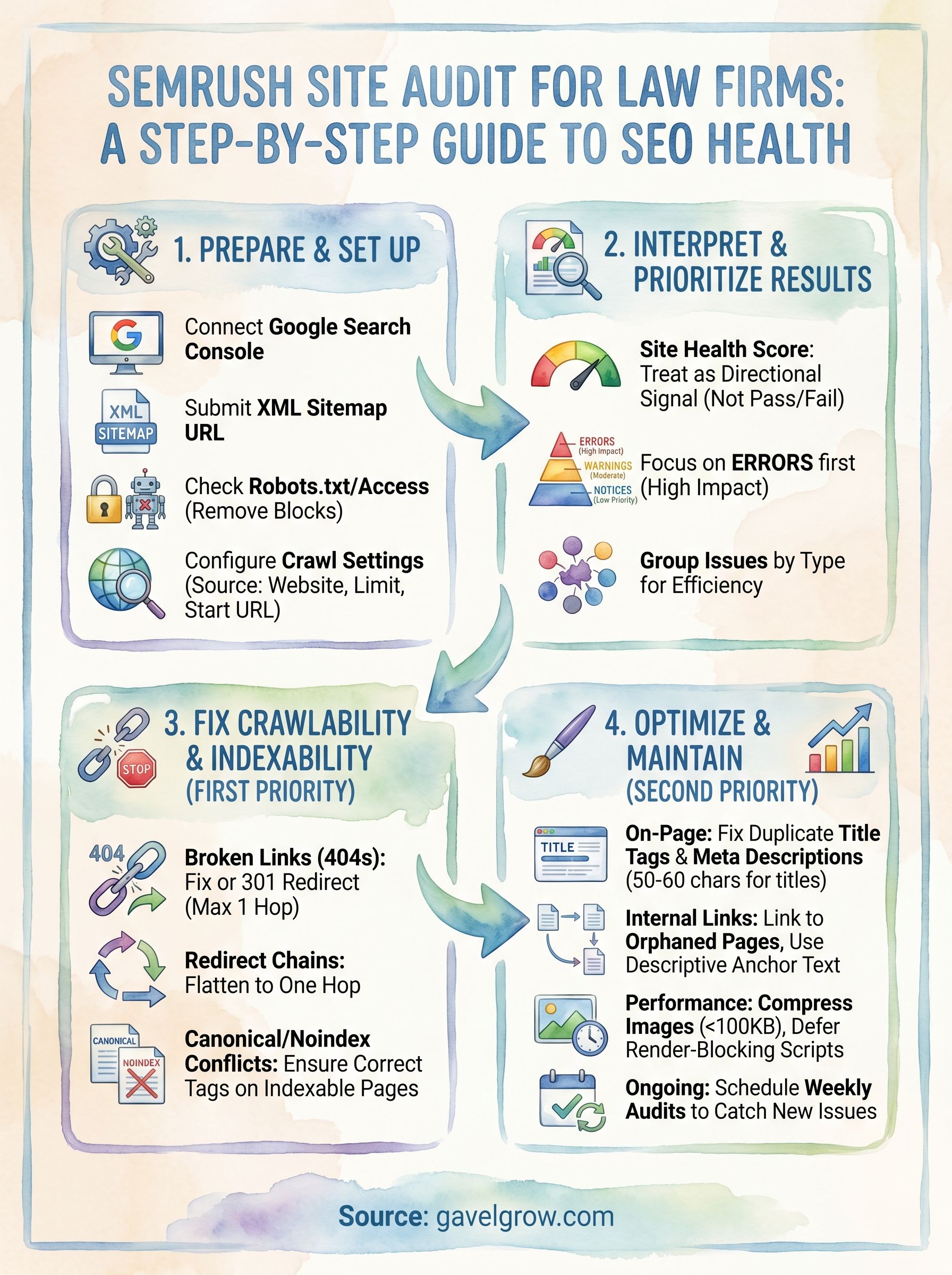
Running a one-time Semrush site audit fixes the issues you have today, but new problems appear every time you publish content, update navigation, or add third-party scripts. Schedule your crawl to run on a weekly cadence inside the project settings so Semrush catches regressions before they compound into ranking drops.
When each new crawl finishes, check two things first: whether any new errors appeared since your last run, and whether your previously fixed issues stayed resolved. Most site audit tools let errors creep back in after CMS updates or plugin changes. Treat the weekly report as a standing 20-minute task, not an occasional project.
Law firms running paid search alongside SEO cannot afford to let technical problems quietly drag down landing page quality scores and organic rankings at the same time. GavelGrow's managed SEO services handle ongoing audits, fixes, and performance tracking so your team can focus on signing cases.
Frequently Asked Questions
What does a Semrush Site Audit check?
The Semrush Site Audit tool crawls your website the way Googlebot does and checks over 140 technical and on-page SEO issues across six main categories, sorting them into three severity levels: errors (most urgent), warnings (moderate impact), and notices (low priority). For law firms, crawlability and indexability errors almost always carry the highest impact, because Google can't rank pages it can't reach or index.
What should you prepare before running a Semrush Site Audit?
Gather three things first: confirm access to Google Search Console so Semrush can layer real crawl and index data on top of its findings, locate your XML sitemap URL (usually yoursite.com/sitemap.xml) to submit during setup, and check whether your site sits behind any IP restrictions, staging passwords, or bot-blocking rules. Five minutes on these prevents a misleadingly clean health score and a re-run.
What is a good Site Health score in Semrush?
The Site Health score runs from 0 to 100, and above 80 is generally solid for a law firm site, but the number matters less than the distribution of errors versus warnings underneath it. Treat it as a directional signal, not a pass/fail grade: two sites can share an 85-point score while one has five critical crawl blocks and the other only minor image-alt issues.
Which Semrush Site Audit errors should law firms fix first?
Fix crawlability and indexability errors before anything else, since a page blocked by a bad robots.txt rule or a misplaced noindex tag earns zero rankings regardless of its content. Work errors grouped by type rather than page by page, because fixing one root cause, like a misconfigured redirect, often resolves dozens of URLs at once and moves your health score more than any single-page patch.
How often should you run a Semrush Site Audit?
Schedule the crawl to run weekly inside the project settings so Semrush catches regressions before they compound into ranking drops. When each crawl finishes, check two things first: whether any new errors appeared since your last run, and whether previously fixed issues stayed resolved, since errors can creep back after CMS updates or plugin changes. Treat the weekly report as a standing 20-minute task.
Frequently Asked Questions
What does a Semrush Site Audit check?
The Semrush Site Audit tool crawls your website the way Googlebot does and checks over 140 technical and on-page SEO issues across six main categories, sorting them into three severity levels: errors (most urgent), warnings (moderate impact), and notices (low priority). For law firms, crawlability and indexability errors almost always carry the highest impact, because Google can't rank pages it can't reach or index.
What should you prepare before running a Semrush Site Audit?
Gather three things first: confirm access to Google Search Console so Semrush can layer real crawl and index data on top of its findings, locate your XML sitemap URL (usually yoursite.com/sitemap.xml) to submit during setup, and check whether your site sits behind any IP restrictions, staging passwords, or bot-blocking rules. Five minutes on these prevents a misleadingly clean health score and a re-run.
What is a good Site Health score in Semrush?
The Site Health score runs from 0 to 100, and above 80 is generally solid for a law firm site, but the number matters less than the distribution of errors versus warnings underneath it. Treat it as a directional signal, not a pass/fail grade: two sites can share an 85-point score while one has five critical crawl blocks and the other only minor image-alt issues.
Which Semrush Site Audit errors should law firms fix first?
Fix crawlability and indexability errors before anything else, since a page blocked by a bad robots.txt rule or a misplaced noindex tag earns zero rankings regardless of its content. Work errors grouped by type rather than page by page, because fixing one root cause, like a misconfigured redirect, often resolves dozens of URLs at once and moves your health score more than any single-page patch.
How often should you run a Semrush Site Audit?
Schedule the crawl to run weekly inside the project settings so Semrush catches regressions before they compound into ranking drops. When each crawl finishes, check two things first: whether any new errors appeared since your last run, and whether previously fixed issues stayed resolved, since errors can creep back after CMS updates or plugin changes. Treat the weekly report as a standing 20-minute task.