Google Postmaster Tools: Setup, Metrics, And Best Practices
Categories: Legal Marketing Strategies
 Abram Ninoyan
Founder & Senior Performance Marketer
Credentials: Google Partner, Google Ads Search Certified, Google Ads Display Certified, Google Ads Measurement Certified, Google Analytics (IQ) Certified, HubSpot Inbound Certified, HubSpot Social Media Marketing Certified, Conversion Optimization Certified
Expertise: Google Ads, Meta Ads, Conversion Rate Optimization, GA4 & Google Tag Manager, Lead Generation, Marketing Funnel Optimization, PPC Management
LinkedIn Profile
Your law firm's emails mean nothing if they never reach the inbox. Consultation confirmations, intake follow-ups, case updates, newsletter campaigns, all of it depends on whether email providers like...
Key Takeaways
- Google Postmaster Tools: Setup, Metrics, And Best Practices
- What Google Postmaster Tools does and does not do
- Why sender reputation matters for deliverability
- How to set up Google Postmaster Tools
Google Postmaster Tools: Setup, Metrics, And Best Practices
Your law firm's emails mean nothing if they never reach the inbox. Consultation confirmations, intake follow-ups, case updates, newsletter campaigns, all of it depends on whether email providers like Gmail actually trust your sending domain. Google Postmaster Tools gives you a direct line into that trust score, showing you exactly how Google sees your firm's email reputation. Without this data, you're flying blind every time you hit send.
At GavelGrow, we build full-funnel marketing systems for law firms, and email deliverability is a critical piece of that puzzle. We've watched firms lose leads simply because their follow-up emails landed in spam folders. A prospect fills out a contact form, the automated response gets flagged, and that potential client moves on to the next attorney. The fix starts with monitoring your sender reputation, and Postmaster Tools is the free, first-party way to do it.
This guide walks you through everything you need to get started: how to set up Google Postmaster Tools, what each metric actually tells you, and the best practices that keep your domain reputation healthy over time. Whether you manage your firm's email in-house or work with a marketing partner, understanding these dashboards puts you in control of a channel that directly affects how many leads convert into signed cases. Let's get into it.
What Google Postmaster Tools does and does not do
Google Postmaster Tools is a free diagnostic platform built by Google that lets you monitor how Gmail receives and evaluates email sent from your domain. Once you verify domain ownership, the tool surfaces data signals that Gmail's systems use to determine whether your messages reach the inbox, get filtered to spam, or get blocked entirely. Think of it as a read-only window into Google's own assessment of your sending behavior.
What Postmaster Tools tracks
The platform pulls data directly from Gmail's infrastructure, which means the metrics you see reflect real Gmail user interactions with your emails. This is first-party data, not estimates or third-party approximations. Google Postmaster Tools organizes this information across several dashboards, each focused on a specific signal.
The most valuable thing about this tool is that the data comes directly from Google, so there is no guessing about how Gmail actually sees your domain.
Here is what each dashboard covers:
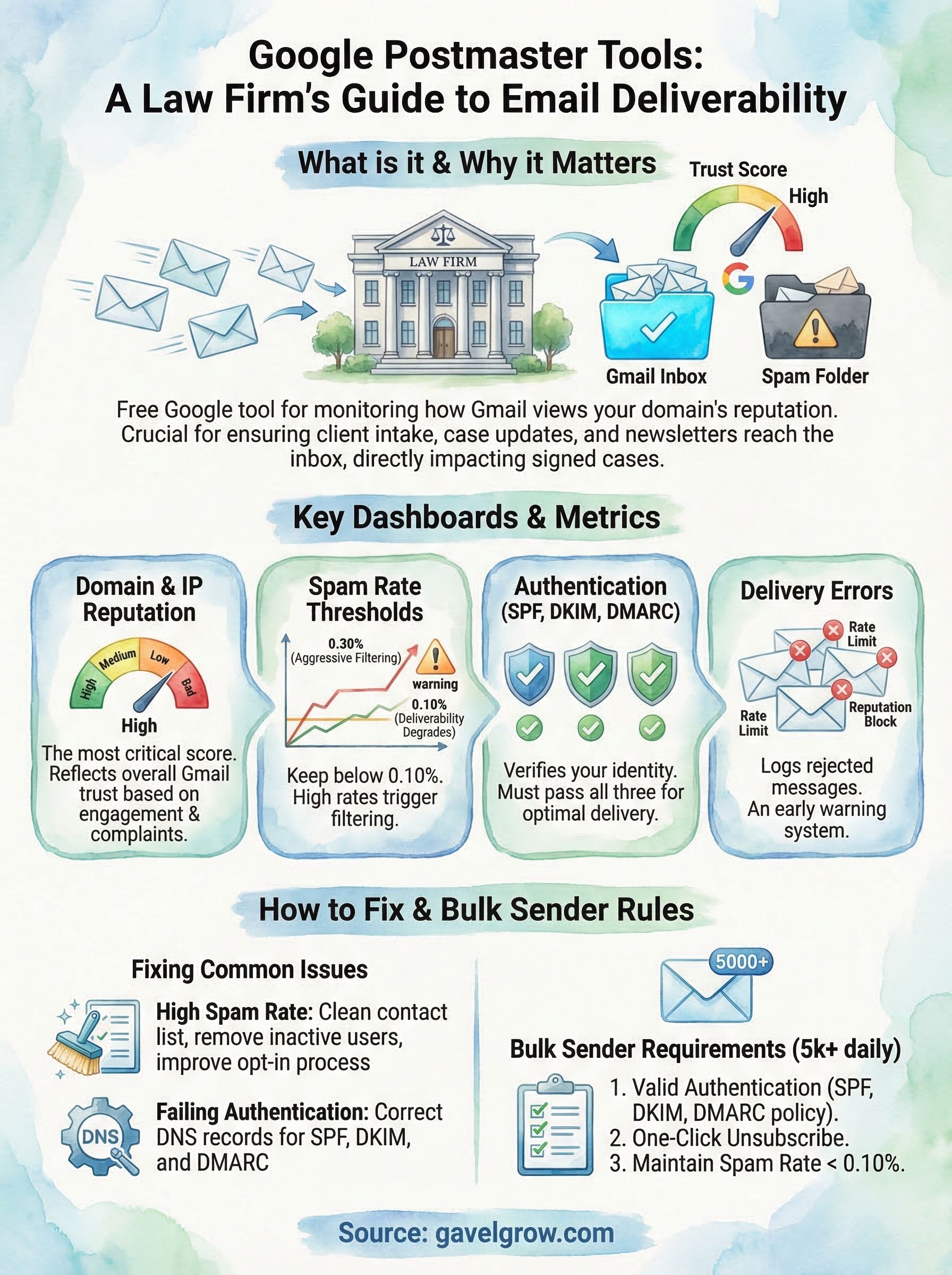
- Domain Reputation: A score (Bad, Low, Medium, or High) that reflects how Gmail classifies your sending domain based on engagement and complaint history.
- IP Reputation: The same reputation scale applied to the specific IP addresses your emails originate from.
- Spam Rate: The percentage of your messages that Gmail users manually marked as spam.
- Authentication: Pass or fail rates for SPF, DKIM, and DMARC, the three protocols Gmail uses to verify your identity as a sender.
- Encryption: The percentage of your outgoing and incoming mail that travels over a secure TLS connection.
- Delivery Errors: Error codes returned when Gmail cannot deliver a message, along with the volume of affected emails.
- Feedback Loop: Available only if you participate in Google's Feedback Loop program, this shows complaint data at the campaign level.
Each of these signals feeds into how Gmail routes your emails, which makes monitoring them regularly a non-negotiable practice for any firm sending high volumes of outreach or automated messages.
What Postmaster Tools cannot do
Understanding the limitations prevents wasted effort. Google Postmaster Tools does not give you individual message-level data, so you cannot use it to look up whether a specific email reached a specific recipient. The platform only shows aggregate data across your sending domain, and it requires a meaningful volume of Gmail traffic before it generates readable charts. If your firm sends fewer than a few hundred emails per day to Gmail addresses, many dashboards will show no data at all.
The tool also cannot fix problems on your behalf. It surfaces signals, but the corrective actions sit entirely with you: updating DNS records, adjusting sending practices, scrubbing your contact list. Additionally, Postmaster Tools only covers Gmail inboxes, which is an important boundary to recognize. If your contacts use Outlook, Yahoo, or other providers, you need separate tools to evaluate deliverability on those platforms. For a law firm running multi-channel outreach, that distinction matters because a significant portion of clients and prospects may not use Gmail at all.
Why sender reputation matters for deliverability
Gmail doesn't treat all senders equally. Every time you send an email to a Gmail address, Google's systems evaluate signals from your sending domain and IP address to decide where that message lands. Sender reputation is the cumulative score those signals produce, and it directly controls whether your emails reach the inbox, get filtered to spam, or get rejected before delivery even begins. For a law firm relying on timely communication with clients and prospects, that routing decision carries real financial weight.
How Gmail scores your sending behavior
Your reputation score builds from several overlapping signals gathered over time. The most influential factor is spam complaint rate, which reflects how often Gmail users click "Report Spam" on your messages. A rate above 0.10% starts to damage your reputation, and anything above 0.30% triggers aggressive filtering across your entire domain. Beyond complaints, Gmail also weighs authentication pass rates for SPF, DKIM, and DMARC, along with engagement patterns like opens and replies, and the consistency of your sending volume. Erratic spikes in how many messages you send at once register as a warning signal on their own, even if the content is legitimate.
A domain reputation score of "Low" or "Bad" in Google Postmaster Tools means Gmail is actively filtering or blocking your messages, regardless of how well-written or relevant they are.
The cost of a damaged reputation
A poor reputation score doesn't just affect promotional emails. Every message your domain sends carries the same reputation weight, including transactional emails like appointment confirmations, intake form responses, and case status updates. When your domain falls into a "Low" or "Bad" reputation tier, those critical touchpoints stop reaching clients. A prospective client who fills out a contact form and receives no reply often assumes the firm isn't responsive and moves to the next attorney on the list.
Reputation damage also compounds over time. Once Gmail's systems flag your domain, rebuilding that score requires sustained clean sending behavior across weeks or months. You cannot send a batch of well-targeted emails and expect an immediate recovery. Treating reputation management as an ongoing discipline, rather than a reactive fix, is the only approach that keeps your inbox placement rates stable and your client communication reliable.
How to set up Google Postmaster Tools
Setting up Google Postmaster Tools takes under 15 minutes if your DNS access is ready. The process requires a Google account, ownership of your sending domain, and the ability to add a TXT record to your domain's DNS settings. Most law firms manage DNS through their hosting provider or IT contact, so loop in whoever handles that before you start.
Create or sign in to your Google account
You need a Google account to access the platform. Go to postmaster.google.com and sign in. Use an account connected to your firm rather than a personal Gmail address, since you want the access tied to your business infrastructure. If your firm uses Google Workspace, signing in with your Workspace credentials keeps everything organized under the same account that manages your other Google tools.
Add and verify your sending domain
Once you are signed in, click the "+" button to add a domain. Enter the domain you use to send emails. This should be the root domain that appears in your outgoing email addresses, such as yourlawfirm.com. Google will then generate a unique TXT record that you need to add to your domain's DNS settings to prove ownership.
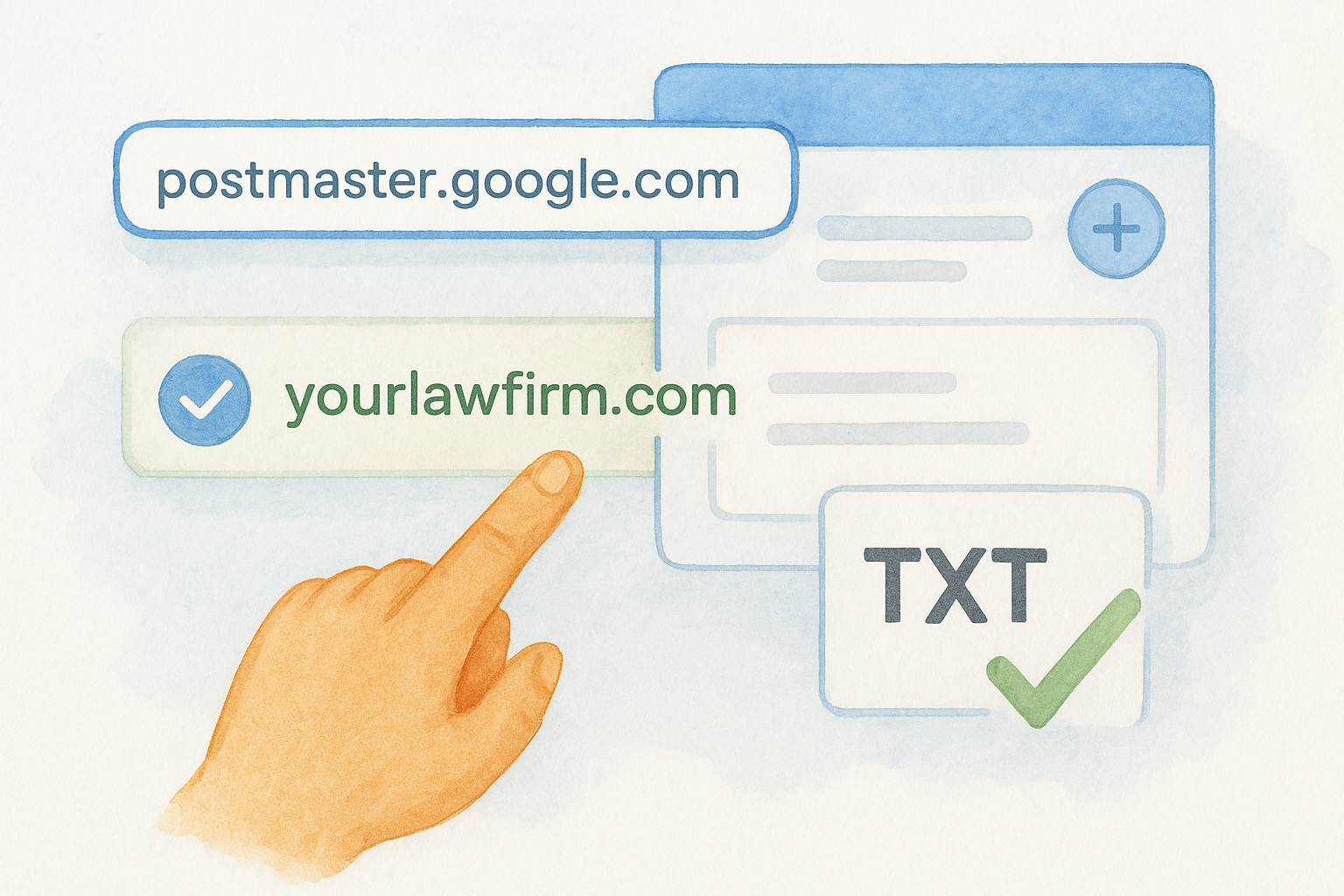
Here is what that process looks like step by step:
- Copy the TXT record value that Google provides.
- Log in to your domain registrar or DNS host (such as GoDaddy, Namecheap, or Cloudflare).
- Navigate to the DNS management section and create a new TXT record.
- Paste the value Google gave you and save the record.
- Return to postmaster.google.com and click "Verify."
DNS changes can take up to 48 hours to propagate, but verification often completes within a few minutes to a few hours.
Allow time for data to populate
After verification, your domain appears as active in the dashboard. However, the charts and metrics will not populate immediately. Google Postmaster Tools requires a sufficient volume of emails sent to Gmail addresses before it generates visible data. For most law firms, you need to send at least several hundred messages to Gmail recipients before the Spam Rate and Domain Reputation dashboards display meaningful information. Plan to check back after your next major send rather than expecting instant results.
How to read the key dashboards and metrics
Once your domain generates enough traffic, Google Postmaster Tools starts populating charts across its dashboards. Each dashboard answers a specific question about your sending health, so reading them together gives you a complete picture of how Gmail treats your emails. The goal isn't just to see that something is wrong, it's to identify which signal needs attention so you can act on it directly.
Domain Reputation and Spam Rate
These two dashboards carry the most weight and should be the first ones you check. Domain Reputation displays a four-tier score: High, Medium, Low, or Bad. A "High" rating means Gmail consistently routes your messages to the inbox. A "Low" or "Bad" rating means Gmail is actively filtering or blocking your messages, regardless of content quality.
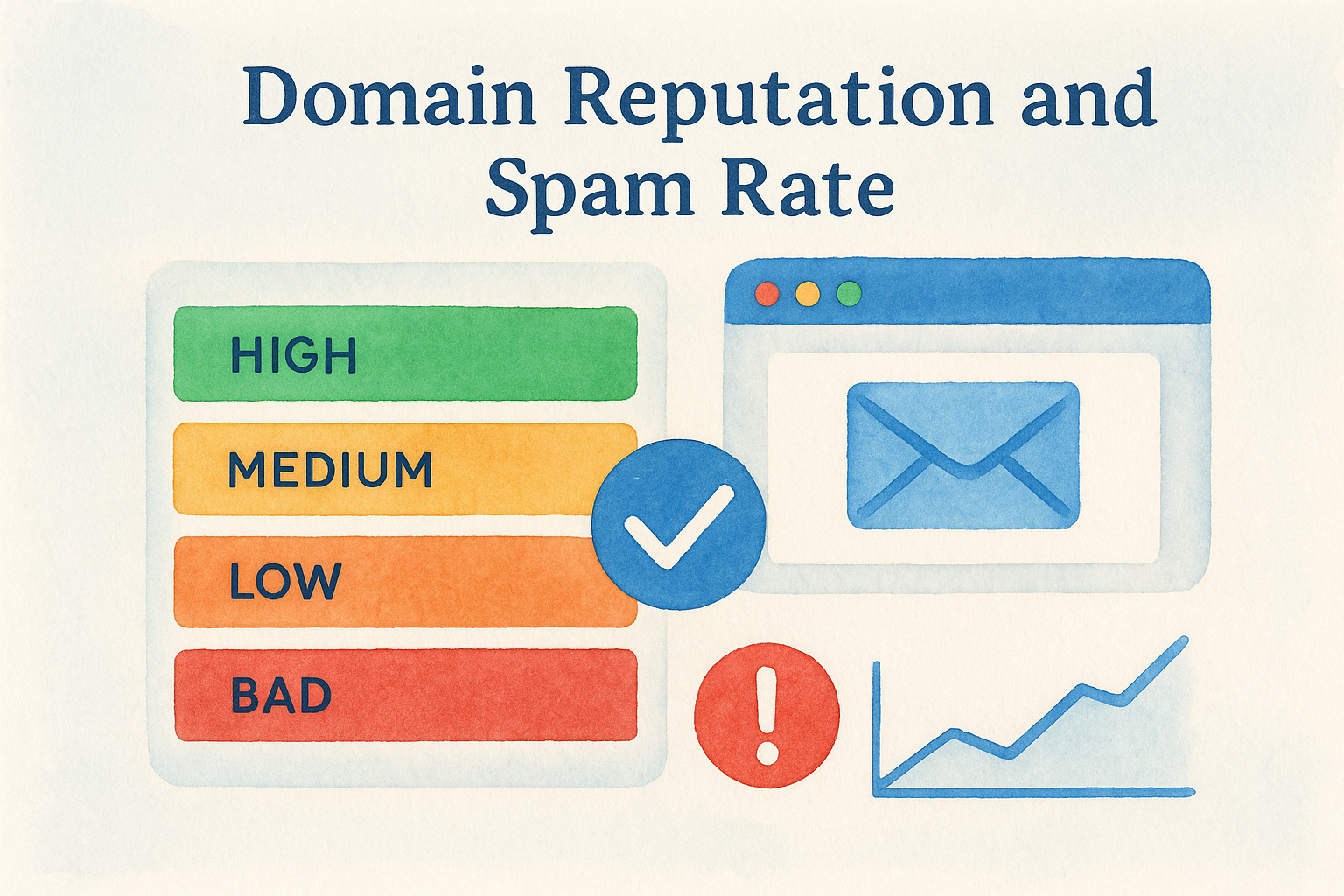
Your Domain Reputation score is the single most important number in your Postmaster dashboard because it summarizes how Gmail has evaluated every signal from your sending domain.
Spam Rate shows the percentage of your messages that Gmail users manually flagged as spam over time. Track this number against the two key thresholds: 0.10% is where deliverability starts to degrade, and 0.30% is where Gmail applies aggressive filtering across your domain. If your Spam Rate is climbing, the problem often lives in your contact list quality or your sending frequency rather than your message content.
Authentication Dashboard
The Authentication dashboard shows pass and fail rates for three email verification protocols: SPF, DKIM, and DMARC. These records live in your DNS and tell Gmail that your domain authorized the server sending on your behalf. A failing authentication rate means some portion of your emails arrive at Gmail without proof of identity, which pushes those messages toward spam automatically.
You should see pass rates close to 100% for all three protocols if your DNS records are configured correctly. If SPF is failing, the sending IP isn't listed in your domain's authorized senders. If DKIM is failing, the cryptographic signature isn't matching, which often points to a misconfigured email service provider. Review your DNS records against the requirements for each protocol and correct any gaps before investigating other dashboard signals, since authentication failure undermines every other metric you're trying to improve.
Delivery Errors Dashboard
The Delivery Errors dashboard logs the specific error codes Gmail returned when it rejected or deferred your messages. Each code maps to a distinct reason, such as a rate limit, a reputation block, or a configuration problem. Spikes in delivery errors often appear before your Domain Reputation score drops, making this dashboard a useful early warning signal that something in your sending setup needs immediate attention.
How to use Postmaster data to fix problems
Seeing a problem in Google Postmaster Tools is only useful if you know what action to take next. Each dashboard maps to a specific fix, and working through the signals in order prevents you from chasing the wrong variable while the real issue continues to damage your sender reputation. Start with authentication, then move to spam rate, then review delivery errors. That sequence matches how Gmail's systems layer their evaluation.
When your spam rate climbs
A rising spam rate almost always points to contact list quality rather than message content. If Gmail users are flagging your emails, the most likely explanation is that you are sending to people who never opted in, stopped engaging long ago, or forgot they subscribed.
A spam rate above 0.10% in your Postmaster dashboard is a signal to pause and clean your list before sending another campaign.
Start by removing unengaged contacts, specifically anyone who has not opened or clicked an email in the last six months. Next, audit how you collect addresses. If your firm uses intake forms, make sure the opt-in language is explicit and that confirmation emails go out immediately. Reducing send frequency to your full list while you segment out inactive subscribers is one of the fastest ways to bring your spam rate back below the 0.10% threshold.
When authentication is failing
Failing SPF, DKIM, or DMARC records means Gmail receives your emails without any verification that your domain authorized the sending server. Fix this by logging into your DNS manager and comparing your current records against the configuration your email service provider requires. Most providers publish their required DNS values in their account settings or support documentation.
Work through the protocols in this order:
- SPF: Add your sending server's IP or service name to your domain's SPF record so Gmail recognizes it as an authorized sender.
- DKIM: Confirm that the public key in your DNS matches the private key your email platform uses to sign outgoing messages.
- DMARC: Set a policy that tells Gmail what to do with messages that fail SPF or DKIM, starting with a monitoring-only policy (p=none) before tightening enforcement.
Once you update your records, allow 24 to 48 hours for propagation, then return to the Authentication dashboard to confirm that pass rates have moved toward 100%.
How to meet Gmail bulk sender requirements
In February 2024, Google formalized a set of requirements for bulk email senders, defined as anyone sending 5,000 or more messages to Gmail addresses in a single day. Law firms running email campaigns, automated intake follow-ups, or newsletter lists often cross this threshold without realizing it. Meeting these requirements keeps your messages out of the spam folder and protects the domain reputation score you track through Google Postmaster Tools.
If your firm sends over 5,000 emails to Gmail addresses in a day and hasn't met Google's bulk sender requirements, your deliverability is already at risk.
Authentication, unsubscribe, and spam threshold rules
Google's requirements cover three specific areas that every bulk sender must satisfy. Email authentication is the first: your domain must have valid SPF and DKIM records configured, and you must have a DMARC policy in place, even if it starts at the monitoring level (p=none). Second, one-click unsubscribe must be supported for all marketing and promotional messages, meaning recipients can remove themselves without navigating multiple steps or sending a reply. Google requires that you honor unsubscribe requests within two business days of receipt.
The third requirement is a spam rate ceiling of 0.10% as measured in your dashboard. Staying below this threshold is not a one-time task. You need to monitor your spam rate on an ongoing basis and reduce it proactively by removing disengaged subscribers, validating new addresses at the point of collection, and segmenting your list so you only send relevant content to people who opted in for it.
Sending infrastructure requirements
Your sending domain also needs to align with the address your recipients see in the "From" field. Google flags senders who route messages through third-party domains that don't match the visible sender identity, a practice called domain spoofing. Use a dedicated sending domain that matches your firm's brand, keep your forward and reverse DNS records consistent, and make sure your email service provider's IP addresses are included in your SPF record.
Meeting these requirements isn't optional for firms that send at volume. The infrastructure work is a one-time setup, but the ongoing discipline of list hygiene and spam rate monitoring is what keeps you inside Google's acceptable sending standards month after month.
Common issues and troubleshooting checklist
Even after setup, Google Postmaster Tools can surface confusing situations that aren't immediately obvious. Most problems fall into a handful of repeating patterns, and knowing how to diagnose each one saves you from spending time on the wrong fix. The checklist below maps each common issue to the specific action that resolves it.
No Data Showing in Dashboards
Empty dashboards are the most frequent complaint from new users. The platform requires a minimum volume of emails sent to Gmail addresses before it generates visible charts, generally several hundred messages within the tracking period. If your firm sends low volumes or primarily contacts non-Gmail recipients, you may not see data even weeks after verification.

To confirm volume isn't the only issue, check these three things:
- Confirm you verified the correct domain (the root domain, not a subdomain).
- Make sure the Google account you used to set up Postmaster Tools is the same one you log into when you return.
- Verify that your sending domain actually appears as "active" inside the platform, not "pending verification."
Domain Reputation Drops Suddenly
A sudden reputation drop almost always traces back to a single large send to a stale or poorly segmented list. If you recently imported a new contact list, sent a batch to everyone in your database regardless of engagement history, or launched a campaign through a new IP, those actions can spike your spam complaint rate fast enough to pull your domain score down within days.
A domain reputation drop after a large send is a clear signal that your list hygiene practices need attention before you run another campaign.
Pull your Spam Rate dashboard for the same date range as the drop and look for the correlation. Remove unengaged contacts, pause large sends, and focus the next few campaigns on your most active subscribers to begin recovering your score.
Authentication Failures Persist After DNS Updates
If you updated your SPF, DKIM, or DMARC records but the Authentication dashboard still shows failures, the most common cause is propagation delay. DNS changes can take up to 48 hours to fully propagate across all servers. Wait the full window before concluding the records are incorrect.
After 48 hours, use Google's Admin Toolbox to verify your DNS records are resolving correctly. If failures continue, confirm with your email service provider that the values you entered match their exact configuration requirements for your specific account.
Next steps for a healthier Gmail inbox
Google Postmaster Tools gives you the data you need to stop guessing about deliverability and start making decisions based on actual signals from Gmail. The setup takes less than 15 minutes, and the information inside the dashboards, from your domain reputation score to your spam rate trends, directly affects whether your consultation follow-ups, intake confirmations, and client updates reach the inbox or disappear into spam folders.
Your next move is straightforward: verify your domain, confirm your SPF, DKIM, and DMARC records are passing, and review your contact list before the next major send. Build a habit of checking the dashboards monthly so problems surface before they compound into a reputation drop that takes weeks to recover from.
If email deliverability is one piece of a larger client acquisition challenge at your firm, talk to the legal marketing team at GavelGrow about building a full-funnel system that turns more leads into signed cases.
Frequently Asked Questions
What is Google Postmaster Tools and what does it do?
Google Postmaster Tools is a free diagnostic platform from Google that lets you monitor how Gmail receives and evaluates email sent from your domain. Once you verify domain ownership, it surfaces first-party data signals Gmail uses to decide whether your messages reach the inbox, get filtered to spam, or get blocked, across dashboards for domain reputation, IP reputation, spam rate, authentication, encryption, and delivery errors.
How do you set up Google Postmaster Tools?
Setup takes under 15 minutes if your DNS access is ready. Sign in at postmaster.google.com with a firm-connected Google account, click the + button to add your root sending domain, then copy the TXT record Google generates and add it to your DNS through your registrar. Return and click Verify. DNS changes can take up to 48 hours to propagate, though verification often completes within minutes to hours.
What spam rate is acceptable in Google Postmaster Tools?
Track your spam rate against two thresholds: deliverability starts to degrade at 0.10%, and Gmail applies aggressive filtering across your entire domain above 0.30%. A rate above 0.10% is a signal to pause and clean your list before sending another campaign. A rising spam rate usually points to contact list quality or sending frequency rather than message content.
Why is my Google Postmaster Tools dashboard showing no data?
Empty dashboards are the most common issue for new users because the platform requires a meaningful volume of email to Gmail addresses, generally several hundred messages within the tracking period, before it generates readable charts. Also confirm you verified the correct root domain (not a subdomain), that you're logging in with the same Google account you used to set it up, and that the domain shows as active rather than pending verification.
What are Google's bulk sender requirements for email?
In February 2024 Google formalized requirements for anyone sending 5,000 or more messages to Gmail addresses in a single day. Bulk senders must configure valid SPF and DKIM plus a DMARC policy (even at p=none), support one-click unsubscribe for marketing messages and honor requests within two business days, and keep their spam rate below 0.10%. Law firms running campaigns or automated follow-ups often cross this threshold without realizing it.
Frequently Asked Questions
What is Google Postmaster Tools and what does it do?
Google Postmaster Tools is a free diagnostic platform from Google that lets you monitor how Gmail receives and evaluates email sent from your domain. Once you verify domain ownership, it surfaces first-party data signals Gmail uses to decide whether your messages reach the inbox, get filtered to spam, or get blocked, across dashboards for domain reputation, IP reputation, spam rate, authentication, encryption, and delivery errors.
How do you set up Google Postmaster Tools?
Setup takes under 15 minutes if your DNS access is ready. Sign in at postmaster.google.com with a firm-connected Google account, click the + button to add your root sending domain, then copy the TXT record Google generates and add it to your DNS through your registrar. Return and click Verify. DNS changes can take up to 48 hours to propagate, though verification often completes within minutes to hours.
What spam rate is acceptable in Google Postmaster Tools?
Track your spam rate against two thresholds: deliverability starts to degrade at 0.10%, and Gmail applies aggressive filtering across your entire domain above 0.30%. A rate above 0.10% is a signal to pause and clean your list before sending another campaign. A rising spam rate usually points to contact list quality or sending frequency rather than message content.
Why is my Google Postmaster Tools dashboard showing no data?
Empty dashboards are the most common issue for new users because the platform requires a meaningful volume of email to Gmail addresses, generally several hundred messages within the tracking period, before it generates readable charts. Also confirm you verified the correct root domain (not a subdomain), that you're logging in with the same Google account you used to set it up, and that the domain shows as active rather than pending verification.
What are Google's bulk sender requirements for email?
In February 2024 Google formalized requirements for anyone sending 5,000 or more messages to Gmail addresses in a single day. Bulk senders must configure valid SPF and DKIM plus a DMARC policy (even at p=none), support one-click unsubscribe for marketing messages and honor requests within two business days, and keep their spam rate below 0.10%. Law firms running campaigns or automated follow-ups often cross this threshold without realizing it.