Google Search Console: Setup, Verification, And Key Reports
Categories: Legal Marketing Strategies
 Abram Ninoyan
Founder & Senior Performance Marketer
Credentials: Google Partner, Google Ads Search Certified, Google Ads Display Certified, Google Ads Measurement Certified, Google Analytics (IQ) Certified, HubSpot Inbound Certified, HubSpot Social Media Marketing Certified, Conversion Optimization Certified
Expertise: Google Ads, Meta Ads, Conversion Rate Optimization, GA4 & Google Tag Manager, Lead Generation, Marketing Funnel Optimization, PPC Management
LinkedIn Profile
Google Search Console is one of the most powerful free tools Google offers, yet many law firms either haven't set it up or barely scratch the surface of what it can do. It shows you exactly how your w...
Key Takeaways
- Google Search Console: Setup, Verification, And Key Reports
- Why Google Search Console matters for SEO
- How to set up Search Console and verify your site
- How to submit a sitemap and speed up indexing
Google Search Console: Setup, Verification, And Key Reports
Google Search Console is one of the most powerful free tools Google offers, yet many law firms either haven't set it up or barely scratch the surface of what it can do. It shows you exactly how your website appears in search results, which queries bring people to your pages, and where technical issues might be costing you visibility with potential clients.
At GavelGrow, we configure and monitor Search Console for every law firm we work with because it provides the raw data behind smarter SEO and content decisions. Without it, you're essentially guessing how Google sees your site, and guessing doesn't sign cases. Whether you're a solo practitioner or managing partner at a growing firm, understanding this tool gives you a direct line of sight into your online performance.
This guide walks you through setup, verification, and the key reports that actually matter for your firm's growth. By the end, you'll know how to access your data, read it correctly, and use it to make informed marketing decisions rather than relying on vanity metrics that don't move the needle.
Why Google Search Console matters for SEO
Most SEO tools give you estimates based on sampled data. Google Search Console gives you facts pulled directly from Google's own systems, which makes it fundamentally different from any third-party platform. When you understand which search queries trigger your site to appear, which pages Google has indexed, and where your click-through rates are falling short, you stop making assumptions and start making decisions backed by real search performance data. Without this data, you're flying blind on decisions that directly affect how many potential clients find your firm.
The data inside Search Console comes straight from Google, meaning there's no interpretation layer between you and the truth about how your site performs in search.
It shows you what Google actually sees
Your site might look polished to a visitor, but Google's crawler can encounter a completely different picture. Crawl errors, mobile usability issues, and pages blocked from indexing are invisible to the naked eye but clearly visible inside Search Console. If Google can't crawl and index your pages correctly, those pages won't rank, regardless of how well-written or optimized your content is. For law firms competing in crowded local markets, a single indexing error on a core practice area page can mean losing potential clients directly to a competitor.
It connects search data to your business decisions
Knowing that a page sits on page two for "personal injury attorney [city]" tells you exactly where to focus your next optimization effort. Search Console surfaces keyword impressions, average position, and click data broken down by individual pages and queries. You can identify which practice area pages attract meaningful traffic and which ones Google barely surfaces to searchers. That level of specificity lets you prioritize content updates, internal linking adjustments, and technical fixes based on real opportunity rather than guesswork.
How to set up Search Console and verify your site
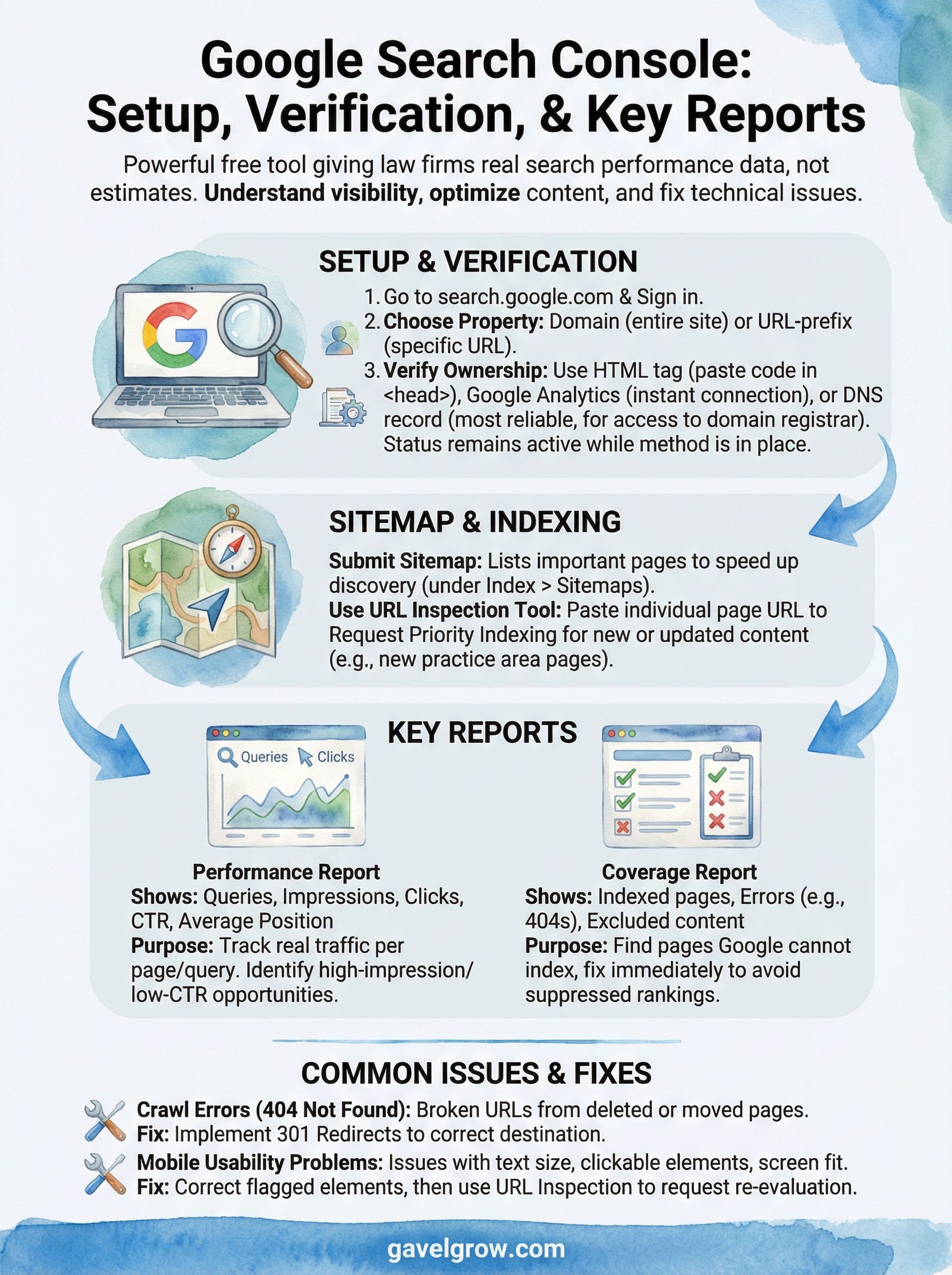
Setting up Google Search Console takes about ten minutes, and you only need a Google account to get started. Go to search.google.com/search-console, sign in, and click "Add property." You'll choose between a Domain property, which covers your entire site across all subdomains and protocols, or a URL-prefix property, which tracks a specific URL. For most law firms, the Domain property gives you the most complete picture of your entire site.
Choose your verification method
Google offers several ways to confirm you own the site you're adding. The HTML tag method involves pasting a small code snippet into your site's <head> section, while the Google Analytics method works instantly if you've already connected Google Analytics to your site.
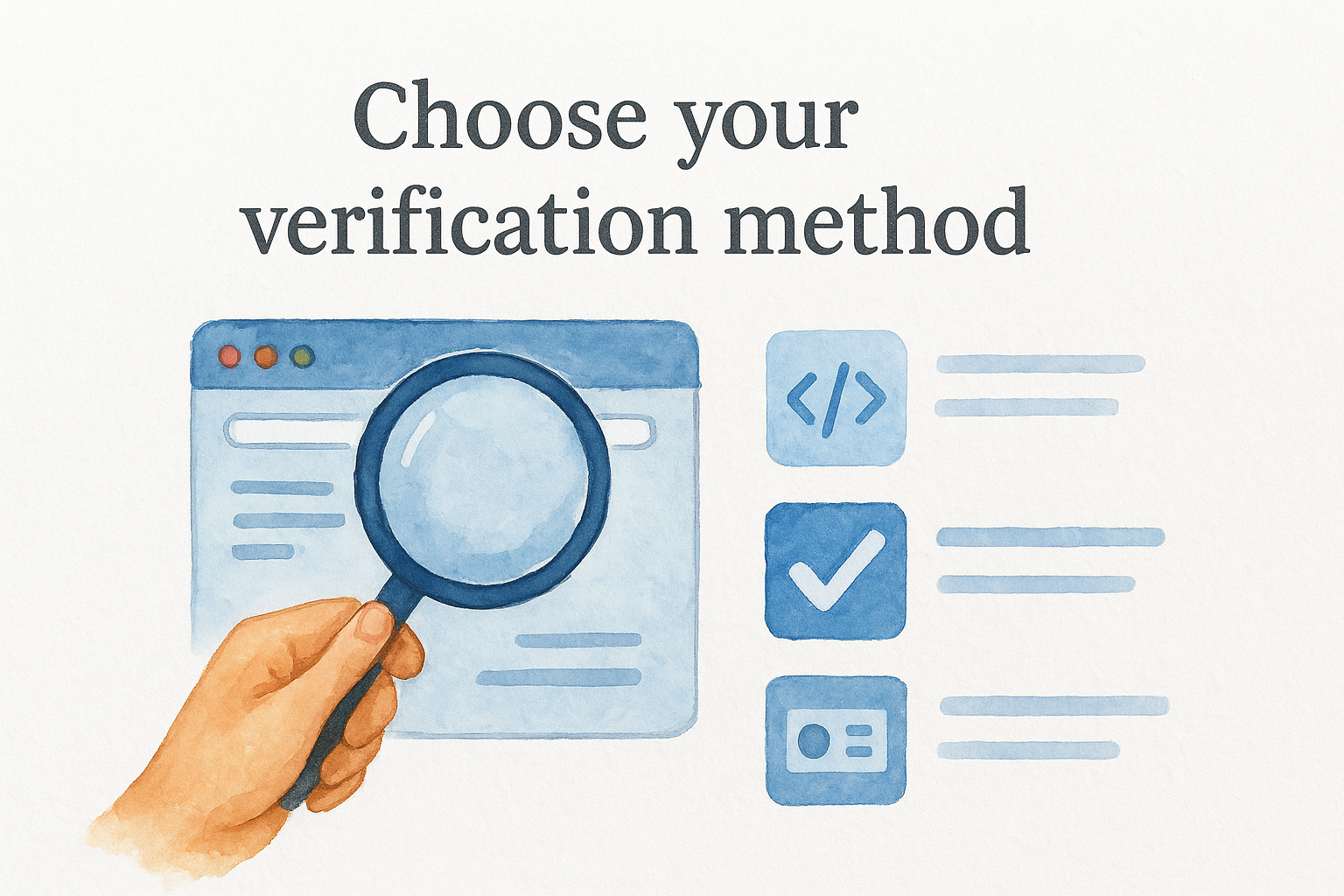
The DNS verification method is the most reliable option if you have access to your domain registrar, because it stays active even if your site template changes later.
Your verification status stays active as long as the confirmation method remains in place, so don't remove the HTML tag or DNS record after setup. Once confirmed, your Search Console dashboard activates immediately and starts pulling in real search data from that point forward.
How to submit a sitemap and speed up indexing
A sitemap is a file that lists every important page on your site, and submitting it through Google Search Console tells Google exactly where to find your content. Navigate to the Sitemaps report under the Index section in the left sidebar, paste in your sitemap URL (typically yoursite.com/sitemap.xml), and click Submit. Most law firm websites running on WordPress generate this file automatically through an SEO plugin, so you likely already have one ready to go.
Submitting a sitemap doesn't guarantee immediate indexing, but it significantly cuts the time Google takes to discover and crawl your new pages.
Use the URL Inspection tool for individual pages
When you publish a new practice area page or update existing content, don't wait for Google to find it on its own schedule. The URL Inspection tool lets you request priority indexing for individual pages directly from your dashboard. Paste the page URL into the search bar at the top of Search Console, then click "Request Indexing." Use this tool in these situations:
- After publishing a new practice area or location page
- After making major content updates to a high-priority page
- After fixing a technical error that previously blocked indexing
Key reports to use and what each one tells you
Google Search Console organizes its data into focused reports, each answering a different question about your site. Knowing which report to check first saves you time and directs your attention toward the fixes that genuinely move rankings.
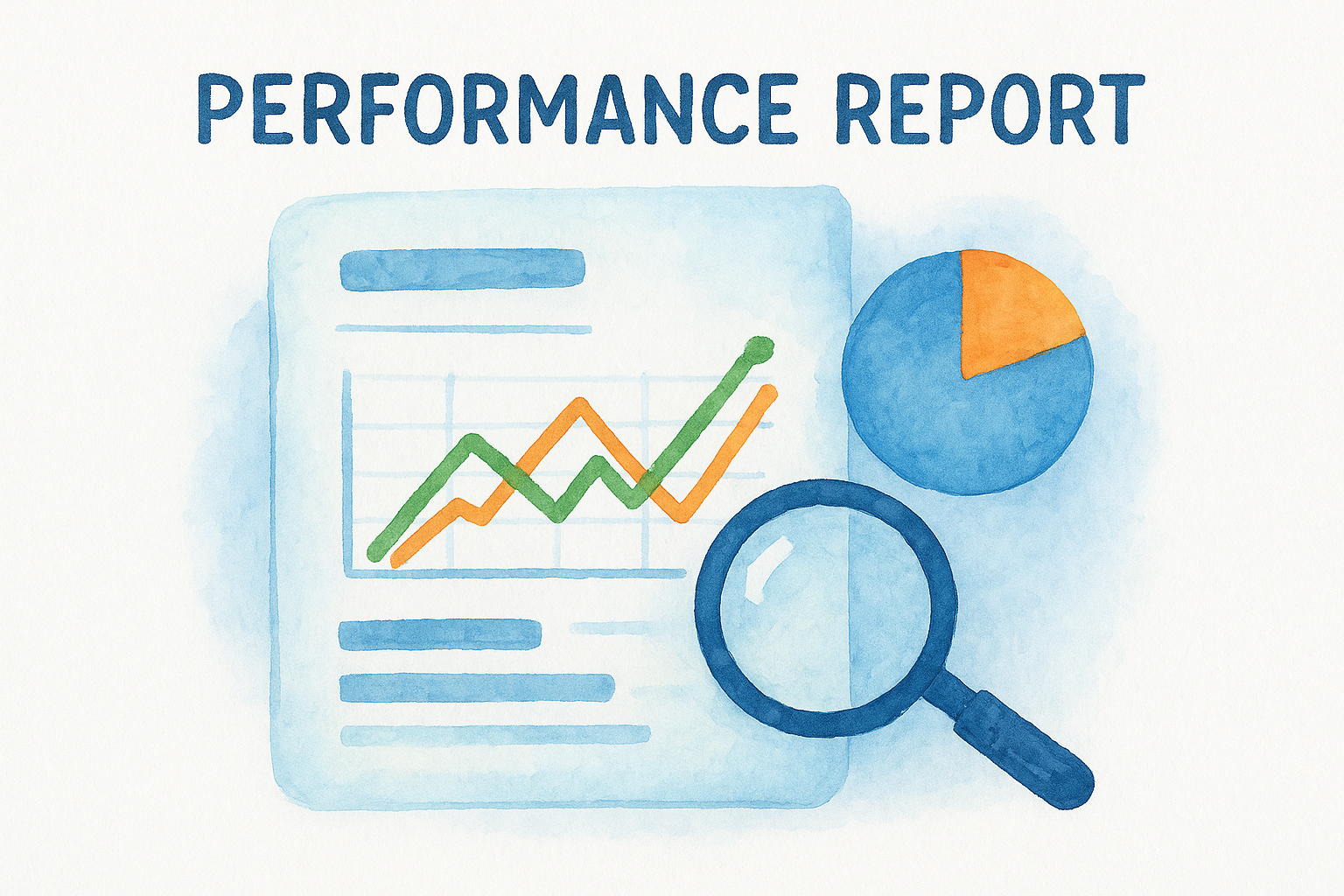
Performance Report
The Performance report shows every query that triggered your site in Google's results, along with impressions, clicks, click-through rate, and average position. Filter by individual page to see which practice area pages earn real traffic versus sitting invisible in search. If a high-priority page pulls thousands of impressions but a low click-through rate, your title tag or meta description needs work.
Coverage Report
The Coverage report identifies every page Google attempted to crawl and whether it succeeded. Pages marked as "Error" or "Excluded" need your immediate attention because they represent content Google cannot index. A page Google cannot index will not rank, regardless of how well-optimized it is. Check this report at least once a week to catch new issues before they quietly suppress your rankings.
A single "Excluded" status on your highest-value practice area page can cost your firm meaningful search visibility without triggering any obvious warning sign on your end.
Common Search Console issues and how to fix them
Google Search Console flags problems you'd otherwise never catch. Most issues fall into predictable categories, and each one has a straightforward resolution if you address it promptly rather than letting it compound over weeks.
Crawl errors and blocked pages
A "404 Not Found" error means Google tried to reach a page that no longer exists. If you've deleted or moved practice area pages, those broken URLs need a 301 redirect pointing to the correct destination. Inside the Coverage report, click any error to see the exact URL, then implement the redirect through your CMS or ask your developer to handle it. Left unfixed, crawl errors waste Google's crawl budget and pull link equity into dead ends.
Redirect every deleted or moved page, not just your homepage, because practice area pages often carry the most accumulated ranking authority.
Mobile usability problems
The Mobile Usability report under the Experience section shows pages where text is too small to read, clickable elements sit too close together, or content extends beyond the screen. Google uses mobile-first indexing, meaning it evaluates your mobile experience before your desktop version. Fix each flagged element, then use the URL Inspection tool to request re-evaluation once corrections are live.
Next steps for better search visibility
Google Search Console gives you everything you need to stop guessing and start acting on real data. Set up your property today, verify ownership, submit your sitemap, and schedule time each week to review the Performance and Coverage reports. These habits take less than 30 minutes weekly, but they compound into meaningful ranking improvements over time because you catch issues early and prioritize the pages that matter most to your firm's growth.
Once you have your data flowing, focus on the pages tied to your highest-value practice areas first. Fix crawl errors, address mobile usability flags, and use query data to sharpen your title tags. Each fix removes a barrier between your firm and the clients actively searching for your services.
If you want a team that does this work alongside you, see how GavelGrow helps law firms grow through search and request your free strategy consultation.
Frequently Asked Questions
What is Google Search Console and why does it matter for law firms?
Google Search Console is a free tool that shows exactly how your website appears in search results, which queries bring people to your pages, and where technical issues might be costing you visibility. Unlike third-party tools that estimate from sampled data, its data comes straight from Google's own systems, so there is no interpretation layer between you and the truth about your site's performance. Without it, you are essentially guessing how Google sees your site.
How do you set up and verify a site in Google Search Console?
Setup takes about ten minutes and only requires a Google account. Go to the Search Console site, sign in, click "Add property," and choose a Domain property for the most complete view across all subdomains. Then verify ownership using a method such as the HTML tag, Google Analytics, or DNS record. DNS verification is the most reliable because it stays active even if your site template changes later, so leave the confirmation method in place.
How do you submit a sitemap and speed up indexing in Search Console?
Open the Sitemaps report under the Index section, paste in your sitemap URL (typically yoursite.com/sitemap.xml), and click Submit; most WordPress sites generate this file automatically via an SEO plugin. Submitting a sitemap does not guarantee immediate indexing, but it significantly cuts the time Google takes to discover new pages. For individual pages, use the URL Inspection tool to request priority indexing after publishing or updating important content.
Which Search Console reports should a law firm check?
Start with the Performance report and the Coverage report. Performance shows every query that triggered your site along with impressions, clicks, click-through rate, and average position, so you can spot high-impression pages with weak CTR that need better titles or meta descriptions. Coverage identifies pages Google could not index; a single "Error" or "Excluded" status on a high-value practice area page can quietly suppress your visibility, so review it at least weekly.
How do you fix common Search Console errors like 404s?
A "404 Not Found" error means Google tried to reach a page that no longer exists, so implement a 301 redirect from the broken URL to the correct destination through your CMS or developer. Redirect every deleted or moved page, not just your homepage, because practice area pages often carry the most accumulated ranking authority. For mobile usability flags, fix each element, then use the URL Inspection tool to request re-evaluation once corrections are live.
Search Console shows you the queries that earn clicks, but to connect those clicks to actual phone conversations you need the best call tracking software sitting alongside it.
Frequently Asked Questions
What is Google Search Console and why does it matter for law firms?
Google Search Console is a free tool that shows exactly how your website appears in search results, which queries bring people to your pages, and where technical issues might be costing you visibility. Unlike third-party tools that estimate from sampled data, its data comes straight from Google's own systems, so there is no interpretation layer between you and the truth about your site's performance. Without it, you are essentially guessing how Google sees your site.
How do you set up and verify a site in Google Search Console?
Setup takes about ten minutes and only requires a Google account. Go to the Search Console site, sign in, click "Add property," and choose a Domain property for the most complete view across all subdomains. Then verify ownership using a method such as the HTML tag, Google Analytics, or DNS record. DNS verification is the most reliable because it stays active even if your site template changes later, so leave the confirmation method in place.
How do you submit a sitemap and speed up indexing in Search Console?
Open the Sitemaps report under the Index section, paste in your sitemap URL (typically yoursite.com/sitemap.xml), and click Submit; most WordPress sites generate this file automatically via an SEO plugin. Submitting a sitemap does not guarantee immediate indexing, but it significantly cuts the time Google takes to discover new pages. For individual pages, use the URL Inspection tool to request priority indexing after publishing or updating important content.
Which Search Console reports should a law firm check?
Start with the Performance report and the Coverage report. Performance shows every query that triggered your site along with impressions, clicks, click-through rate, and average position, so you can spot high-impression pages with weak CTR that need better titles or meta descriptions. Coverage identifies pages Google could not index; a single "Error" or "Excluded" status on a high-value practice area page can quietly suppress your visibility, so review it at least weekly.
How do you fix common Search Console errors like 404s?
A "404 Not Found" error means Google tried to reach a page that no longer exists, so implement a 301 redirect from the broken URL to the correct destination through your CMS or developer. Redirect every deleted or moved page, not just your homepage, because practice area pages often carry the most accumulated ranking authority. For mobile usability flags, fix each element, then use the URL Inspection tool to request re-evaluation once corrections are live. Search Console shows you the queries that earn clicks, but to connect those clicks to actual phone conversations you need the best call tracking software sitting alongside it.