16-Point Technical SEO Checklist for Faster Crawls
Categories: Legal Marketing Strategies
 Abram Ninoyan
Founder & Senior Performance Marketer
Credentials: Google Partner, Google Ads Search Certified, Google Ads Display Certified, Google Ads Measurement Certified, Google Analytics (IQ) Certified, HubSpot Inbound Certified, HubSpot Social Media Marketing Certified, Conversion Optimization Certified
Expertise: Google Ads, Meta Ads, Conversion Rate Optimization, GA4 & Google Tag Manager, Lead Generation, Marketing Funnel Optimization, PPC Management
LinkedIn Profile
Google's crawlers don't care how prestigious your law firm is. If your site has broken redirects, bloated page speeds, or indexation gaps, those crawlers move on, and your competitors' pages get ranke...
Key Takeaways
- 16-Point Technical SEO Checklist for Faster Crawls in 2026
- 1. Start with a case-focused audit with GavelGrow
- 2. Lock in one canonical site version with HTTPS
- 3. Audit robots.txt and meta robots directives
16-Point Technical SEO Checklist for Faster Crawls in 2026
Google's crawlers don't care how prestigious your law firm is. If your site has broken redirects, bloated page speeds, or indexation gaps, those crawlers move on, and your competitors' pages get ranked instead. A solid technical SEO checklist is the difference between a website that generates cases and one that collects dust on page three of search results. For attorneys investing real money into digital marketing, ignoring the technical foundation is like building a courtroom argument on evidence that was never admitted, it doesn't matter how good it is if no one ever sees it.
At GavelGrow, we've audited and optimized sites for over 500 U.S. law firms since 2015. The pattern is consistent: firms that skip technical SEO burn through ad spend, wonder why their content isn't ranking, and blame the last agency that touched their site. But when we dig into the data, the root cause is almost always structural. Crawl errors, orphaned pages, slow Core Web Vitals scores, missing schema markup, these are fixable problems that directly impact lead volume and cost per signed case.
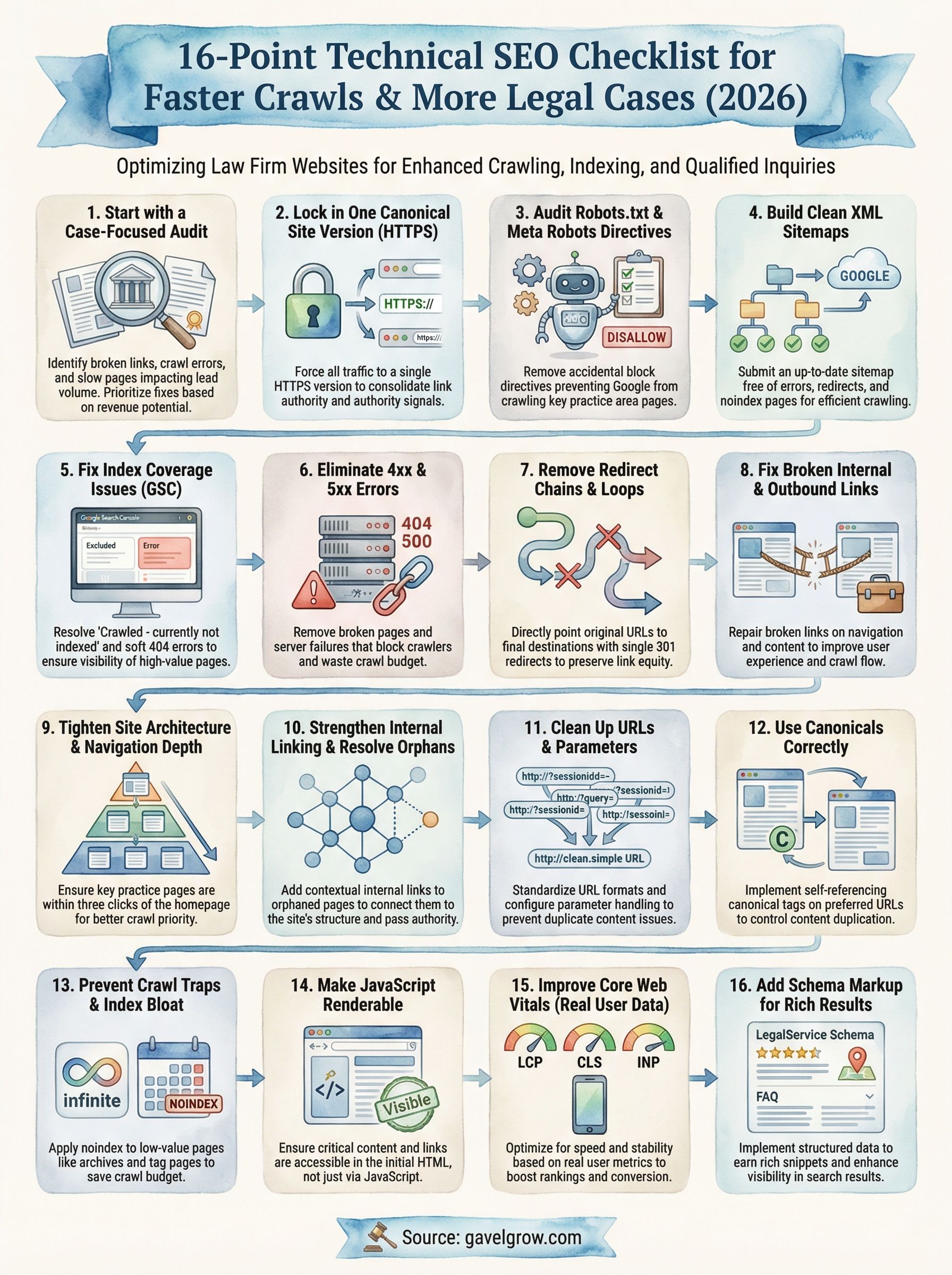
This checklist covers 16 specific technical SEO actions you can audit and implement right now to make your law firm's site faster, more crawlable, and easier for Google to index in 2026. Each point is practical and prioritized, whether you're handling this in-house or working with a dedicated legal marketing partner. No fluff, no filler, just the technical items that move the needle on qualified case inquiries and organic visibility.
1. Start with a case-focused audit with GavelGrow
Before you fix anything on your site, you need a clear baseline of what's actually broken. A case-focused audit doesn't just look at traffic numbers; it connects technical problems directly to lead volume and cost per signed case, which is the only metric that actually matters for your firm. Most attorneys skip this step and start patching issues randomly, which wastes time and frequently improves the wrong pages entirely.
Why it matters
Generic audits report on technical issues in a vacuum. A case-focused audit maps those issues back to revenue impact, so you know which problems are costing you consultations versus which ones are low-priority cleanup items. GavelGrow's audit process is built specifically for law firms, which means it accounts for practice-area-specific keyword competition, local search signals, and the intake funnel that converts a visitor into a signed client.
Without this framing, you end up spending resources fixing pages that generate zero case inquiries while the pages that actually drive your revenue stay broken. Connecting technical SEO problems to business outcomes is the only way to prioritize work that pays off.
Fixing the wrong technical problems first is one of the most consistent ways law firms burn through their entire SEO budget before seeing a single meaningful result.
What to check
Your audit should cover several interconnected layers of your site's technical health. Start by pulling data from Google Search Console to identify crawl errors, coverage gaps, and pages that aren't indexed. Cross-reference that with your organic traffic performance broken down by practice area page, so you can see exactly which pages are failing to reach potential clients.
A structured audit should cover these core areas:
- Crawlability and indexation status across all key practice pages
- Page speed and Core Web Vitals scores on both mobile and desktop
- Redirect chains, broken links, and orphaned pages
- Duplicate content and canonical tag configuration
- Schema markup presence and accuracy for legal service pages
How to fix and validate
Once you have audit results, prioritize fixes by their direct impact on case-generating pages first, not by how easy they are to complete. Your highest-traffic practice area pages and your intake or contact pages deserve first attention because those pages directly determine whether a potential client reaches out.
After implementing fixes, use Google Search Console's URL Inspection tool to request indexing and confirm that corrected pages are being crawled properly. Track changes in impressions and clicks on the specific pages you fixed, not sitewide averages, so you can connect technical improvements to measurable gains in consultation requests. That's the standard GavelGrow applies across every item in this technical SEO checklist.
2. Lock in one canonical site version with HTTPS
Your site can exist as four separate versions: http://example.com, https://example.com, http://www.example.com, and https://www.example.com. If you haven't forced all traffic to one, Google treats each as a separate entity with its own crawl budget and link equity. For law firm websites, this fragmentation directly dilutes the authority signals your pages need to rank.
Why it matters
Google expects a single, consistent URL as the authoritative home for your content. When multiple versions of your site are accessible, crawl budget gets split across duplicate variants and backlinks pointing to different versions fail to consolidate their ranking power. HTTPS is also a confirmed ranking signal, meaning an unsecured HTTP site is at a structural disadvantage before any content quality is even considered.
A law firm site split across HTTP and HTTPS effectively competes against itself, splitting the link authority that should be building toward one unified domain.
What to check
Open your browser and manually test all four site versions by typing each directly into the address bar. Confirm that every variation redirects to a single HTTPS version and that those redirects return 301 status codes, not 302s. Also verify your SSL certificate is valid, covers all subdomains you use, and is not expired. This step alone catches a surprisingly common error on law firm sites that have gone through redesigns or platform migrations.
How to fix and validate
Set up server-level 301 redirects that force all HTTP and non-www traffic to your preferred HTTPS version. After implementation, use Google Search Console to confirm your preferred domain is set under Settings and that no mixed content warnings appear in your browser console on key practice area pages.
3. Audit robots.txt and meta robots directives
Your robots.txt file and meta robots tags function as a traffic control system for search engine crawlers, and a single misconfigured line can quietly block your most important practice area pages from being indexed. Many law firm sites carry accidental block directives left over from development environments or botched migrations that no one caught before launch.
Why it matters
A misplaced Disallow rule in robots.txt can prevent Googlebot from crawling entire sections of your site, including high-value pages like your personal injury or family law landing pages. Similarly, a noindex meta tag placed incorrectly on a practice page tells Google to remove that page from its index entirely, which is one of the fastest ways to undermine any technical SEO checklist implementation before it produces results.
A single errant "noindex" tag on your main practice area page can erase months of SEO work overnight.
What to check
Open your robots.txt by navigating to yourdomain.com/robots.txt and look for any Disallow rules that block key sections like /practice-areas/, /contact/, or your blog. Then use Google Search Console's URL Inspection tool to check individual pages for conflicting meta robots directives buried in the page source.
How to fix and validate
Remove any Disallow directives that block indexable content, and audit your page-level meta robots tags to confirm that only low-value pages like admin screens or thank-you confirmation pages carry noindex. After making changes, resubmit your updated robots.txt through Google Search Console and use the URL Inspection tool to verify crawl access is fully restored on your critical pages.
4. Build clean XML sitemaps that stay up to date
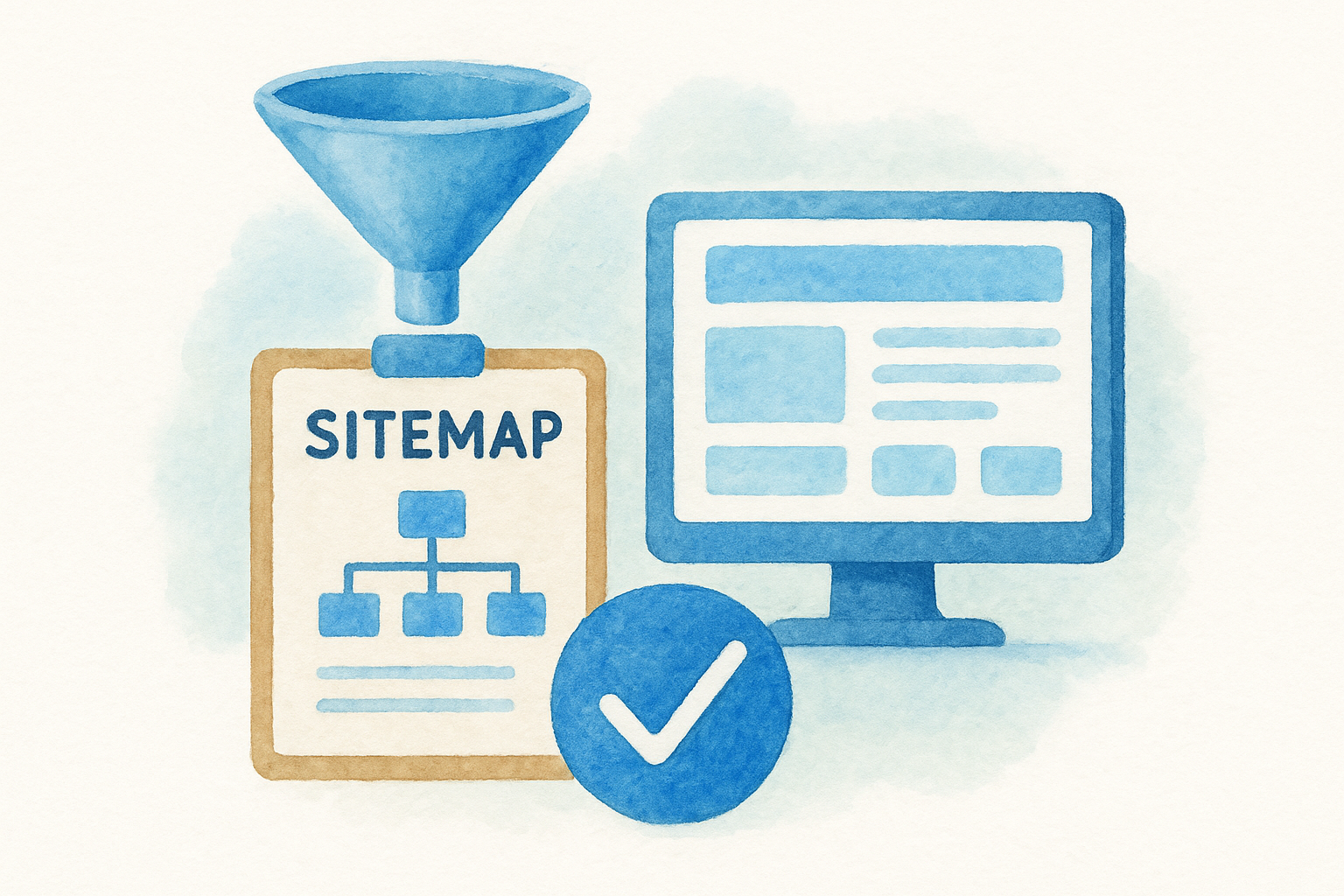
Your XML sitemap is a direct signal to Google about which pages on your site deserve crawling and indexing. Without an accurate, well-maintained sitemap, Googlebot relies on link discovery alone, which means newly published practice area pages or location-specific landing pages can sit undetected for weeks or longer.
Why it matters
An outdated or bloated sitemap actively undermines your crawl efficiency. If your sitemap includes redirect URLs, pages marked noindex, or removed content, you are directing Google's limited crawl budget toward dead ends instead of your most valuable pages. For law firms publishing regular blog content or expanding into new practice areas, this is a recurring problem that compounds over time.
A sitemap filled with dead URLs signals to Google that your site is poorly maintained, which can quietly drag down how frequently your key pages get recrawled.
What to check
Pull your sitemap by navigating to yourdomain.com/sitemap.xml and verify that every URL listed returns a 200 status code. Cross-reference the sitemap against your robots.txt to confirm no listed URLs are simultaneously blocked from crawling. Also confirm your sitemap is submitted and accepted inside Google Search Console under the Sitemaps report.
How to fix and validate
Remove any URLs from your sitemap that are redirecting, returning errors, or tagged noindex. If your site runs on WordPress, plugins like Yoast or Rank Math generate sitemaps automatically and exclude noindex pages by default. After updating, resubmit your sitemap through Google Search Console and monitor the Discovered vs. Indexed count to confirm Google is processing your submitted URLs correctly across your full technical SEO checklist.
5. Fix index coverage issues in Google Search Console
Google Search Console's Index Coverage report gives you a direct view into how Google processes your site's pages. When pages that should rank appear as "Excluded" or "Error," you have a concrete blocker on your organic visibility. Reviewing this report regularly makes it a core part of your technical SEO checklist.
Why it matters
Coverage errors mean Google has either chosen not to index a page or encountered something that stopped it from doing so. For law firms, unindexed practice area pages translate directly into missed consultations because potential clients cannot find pages that don't appear in search results.
An "Excluded" status on your highest-value practice pages means you're invisible in the exact searches your potential clients are running.
Fixing even one excluded location or service page can recover meaningful case volume in a competitive local market, so don't treat coverage errors as low-priority cleanup items.
What to check
Open Google Search Console and navigate to the Index Coverage report under the Indexing section. Pay close attention to these specific statuses that signal real indexing problems:
- "Crawled - currently not indexed"
- "Discovered - currently not indexed"
- Soft 404 errors on pages that should return valid content
How to fix and validate
Address the specific reason listed for each exclusion, whether that involves thin content, a missing canonical tag, or a redirect conflict. After correcting each issue, use the URL Inspection tool to request indexing on the affected page individually.
Monitor the Coverage report weekly until excluded pages shift into the "Indexed" column to confirm your fixes held and that those pages are now accessible to potential clients.
6. Eliminate 4xx and 5xx errors that block crawling
Server errors and broken pages are hard stops for Googlebot. A 4xx error tells the crawler that a page doesn't exist, while a 5xx error signals that your server failed to respond. Both types waste crawl budget and prevent Google from reaching the pages that generate case inquiries.
Why it matters
Every 404 or 500 error your site returns is a dead end in Google's crawl path. When crawlers hit these repeatedly, they reduce crawl frequency on your domain, which means new or updated practice area pages take longer to appear in search results. This directly affects how quickly you recover from content updates or site migrations on your technical SEO checklist.
A 5xx server error on your homepage during a crawl can suppress your entire site's indexation for days without any visible warning.
What to check
Use Google Search Console under the Pages report to identify URLs returning 4xx and 5xx status codes. Cross-reference those URLs with your internal linking structure to identify pages that are actively linked but returning errors, since those broken links burn crawl budget most aggressively.
- 404 errors on previously indexed practice pages
- Soft 404s on pages that return a 200 status but show no real content
- 500 or 503 errors tied to server load spikes or plugin conflicts
How to fix and validate
Redirect permanently removed pages to the most relevant live equivalent using 301 redirects. Fix server-side 5xx errors by resolving the underlying hosting or configuration issue causing the failure. After applying each fix, use the URL Inspection tool in Google Search Console to confirm the corrected URL returns a clean 200 status and is eligible for indexing.
7. Remove redirect chains, loops, and soft redirects
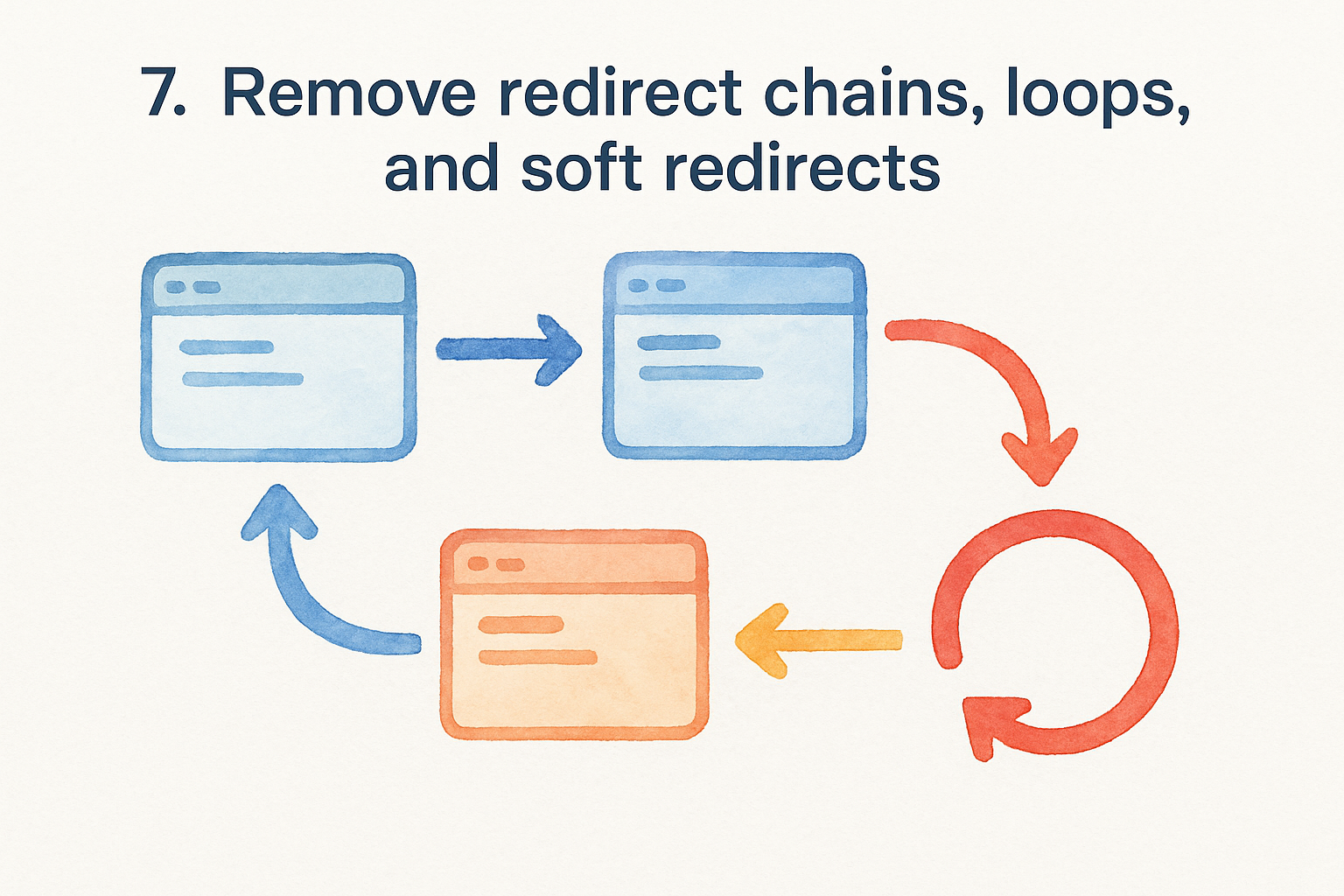
Redirect chains occur when a URL redirects to a second URL that redirects to a third, forcing Googlebot to follow multiple hops before reaching the final destination. Each hop costs crawl budget and dilutes the link equity that should flow directly to your practice area pages. On law firm sites, these chains typically pile up after redesigns, CMS migrations, or repeated URL structure changes that no one fully cleaned up.
Why it matters
Googlebot has a documented limit on how many redirect hops it will follow before it abandons a crawl path entirely. If your most important pages sit at the end of a three or four-step redirect chain, Google may never reach them during a standard crawl cycle. Redirect loops, where URL A redirects to URL B which redirects back to URL A, create an infinite cycle that crashes the crawl completely and removes those pages from your technical SEO checklist results.
A redirect chain even two hops long can cut the link authority passed to a destination page by a measurable percentage, weakening the ranking signals you've earned over time.
What to check
Use Google Search Console to identify URLs flagged as redirects in the Coverage report. Trace each redirect path manually or through a crawl tool to count the number of hops between the original URL and the final destination. Flag any redirect returning a 302 status code where a 301 should be used, since temporary redirects do not pass full link equity.
How to fix and validate
Update each chain so the original URL points directly to the final destination with a single 301 redirect. Remove any intermediate redirect URLs entirely. After fixing, use the URL Inspection tool in Google Search Console to confirm each corrected URL resolves in one clean step without additional hops.
8. Fix broken internal and outbound links at scale
Broken links are more than a user experience problem. Every internal link pointing to a 404 page forces Googlebot into a dead end, burning crawl budget that should be directed toward your highest-value practice area and intake pages. Fixing them at scale is a non-negotiable item on any serious technical SEO checklist.
Why it matters
Internal links pass crawl signals and link authority between pages on your site. When those links break, the authority that should flow from your homepage or high-traffic blog posts toward your practice area pages gets cut off entirely. Outbound broken links hurt your credibility with both users and Google, signaling that your site isn't actively maintained.
A single broken link on your navigation menu can block Googlebot from reaching an entire section of your site during a crawl.
What to check
Use Google Search Console under the Pages report to identify pages with incoming links that return errors. Review your navigation menus, footer links, and sidebar widgets specifically, since those elements appear on every page and multiply the crawl damage when broken.
- Internal links pointing to 4xx or removed pages
- Outbound links to external pages that no longer exist
- Links using relative URLs that break after a site migration
How to fix and validate
Update broken internal links to point directly to the correct live destination URL using absolute paths. For removed content with no direct replacement, redirect the broken URL to the most relevant active page. After applying fixes, re-crawl your site and confirm that all repaired links return clean 200 status codes before closing out this item.
9. Tighten site architecture and navigation depth
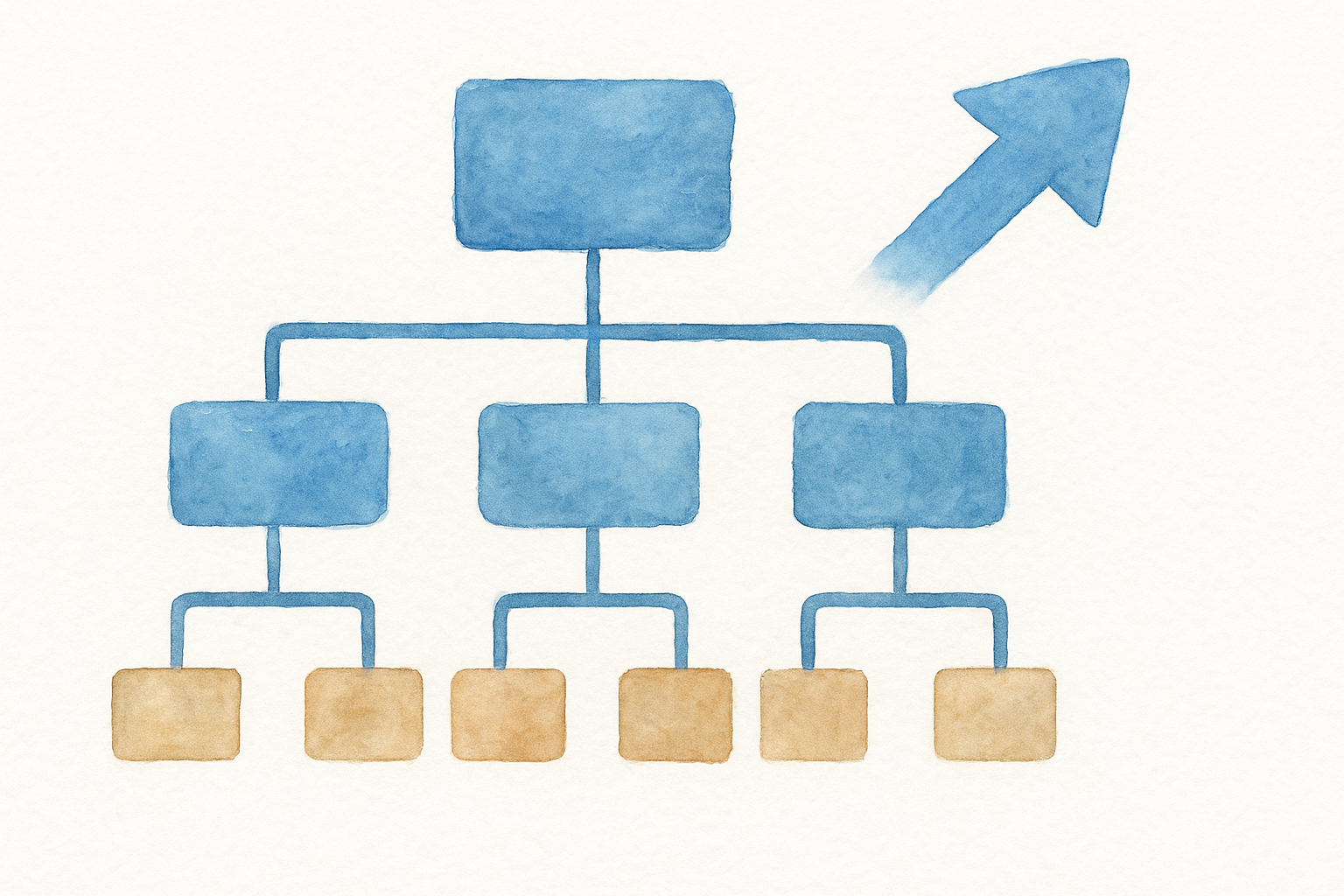
Site architecture determines how quickly Googlebot can move from your homepage to your deepest practice area pages. When your navigation runs too many levels deep, crawlers burn crawl budget before reaching the pages that drive case inquiries.
Why it matters
Google follows links to discover pages, and the further a page sits from your homepage in terms of click depth, the less frequently it gets crawled. A flat, logical structure keeps every important page within three clicks of the homepage, which is the standard benchmark for strong crawl efficiency. Pages buried five or six levels deep in your navigation may as well not exist from a crawler's perspective.
Every additional click layer between your homepage and a practice area page reduces the crawl priority Google assigns to that page.
What to check
Audit your site's click depth by running a crawl and mapping how many steps Googlebot must take from the homepage to reach each key page. Flag any practice area or location page requiring more than three clicks to reach.
- Pages requiring four or more clicks from the homepage
- Navigation menus with excessive subcategories that bury core service pages
- Isolated sections with no links from the main navigation structure
How to fix and validate
Restructure your navigation so that every high-value page sits within three clicks of the homepage. Add direct links in your primary menu or footer to practice area pages that are currently buried too deep. After restructuring, re-crawl your site and confirm that your full technical SEO checklist resolves with shallower click depths across all critical pages.
10. Strengthen internal linking and resolve orphan pages
Internal linking directly controls how Googlebot navigates your site and how link authority flows between your pages. An orphan page is any page with no internal links pointing to it, which means crawlers can only reach it by accident or through an XML sitemap entry. For law firm sites, orphan pages are often practice area subpages or location-specific landing pages that got published and then forgotten.
Why it matters
Every page without an internal link pointing to it is effectively invisible to Googlebot during a standard site crawl. This is a critical gap in your technical SEO checklist because those orphaned pages receive no link authority from the rest of your site, regardless of how well the content is written.
An orphan page with strong content and zero internal links will consistently underperform compared to a weaker page that sits inside a connected internal linking structure.
What to check
Audit your internal link structure by running a full site crawl and filtering for pages with zero incoming internal links. Cross-reference those orphaned URLs against your Index Coverage report in Google Search Console to confirm which ones are already excluded from Google's index.
- Practice area subpages with no links from the main service pages
- Blog posts published without links from related content or navigation
- Location landing pages disconnected from your site's main architecture
How to fix and validate
Add contextual internal links from relevant, already-indexed pages to each orphaned page. Use descriptive anchor text that reflects the target page's topic. After linking, use the URL Inspection tool in Google Search Console to confirm Googlebot can now reach each previously orphaned page through your internal link structure.
11. Clean up URLs, parameters, and duplicate paths
Messy URLs create duplicate content problems and fragment crawl budget across multiple paths that all lead to the same page. For law firm sites, this typically shows up when session IDs, tracking parameters, or filtering options generate thousands of unique URL strings for content that is identical underneath.
Why it matters
When Googlebot encounters ten different URL variations pointing to the same page content, it must decide which version to index, often without choosing the one you want. This splits your ranking signals and wastes crawl budget on low-value URL variants instead of your core practice area pages. Messy parameters are one of the most underdiagnosed items on any technical SEO checklist.
Uncontrolled URL parameters can turn a 50-page law firm site into thousands of crawlable paths, most of which return duplicate content that dilutes your indexing authority.
What to check
Use Google Search Console to identify URLs with query strings or tracking parameters appearing in your Coverage report as indexed or crawled pages. Look specifically for these common patterns:
URLs containing ?utm_source=, ?sessionid=, or ?filter= variations
- Multiple URL structures resolving to identical page content
- Trailing slash inconsistencies across internal links and sitemaps
How to fix and validate
Configure parameter handling through Google Search Console's URL Parameters settings to tell Googlebot which parameters change page content and which are irrelevant. Standardize all internal links to use one consistent URL format with no trailing slash variations or mixed-case paths.
After applying fixes, re-crawl your site and confirm that duplicate URL variants no longer appear in your Coverage report as indexed pages.
12. Use canonicals correctly to control duplication
Canonical tags tell Google which version of a page you consider the authoritative source when multiple URLs serve similar or identical content. When canonicals are misconfigured or missing, Google makes that decision for you, and it frequently chooses the wrong URL. For law firms with practice pages that exist across multiple URL formats, this is a recurring gap in any technical SEO checklist.
Why it matters
A misapplied canonical tag is worse than no canonical tag at all. If your canonical points to a redirect URL, a noindex page, or a completely different piece of content, Google ignores it entirely and falls back to its own judgment. That means your link authority gets scattered across duplicate variants instead of consolidating behind the single page you want to rank.
A self-referencing canonical on every indexable page is one of the simplest structural signals you can add to reinforce your preferred URL to Google.
What to check
Pull the page source on your key practice area pages and confirm that the canonical tag in the <head> section points to the exact URL you want indexed. Check that canonicals are not pointing to redirected URLs, pages marked noindex, or paginated variants that hold no unique content.
- Canonical tags on paginated blog pages pointing back to page one incorrectly
- Cross-domain canonicals that redirect authority away from your main site
- Missing canonical tags on location-specific landing pages with similar content structures
How to fix and validate
Update each canonical tag to reference the exact final destination URL using an absolute path, not a relative one. After fixing, use the Google Search Console URL Inspection tool to confirm Google recognizes your declared canonical and is not overriding it with an alternate version.
13. Prevent crawl traps and low-value index bloat
Crawl traps are sections of your site that generate infinite or near-infinite URLs that Googlebot follows repeatedly without reaching anything useful. Calendar widgets, infinite scroll pages, and faceted navigation systems are the most common offenders. For law firm sites, index bloat from auto-generated tag pages, thin author archives, or duplicate location pages quietly drains the crawl budget that should flow toward your case-generating practice area pages.
Why it matters
When Googlebot gets caught inside a crawl trap, it spends its entire crawl allocation on worthless low-value pages and never reaches your substantive content. The result is that your best practice area and intake pages get recrawled less frequently, which slows how fast new updates and published content appear in search results. Keeping your index lean and your crawl paths clean is a foundational item in any technical SEO checklist.
Index bloat from hundreds of auto-generated tag or archive pages can halve the crawl budget available for your highest-priority practice pages.
What to check
Run a full site crawl and look for URL patterns that scale infinitely, such as date-based archive paths, session-generated URLs, or filter combinations. Cross-reference your total indexed page count in Google Search Console against the number of pages you actually want indexed to spot significant gaps.
How to fix and validate
Apply noindex tags to thin archive, tag, and auto-generated pages that hold no unique content. Block crawl trap entry points in your robots.txt file where the content has no indexing value. After fixing, monitor your Index Coverage report weekly to confirm that low-value URLs drop out of Google's index over the following crawl cycles.
14. Make JavaScript rendering and resources crawlable
Googlebot processes JavaScript pages through a two-wave rendering system: it first crawls the raw HTML, then queues the page for full JavaScript rendering later, sometimes days later. If your law firm site relies on JavaScript to load practice area content, navigation menus, or contact forms, those elements may be invisible to Google during the initial crawl, which means your most important pages sit in a rendering backlog while competitors with static HTML rank ahead of you.
Why it matters
JavaScript-heavy pages create a gap between what a user sees and what Googlebot processes on a first pass. If your navigation links, phone numbers, or intake forms only exist after JavaScript executes, Googlebot cannot use those elements to discover and link pages during early crawl cycles. This directly suppresses the crawl efficiency you need from your technical SEO checklist to surface practice area pages quickly.
A JavaScript-rendered nav menu means Googlebot may not discover your practice area pages at all until the rendering queue catches up, which can take days.
What to check
Open Google Search Console and use the URL Inspection tool to compare the rendered screenshot against your live page. Any content missing from the rendered view is invisible to Google. Also check whether Googlebot is blocked from loading JavaScript files or CSS resources inside your robots.txt, since blocking those files prevents full rendering.
How to fix and validate
Deliver critical content like headings, navigation, and body text in the initial HTML response rather than relying on JavaScript to inject it after load. After adjustments, use the URL Inspection tool's "Test Live URL" function to confirm the rendered screenshot now matches your full page content.
15. Improve Core Web Vitals with real user data
Core Web Vitals measure how real users experience your site's speed and stability, not just how fast your server responds to a synthetic test. Google uses field data from actual visitors to inform its ranking decisions, which means lab scores from speed testing tools only tell part of the story.

Why it matters
Slow load times and layout shifts cost you consultations before a potential client reads a single word on your practice area page. Google's Core Web Vitals directly influence search rankings, and for law firm sites competing in dense local markets, even a marginal speed advantage can separate your page from a competitor's in the results. This is one of the highest-impact items on your technical SEO checklist because it affects every page at once.
Poor Core Web Vitals on mobile can suppress your rankings even when your content and links are stronger than the competing pages above you.
What to check
Open Google Search Console and navigate to the Core Web Vitals report to review field data split by mobile and desktop. Focus on three specific metrics:
- Largest Contentful Paint (LCP): should load under 2.5 seconds
- Cumulative Layout Shift (CLS): should stay below 0.1
- Interaction to Next Paint (INP): should remain under 200 milliseconds
How to fix and validate
Address LCP issues by compressing images, serving next-gen formats like WebP, and eliminating render-blocking resources in your page's <head>. Fix CLS problems by reserving explicit dimensions for images and embedded elements so the layout stays stable as content loads. After making changes, monitor your Core Web Vitals report weekly until flagged URLs move from "Poor" to "Good" status.
16. Add schema markup that earns rich results in 2026
Schema markup gives Google structured data it can read directly, transforming your standard search listing into a rich result with star ratings, FAQs, or service details displayed right in the results page. For law firms, this is one of the most underused items on any technical SEO checklist, and the competitive gap it creates is measurable in click-through rate.
Why it matters
Rich results take up more visual space in search results and signal credibility and authority before a potential client even clicks your link. Google's algorithms increasingly rely on structured data to understand what your firm offers, which practice areas you cover, and where you operate. Pages without schema markup leave that context entirely up to Google's interpretation.
Law firm pages with properly implemented LocalBusiness and LegalService schema consistently earn higher click-through rates than unstructured competitor pages in the same market.
What to check
Use Google's Rich Results Test to evaluate your key practice area pages and confirm which schema types are detected and eligible for rich results. Look specifically for these schema types that apply directly to law firm sites:
LegalService or Attorney markup on practice area pages
LocalBusiness with accurate name, address, and phone number matching your Google Business Profile
FAQPage schema on pages with structured question-and-answer content
How to fix and validate
Implement schema using JSON-LD format placed inside the <head> section of each target page, which is Google's recommended method. After adding markup, retest each page through Google's Rich Results Test and monitor your Google Search Console Enhancements report to confirm no structured data errors are flagged and your pages qualify for enhanced search displays.
Next steps
Working through this technical SEO checklist gives you a clear path from a crawlable, indexed site to one that actively generates signed cases. Every item in this list connects directly to whether potential clients can find your practice area pages when they search, and whether your site converts those visits into consultation requests. Fixing technical gaps now puts you ahead of competing firms that are still running outdated sites with broken redirects and slow load times.
If you want an expert team to handle the audit and implementation for you, GavelGrow's legal marketing specialists have helped over 500 U.S. law firms build the technical foundation their SEO needs to deliver real case volume. Start with a free 45-minute strategy consultation that includes a competitive analysis and a custom roadmap built around your practice area and local market. The technical problems are fixable, and fixing them has a direct impact on your bottom line.
Frequently Asked Questions
What is the most important first step in a technical SEO audit for a law firm?
Start with a case-focused audit that ties technical problems back to lead volume and cost per signed case, rather than patching issues at random. Prioritize your highest-traffic practice area pages and your intake or contact pages first, since those directly determine whether a potential client reaches out. Fixing the wrong pages first is one of the most common ways firms burn through an SEO budget with nothing to show.
Why should a law firm site use one canonical HTTPS version?
Your site can exist as up to four versions (http, https, www, and non-www), and if traffic isn't forced to one, Google treats each as separate, splitting crawl budget and link equity. HTTPS is also a confirmed ranking signal, so an unsecured version starts at a disadvantage. Set server-level 301 redirects to your preferred HTTPS version and confirm the domain setting in Google Search Console.
How can a single robots.txt or meta robots mistake hurt my rankings?
A misplaced Disallow rule in robots.txt can block Googlebot from entire sections like your practice-area or contact pages, and a stray noindex tag can remove an important page from Google's index entirely. These leftover directives from development or migrations are a common, easily missed problem. Audit both regularly, and reserve noindex for genuinely low-value pages like admin screens or thank-you confirmations.
What Core Web Vitals thresholds should a law firm website aim for?
Google's targets are Largest Contentful Paint under 2.5 seconds, Cumulative Layout Shift below 0.1, and Interaction to Next Paint under 200 milliseconds. Because Google uses field data from real visitors, lab scores only tell part of the story, so review the Core Web Vitals report in Search Console split by mobile and desktop. Compressing images, serving WebP, and reserving image dimensions are practical fixes.
Which schema types should law firm pages use for rich results?
The most relevant types are LegalService or Attorney markup on practice-area pages, LocalBusiness with a name, address, and phone number matching your Google Business Profile, and FAQPage schema on pages with genuine question-and-answer content. Implement it in JSON-LD inside the head of each page, which is Google's recommended method, then validate with the Rich Results Test and monitor the Enhancements report for errors.
Frequently Asked Questions
What is the most important first step in a technical SEO audit for a law firm?
Start with a case-focused audit that ties technical problems back to lead volume and cost per signed case, rather than patching issues at random. Prioritize your highest-traffic practice area pages and your intake or contact pages first, since those directly determine whether a potential client reaches out. Fixing the wrong pages first is one of the most common ways firms burn through an SEO budget with nothing to show.
Why should a law firm site use one canonical HTTPS version?
Your site can exist as up to four versions (http, https, www, and non-www), and if traffic isn't forced to one, Google treats each as separate, splitting crawl budget and link equity. HTTPS is also a confirmed ranking signal, so an unsecured version starts at a disadvantage. Set server-level 301 redirects to your preferred HTTPS version and confirm the domain setting in Google Search Console.
How can a single robots.txt or meta robots mistake hurt my rankings?
A misplaced Disallow rule in robots.txt can block Googlebot from entire sections like your practice-area or contact pages, and a stray noindex tag can remove an important page from Google's index entirely. These leftover directives from development or migrations are a common, easily missed problem. Audit both regularly, and reserve noindex for genuinely low-value pages like admin screens or thank-you confirmations.
What Core Web Vitals thresholds should a law firm website aim for?
Google's targets are Largest Contentful Paint under 2.5 seconds, Cumulative Layout Shift below 0.1, and Interaction to Next Paint under 200 milliseconds. Because Google uses field data from real visitors, lab scores only tell part of the story, so review the Core Web Vitals report in Search Console split by mobile and desktop. Compressing images, serving WebP, and reserving image dimensions are practical fixes.
Which schema types should law firm pages use for rich results?
The most relevant types are LegalService or Attorney markup on practice-area pages, LocalBusiness with a name, address, and phone number matching your Google Business Profile, and FAQPage schema on pages with genuine question-and-answer content. Implement it in JSON-LD inside the head of each page, which is Google's recommended method, then validate with the Rich Results Test and monitor the Enhancements report for errors.