Google Page Speed Insights: How To Use It for Core Vitals
Categories: Legal Marketing Strategies
 Abram Ninoyan
Founder & Senior Performance Marketer
Credentials: Google Partner, Google Ads Search Certified, Google Ads Display Certified, Google Ads Measurement Certified, Google Analytics (IQ) Certified, HubSpot Inbound Certified, HubSpot Social Media Marketing Certified, Conversion Optimization Certified
Expertise: Google Ads, Meta Ads, Conversion Rate Optimization, GA4 & Google Tag Manager, Lead Generation, Marketing Funnel Optimization, PPC Management
LinkedIn Profile
Google PageSpeed Insights is a free tool from Google that scores any web page on a 0–100 scale and flags exactly what's slowing it down, from render-blocking scripts to oversized images. It also measu...
Key Takeaways
- Google Page Speed Insights: How To Use It for Core Vitals
- Why PageSpeed Insights matters for Core Web Vitals
- What does PageSpeed Insights measure
- How do you run a PageSpeed Insights test
Google Page Speed Insights: How To Use It for Core Vitals
Google PageSpeed Insights is a free tool from Google that scores any web page on a 0–100 scale and flags exactly what's slowing it down, from render-blocking scripts to oversized images. It also measures Core Web Vitals, the three performance metrics Google uses as a ranking signal for search results.
If your law firm's website takes more than three seconds to load, you're hemorrhaging potential clients before they ever see your intake form. Google's own data shows that 53% of mobile visitors abandon a page that doesn't load within that window. For firms spending thousands per month on Google Ads and SEO, a slow site turns paid clicks into wasted budget. At GavelGrow, we see this pattern constantly across the law firms we work with, strong ad campaigns undermined by poor page performance that tanks conversion rates, especially on mobile.
This article breaks down how PageSpeed Insights works, what each Core Web Vital actually measures, and how to interpret the results without needing a developer on speed dial. You'll learn which metrics matter most for law firm websites specifically, how to prioritize fixes that move the needle on conversions, and where page speed fits into a full-funnel attribution strategy that tracks performance from ad click to signed retainer. Whether you manage your own marketing or work with an agency, understanding this tool gives you the baseline you need to hold every dollar of your marketing spend accountable.
Why PageSpeed Insights matters for Core Web Vitals
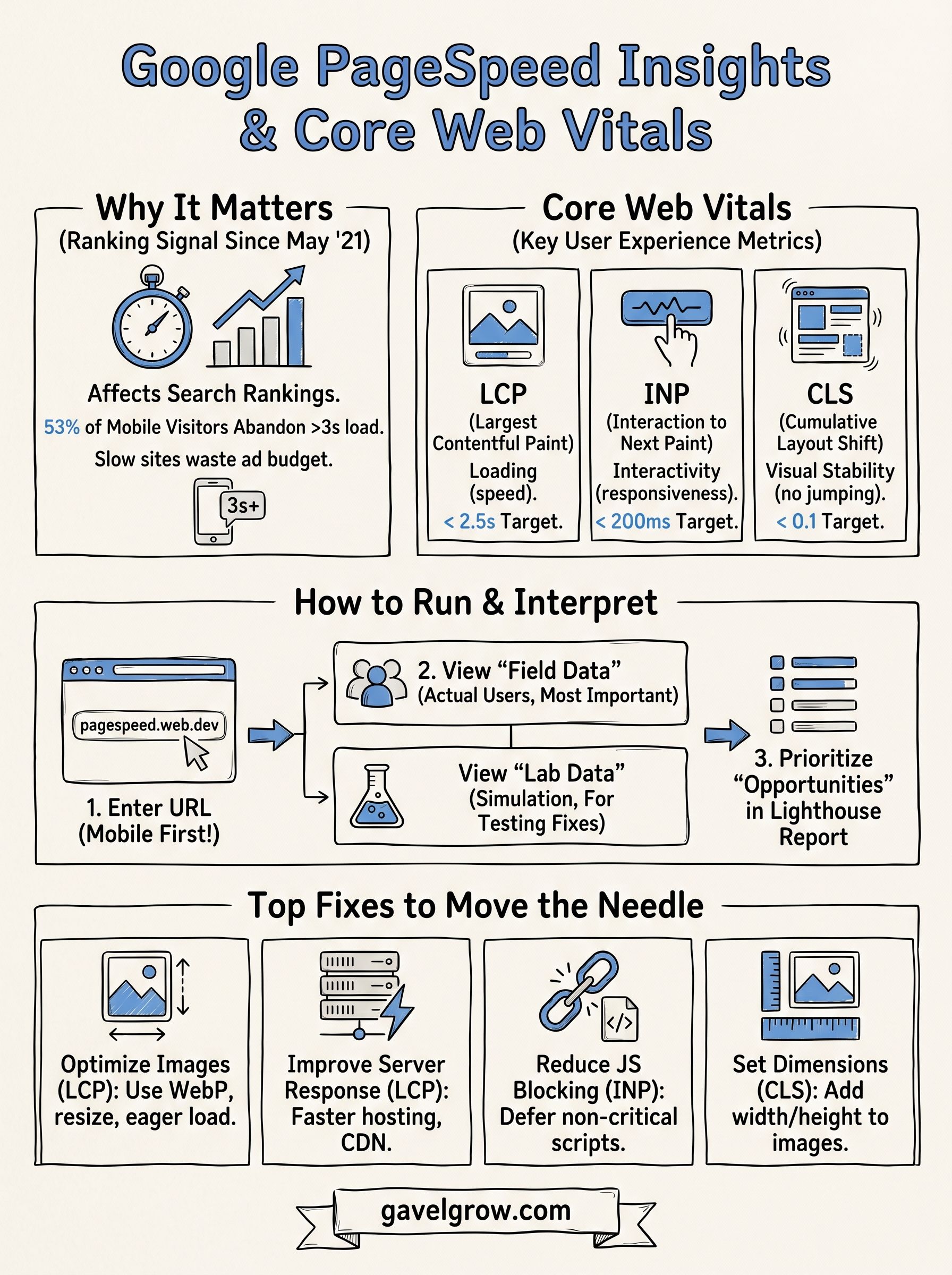
Google made Core Web Vitals an official ranking signal in May 2021, and google page speed insights became the primary tool to measure them. That upgrade changed the stakes for every website owner, including law firms that previously only worried about keyword strategy and backlinks. Now, a page that loads slowly, shifts layout unexpectedly, or responds sluggishly to clicks carries a measurable ranking penalty that no amount of content optimization can fully offset.
Core Web Vitals Directly Affect Your Search Rankings
Google's ranking systems evaluate three specific performance thresholds when deciding how high your pages appear in search results: Largest Contentful Paint (LCP), Interaction to Next Paint (INP), and Cumulative Layout Shift (CLS). Passing all three signals to Google that your page delivers a fast, stable experience for real users. Failing even one places your site at a disadvantage against competitors who have cleaned up their performance.
Google's own documentation confirms that pages meeting Core Web Vitals thresholds receive a ranking boost as part of the page experience signal.
For law firms, this penalty hits hardest on high-intent keywords like "car accident lawyer near me" or "family law attorney [city]," where rankings translate directly into signed retainers. A competitor whose page loads in 1.8 seconds while yours takes 4.2 seconds will consistently outrank you, even if your content is stronger. Page speed is no longer a technical afterthought; it's a competitive lever tied directly to your client acquisition costs.
Why PageSpeed Insights Is the Right Tool for the Job
PageSpeed Insights pulls data from two sources: a lab-based performance engine called Lighthouse, and real-world user data collected through the Chrome User Experience Report (CrUX). Most third-party speed tools only show you lab data, which simulates a single load under controlled conditions. PageSpeed Insights layers in field data from actual visitors to your site, which is what Google's ranking systems actually weigh.
That distinction matters for law firm websites specifically. A site might score 85 in a lab environment but perform at 55 for real mobile users on slower LTE connections in suburban markets. Those real-user numbers are what Google sees, and they're what PageSpeed Insights surfaces in the "Field Data" panel at the top of every report. Relying on tools that skip field data means you could optimize against the wrong baseline entirely.
Your site's performance directly affects how much every ad click costs you in effective terms. A slow landing page suppresses your Google Ads Quality Score, which raises your cost-per-click and lowers your ad position at the same time. Fixing Core Web Vitals through the diagnostics PageSpeed Insights provides closes that loop, letting your ad spend work harder across every campaign without increasing your monthly budget.
What does PageSpeed Insights measure
Google PageSpeed Insights measures both synthetic lab performance and real-world user experience across your web page. Every report combines a simulated Lighthouse audit with actual Chrome user data collected from visitors who have loaded your page in the past 28 days. Understanding what each section tests helps you focus on the numbers that affect your rankings and your bottom line.
The Three Core Web Vitals
Core Web Vitals are the three user experience signals Google weights most heavily in its page experience ranking system. Each one targets a different dimension of how your page feels to a real visitor.
Google replaced First Input Delay with Interaction to Next Paint as an official Core Web Vital in March 2024, making INP the new standard for measuring responsiveness.
For law firm websites, LCP is typically the most impactful metric to fix first. Hero images, oversized banner graphics, and unoptimized fonts are common culprits that push LCP scores into the failing range on mobile devices, where the majority of legal searchers operate.
Lab Data vs. Field Data
Lab data comes from a controlled Lighthouse simulation run on a mid-range device with a throttled network connection. It gives you consistent, reproducible diagnostics you can test against after making changes, which makes it useful for tracking whether a specific fix actually worked.
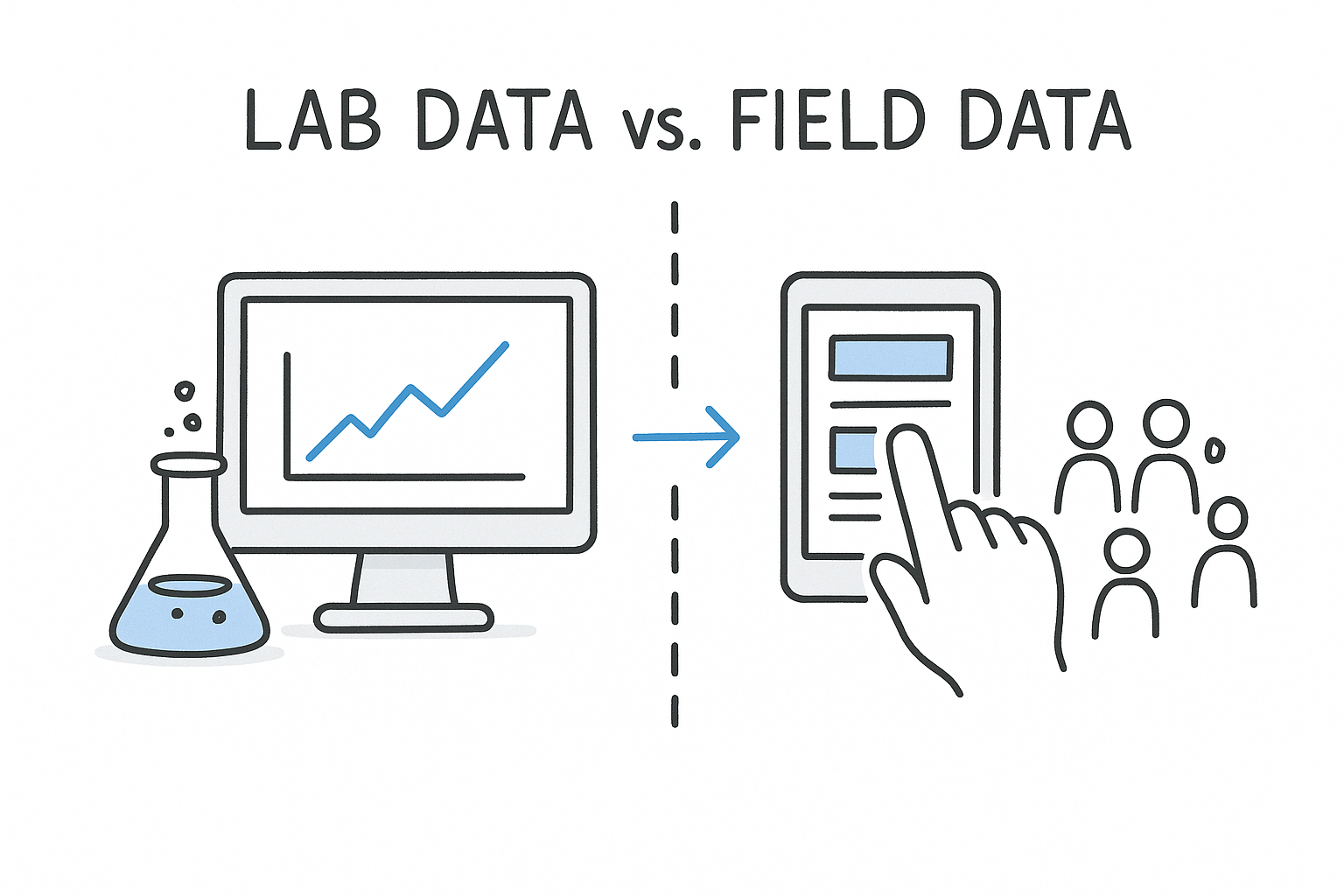
Field data pulls from the Chrome User Experience Report (CrUX), which aggregates anonymized performance data from real Chrome users visiting your specific URL. This is the data Google's ranking systems use. If your field data shows a failing LCP but your lab score looks acceptable, trust the field data. Your real visitors, not a simulated test device, determine where you rank.
How do you run a PageSpeed Insights test
Running a test takes roughly 30 seconds. Navigate to pagespeed.web.dev, paste your target URL into the input field, and click Analyze. The tool immediately fires a fresh Lighthouse audit against your page and simultaneously pulls any available field data from the CrUX database tied to that specific URL. Results appear within about 15 to 20 seconds.
Which URLs should you test first
For law firms, the pages that generate signed retainers matter far more in performance audits than pages that just attract traffic. Test your highest-traffic landing pages first, specifically the ones receiving paid clicks from Google Ads or ranking organically for high-intent keywords like "personal injury lawyer [city]." Start with these URL types in this order:
- Practice area landing pages tied to active ad campaigns
- Your main intake or contact page
- Blog posts driving significant organic traffic
- Your homepage
Should you test mobile or desktop
Google PageSpeed Insights defaults to mobile testing, and that default is intentional. Google uses mobile-first indexing, which means it crawls and evaluates your site's mobile version when determining your search rankings. Run your mobile test first, every time.
Your mobile score is what Google's ranking systems actually weigh, so a strong desktop score with a weak mobile score still puts you at a competitive disadvantage in search results.
Run the desktop test as a secondary check. If your desktop score is strong but your mobile score is failing, that gap almost always points to unoptimized images or render-blocking JavaScript that a mobile device on a throttled connection cannot process quickly enough.
How to test multiple pages efficiently
Testing one URL at a time through the web interface works for spot-checks, but firms with larger site footprints need a faster approach. You can access PageSpeed Insights via API to automate tests across multiple URLs at once. Google's PageSpeed Insights API documentation covers setup in full, and the free tier allows up to 25,000 queries per day, which covers any law firm site comfortably.
Batch your tests by page template type. When one practice area page fails on LCP, pages built on the same template almost certainly share the same root issue, so one fix resolves the problem across your entire site.
How do you interpret scores and metrics
When Google PageSpeed Insights returns your results, you'll see a single number between 0 and 100 at the top of each report. That composite score reflects weighted performance metrics from the Lighthouse audit, not a direct average of your Core Web Vitals. Treat it as a directional signal, not the final word. Your actual ranking impact comes from the Core Web Vitals field data displayed directly above the score, which reflects what Google sees from real users on your site.
Your field data Core Web Vitals status, shown as "Good," "Needs Improvement," or "Poor," carries more ranking weight than your overall numeric score.
What the 0-100 score actually means
Google color-codes your score into three bands to make triage straightforward. Each band signals a different level of urgency for your optimization work.
Most law firm landing pages in competitive markets fall in the 40-65 range on mobile before any optimization work. A score below 50 on mobile is a direct signal that your paid traffic is landing on a page that pushes visitors out before they reach your intake form.
Which diagnostics deserve your attention first
Scroll past the score and focus on the "Diagnostics" and "Opportunities" sections in the Lighthouse report. These panels list specific, actionable issues ranked by their estimated impact on load time. Items at the top of this list offer the highest time savings per fix, so you can prioritize without guessing.
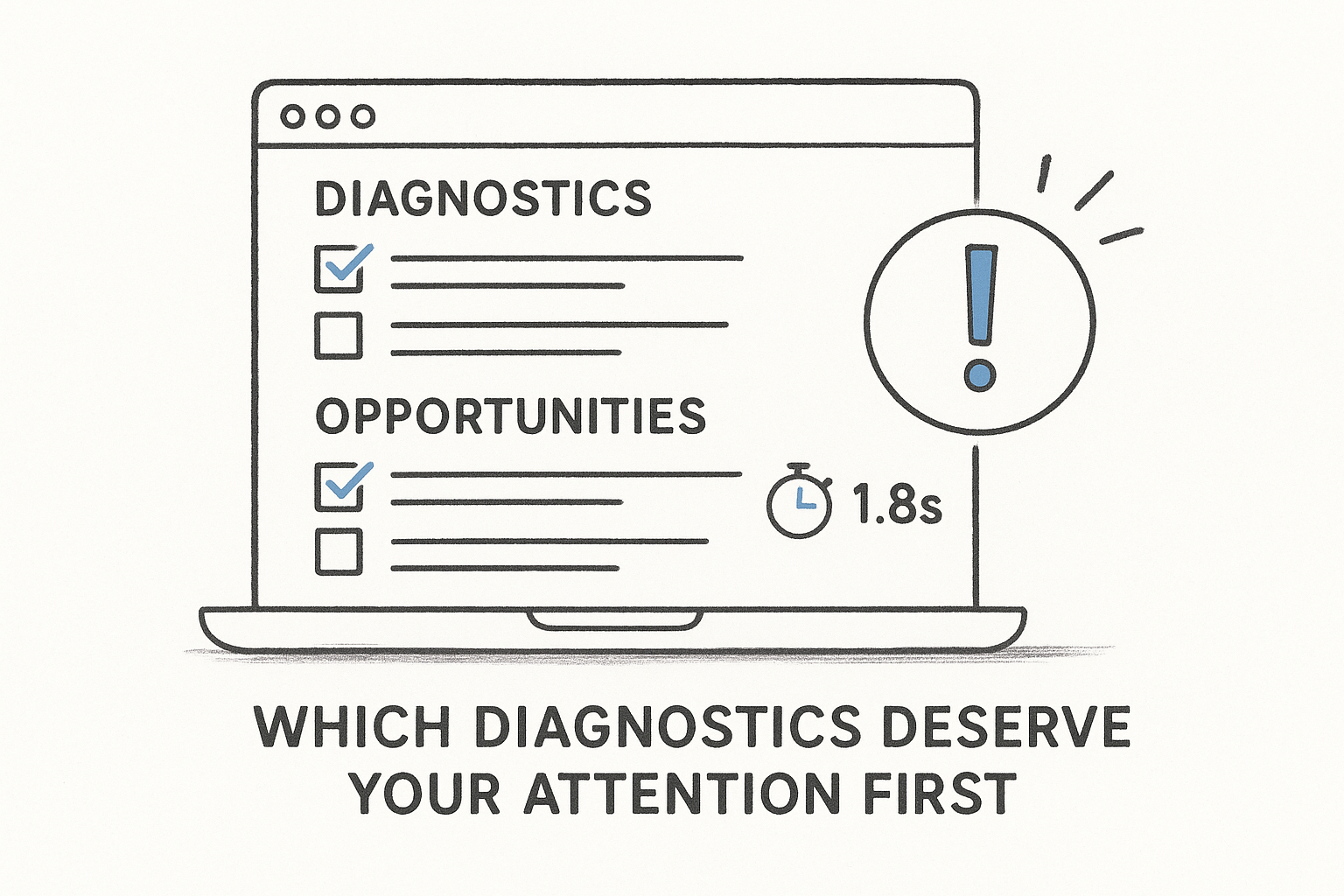
Your Opportunities section shows you exactly how many seconds each fix would save. An item labeled "Eliminate render-blocking resources" that saves 1.8 seconds is worth addressing before an item saving 0.2 seconds. Work down the list in order and retest after each change using the same URL to confirm your field data improves over the following weeks as CrUX data refreshes with new user sessions.
What fixes move Core Web Vitals the most
When google page speed insights surfaces a list of opportunities, not every item carries equal weight. The fixes that move Core Web Vitals scores the fastest target the root causes behind LCP, INP, and CLS failures rather than minor polish items. Prioritizing the right issues saves you from spending development hours on changes that barely register in your field data.
How do you improve LCP fastest
Image optimization delivers the largest LCP improvements for most law firm websites. Oversized hero images, banner graphics served in JPEG or PNG format instead of WebP, and images loaded without a loading="eager" attribute on above-the-fold content all push your LCP past the 2.5-second threshold. Convert your largest above-the-fold images to WebP format and serve them at the correct display dimensions to eliminate unnecessary bytes before the browser renders your main content.
Server response time is the second lever that moves LCP. If your Time to First Byte (TTFB) exceeds 600 milliseconds, your page is already behind before a single image loads. Switching to a faster hosting provider, enabling server-side caching, or moving to a content delivery network (CDN) can cut TTFB in half without touching a single line of your page content.
Reducing TTFB and serving next-gen image formats together typically moves LCP scores by 0.5 to 1.5 seconds, which is often enough to shift a "Needs Improvement" rating to "Good."
Which changes fix INP and CLS
INP failures almost always trace back to JavaScript that blocks the main thread during user interactions. Large third-party scripts, including chat widgets, analytics tags, and ad tracking pixels, compete for main-thread processing time when a visitor clicks your intake form button or navigates your menu. Deferring non-critical scripts and removing unused JavaScript from your page reduces main-thread blocking and brings INP below the 200-millisecond threshold.
CLS problems are easier to fix than INP issues in most cases. Setting explicit width and height attributes on every image and video element prevents the browser from recalculating layout as assets load. Reserve space for web fonts using font-display: swap to stop text from jumping when custom fonts finish downloading, which is one of the most common CLS sources on law firm websites.
Next steps
Google PageSpeed Insights gives you a clear, prioritized list of what to fix and in what order. Start by running your highest-traffic practice area landing pages through the tool, then focus your first sprint on LCP and CLS, since those two metrics typically deliver the fastest ranking improvements with the least development effort.
Performance gains only pay off when your landing pages are built to convert the traffic they attract. A faster page that sends visitors to a slow, friction-heavy intake form still loses the lead. If you want to see how your full marketing funnel holds up beyond page speed, the free law firm marketing scorecard benchmarks your intake process, attribution, and conversion performance against 500+ peer firms. If you'd rather have a strategist walk through your specific numbers, book a free 45-minute strategy call with the GavelGrow team.
Frequently Asked Questions
What is Google PageSpeed Insights and what does it measure?
PageSpeed Insights is a free Google tool that scores any web page on a 0-100 scale and flags what's slowing it down, from render-blocking scripts to oversized images. It also measures Core Web Vitals, the three performance metrics Google uses as a ranking signal. It combines lab data from a Lighthouse simulation with real-world field data from the Chrome User Experience Report.
What's the difference between lab data and field data in the report?
Lab data comes from a controlled Lighthouse simulation on a mid-range device with a throttled connection, giving you reproducible diagnostics to test fixes against. Field data pulls from real Chrome users who visited your specific URL over the prior 28 days, and it's the data Google's ranking systems actually use. If the two disagree, trust the field data.
Which pages should a law firm test first?
Test the pages that generate signed cases before pages that just attract traffic. Start with practice-area landing pages tied to active ad campaigns, then your main intake or contact page, then high-traffic blog posts, and finally your homepage. Because Google uses mobile-first indexing, run the mobile test first every time, then use desktop as a secondary check.
What's the fastest way to improve LCP?
Image optimization usually delivers the largest LCP gains. Convert your largest above-the-fold images to WebP and serve them at the correct display dimensions. Server response time is the second lever; if Time to First Byte exceeds about 600 milliseconds, enabling caching or moving to a CDN can cut it substantially. Together these often shift a metric from "Needs Improvement" to "Good."
How does page speed affect my Google Ads costs?
A slow landing page suppresses your Google Ads Quality Score, which raises your cost-per-click and lowers your ad position at the same time. Fixing Core Web Vitals closes that loop, letting the same ad budget work harder across every campaign. Speed improvements compound across organic rankings and paid campaigns rather than helping just one channel.
Frequently Asked Questions
What is Google PageSpeed Insights and what does it measure?
PageSpeed Insights is a free Google tool that scores any web page on a 0-100 scale and flags what's slowing it down, from render-blocking scripts to oversized images. It also measures Core Web Vitals, the three performance metrics Google uses as a ranking signal. It combines lab data from a Lighthouse simulation with real-world field data from the Chrome User Experience Report.
What's the difference between lab data and field data in the report?
Lab data comes from a controlled Lighthouse simulation on a mid-range device with a throttled connection, giving you reproducible diagnostics to test fixes against. Field data pulls from real Chrome users who visited your specific URL over the prior 28 days, and it's the data Google's ranking systems actually use. If the two disagree, trust the field data.
Which pages should a law firm test first?
Test the pages that generate signed cases before pages that just attract traffic. Start with practice-area landing pages tied to active ad campaigns, then your main intake or contact page, then high-traffic blog posts, and finally your homepage. Because Google uses mobile-first indexing, run the mobile test first every time, then use desktop as a secondary check.
What's the fastest way to improve LCP?
Image optimization usually delivers the largest LCP gains. Convert your largest above-the-fold images to WebP and serve them at the correct display dimensions. Server response time is the second lever; if Time to First Byte exceeds about 600 milliseconds, enabling caching or moving to a CDN can cut it substantially. Together these often shift a metric from "Needs Improvement" to "Good."
How does page speed affect my Google Ads costs?
A slow landing page suppresses your Google Ads Quality Score, which raises your cost-per-click and lowers your ad position at the same time. Fixing Core Web Vitals closes that loop, letting the same ad budget work harder across every campaign. Speed improvements compound across organic rankings and paid campaigns rather than helping just one channel.