Ahrefs Site Audit: How To Run A Free Technical SEO Check
Categories: Legal Marketing Strategies
 Abram Ninoyan
Founder & Senior Performance Marketer
Credentials: Google Partner, Google Ads Search Certified, Google Ads Display Certified, Google Ads Measurement Certified, Google Analytics (IQ) Certified, HubSpot Inbound Certified, HubSpot Social Media Marketing Certified, Conversion Optimization Certified
Expertise: Google Ads, Meta Ads, Conversion Rate Optimization, GA4 & Google Tag Manager, Lead Generation, Marketing Funnel Optimization, PPC Management
LinkedIn Profile
A broken redirect, a missing meta tag, or a slow-loading page can quietly tank your law firm's search rankings. The problem is, most attorneys don't know these issues exist until organic traffic drops...
Key Takeaways
- Ahrefs Site Audit: How To Run A Free Technical SEO Check
- What you need before you start
- Step 1. Verify your site and add a project
- Step 2. Set crawl settings and run your first audit
Ahrefs Site Audit: How To Run A Free Technical SEO Check
A broken redirect, a missing meta tag, or a slow-loading page can quietly tank your law firm's search rankings. The problem is, most attorneys don't know these issues exist until organic traffic drops off a cliff. Running an Ahrefs Site Audit is one of the fastest ways to surface these technical SEO problems before they cost you cases.
At GavelGrow, we run technical audits for law firms as part of every SEO engagement. Ahrefs Site Audit is one of the tools in our stack because it crawls your entire website and flags issues that directly affect how Google indexes and ranks your pages, from broken links to duplicate content to poor page speed. The best part? You can access a limited version for free through Ahrefs Webmaster Tools.
This guide walks you through how to set up and run your first Ahrefs Site Audit, how to read the results, and which fixes to prioritize. Whether you're a managing attorney handling your own marketing or a legal marketing manager vetting your agency's work, knowing how to interpret a site audit puts you in a stronger position to make informed decisions about your firm's online presence.
What you need before you start
Before you run an Ahrefs Site Audit, you need two things: a verified account and access to your website. Neither requires a paid Ahrefs subscription. Ahrefs Webmaster Tools (AWT) gives you free access to the site audit feature as long as you can prove you own the domain you want to crawl.
A free Ahrefs Webmaster Tools account
Setting up AWT takes less than five minutes. Navigate to ahrefs.com/webmaster-tools, create a free account with your email, and log in. Once inside, you'll need to verify ownership of your website before the crawler can access it. Ahrefs offers three verification methods: a DNS record, an HTML file upload, or an HTML meta tag added to your site's homepage.
The HTML meta tag method is the fastest option if you already have access to your website's CMS or header settings.
For most law firms on WordPress, adding the meta tag to your site header is the simplest route. Copy the tag Ahrefs provides, paste it into your theme's header or use your SEO plugin's header settings field, then click "Verify" in Ahrefs to confirm.
What you need access to
You also need administrative access to your website's backend to complete verification and, later, to act on what the audit surfaces. If an agency manages your site, ask them to verify the domain on your behalf or share the credentials. You'll also want Google Search Console active for your domain, since cross-referencing both tools gives you a fuller picture of how Google sees your site.
Here's a quick checklist before you start:
- Website CMS login (WordPress, Squarespace, Wix, or similar)
- DNS access or hosting panel login as a backup verification option
- Google Search Console access for your domain (set up at search.google.com/search-console if needed)
- Your exact site URL, including whether it uses "www" or not
Step 1. Verify your site and add a project
Once your AWT account is ready, your first task is to verify domain ownership so Ahrefs can access and crawl your site. Without this step, you cannot run an ahrefs site audit on your website at all.
Verify domain ownership
Log into AWT, click "Add website," and enter your full site URL including the https:// protocol. Ahrefs will prompt you to choose a verification method. The HTML meta tag option is fastest for most WordPress-based law firm sites. Copy the tag, paste it into your SEO plugin's header field (Yoast and RankMath both have a dedicated field under their general settings), then click "Verify" in AWT to confirm.
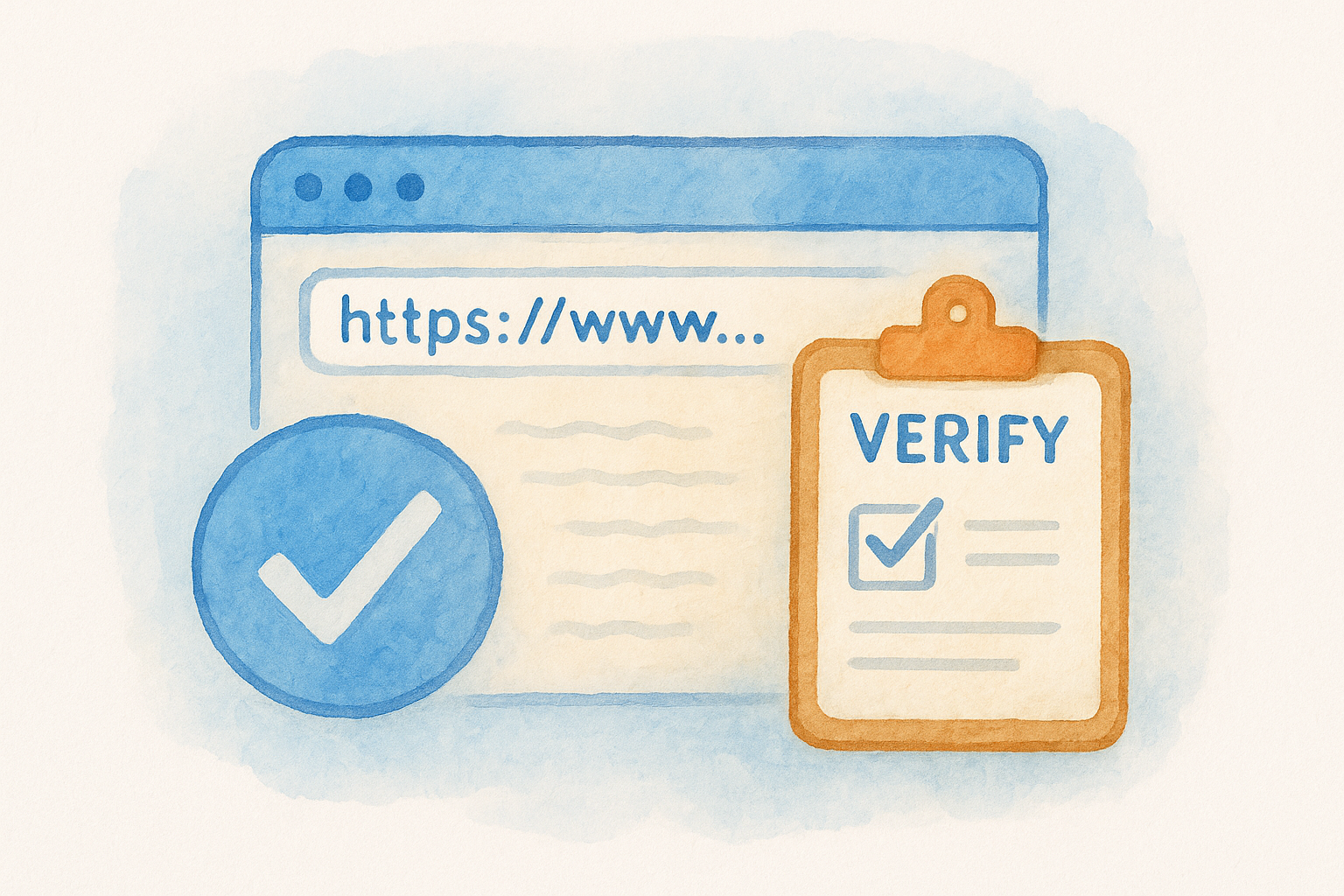
If verification fails, clear your site cache first; a cached page can hide the newly added tag from Ahrefs' crawler.
Add your first project
After verification completes, Ahrefs prompts you to create a project. Name it after your firm, select your verified domain from the dropdown, and click "Create project."
Your project dashboard is now active and shows your site's basic data at a glance. From here, you can configure crawl settings and run your first audit, which the next step covers in full.
Step 2. Set crawl settings and run your first audit
With your project created, Ahrefs takes you to the Site Audit configuration screen. This is where you tell the crawler how to behave before it scans your site. Getting these settings right ensures your ahrefs site audit reflects your actual site structure, not a distorted version of it.
Configure your crawl settings
The default settings work for most law firm websites, but a few adjustments will save you time. Set the crawl scope to your exact domain (not a subdomain you don't own) and limit the crawl to 200 pages on the free plan, which is the AWT cap per crawl. If your site has a staging version, make sure Ahrefs only crawls your live domain.
Launch the crawl
Once your settings are confirmed, click "Start crawl." Ahrefs will begin scanning your pages immediately. Depending on your site size, the crawl typically finishes within a few minutes to under an hour. You'll receive an email notification when results are ready.
Do not make structural changes to your site while the crawl is running, since mid-crawl edits can produce inconsistent results.
Step 3. Read results and prioritize fixes
When the crawl finishes, Ahrefs brings you to your Site Audit overview dashboard. The first number you see is your Health Score, a percentage that reflects the ratio of internal URLs with no errors versus those flagged with problems. A score below 80 typically means your site has issues worth addressing promptly.
Understanding the Health Score
Your Health Score breaks down into three categories: Errors, Warnings, and Notices. Errors are the most serious, covering things like broken internal links, pages returning a 4xx status code, and missing meta descriptions. Warnings sit in the middle, and Notices are low-priority observations.
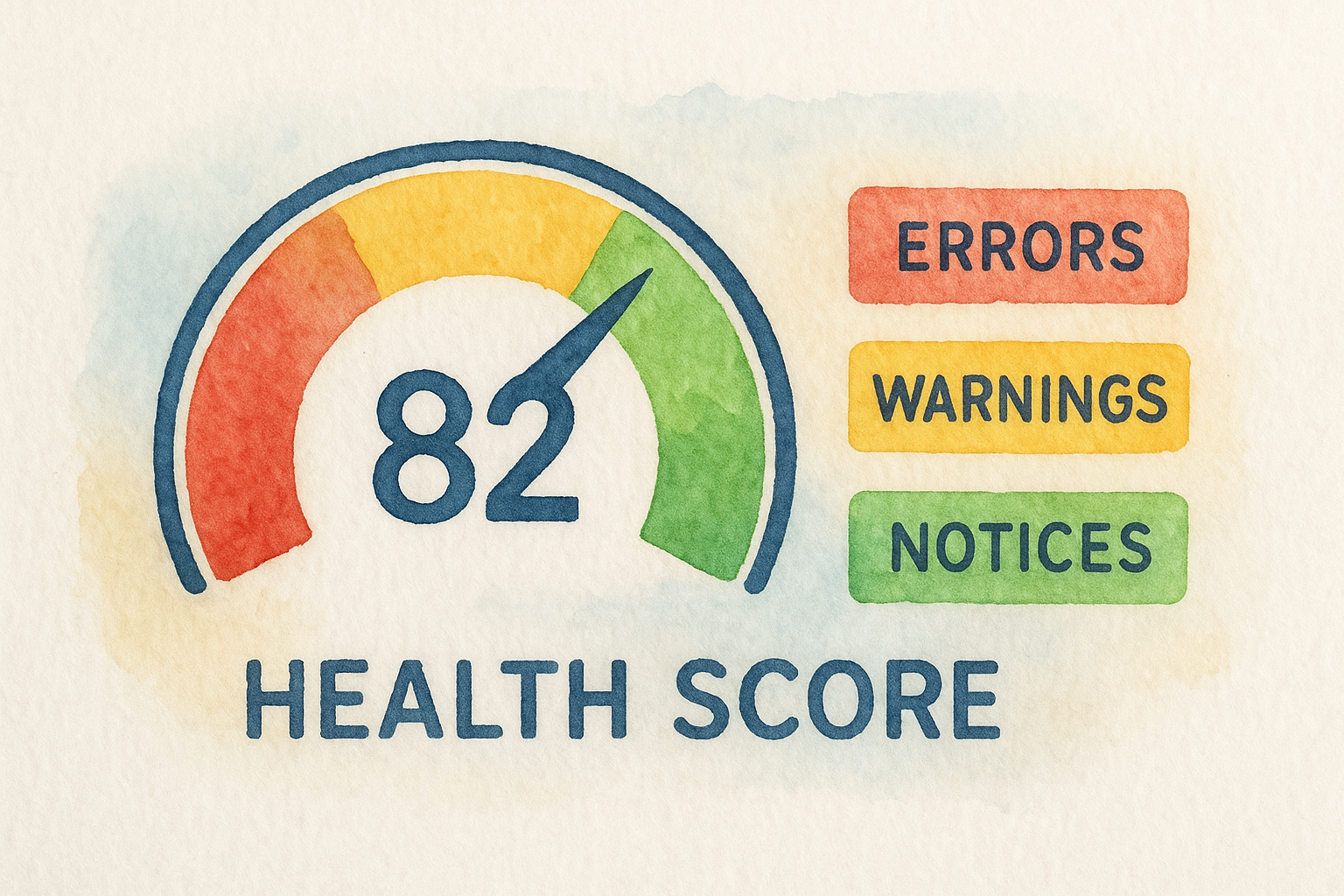
Focus on Errors first. A single broken page or redirect chain can block Google from indexing content that directly drives case inquiries to your firm.
Which issues to fix first
The ahrefs site audit report gives you a full list of flagged URLs under each issue type. Sort by "Issues count" to identify which problems affect the most pages. For a law firm site, prioritize in this order:
- Broken internal links (4xx errors)
- Missing or duplicate title tags
- Missing meta descriptions
- Pages blocked from crawling
Step 4. Fix common issues and re-crawl
Once you have your prioritized error list, work through each fix one category at a time. Tackling broken links and missing tags first gives you the fastest improvement to your Health Score before you move to lower-priority warnings.
How to fix the top issues
The fixes for the most common errors are straightforward. Use the table below as a quick-reference guide for the issues your ahrefs site audit is most likely to surface on a law firm site:
If your robots.txt is blocking a practice area page, Google cannot index it regardless of how well-optimized the content is.
Re-crawl to confirm your fixes
After completing your fixes, return to your project dashboard in Ahrefs and click "Re-crawl." The updated Health Score will show whether your changes resolved the flagged issues or introduced new ones.
Schedule a re-crawl once a month going forward. Plugin updates, new page additions, and template changes can quietly introduce fresh errors, so regular crawls protect the ranking signals your firm depends on for consistent case flow.
What to do next
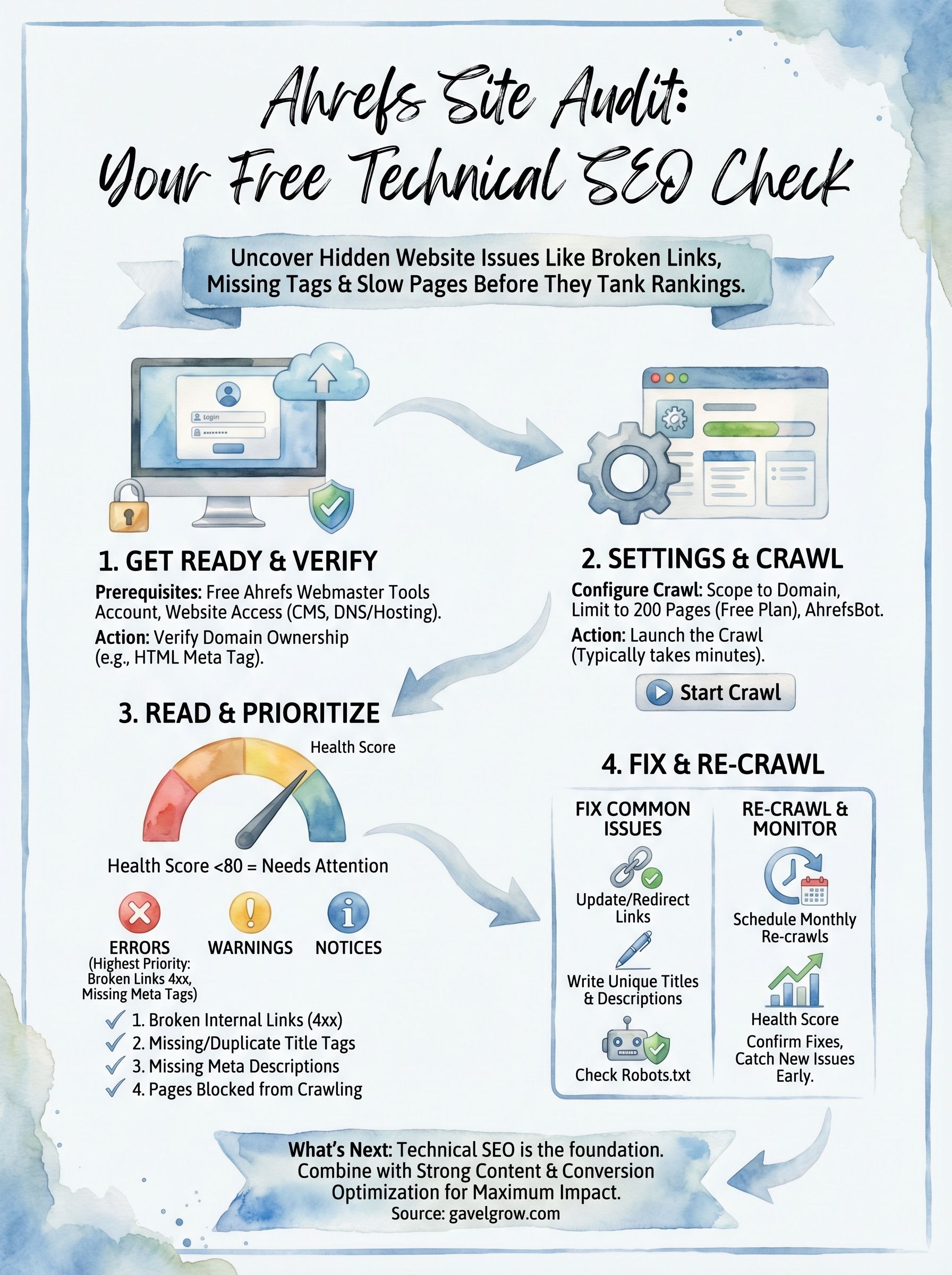
Running an ahrefs site audit through Ahrefs Webmaster Tools costs you nothing and takes less than an hour from setup to your first results. You now know how to verify your domain, configure the crawl, read your Health Score, and work through the highest-priority errors before scheduling monthly re-crawls to catch new issues early.
A technical audit is a strong starting point, but it is one layer of a complete SEO strategy. Fixing broken links and missing tags improves how Google crawls your site, yet it does not replace strong practice area content, local citation building, or a conversion-optimized intake flow. Those elements determine whether ranking improvements actually turn into signed cases.
If you want a team that handles the full picture for your firm, from technical health to qualified lead generation, talk to the legal SEO specialists at GavelGrow to get a free strategy audit built around your practice area and market.
Frequently Asked Questions
Is Ahrefs Site Audit free to use?
Yes, you can run a limited version of Ahrefs Site Audit for free through Ahrefs Webmaster Tools (AWT) without a paid subscription. You create a free account, verify domain ownership, and run the crawl. The free plan caps each crawl at 200 pages, which covers most small-to-mid law firm websites. For larger sites or more frequent crawling, Ahrefs offers paid plans.
How do I verify my website for an Ahrefs Site Audit?
Ahrefs offers three verification methods: adding a DNS record, uploading an HTML file, or placing an HTML meta tag on your site. For most WordPress law firm sites, the meta tag method is fastest, pasted into your theme header or an SEO plugin field like Yoast or RankMath. If verification fails, clear your site cache first, since a cached page can hide the newly added tag from the crawler.
What is a good Health Score in Ahrefs Site Audit?
Ahrefs' Health Score is a percentage reflecting the ratio of internal URLs with no errors versus those flagged with problems. A score below 80 typically signals issues worth addressing promptly. The score breaks into Errors, Warnings, and Notices, so a lower number usually means unresolved Errors, such as broken links or missing meta descriptions, are dragging it down.
Which SEO issues should a law firm fix first after a site audit?
Prioritize Errors first, since they most directly block indexing and rankings. For a law firm site, address broken internal links (4xx errors), missing or duplicate title tags, missing meta descriptions, and pages blocked from crawling, in that order. Sorting by issue count shows which problems affect the most pages, so a single broken redirect or robots.txt block doesn't quietly hide a practice-area page from Google.
How often should I run a technical site audit?
Schedule a re-crawl about once a month after your initial fixes. Plugin updates, new pages, and template changes can quietly introduce fresh errors that erode ranking signals over time. Regular crawls catch these early. Keep in mind a technical audit is one layer of SEO; strong practice-area content, local citations, and a conversion-optimized intake flow determine whether rankings turn into signed cases.
Frequently Asked Questions
Is Ahrefs Site Audit free to use?
Yes, you can run a limited version of Ahrefs Site Audit for free through Ahrefs Webmaster Tools (AWT) without a paid subscription. You create a free account, verify domain ownership, and run the crawl. The free plan caps each crawl at 200 pages, which covers most small-to-mid law firm websites. For larger sites or more frequent crawling, Ahrefs offers paid plans.
How do I verify my website for an Ahrefs Site Audit?
Ahrefs offers three verification methods: adding a DNS record, uploading an HTML file, or placing an HTML meta tag on your site. For most WordPress law firm sites, the meta tag method is fastest, pasted into your theme header or an SEO plugin field like Yoast or RankMath. If verification fails, clear your site cache first, since a cached page can hide the newly added tag from the crawler.
What is a good Health Score in Ahrefs Site Audit?
Ahrefs' Health Score is a percentage reflecting the ratio of internal URLs with no errors versus those flagged with problems. A score below 80 typically signals issues worth addressing promptly. The score breaks into Errors, Warnings, and Notices, so a lower number usually means unresolved Errors, such as broken links or missing meta descriptions, are dragging it down.
Which SEO issues should a law firm fix first after a site audit?
Prioritize Errors first, since they most directly block indexing and rankings. For a law firm site, address broken internal links (4xx errors), missing or duplicate title tags, missing meta descriptions, and pages blocked from crawling, in that order. Sorting by issue count shows which problems affect the most pages, so a single broken redirect or robots.txt block doesn't quietly hide a practice-area page from Google.
How often should I run a technical site audit?
Schedule a re-crawl about once a month after your initial fixes. Plugin updates, new pages, and template changes can quietly introduce fresh errors that erode ranking signals over time. Regular crawls catch these early. Keep in mind a technical audit is one layer of SEO; strong practice-area content, local citations, and a conversion-optimized intake flow determine whether rankings turn into signed cases.