Google Keyword Planner: How To Access And Use It
Categories: Legal Marketing Strategies
 Abram Ninoyan
Founder & Senior Performance Marketer
Credentials: Google Partner, Google Ads Search Certified, Google Ads Display Certified, Google Ads Measurement Certified, Google Analytics (IQ) Certified, HubSpot Inbound Certified, HubSpot Social Media Marketing Certified, Conversion Optimization Certified
Expertise: Google Ads, Meta Ads, Conversion Rate Optimization, GA4 & Google Tag Manager, Lead Generation, Marketing Funnel Optimization, PPC Management
LinkedIn Profile
Google Keyword Planner is a free tool inside Google Ads that shows you search volume, competition levels, and bid estimates for any keyword, and you don't need to run ads to use it. Most law firms pou...
Key Takeaways
- Google Keyword Planner: How To Access And Use It (2026)
- What is Google Keyword Planner and who is it for?
- How do you access Keyword Planner in 2026?
- Step 1. Set up your account and targeting
Google Keyword Planner: How To Access And Use It (2026)
Google Keyword Planner is a free tool inside Google Ads that shows you search volume, competition levels, and bid estimates for any keyword, and you don't need to run ads to use it.
Most law firms pour thousands into Google Ads each month but skip the step that actually determines whether that spend pays off: keyword research. Picking the wrong terms, "lawyer near me" instead of "car accident lawyer [city]," for example, can mean the difference between $40 leads and $400 leads. Keyword Planner gives you the data to make that call before you commit budget. At GavelGrow, we've watched firms cut cost-per-signed-case by double digits simply by shifting spend toward keywords their Keyword Planner data actually supported.
This guide walks you through setting up access to Google Keyword Planner in 2026 (even without an active campaign), running your first keyword research, reading the results, and applying what you find to both paid and organic campaigns. Whether you manage your own Google Ads through a platform like GavelGrow or hand everything to a strategist, understanding this tool puts you in control of where your marketing dollars land.
What is Google Keyword Planner and who is it for?
Google Keyword Planner is a free research tool built into Google Ads that gives you three core data points for any search term: average monthly search volume, keyword competition level (low, medium, or high), and a suggested bid range for Google Ads placements. You access it through your Google Ads account, and Google designed it primarily to help advertisers plan paid search campaigns, though SEO professionals and content strategists use it just as often for organic keyword research.
What data does Google Keyword Planner actually provide?
When you enter a seed keyword or a URL, the tool returns a full list of related keyword ideas along with supporting metrics. Understanding what each column means helps you prioritize the right terms and stop guessing about where to put your budget.
Here is a breakdown of the main data fields you will see:
Without this data, you are essentially bidding on keywords based on intuition, which is how firms end up overpaying for terms that never convert into signed cases.
One important caveat: Google Keyword Planner rounds search volumes for accounts that are not actively spending on ads. You might see "1K-10K" instead of a precise number like 4,400. Once your account has active campaign spend, the tool unlocks exact monthly figures. This is worth knowing before you draw hard conclusions from broad volume ranges alone.
Who should actually use this tool?
Any law firm running or planning Google Ads campaigns should use Keyword Planner before writing a single ad. The tool tells you whether the keywords you want to target have enough search demand in your city to justify the campaign, or whether you need to expand your list. A personal injury firm in a mid-size market, for example, might discover that "slip and fall attorney [city]" gets 90 searches per month while "car accident lawyer [city]" gets 1,300. That gap directly shapes your budget allocation.
Beyond paid search, SEO and content teams use Keyword Planner to find terms worth targeting with blog posts, practice-area pages, and location pages. If you are building out your firm's website and want to rank organically for high-intent searches, the search volume and competition data help you decide which pages to build first. GavelGrow clients who combine Keyword Planner research with the platform's full-funnel attribution routinely find that organic and paid keyword strategies reinforce each other rather than compete, because the underlying search data comes from the same source.
How do you access Keyword Planner in 2026?
Accessing Google Keyword Planner requires a free Google Ads account, but you do not need to run a single ad or enter a credit card to use the research features. Google added an option to skip campaign creation during sign-up, which means you can reach keyword data in under five minutes without committing any budget.
Do you need an active campaign to use it?
No. Google lets you access Keyword Planner with an account set to "Expert Mode" and no active campaigns running. The trade-off is that inactive accounts see rounded search volume ranges (like "1K-10K") instead of exact monthly figures. If you need precise numbers to make budget decisions, running even a small active campaign unlocks the full data set. For most law firms starting their keyword research, the ranges are detailed enough to identify which terms deserve your attention first.
If Google prompts you to create a campaign during sign-up, look for the small "Switch to Expert Mode" link near the bottom of the screen, then choose "Create an account without a campaign."
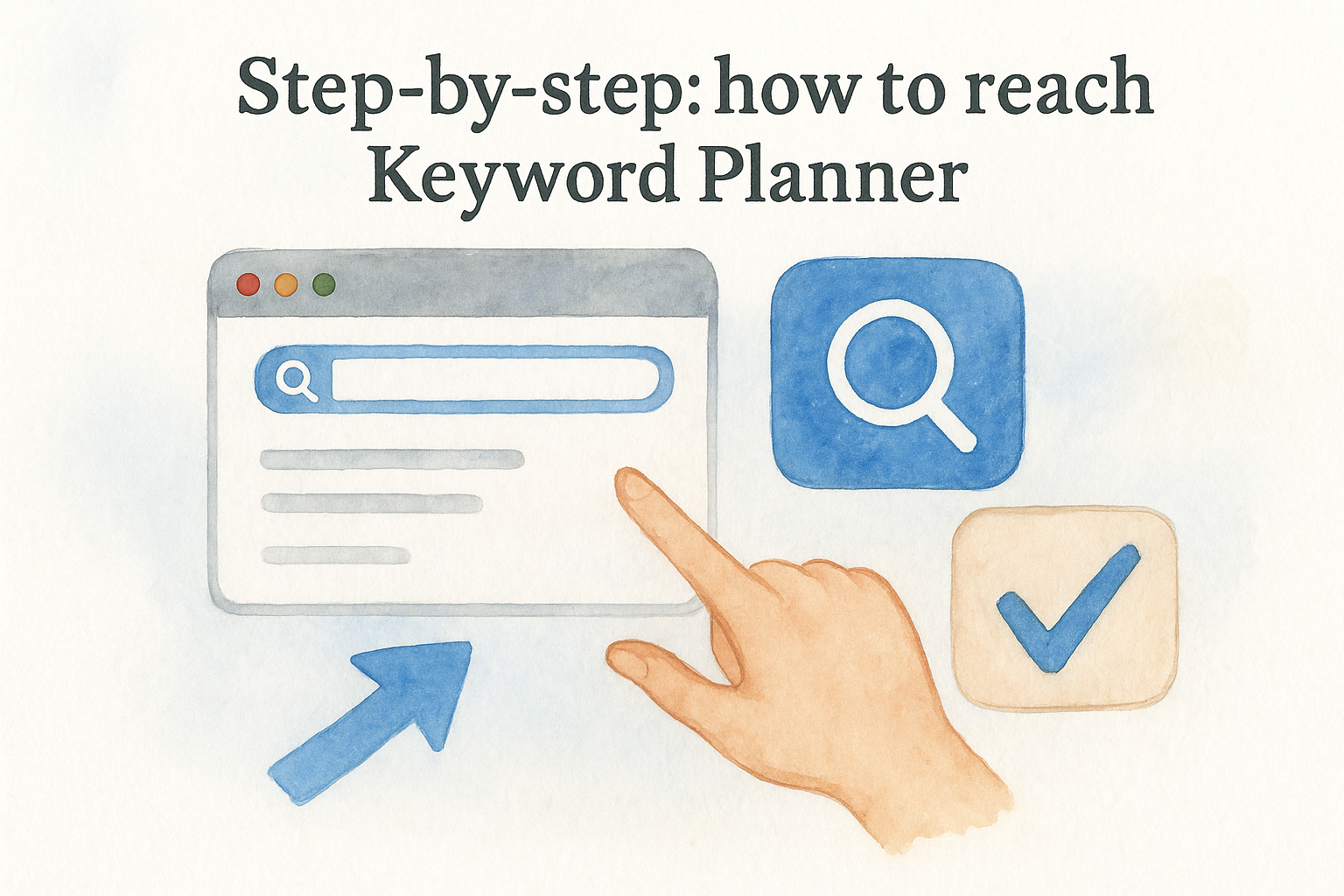
Step-by-step: how to reach Keyword Planner
Follow these steps to get inside the tool from scratch:
- Go to ads.google.com and sign in or create a new Google account.
- Click "Switch to Expert Mode" if Google prompts you to build a campaign.
- Select "Create an account without a campaign" to skip the ad creation flow entirely.
- Confirm your billing country and time zone. You do not need to add payment details at this stage.
- From the main Google Ads dashboard, click the grid icon (labeled "Tools") in the top navigation bar.
- Under the "Planning" section, select "Keyword Planner."
- Choose either "Discover new keywords" or "Get search volume and forecasts" to begin your research.
Once you land on the Keyword Planner home screen, both entry points appear clearly labeled. New users should start with "Discover new keywords" because it generates a broad list of related terms from a single seed keyword or URL, giving you more options to evaluate before you narrow your focus for ads or content.
Step 1. Set up your account and targeting
Before you run any searches inside Google Keyword Planner, spend two minutes configuring your account settings. Skipping this step means your volume data and bid estimates will reflect a national audience by default, which is misleading if your firm only serves clients in one state or metro area. Getting the targeting right from the start ensures every number you see reflects actual local demand for your practice area.
How do you set your location and language?
After you open Keyword Planner and select "Discover new keywords," look for the targeting controls near the top of the results panel. These settings appear before you run your first search, and you can also adjust them at any time from within the results view. For a personal injury firm in Dallas, you would remove the default "United States" location and add "Dallas, Texas" or the broader "Texas" depending on where you take cases.
Follow these steps to configure location and language correctly:
- Click the pencil icon next to the location field in the targeting panel.
- Type your city, metro area, or state in the search box and select it from the dropdown.
- Remove "United States" if you only practice locally by clicking the X next to it.
- Confirm that Language is set to "English" unless you also run ads in Spanish.
- Click "Save" to apply the targeting before you pull any keyword data.
Getting location targeting wrong is one of the most common mistakes firms make, because national search volume for "car accident lawyer" can be 10x higher than the city-level volume you actually have access to.
Should you adjust the date range?
Yes. The default date range in Google Keyword Planner shows a rolling 12-month average, which smooths out seasonal spikes. For practice areas with seasonal patterns, like tax law in Q1 or DUI cases around major holidays, switching to a monthly view shows you exactly when search demand peaks. Click the date range dropdown above the results table and select "Monthly" to see volume broken out by month rather than averaged across the year. That granularity helps you time campaigns and content around real demand, not a blended average that hides the peaks.
Step 2. Discover keywords and filter the noise
With your location and date range set correctly, you are ready to run your first search inside Google Keyword Planner. The "Discover new keywords" tool accepts up to 10 seed keywords at once, or a single URL from your website. Enter your most obvious practice-area terms first, then let the tool generate hundreds of related ideas you may not have considered.
How do you enter your seed keywords?
Type your core service terms directly into the search box, one per line or separated by commas. For a criminal defense firm in Atlanta, a solid starting list might look like this:
- criminal defense lawyer Atlanta
- DUI attorney Atlanta
- felony defense attorney Georgia
- criminal law firm near me
- Atlanta defense attorney
Click "Get results" and the tool returns a full keyword ideas table. Each row shows a related term alongside its monthly search volume, competition rating, and suggested bid range. Scan the full list before filtering, because Google Keyword Planner sometimes surfaces high-intent variations you would not have thought to search for manually, like "what happens if I miss a court date Atlanta," which signals someone actively in the legal process.
The best keyword discoveries often come from terms two or three rows down the list, not the obvious ones you already knew about.
Which filters remove the terms that waste your budget?
Raw keyword lists from even a focused seed search can return 500 or more suggestions, and most of them are irrelevant. The filter bar at the top of the results table lets you narrow the list by search volume, competition, and keyword text. Apply these filters in sequence to cut the noise fast:
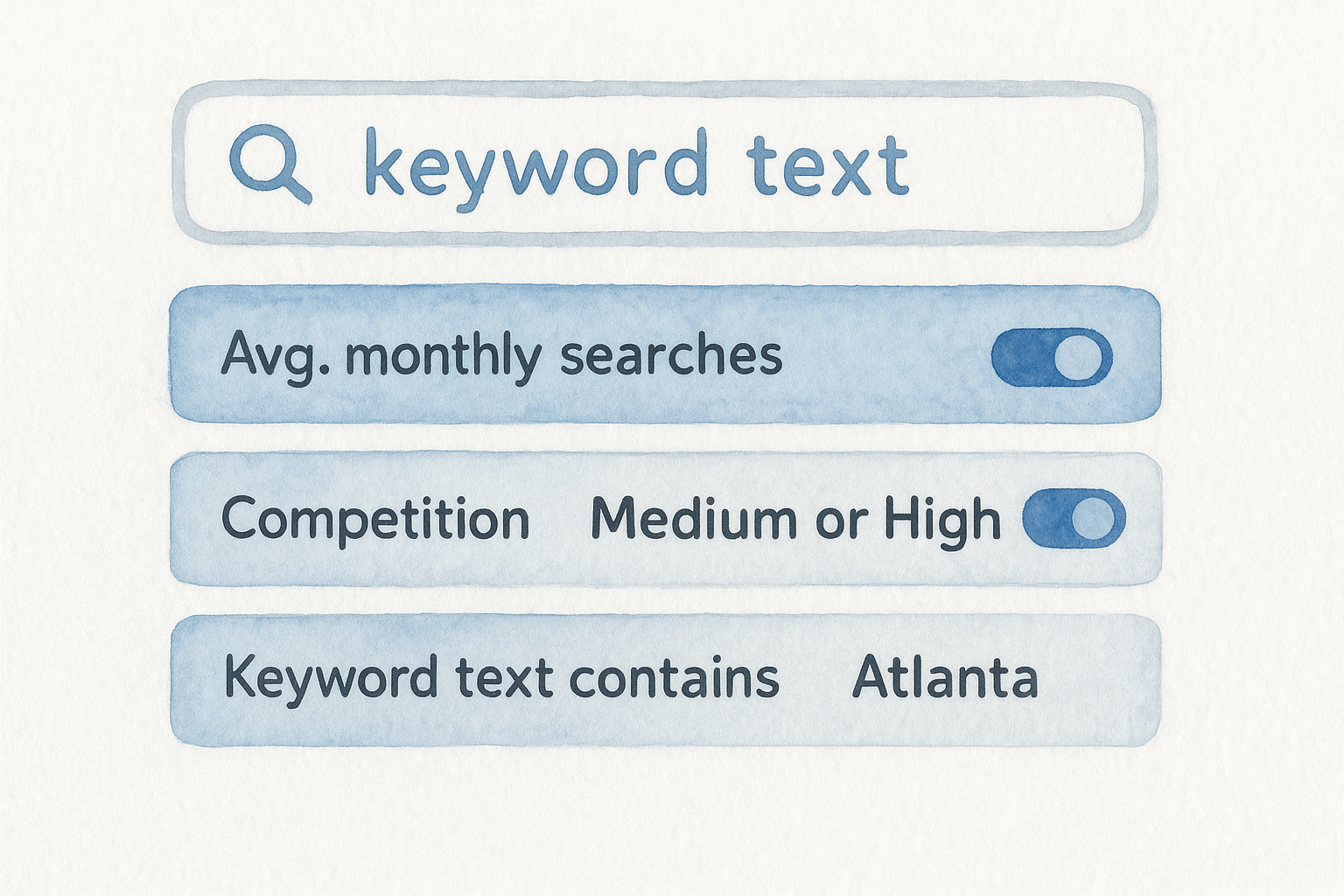
After applying those filters, your list should shrink to 20 to 80 actionable terms that reflect real local demand. Export this filtered list using the "Download keyword ideas" button so you have a clean working file to reference when you build your ad groups or content calendar.
Step 3. Build an SEO and Ads keyword plan
Once you have your filtered keyword list, the next step is splitting those terms into two separate tracks: one for paid Google Ads campaigns and one for organic SEO content. Most firms treat these as separate processes, but using Google Keyword Planner as a shared data source for both saves time and ensures your paid and organic strategies target the same high-intent searchers.
How do you organize keywords into ad groups?
Group your paid keywords by intent and specificity, not just by practice area. Each ad group should contain 5 to 10 closely related terms that share a common theme so you can write ad copy that matches the searcher's exact situation. A criminal defense firm, for example, would separate "DUI attorney Atlanta" from "felony lawyer Atlanta" rather than dumping them into one broad group.
Use this template to structure your first ad groups in a spreadsheet before you upload them to Google Ads:
Tightly themed ad groups improve your Quality Score in Google Ads, which directly lowers your cost per click without reducing visibility.
How do you turn keyword data into an SEO content plan?
Pull the medium and low competition terms from your filtered list and assign each one to a specific page type on your website: practice-area page, city landing page, or blog post. High-volume, high-competition terms belong on your core practice-area pages where you want to rank long-term. Lower-volume, question-based terms, like "what to do after a car accident in Atlanta," fit better as blog posts that capture early-stage searchers before they are ready to call a firm.
Prioritize pages by multiplying the estimated monthly search volume by your current ranking position gap. Terms where you rank on page two but the volume exceeds 200 per month are your fastest wins and deserve content updates or new dedicated pages before you build anything from scratch.
Next Steps
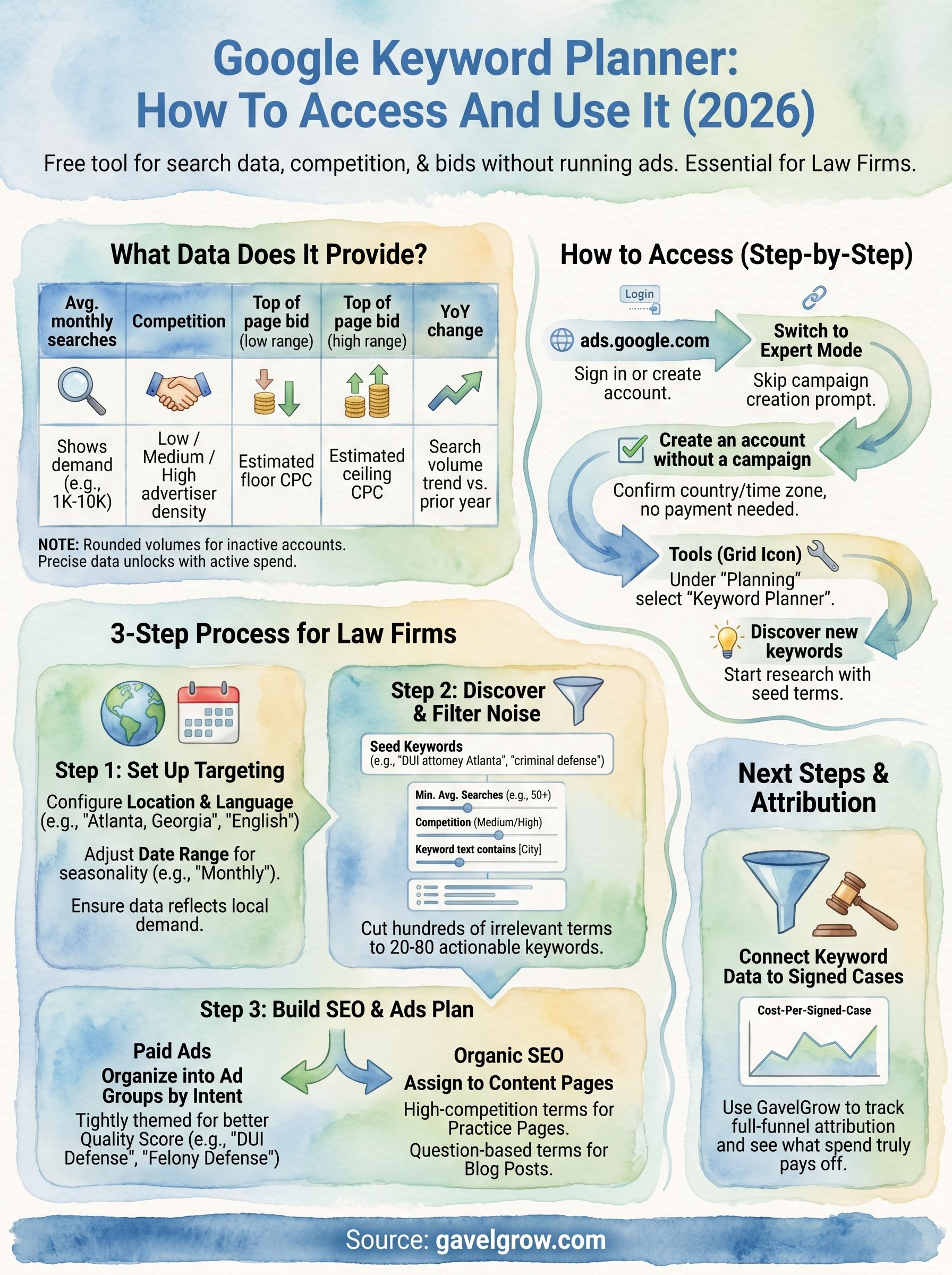
You now have everything you need to run Google Keyword Planner from account setup through a finished keyword plan split across paid and organic tracks. The process breaks down to four actions: configure your local targeting, run a seed keyword search, filter the results to 20 to 80 high-intent terms, and assign each term to either an ad group or a content page based on competition and intent.
Keyword research is only as valuable as the system that tracks what happens after someone clicks. Knowing which keywords drive signed cases, not just clicks, is where most firms lose ground. GavelGrow's platform connects your Google Ads keyword data to a full-funnel attribution dashboard so you see cost-per-signed-case at the campaign level, not just impressions and clicks. If you want to see exactly how that looks for your practice area, book a free 45-minute strategy call and we will walk through your numbers directly.
Frequently Asked Questions
Is Google Keyword Planner free, and do I need to run ads to use it?
Yes, Google Keyword Planner is free and built into Google Ads, and you do not need to run a single ad or enter a credit card to access its research features. During sign-up, choose "Switch to Expert Mode" and then "Create an account without a campaign" to reach keyword data in minutes. The tool shows search volume, competition level, and suggested bid ranges.
Why does Keyword Planner show search volume ranges instead of exact numbers?
Google rounds search volumes to ranges like "1K-10K" for accounts that are not actively spending on ads. Once your account has active campaign spend, the tool unlocks exact monthly figures. For most firms starting keyword research, the ranges are detailed enough to identify which terms deserve attention first, so you can prioritize before committing budget to precise numbers.
How do I get accurate local search data in Keyword Planner?
Set your location targeting before running any searches, because the tool defaults to a national audience that overstates the demand you actually have access to. Click the pencil icon by the location field, add your city, metro, or state, and remove "United States" if you practice only locally. National volume for a term like "car accident lawyer" can be many times higher than city-level volume.
How should I filter a large list of keyword ideas?
A focused seed search can return 500 or more suggestions, most of them irrelevant, so use the filter bar to narrow by search volume, competition, and keyword text in sequence. Aim to shrink the list to roughly 20 to 80 actionable terms that reflect real local demand. Then export the filtered list to build your ad groups or content calendar from a clean file.
How do I split keyword research between paid ads and SEO content?
Use Keyword Planner as a shared data source, then divide terms into two tracks. Group paid keywords into tightly themed ad groups of five to ten related terms so ad copy matches the searcher's situation and improves Quality Score. For SEO, assign high-volume, competitive terms to core practice-area pages and lower-volume, question-based terms to blog posts that capture early-stage searchers.
Frequently Asked Questions
Is Google Keyword Planner free, and do I need to run ads to use it?
Yes, Google Keyword Planner is free and built into Google Ads, and you do not need to run a single ad or enter a credit card to access its research features. During sign-up, choose "Switch to Expert Mode" and then "Create an account without a campaign" to reach keyword data in minutes. The tool shows search volume, competition level, and suggested bid ranges.
Why does Keyword Planner show search volume ranges instead of exact numbers?
Google rounds search volumes to ranges like "1K-10K" for accounts that are not actively spending on ads. Once your account has active campaign spend, the tool unlocks exact monthly figures. For most firms starting keyword research, the ranges are detailed enough to identify which terms deserve attention first, so you can prioritize before committing budget to precise numbers.
How do I get accurate local search data in Keyword Planner?
Set your location targeting before running any searches, because the tool defaults to a national audience that overstates the demand you actually have access to. Click the pencil icon by the location field, add your city, metro, or state, and remove "United States" if you practice only locally. National volume for a term like "car accident lawyer" can be many times higher than city-level volume.
How should I filter a large list of keyword ideas?
A focused seed search can return 500 or more suggestions, most of them irrelevant, so use the filter bar to narrow by search volume, competition, and keyword text in sequence. Aim to shrink the list to roughly 20 to 80 actionable terms that reflect real local demand. Then export the filtered list to build your ad groups or content calendar from a clean file.
How do I split keyword research between paid ads and SEO content?
Use Keyword Planner as a shared data source, then divide terms into two tracks. Group paid keywords into tightly themed ad groups of five to ten related terms so ad copy matches the searcher's situation and improves Quality Score. For SEO, assign high-volume, competitive terms to core practice-area pages and lower-volume, question-based terms to blog posts that capture early-stage searchers.