What Is Facebook Ads Manager? Login, Features, And Tips
Categories: Legal Marketing Strategies
 Abram Ninoyan
Founder & Senior Performance Marketer
Credentials: Google Partner, Google Ads Search Certified, Google Ads Display Certified, Google Ads Measurement Certified, Google Analytics (IQ) Certified, HubSpot Inbound Certified, HubSpot Social Media Marketing Certified, Conversion Optimization Certified
Expertise: Google Ads, Meta Ads, Conversion Rate Optimization, GA4 & Google Tag Manager, Lead Generation, Marketing Funnel Optimization, PPC Management
LinkedIn Profile
Every paid campaign you run on Facebook or Instagram starts and ends in one place: Facebook Ads Manager. It's the central hub where you set budgets, build audiences, launch creatives, and measure what...
Key Takeaways
- What Is Facebook Ads Manager? Login, Features, And Tips
- What Facebook Ads Manager is and what it does
- Why Ads Manager matters for Facebook and Instagram ads
- How to log in and access Ads Manager
What Is Facebook Ads Manager? Login, Features, And Tips
Every paid campaign you run on Facebook or Instagram starts and ends in one place: Facebook Ads Manager. It's the central hub where you set budgets, build audiences, launch creatives, and measure what's actually working. Whether you've never opened it before or you log in daily, understanding how the platform operates is the difference between burning ad spend and generating real results.
For law firms especially, paid social can be a serious client acquisition channel, but only when the campaigns behind it are built with precision. At GavelGrow, we manage ad spend for attorneys across the country, and Ads Manager is one of the core tools we use to drive qualified consultations and signed cases. We've seen firsthand how small misconfigurations in this platform can drain thousands from a firm's monthly budget, and how proper setup can cut cost per lead significantly.
This guide breaks down what Facebook Ads Manager is, how to log in and navigate it, the features that matter most, and practical tips to get more from every dollar you spend. If you're running ads for your firm, or planning to, this is the starting point. Let's walk through it step by step.
What Facebook Ads Manager is and what it does
Facebook Ads Manager is Meta's official advertising platform, built to give you full control over paid campaigns running on Facebook, Instagram, Messenger, and the Audience Network. You use it to create ads, define who sees them, set how much you spend, and measure every result from impressions down to conversions. Instead of boosting a post and hoping for the best, Ads Manager puts every targeting and budgeting decision directly in your hands.
Think of it as the command center for every paid dollar you put into Meta's ecosystem.
Many people first encounter Ads Manager through Meta Business Suite, but the two tools serve different purposes. Business Suite handles your organic page activity and basic messaging, while Ads Manager is dedicated exclusively to paid advertising. If you're running serious campaigns, you work in Ads Manager, not Business Suite.
The platform structure: campaigns, ad sets, and ads
Everything inside Facebook Ads Manager follows a three-level hierarchy, and understanding it prevents expensive mistakes. At the top sits the campaign, where you choose your objective, such as lead generation, traffic, or conversions. Below that is the ad set, where you define your audience, placements, schedule, and daily or lifetime budget. At the bottom is the individual ad, where you upload your creative, write your copy, and choose your format.
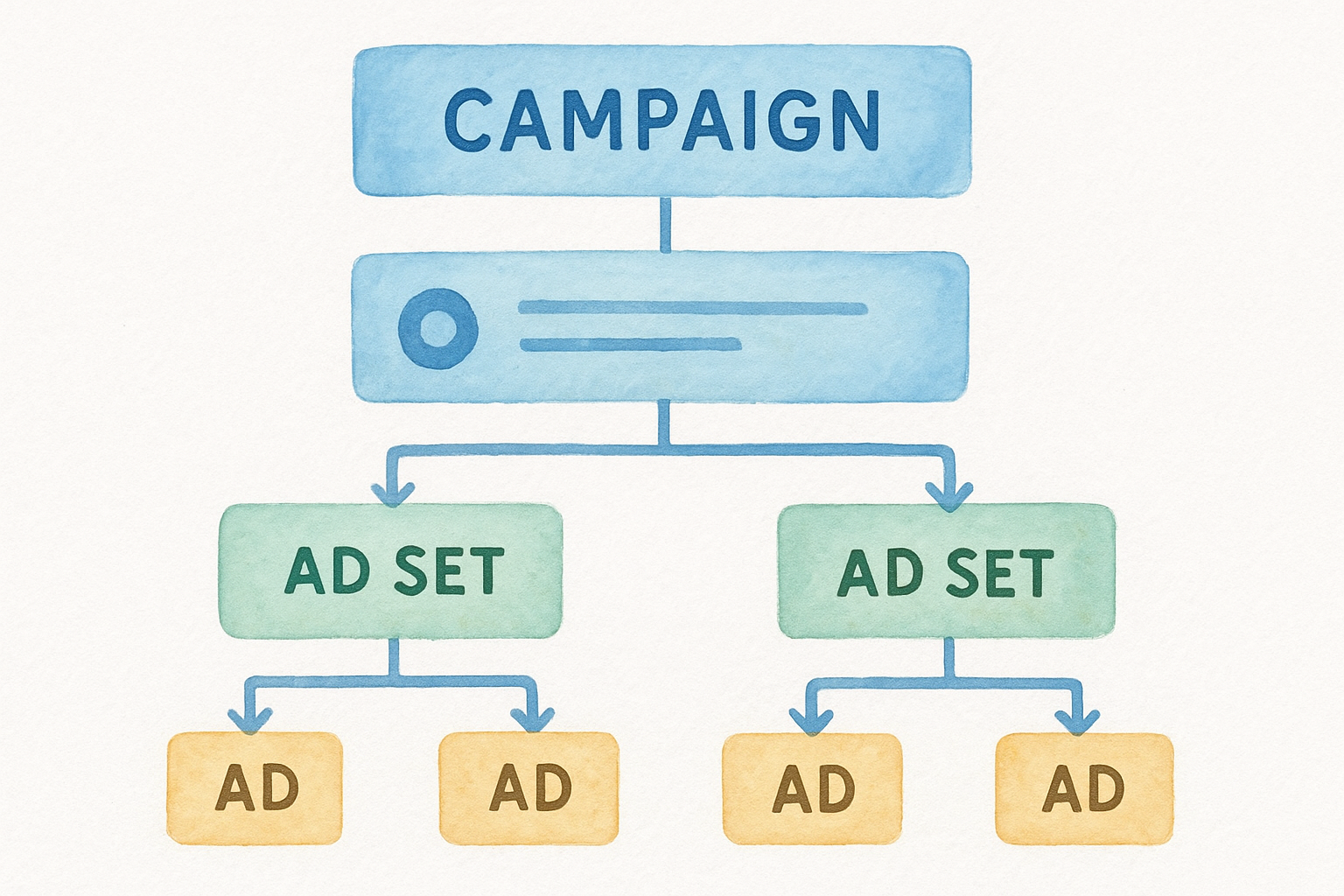
This structure matters because changes at one level affect everything beneath it. If you adjust your audience targeting at the ad set level, every ad inside that set immediately reflects the change. Treating each level as independent is one of the most common and costly mistakes advertisers make when they first start running campaigns.
- Campaign level: Objective selection (leads, traffic, awareness, conversions)
- Ad set level: Audience targeting, placements, budget, and schedule
- Ad level: Creative assets, copy, call-to-action, and destination URL
What you can actually do inside the platform
Beyond building and launching campaigns, Ads Manager includes a full reporting dashboard that breaks down performance by campaign, ad set, individual ad, and time period. You can track metrics like cost per result, click-through rate, reach, frequency, and return on ad spend, all in one view. For law firms running lead generation campaigns, this means you can see exactly how much each consultation request costs, not just how many clicks the ad received.
The platform also includes tools for A/B testing, audience creation, pixel setup, and automated campaign rules that pause ads or adjust budgets when performance drops below a threshold you define. You can build custom audiences from website visitors, upload a client list, or create lookalike audiences based on your best existing contacts. These capabilities make Ads Manager far more than a simple publishing tool. It's a full optimization environment when you know how to use it.
Why Ads Manager matters for Facebook and Instagram ads
The "Boost Post" button is tempting because it's fast. But when you boost a post, you hand control to Meta's algorithm with minimal input on who sees your ad, what you pay, or what action you want people to take. Facebook Ads Manager gives you the structured environment to make every one of those decisions deliberately, which is exactly why it produces better outcomes for advertisers who use it seriously.
Boosting posts versus running actual campaigns
Boosted posts work at the surface level. They increase visibility, but they don't give you the precision targeting, objective selection, or conversion tracking that a properly built campaign delivers. When you run a campaign through Ads Manager, you choose a specific objective, like lead generation or website conversions, which tells the algorithm exactly what outcome to optimize for. That one decision changes how Meta distributes your budget and who it shows your ad to.
The objective you select at the campaign level shapes every delivery decision Meta makes, so choosing the wrong one wastes money even when everything else looks correct.
For law firms, this distinction is significant. A boosted post might generate engagement from people with zero legal need, while a lead generation campaign targets users who match your defined criteria and prompts them to submit a contact form directly inside the app. The difference in lead quality is not minor, and neither is the difference in cost per qualified inquiry.
Why both Facebook and Instagram run through one platform
Meta owns both platforms, and Ads Manager lets you control placements across both from a single interface. You can run the same campaign on Facebook feeds, Instagram Stories, Reels, and Messenger without building separate campaigns for each. Centralized budget control means your spend shifts toward wherever performance is strongest, rather than being split arbitrarily by channel.
This matters especially for firms managing campaigns across multiple practice areas or locations. Handling all placement strategies from one dashboard lets you compare results side by side, pause underperformers quickly, and move budget without logging into separate tools. That operational efficiency compounds over time into lower cost per acquisition and faster optimization, two outcomes that directly affect how much a signed case actually costs your firm.
How to log in and access Ads Manager
Getting into Facebook Ads Manager starts with a Meta account. If you already have a personal Facebook account, you have the credentials you need. Navigate directly to Meta's Ads Manager to open the platform without going through extra menus. Log in with your Facebook email and password, and you'll land on the main campaign dashboard where all your active, paused, and completed campaigns appear in a single organized list.
What you need before you log in
Before you can launch anything, your account setup needs a few basics in place. At minimum, you need a Facebook Page connected to your account and a valid payment method on file. Without a Page, Meta blocks you from creating ads entirely. Without payment details, your campaigns won't deliver even after you publish them. Both items take a few minutes to configure under the Billing and Payment Settings section inside Ads Manager.
Confirming that you're working inside the correct ad account is also important. If you manage multiple pages or operate under a shared business profile, Meta allows several ad accounts within one Business Manager. The account selector in the top-left corner of Ads Manager shows every account tied to your login, so always verify the right one is active before touching budgets or adjusting live campaigns.
Here's what you need ready before your first login:
- A personal Facebook account or a dedicated Meta Business account
- A Facebook Page associated with your firm or business
- A valid credit card or bank account added under billing settings
- Admin-level access to the specific ad account you plan to manage
Using Meta Business Manager for team access
If more than one person needs to work inside your campaigns, Meta Business Manager at business.facebook.com is the right setup. Business Manager lets you assign roles such as admin, advertiser, or analyst, so each team member only accesses what their role permits. This protects your billing information and prevents accidental edits to ads that are already live and spending.
Setting up Business Manager before you scale is far easier than restructuring permissions after campaigns are already running.
Once inside Business Manager, you reach Ads Manager through the left-side menu under "Advertise." For law firms working with an external agency, role-based access through Business Manager is the professional standard. It keeps your account organized and ensures you always retain full ownership of your ad account, regardless of who handles the day-to-day campaign work.
Core features you should know before you launch
Facebook Ads Manager is not a simple ad publisher. Before you spend a single dollar, it's worth understanding the specific features that separate well-built campaigns from ones that bleed budget without producing results. Knowing these tools upfront shortens the learning curve and gives you a measurable advantage the moment your first campaign goes live.
Audience targeting tools
The audience tools inside Ads Manager are where campaigns either become efficient or turn wasteful. You can build Custom Audiences from your website visitors, video viewers, or uploaded contact lists, which means you can retarget people who already showed interest in your firm rather than only reaching cold users. From any Custom Audience, the platform also lets you generate a Lookalike Audience that finds new users who share the same characteristics as your existing contacts.
Targeting people who resemble your current clients consistently produces lower cost per lead than cold interest-based targeting alone.
For law firms, this is particularly valuable. A personal injury firm can upload a list of past clients, build a lookalike from that list, and reach new users across Facebook and Instagram who match that profile without guessing at interest categories.
The Meta Pixel and conversion tracking
The Meta Pixel is a short piece of code you install on your website that reports user actions back to Ads Manager. When someone fills out a contact form or visits a confirmation page after clicking your ad, the Pixel records that event and attributes it to the specific ad that drove the action. Without it, you're flying blind on which campaigns actually produce leads versus which ones just generate clicks.
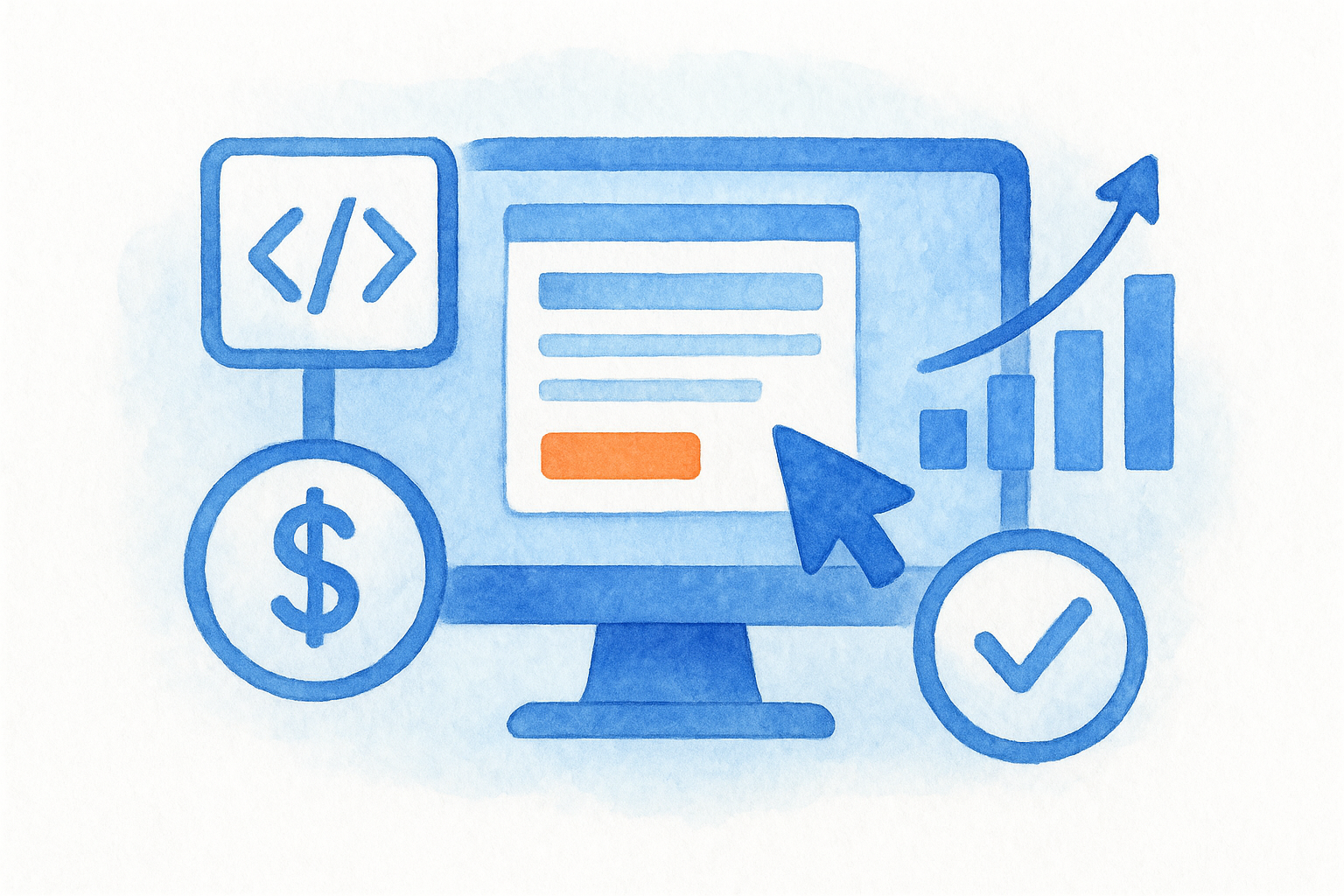
Setting up the Pixel correctly before you launch is non-negotiable. You need it installed on every page of your site, with specific conversion events defined for the actions that matter most to your firm, like form submissions or phone call initiations. Ads Manager walks you through the setup inside the Events Manager section, and once it's live, every campaign you run starts feeding real conversion data back into your reporting dashboard.
Campaign budget optimization
Campaign Budget Optimization (CBO) lets you set one budget at the campaign level and allow Meta's algorithm to distribute spend across your ad sets in real time based on performance. Rather than manually dividing a fixed daily budget across multiple audiences, CBO shifts dollars automatically toward whichever ad set is producing the strongest results at any given moment.
Practical tips to set up, track, and optimize
Running campaigns in Facebook Ads Manager without a clear testing strategy turns your budget into a guessing game. The tips below reflect the decisions that consistently separate campaigns that produce qualified leads from ones that spend heavily and deliver little.
Start narrow before you scale
When you build your first ad set, resist the urge to stack multiple interests, locations, and age ranges into one broad audience. Wide targeting gives the algorithm too much room to find low-cost but low-quality impressions. Start with a tight, well-defined audience, let it run for at least five to seven days, and review the data before broadening anything.
Scaling a campaign that has not proven itself at a smaller budget accelerates losses, not results.
Once a specific audience consistently hits your target cost per lead, that's the signal to increase the budget incrementally, no more than 20% every few days, rather than doubling it overnight. Sudden large budget increases reset the algorithm's learning phase, which disrupts delivery and inflates costs temporarily.
Watch frequency before you watch clicks
Ad frequency is the average number of times each person in your audience has seen your ad. When frequency climbs above three or four within a short window, click-through rates typically drop while cost per result rises. This is one of the most overlooked metrics inside Ads Manager, and it tells you when an audience is exhausted before your performance data catches up.
Refreshing your creative, meaning swapping in new images, copy, or formats, resets the audience's response without requiring you to rebuild the entire campaign. For law firms running lead generation, rotating two or three ad variations inside each ad set reduces fatigue and keeps cost per consultation stable over longer campaign periods.
Build your reporting columns once, save them permanently
The default column layout in Ads Manager shows generic metrics that rarely match what matters for your specific goal. Customize your columns to include cost per result, frequency, landing page views, and any conversion events tied to your Meta Pixel, then save that view so every reporting session starts with the numbers you actually need.
Checking cost per result and frequency together gives you a complete picture of campaign health in under two minutes. That combination tells you whether your audience is converting efficiently or whether it's time to refresh creative, expand targeting, or redistribute budget across better-performing ad sets.
Quick recap and next step
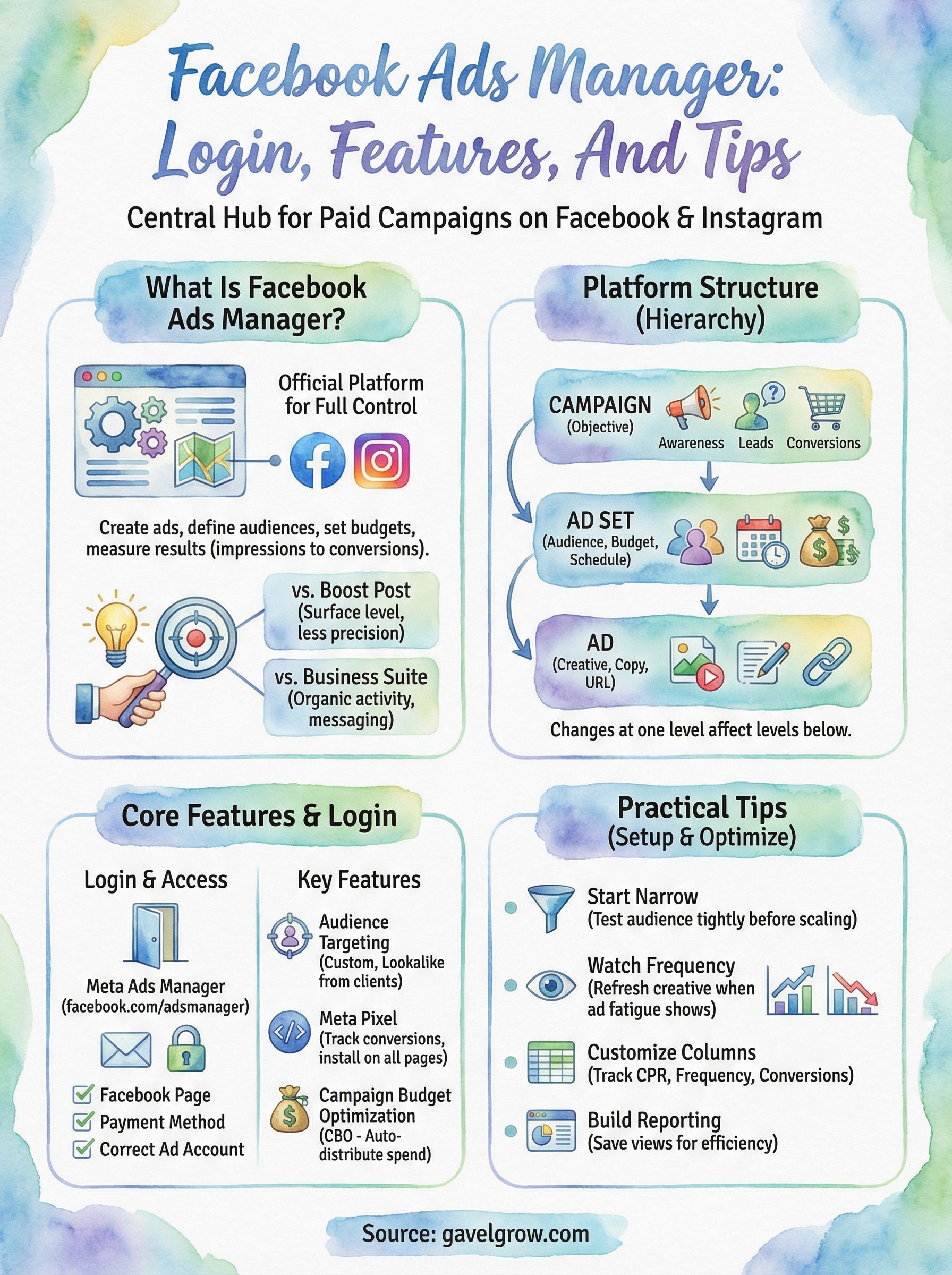
Facebook Ads Manager gives you full control over every paid campaign you run across Facebook and Instagram, from audience targeting and budget allocation to creative testing and conversion tracking. The three-level structure of campaigns, ad sets, and ads is the foundation everything else builds on. Log in with your Meta credentials, confirm your Page and billing are set up, and install the Meta Pixel before your first campaign goes live. Use the core features like Custom Audiences, Lookalike Audiences, and Campaign Budget Optimization intentionally, and track frequency alongside cost per result to catch performance problems before they drain your budget.
Running paid social well takes the right setup and consistent optimization. If you manage a law firm and want campaigns that produce signed cases rather than just clicks, the team at GavelGrow builds and manages legal advertising with that exact outcome in mind. Reach out to see what a focused paid strategy looks like for your practice area.
Frequently Asked Questions
What is Facebook Ads Manager?
Facebook Ads Manager is Meta's official advertising platform for running paid campaigns across Facebook, Instagram, Messenger, and the Audience Network. You use it to create ads, define who sees them, set your budget, and measure every result from impressions down to conversions. It differs from Meta Business Suite, which handles organic page activity and messaging; Ads Manager is dedicated exclusively to paid advertising and gives you full control over every decision.
What is the difference between boosting a post and running a campaign in Ads Manager?
Boosting a post is fast but hands control to Meta's algorithm with minimal input on who sees your ad, what you pay, or what action you want. Running a campaign in Ads Manager lets you choose a specific objective, like lead generation or conversions, which tells the algorithm exactly what outcome to optimize for and changes how your budget is distributed. For law firms, that difference shows up directly in lead quality and cost per qualified inquiry.
How is Facebook Ads Manager structured?
Ads Manager follows a three-level hierarchy. The campaign sits at the top, where you choose your objective such as leads, traffic, or conversions. Below that is the ad set, where you define your audience, placements, schedule, and budget. At the bottom is the individual ad, where you upload creative, write copy, and set the destination URL. Changes at one level affect everything beneath it, so the structure matters.
What is the Meta Pixel and why does a law firm need it?
The Meta Pixel is a short piece of code you install on your website that reports user actions back to Ads Manager. When someone submits a contact form or reaches a confirmation page after clicking your ad, the Pixel records that event and attributes it to the specific ad that drove it. Without it, you can't tell which campaigns produce real leads versus just clicks, so setting it up before you launch is essential for reliable conversion data.
How do you scale a Facebook ad campaign without hurting performance?
Scale only after an audience consistently hits your target cost per lead, then raise the budget incrementally, roughly no more than 20% every few days, rather than doubling it overnight. Sudden large increases reset the algorithm's learning phase, disrupt delivery, and temporarily inflate costs. It also helps to watch ad frequency: when it climbs above three or four, refresh your creative to reset audience response before performance drops.
Frequently Asked Questions
What is Facebook Ads Manager?
Facebook Ads Manager is Meta's official advertising platform for running paid campaigns across Facebook, Instagram, Messenger, and the Audience Network. You use it to create ads, define who sees them, set your budget, and measure every result from impressions down to conversions. It differs from Meta Business Suite, which handles organic page activity and messaging; Ads Manager is dedicated exclusively to paid advertising and gives you full control over every decision.
What is the difference between boosting a post and running a campaign in Ads Manager?
Boosting a post is fast but hands control to Meta's algorithm with minimal input on who sees your ad, what you pay, or what action you want. Running a campaign in Ads Manager lets you choose a specific objective, like lead generation or conversions, which tells the algorithm exactly what outcome to optimize for and changes how your budget is distributed. For law firms, that difference shows up directly in lead quality and cost per qualified inquiry.
How is Facebook Ads Manager structured?
Ads Manager follows a three-level hierarchy. The campaign sits at the top, where you choose your objective such as leads, traffic, or conversions. Below that is the ad set, where you define your audience, placements, schedule, and budget. At the bottom is the individual ad, where you upload creative, write copy, and set the destination URL. Changes at one level affect everything beneath it, so the structure matters.
What is the Meta Pixel and why does a law firm need it?
The Meta Pixel is a short piece of code you install on your website that reports user actions back to Ads Manager. When someone submits a contact form or reaches a confirmation page after clicking your ad, the Pixel records that event and attributes it to the specific ad that drove it. Without it, you can't tell which campaigns produce real leads versus just clicks, so setting it up before you launch is essential for reliable conversion data.
How do you scale a Facebook ad campaign without hurting performance?
Scale only after an audience consistently hits your target cost per lead, then raise the budget incrementally, roughly no more than 20% every few days, rather than doubling it overnight. Sudden large increases reset the algorithm's learning phase, disrupt delivery, and temporarily inflate costs. It also helps to watch ad frequency: when it climbs above three or four, refresh your creative to reset audience response before performance drops.