Google Ads Login: Sign In And Fix Access Problems Quickly
Categories: Legal Marketing Strategies
 Abram Ninoyan
Founder & Senior Performance Marketer
Credentials: Google Partner, Google Ads Search Certified, Google Ads Display Certified, Google Ads Measurement Certified, Google Analytics (IQ) Certified, HubSpot Inbound Certified, HubSpot Social Media Marketing Certified, Conversion Optimization Certified
Expertise: Google Ads, Meta Ads, Conversion Rate Optimization, GA4 & Google Tag Manager, Lead Generation, Marketing Funnel Optimization, PPC Management
LinkedIn Profile
Your Google Ads login page lives at ads.google.com, bookmark it once and you'll skip the search every time. But if you're locked out, staring at a verification loop, or juggling multiple accounts acro...
Key Takeaways
- Google Ads Login: Sign In And Fix Access Problems Quickly
- What you need before you sign in
- Step 1. Open the official Google Ads login URL
- Step 2. Sign in and switch accounts safely
Google Ads Login: Sign In And Fix Access Problems Quickly
Your Google Ads login page lives at ads.google.com, bookmark it once and you'll skip the search every time. But if you're locked out, staring at a verification loop, or juggling multiple accounts across your firm, a simple sign-in can burn 20 minutes you don't have between client calls.
This guide walks you through the exact steps to access your Google Ads account, reset credentials when something breaks, and manage multi-user access so your team or agency isn't blocked. We built GavelGrow's platform to sync daily with Google Ads and surface campaign performance inside a single legal-specific dashboard, but that sync only works when your account access is solid in the first place.
Whether you're a solo practitioner managing your own campaigns or a firm administrator granting access to your marketing team, the fixes below will get you back in fast.
What you need before you sign in
Before you open the Google Ads login page, spending two minutes confirming the basics will save you from a frustrating access loop. The most common reason people get stuck is attempting to sign in with the wrong Google account or without the correct permission level on the account they're trying to reach.
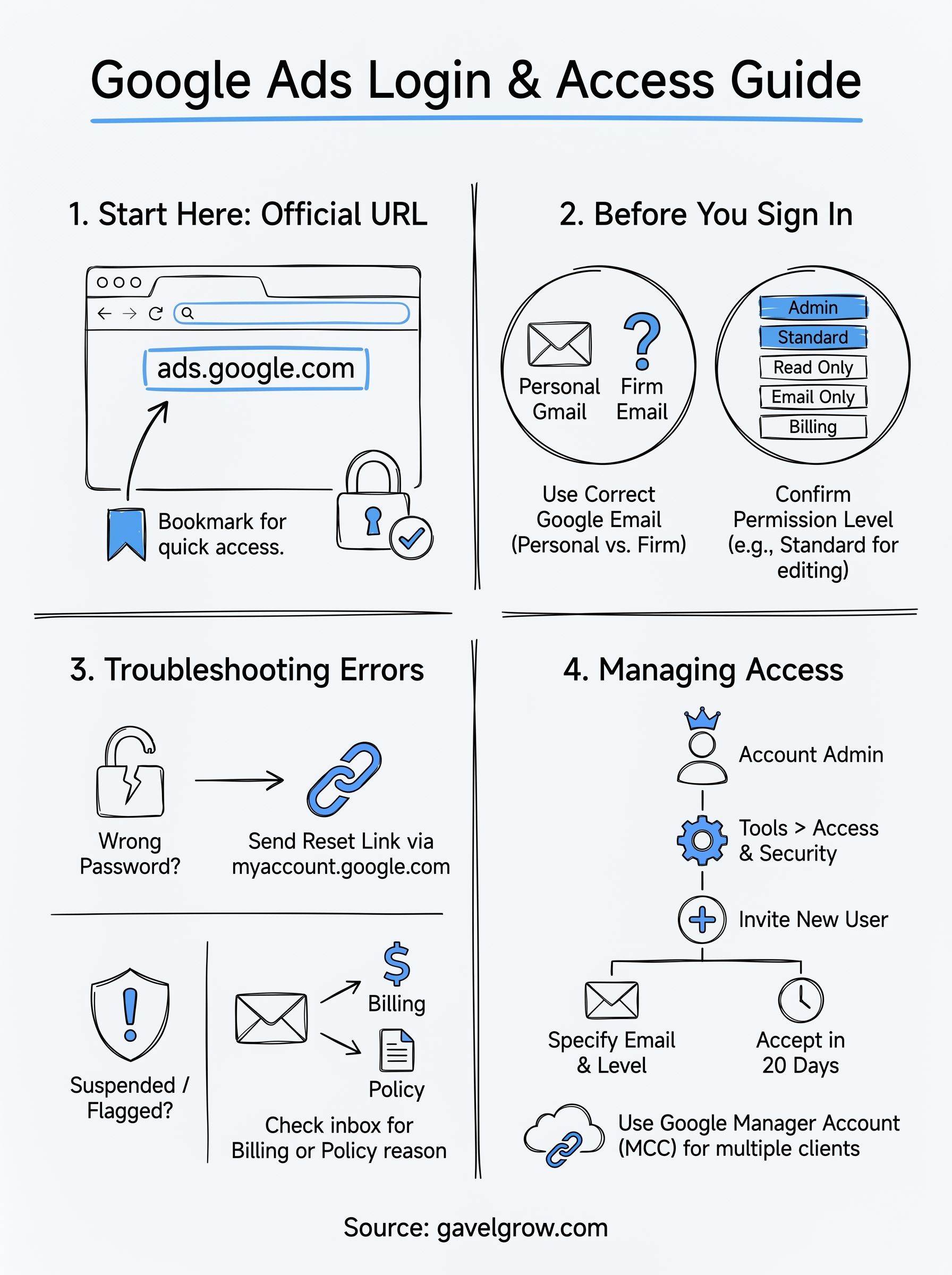
The right Google account email
Google Ads ties access to a specific Gmail or Google Workspace email address. If your firm uses multiple Google accounts, confirm which one was used when the Ads account was created or when you were invited as a user. Check with whoever set up the account if you're not sure.
- Personal Gmail ([email protected]): common for solo practitioners who set up their own campaigns
- Google Workspace email ([email protected]): standard for firms with branded email and shared admin access
- Agency-managed accounts: your agency may have added you as a user under a Google Manager Account (MCC), meaning you access campaigns through their umbrella account
If you've ever seen "You don't have access to this account," the culprit is almost always signing in with the wrong email address.
Account permissions and access levels
Google Ads has five permission levels: Admin, Standard, Read Only, Email Only, and Billing. You need at least Standard access to create or edit campaigns. If you only see a read-only view after logging in, the account owner needs to upgrade your role inside Account Access settings. The table below shows what each level lets you do.
Step 1. Open the official Google Ads login URL
The official Google Ads login page is at ads.google.com. Go directly to that URL rather than searching for it every time. Phishing sites mimic the Google Ads interface, so using anything other than the verified Google domain puts your account credentials at risk.
Never sign in through a link in an email you weren't expecting, even if it looks like it came from Google.
Identify the correct login page
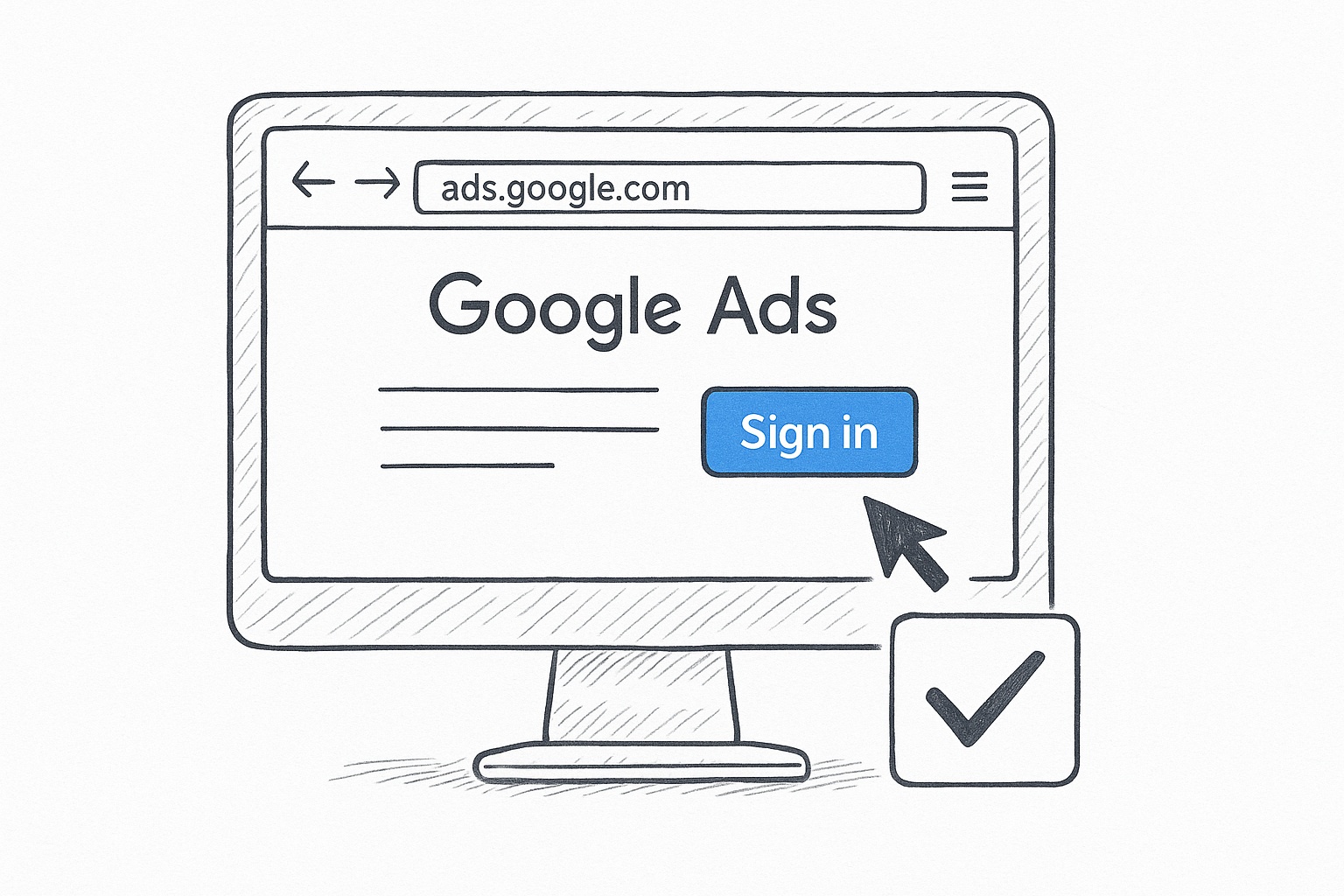
Once you land on ads.google.com, you should see a blue "Sign in" button in the upper right corner. If you're already signed into a Google account in your browser, Google may route you straight to your dashboard or prompt you to confirm which account to use. Confirm the email address shown matches the account tied to your campaigns before proceeding.
Bookmark it to avoid confusion
Set a browser bookmark for ads.google.com right now. Firms that run multiple campaigns across different practice areas often have team members navigating to old links or outdated shortcuts. A single verified bookmark removes that confusion and keeps everyone on your team hitting the same correct starting point each time.
Step 2. Sign in and switch accounts safely
Once you land on the Google Ads login page, click Sign in and enter the email address you confirmed in the previous step. Google will walk you through its standard authentication flow, which may include a password prompt, a two-factor verification code, or a passkey confirmation depending on your account security settings.
How to switch between multiple Google Ads accounts
Many law firms have more than one Google account active in the same browser at any given time. After signing in, look at the profile icon in the top-right corner of your Google Ads dashboard. Clicking it shows every account currently signed into that browser, and you can switch between them without logging out.
If you manage both a personal Gmail and a firm Google Workspace account, always confirm the active account before making any campaign changes.
Follow these steps to switch accounts cleanly:
- Click your profile icon in the top-right corner
- Select Switch account from the dropdown
- Choose the correct account or click Use another account to add one
- Confirm the email address displayed matches your intended Ads account before editing anything
Step 3. Fix common Google Ads login errors
Most Google Ads login errors trace back to a small set of fixable causes. Check the exact error message on your screen before trying any solution, since each message points to a specific fix.
Wrong password or verification code not arriving
If your password is rejected, go to myaccount.google.com and select "Forgot password" to send a reset link to your recovery contact. Account recovery takes under two minutes when your backup email or phone number is current.
When your two-step verification code isn't arriving by text, confirm your phone number is up to date in Google account security settings. Switching to the Google Authenticator app delivers codes more reliably, even with a weak cell signal.
Update your recovery email and phone number before you get locked out, not after.
Account suspended or flagged for unusual activity
Google suspends accounts for billing failures, policy violations, or suspicious logins. Check your inbox for a notice specifying the reason, then apply the right fix:
- Billing failure: update your payment method at billing.google.com, then appeal through the in-platform Help Center
- Policy violation: review Google Ads policies and submit a review request
- Suspicious login: verify your identity in Google account security settings and reset your password immediately
Step 4. Recover access to a client account
When a staff member leaves your firm or an agency relationship ends, you may lose access to a Google Ads account that holds years of campaign history. Recovering that access quickly matters because your ad spend history, conversion data, and audience lists live inside that account.
Request access through Google Manager Accounts
A Google Manager Account (MCC) lets you link multiple client accounts under one login, which is the cleanest way to manage access long-term. If you need to regain access to an existing account, have the current Admin send you a new user invitation from the Account Access settings inside Google Ads.
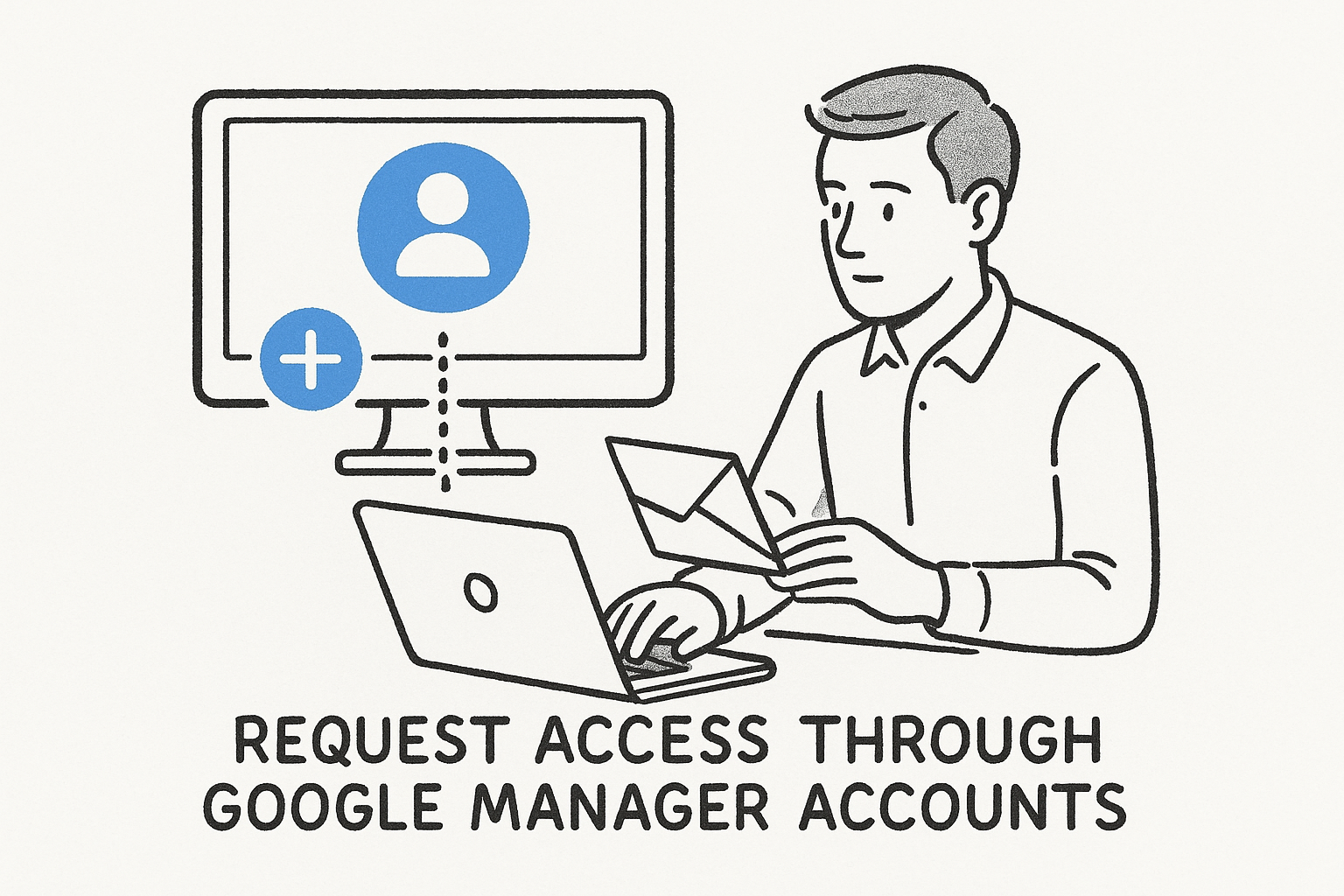
Go to Tools > Access and security > Users inside your Google Ads account to send or accept invitations.
Follow these steps to request access formally:
- Ask the account Admin to navigate to Tools > Access and security
- Have them click + (plus icon) to invite a new user
- Confirm the email address you want invited, and specify the access level you need
- Accept the invitation email within 20 days before it expires
What to do when the original account owner is unreachable
If the original Admin is no longer available, submit an account recovery request through Google Ads Help. You will need to verify ownership using business documentation, a matching payment method, or a linked Google Analytics property tied to the same domain.
Next steps
You now have a clear path from the Google Ads login page to a working account, whether you needed to switch profiles, reset credentials, or recover access after a team change. Bookmark ads.google.com, confirm your permission level, and update your recovery phone and email today so the next login takes seconds instead of stalling your entire morning.
Getting into your account is only the first step. The real value comes from knowing what your campaigns are actually producing once you're inside. If you're a law firm owner spending money on Google Ads and still measuring success by clicks instead of signed retainers, you're flying blind.
GavelGrow's platform syncs daily with Google Ads and ties every campaign directly to signed cases, not just leads. See where your marketing has gaps by running your free law firm marketing scorecard.
Frequently Asked Questions
What is the official Google Ads login URL?
The official Google Ads login page is at ads.google.com. Go directly to that URL and bookmark it rather than searching each time, because phishing sites mimic the Google Ads interface and using anything other than the verified Google domain puts your credentials at risk. Never sign in through a link in an unexpected email, even one that looks like it came from Google.
Why do I keep seeing "You don't have access to this account" in Google Ads?
That error is almost always caused by signing in with the wrong email address. Google Ads ties access to a specific Gmail or Google Workspace account, so confirm which one was used to create the account or invite you. If your firm uses multiple Google accounts, check with whoever set up the Ads account before assuming the account itself is broken.
What permission level do I need to edit Google Ads campaigns?
You need at least Standard access to create or edit campaigns. Google Ads has five permission levels: Admin, Standard, Read Only, Email Only, and Billing. If you only see a read-only view after logging in, the account owner must upgrade your role inside the Account Access settings. This is a common reason team members find themselves unexpectedly unable to make changes.
How do I fix a Google Ads login when my verification code isn't arriving?
If a two-step verification code isn't arriving by text, confirm your phone number is current in Google account security settings. Switching to the Google Authenticator app delivers codes more reliably, even on a weak cell signal. More broadly, update your recovery email and phone number before you get locked out, not after, so account recovery takes seconds.
How do I recover access to a Google Ads account after a staff or agency change?
The cleanest way is to have the current Admin send you a new user invitation from Tools > Access and security > Users inside Google Ads, then accept it within 20 days. If the original Admin is unreachable, submit an account recovery request through Google Ads Help, verifying ownership with business documentation, a matching payment method, or a linked Google Analytics property on the same domain.
Frequently Asked Questions
What is the official Google Ads login URL?
The official Google Ads login page is at ads.google.com. Go directly to that URL and bookmark it rather than searching each time, because phishing sites mimic the Google Ads interface and using anything other than the verified Google domain puts your credentials at risk. Never sign in through a link in an unexpected email, even one that looks like it came from Google.
Why do I keep seeing "You don't have access to this account" in Google Ads?
That error is almost always caused by signing in with the wrong email address. Google Ads ties access to a specific Gmail or Google Workspace account, so confirm which one was used to create the account or invite you. If your firm uses multiple Google accounts, check with whoever set up the Ads account before assuming the account itself is broken.
What permission level do I need to edit Google Ads campaigns?
You need at least Standard access to create or edit campaigns. Google Ads has five permission levels: Admin, Standard, Read Only, Email Only, and Billing. If you only see a read-only view after logging in, the account owner must upgrade your role inside the Account Access settings. This is a common reason team members find themselves unexpectedly unable to make changes.
How do I fix a Google Ads login when my verification code isn't arriving?
If a two-step verification code isn't arriving by text, confirm your phone number is current in Google account security settings. Switching to the Google Authenticator app delivers codes more reliably, even on a weak cell signal. More broadly, update your recovery email and phone number before you get locked out, not after, so account recovery takes seconds.
How do I recover access to a Google Ads account after a staff or agency change?
The cleanest way is to have the current Admin send you a new user invitation from Tools > Access and security > Users inside Google Ads, then accept it within 20 days. If the original Admin is unreachable, submit an account recovery request through Google Ads Help, verifying ownership with business documentation, a matching payment method, or a linked Google Analytics property on the same domain.