Google Business Profile Help Center: Support, Chat, Fixes
Categories: Legal Marketing Strategies
 Abram Ninoyan
Founder & Senior Performance Marketer
Credentials: Google Partner, Google Ads Search Certified, Google Ads Display Certified, Google Ads Measurement Certified, Google Analytics (IQ) Certified, HubSpot Inbound Certified, HubSpot Social Media Marketing Certified, Conversion Optimization Certified
Expertise: Google Ads, Meta Ads, Conversion Rate Optimization, GA4 & Google Tag Manager, Lead Generation, Marketing Funnel Optimization, PPC Management
LinkedIn Profile
The Google Business Profile Help Center is located at support.google.com/business and gives you access to troubleshooting guides, verification walkthroughs, suspension appeals, and direct contact opti...
Key Takeaways
- Google Business Profile Help Center: Support, Chat, Fixes
- What the Google Business Profile Help Center covers
- Step 1. Get to the right Help Center page fast
- Step 2. Fix listing issues with Help Center workflows
Google Business Profile Help Center: Support, Chat, Fixes
The Google Business Profile Help Center is located at support.google.com/business and gives you access to troubleshooting guides, verification walkthroughs, suspension appeals, and direct contact options including live chat and email support.
If your law firm's listing suddenly disappears, shows incorrect information, or gets suspended without explanation, you need answers fast, not a runaround. A broken or missing Google Business Profile means potential clients in your area are finding competitors instead of you. At GavelGrow, we manage GBP optimization for hundreds of law firms, and we've navigated every type of listing issue Google can throw at you. That experience shaped this guide.
Below, you'll find exactly how to access Google's support channels, fix the most common GBP problems, and get a real human on the line when self-service articles aren't cutting it.
What the Google Business Profile Help Center covers
The Google Business Profile Help Center at support.google.com/business is the official self-service hub Google built for business owners and managers who need help maintaining their listings. Before you contact support directly, the Help Center should be your first stop, because it covers the majority of common issues through guided workflows and detailed documentation.
Core topics covered
The Help Center organizes its content into several major categories. You'll find dedicated sections covering listing creation and editing, verification methods (postcard, phone, email, video, and instant verification), ownership conflicts, profile suspension and reinstatement, and adding or removing managers. Google also maintains articles on specific business types like service-area businesses and multi-location chains, which have their own rules.
If your business falls into a specialized category such as a law firm, medical practice, or financial services provider, check the Help Center's guidelines for that vertical before making any changes to your listing.
What the Help Center does not solve on its own
Some problems require a real human to resolve. The Help Center cannot automatically lift a suspension, reverse a duplicate merge, or restore a listing that was incorrectly removed after a spam report. For those situations, the documentation will direct you to a support form or live chat option. Knowing this distinction upfront saves you time, because following self-service steps on a suspension that requires manual review just delays the fix. The Help Center is thorough for standard edits and verification walkthroughs, but complex disputes, identity verification failures, and multi-location bulk issues almost always need direct contact with Google's support team.
Step 1. Get to the right Help Center page fast
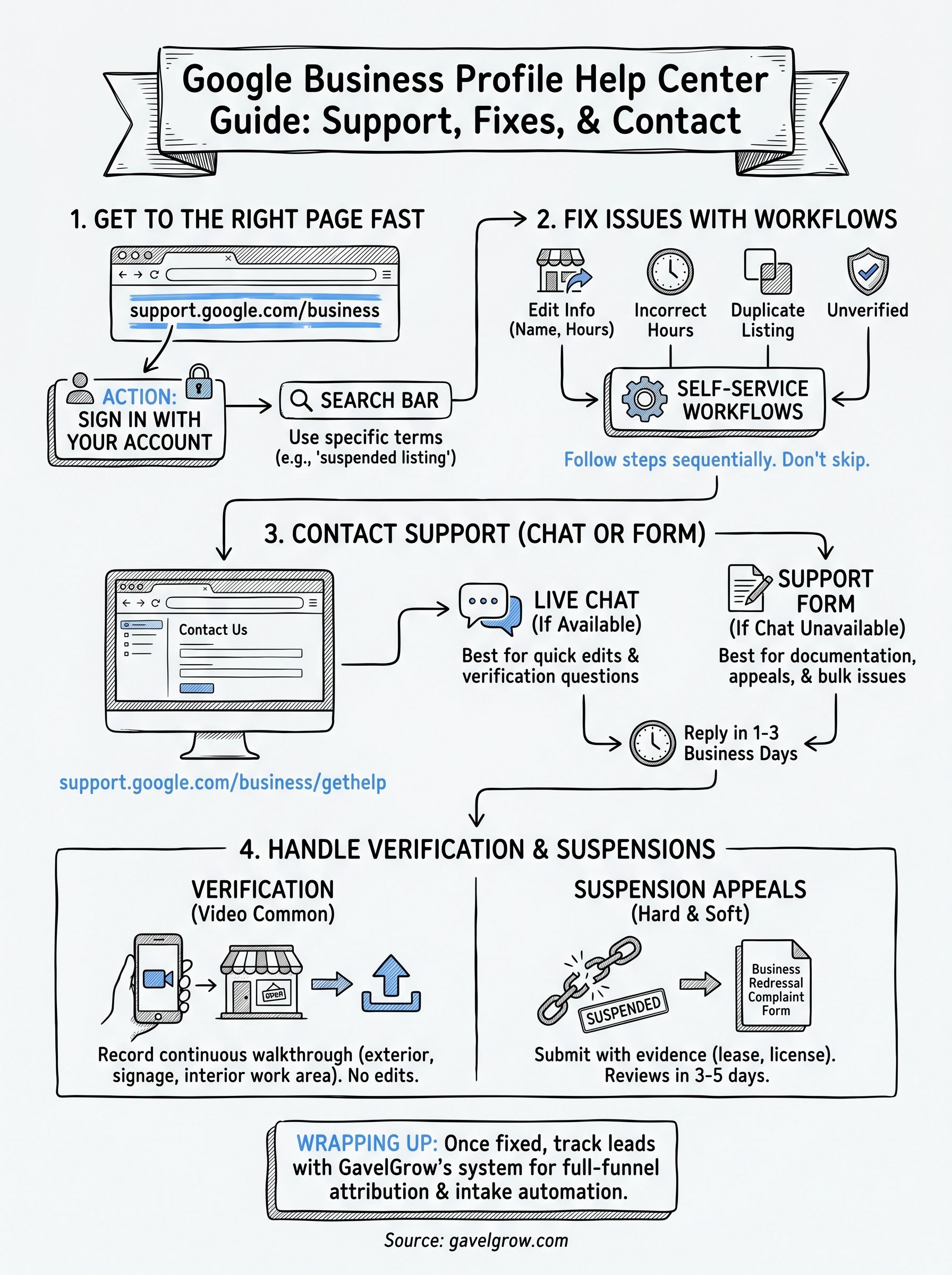
Getting to the right page immediately cuts out unnecessary steps. The direct URL is support.google.com/business, and bookmarking it now saves you from hunting through Google's broader support ecosystem the next time an issue surfaces with your listing.
Use the direct URL and sign in first
Before you start reading any article in the Google Business Profile Help Center, sign in with the Google account that owns or manages your listing. Several Help Center workflows adapt to your account context and surface options like "Request review" or "Contact us" only when you're logged in. Without signing in, you may reach a dead end where those buttons simply don't appear.
Always sign in before navigating the Help Center so that account-specific support options become visible.
Use the search bar to skip category navigation
The Help Center's category menu is broad, so searching directly is faster. Type your specific issue into the search bar at the top of the page. Use concrete terms like "suspended listing," "pending verification," or "wrong address showing." Vague searches like "problem with my business" return too many results to be useful. Specific queries get you to the right article in one or two clicks.
Step 2. Fix listing issues with Help Center workflows
The Google Business Profile Help Center walks you through most standard fixes using guided workflows. These step-by-step sequences cover the most frequent listing problems and require no support ticket if you follow them correctly.
Common fixes you can complete without contacting support
Several high-frequency issues have dedicated workflow pages that resolve the problem entirely through self-service. Below are the most common ones law firms run into:
- Wrong business name or address - Edit directly in your profile; changes go live after Google review, typically within 3 days
- Incorrect hours - Update from the "Edit profile" menu inside your Google Business dashboard
- Duplicate listing - Use the "Suggest an edit" tool on the duplicate, flag it as a duplicate, and submit
- Unverified listing - Navigate to your profile, click "Verify now," and choose the available method for your business type
Complete every field Google requests in the workflow before submitting, because incomplete submissions trigger a second review cycle and add days to your wait.
Follow the workflow steps in order
Skipping steps in a Help Center workflow is the most common reason fixes fail. Google's workflows are sequential, so each step confirms information the next step depends on. Work through every prompt completely before moving to the next screen.
Step 3. Contact support by chat or form when needed
When self-service articles in the Google Business Profile Help Center don't solve your issue, Google offers live chat and a support request form as direct escalation options. Reach both at support.google.com/business/gethelp after signing in with the Google account tied to your listing.
How to reach live chat
Live chat availability varies by account history and region, so it doesn't appear for every user. Navigate to the Help Center, click "Contact us," describe your issue in the text field, and scroll past the suggested articles. If chat is available for your account, a "Chat" button appears at the bottom of the page.
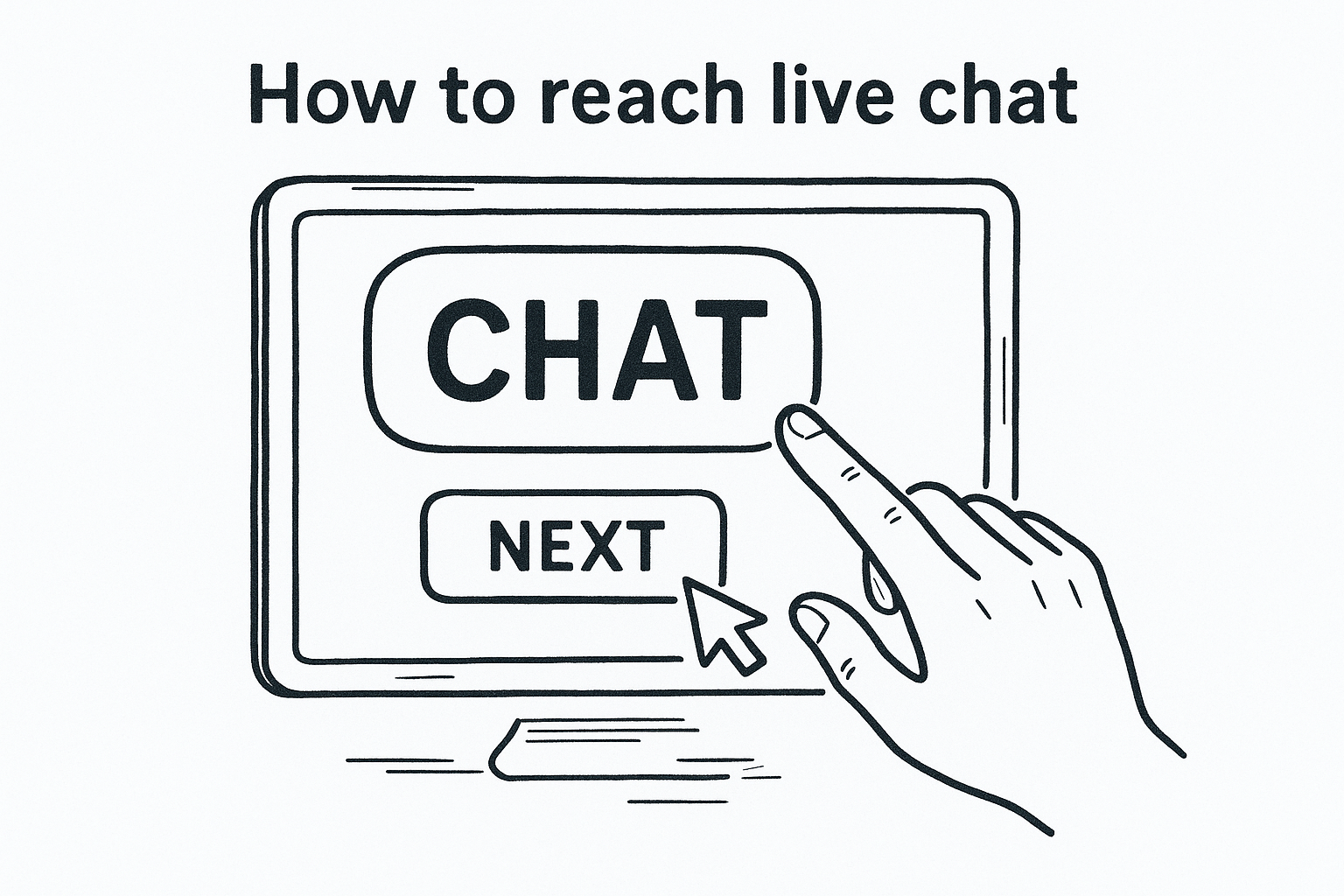
Chat sessions typically resolve listing edits and basic verification questions faster than the form route.
Follow these steps to start a session:
- Sign in to your Google account
- Go to support.google.com/business/gethelp
- Select your profile and describe your issue clearly
- Click "Next step" and choose "Chat" if the option appears
When to use the support form instead
If chat is unavailable, submit a support request form through the same Contact Us flow. The form works best for issues that require documentation or evidence review:
- Suspension appeals
- Ownership transfer disputes
- Bulk location errors
- Identity verification failures
Expect a reply within 1 to 3 business days for form submissions.
Step 4. Handle verification and suspensions correctly
Verification and suspension issues are the two problems that send most law firms to the Google Business Profile Help Center for direct support. Handling both correctly from the start avoids weeks of delay and prevents your listing from disappearing at a critical moment.
How to complete verification
Video verification is now the most common method Google requires for new listings. Record a short walkthrough showing your office exterior, signage, and interior work area with your phone in one continuous take. Upload the video directly through the verification prompt in your Google Business dashboard.
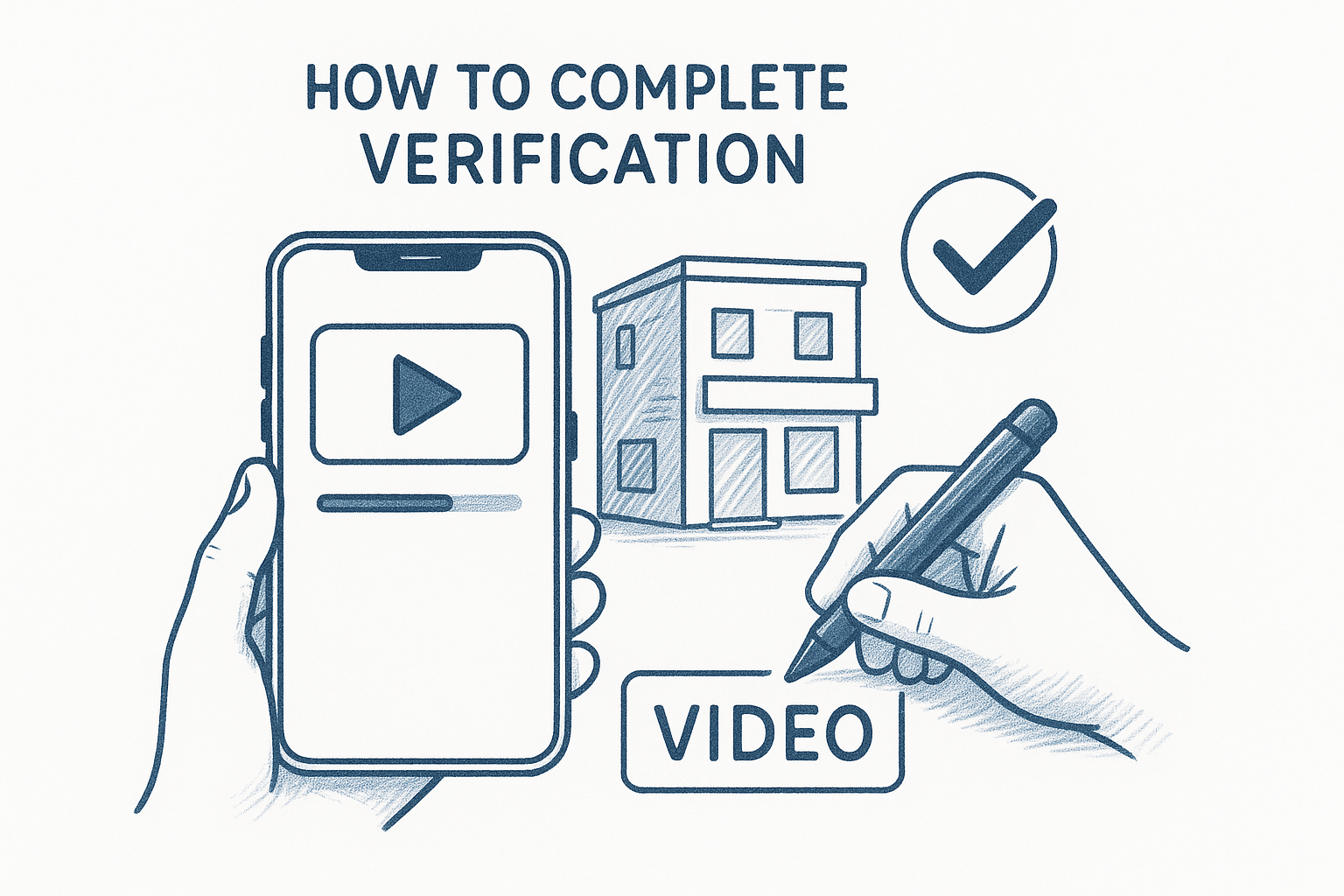
Google rejects videos that are edited, stitched together, or show the location without visible business signage.
Accepted verification methods vary by listing type:
- Video: Most common for new law firm listings
- Postcard: Mailed to your business address; valid for 30 days
- Phone or email: Available only for eligible accounts
How to appeal a suspension
Two suspension types exist: soft suspensions (your listing is unverified but still visible) and hard suspensions (your listing is removed entirely). For a hard suspension, submit the Business Redressal Complaint Form with documentation such as a lease agreement or business license that shows your firm's name and address. Google typically reviews appeals within 3 to 5 business days.
Wrapping Up
The Google Business Profile Help Center at support.google.com/business covers the vast majority of listing issues law firms face, from verification delays to hard suspensions. For most standard fixes, the self-service workflows get you there without ever contacting support. When they don't, the live chat and support form routes are your fastest path to a real resolution.
Getting your listing fixed is only half the equation. Once your profile is working correctly, you need a system that tracks what happens after a potential client finds you and calls. Missed calls and slow follow-up are where most firms lose cases they paid to attract. GavelGrow's platform handles call tracking, intake automation, and full-funnel attribution so you can measure exactly which leads turn into signed retainers.
If you want to see how your firm's local marketing stacks up, run your free law firm marketing scorecard and get a clear picture of where you stand.
Frequently Asked Questions
Where is the Google Business Profile Help Center?
It's located at support.google.com/business and gives you troubleshooting guides, verification walkthroughs, suspension appeals, and direct contact options including live chat and email support. Sign in with the Google account that owns or manages your listing first, because several workflows only surface options like "Request review" or "Contact us" when you're logged in.
Which GBP problems can I fix myself without contacting support?
Several high-frequency issues have self-service workflows: correcting a wrong business name or address (changes go live after Google review, typically within a few days), updating incorrect hours, flagging a duplicate listing via "Suggest an edit," and verifying an unverified listing. Complete every field Google requests, since incomplete submissions trigger a second review cycle and add days to the wait.
How do I reach a real person at Google for a business listing issue?
After signing in, go to support.google.com/business/gethelp, select your profile, describe your issue, and scroll past the suggested articles. If live chat is available for your account, a "Chat" button appears, and chat usually resolves listing edits and basic verification questions fastest. If chat is unavailable, submit a support request form and expect a reply within one to three business days.
How do I verify a new law firm listing?
Video verification is now the most common method Google requires. Record a short, continuous walkthrough showing your office exterior, signage, and interior work area with your phone, then upload it through the verification prompt. Google rejects videos that are edited, stitched together, or show the location without visible business signage. Postcard, phone, or email verification may be available for eligible accounts.
How do I appeal a suspended Google Business Profile?
There are two suspension types: soft (unverified but still visible) and hard (removed entirely). For a hard suspension, submit the Business Redressal Complaint Form with documentation such as a lease agreement or business license showing your firm's name and address. Google typically reviews these appeals within a few business days, and following self-service steps on a suspension only delays the fix.
Frequently Asked Questions
Where is the Google Business Profile Help Center?
It's located at support.google.com/business and gives you troubleshooting guides, verification walkthroughs, suspension appeals, and direct contact options including live chat and email support. Sign in with the Google account that owns or manages your listing first, because several workflows only surface options like "Request review" or "Contact us" when you're logged in.
Which GBP problems can I fix myself without contacting support?
Several high-frequency issues have self-service workflows: correcting a wrong business name or address (changes go live after Google review, typically within a few days), updating incorrect hours, flagging a duplicate listing via "Suggest an edit," and verifying an unverified listing. Complete every field Google requests, since incomplete submissions trigger a second review cycle and add days to the wait.
How do I reach a real person at Google for a business listing issue?
After signing in, go to support.google.com/business/gethelp, select your profile, describe your issue, and scroll past the suggested articles. If live chat is available for your account, a "Chat" button appears, and chat usually resolves listing edits and basic verification questions fastest. If chat is unavailable, submit a support request form and expect a reply within one to three business days.
How do I verify a new law firm listing?
Video verification is now the most common method Google requires. Record a short, continuous walkthrough showing your office exterior, signage, and interior work area with your phone, then upload it through the verification prompt. Google rejects videos that are edited, stitched together, or show the location without visible business signage. Postcard, phone, or email verification may be available for eligible accounts.
How do I appeal a suspended Google Business Profile?
There are two suspension types: soft (unverified but still visible) and hard (removed entirely). For a hard suspension, submit the Business Redressal Complaint Form with documentation such as a lease agreement or business license showing your firm's name and address. Google typically reviews these appeals within a few business days, and following self-service steps on a suspension only delays the fix.