CallRail Login: Official Sign-In Link And Troubleshooting
Categories: Legal Marketing Strategies
 Abram Ninoyan
Founder & Senior Performance Marketer
Credentials: Google Partner, Google Ads Search Certified, Google Ads Display Certified, Google Ads Measurement Certified, Google Analytics (IQ) Certified, HubSpot Inbound Certified, HubSpot Social Media Marketing Certified, Conversion Optimization Certified
Expertise: Google Ads, Meta Ads, Conversion Rate Optimization, GA4 & Google Tag Manager, Lead Generation, Marketing Funnel Optimization, PPC Management
LinkedIn Profile
CallRail is one of the most widely used call tracking platforms in legal marketing, and for good reason, it gives law firms clear visibility into which campaigns are actually generating phone calls an...
Key Takeaways
- CallRail Login: Official Sign-In Link And Troubleshooting
- What you need before you sign in
- Step 1. Use the official CallRail sign-in link
- Step 2. Sign in from desktop or mobile
CallRail Login: Official Sign-In Link And Troubleshooting
CallRail is one of the most widely used call tracking platforms in legal marketing, and for good reason, it gives law firms clear visibility into which campaigns are actually generating phone calls and signed cases. If you're trying to access your CallRail login and can't find the direct link, or you're running into issues getting past the sign-in screen, you're in the right place. A locked-out account means missed data, and missed data means you can't tell what's working.
At GavelGrow, we set up and manage CallRail accounts for law firms as part of our analytics and lead tracking systems. We've walked hundreds of attorneys and their staff through login issues, account recovery, and dashboard access. So we put together this guide to cover the official sign-in link, common login problems, and step-by-step fixes to get you back into your account fast.
What you need before you sign in
Before you attempt the CallRail login, gather a few things so you don't get stuck mid-process. Having the right account details ready saves you time and avoids the frustration of getting locked out after failed attempts.
Your CallRail account credentials
You need the email address tied to your CallRail account and your current password. If someone else set up the account for your law firm, such as a marketing manager or outside agency, confirm with them which email was used to register. CallRail associates each user with a specific email address, so signing in with the wrong one will return no account found.
If you're unsure which email your firm used, check your inbox for any onboarding messages from CallRail, which typically come from [email protected].
Your password must meet CallRail's minimum security requirements, which include at least eight characters. If your account is connected through single sign-on (SSO) via Google or Microsoft, you won't need a separate CallRail password at all. You'll just click the SSO option on the sign-in page and authenticate through your existing provider.
Your browser and device setup
CallRail works across all major browsers, but for the best experience use an updated version of Chrome, Firefox, Safari, or Edge. Outdated browsers can cause the sign-in page to load incorrectly or block session cookies, which stops the login process from completing.
Confirm that cookies and JavaScript are both enabled in your browser settings before you try to sign in. CallRail's dashboard depends on both to authenticate your session and display your call tracking data. If your firm runs a network with strict firewall rules, ask your IT administrator to whitelist callrail.com so the connection isn't blocked at the network level.
Step 1. Use the official CallRail sign-in link
The fastest way to reach the CallRail login page is to go directly to the official URL rather than searching for it and risking a landing on an outdated link or a phishing page. Typing the address straight into your browser's address bar takes you to the correct sign-in screen every time.
Bookmark the official URL now so your team can access it directly without relying on search results each time.
The direct URL
The official address for the CallRail sign-in page is app.callrail.com/users/sign_in. Type that into your browser's address bar and press Enter. You'll land on the authentication screen where you can enter your credentials or select a single sign-on option.
What you'll see on the page
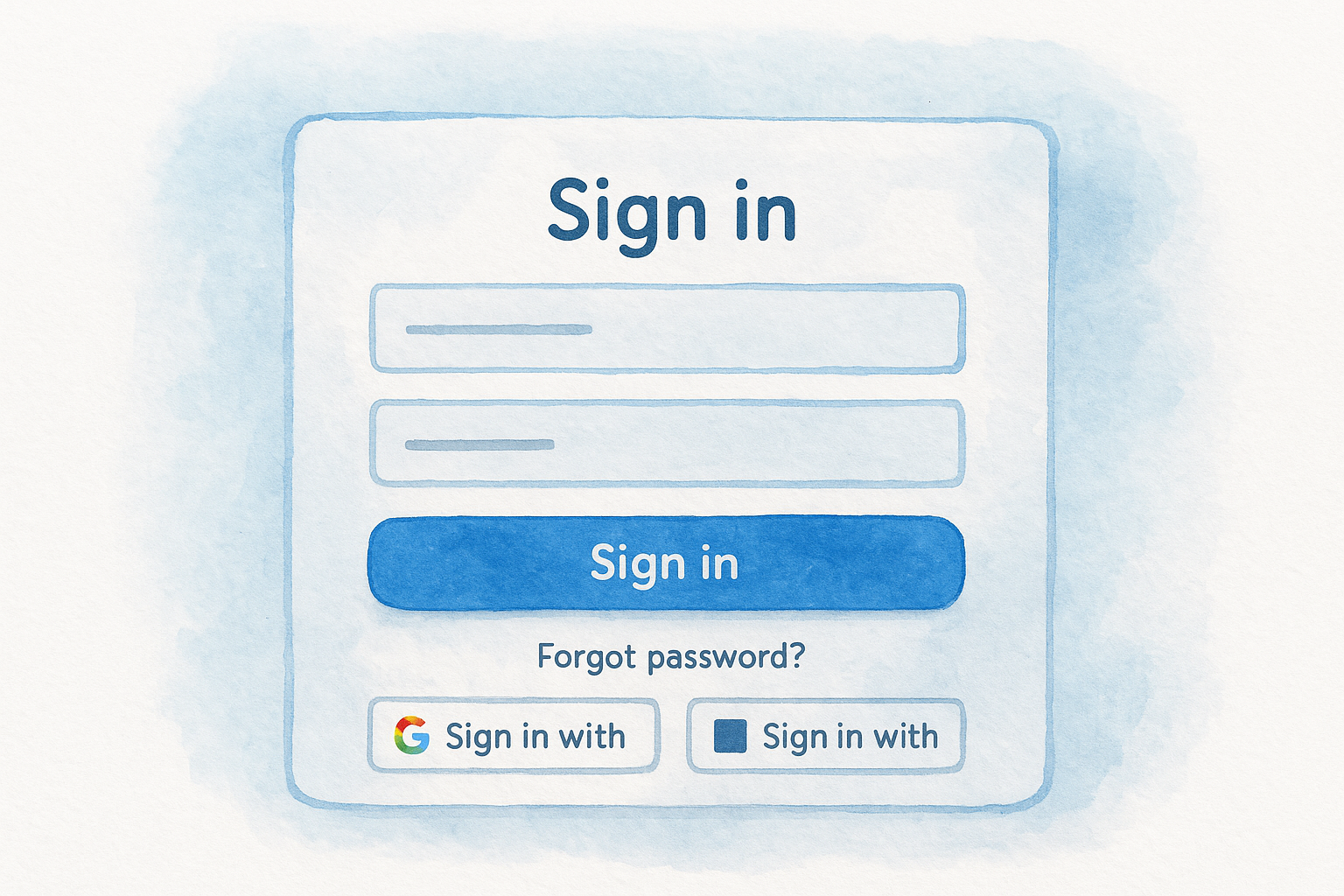
The sign-in page displays a standard email and password form along with buttons for Google and Microsoft single sign-on. If your firm connected CallRail to a Google Workspace account, click "Sign in with Google" to skip the password entry entirely and authenticate through Google's own system. Directly below the form, you'll also see a "Forgot password?" link, which you'll use in Step 3 if you need to recover access.
Step 2. Sign in from desktop or mobile
The CallRail login process works slightly differently depending on your device, so knowing what to expect on each one helps you get through it without confusion. Both desktop and mobile access give you the same account data, but the layout and steps differ enough to be worth covering separately.
Signing in on desktop
On a desktop browser, go to app.callrail.com/users/sign_in, type your email address into the first field, enter your password, and click the blue "Log In" button. If your firm uses Google or Microsoft SSO, click the corresponding button instead and complete the authentication prompt that appears in the pop-up window.
If you see a "This site can't be reached" error, check that you typed the URL correctly and that your network connection is active.
Signing in on mobile
CallRail does not have a standalone mobile app available for download. On a smartphone or tablet, open your mobile browser, navigate to app.callrail.com, and the site will load in a mobile-optimized view. The sign-in form appears at the top of the page. Tap the email field, enter your credentials, and tap "Log In" to access your dashboard the same way you would on desktop.
Step 3. Reset your password or recover access
If you can't complete the CallRail login because you've forgotten your password, the recovery process is straightforward and takes under two minutes. CallRail sends a reset link directly to your registered email, so you'll need access to that inbox before you start.
Request a password reset
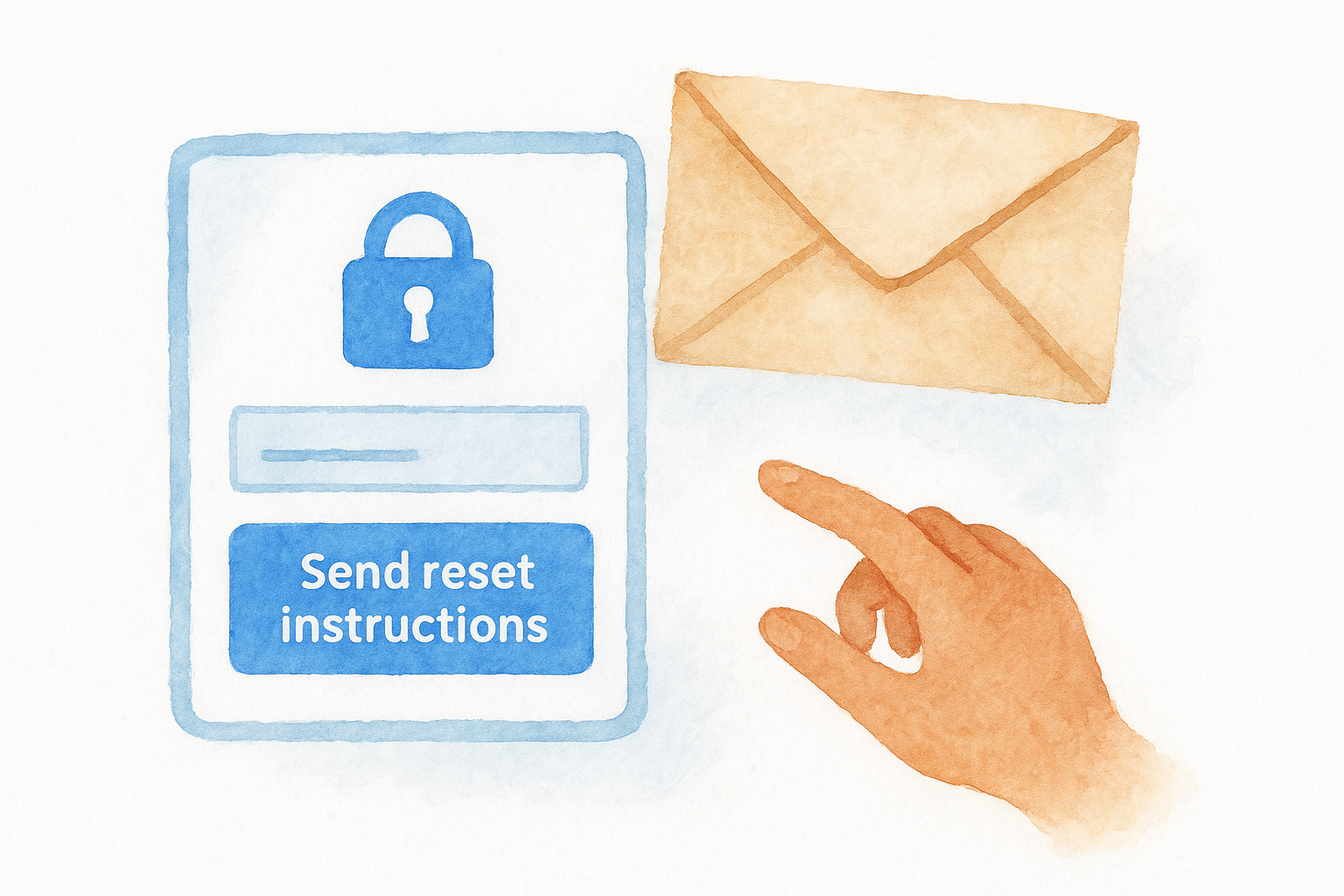
On the sign-in page at app.callrail.com/users/sign_in, click the "Forgot password?" link below the login form. Enter the email address tied to your account and click "Send reset instructions." Follow these steps once the email arrives:
- Open the email from CallRail and click the reset link inside.
- Enter a new password that meets the eight-character minimum.
- Confirm the new password in the second field.
- Click "Change my password" to save it and return to the sign-in screen.
The reset link expires after a short window, so open the email and complete the process promptly rather than leaving it for later.
What to do if the reset email doesn't arrive
Check your spam or junk folder first, since automated emails from [email protected] sometimes get filtered. If the email still doesn't appear after five minutes, confirm you're searching the correct inbox and that the email address you entered matches your registered account.
Step 4. Fix common CallRail login problems
Even with correct credentials, a few technical issues can block your CallRail login. Identifying the specific problem quickly gets you back in without unnecessary delays.
Browser cache and cookies blocking access
A corrupted cache or blocked cookies is the most common technical block on the sign-in page. Clear your browser cache and cookies, close the browser, and reopen it before trying again. If that doesn't help, open an incognito or private browsing window and attempt the login there to rule out extension conflicts.
If the incognito window signs you in successfully, a browser extension is blocking your session on the standard window. Disable extensions one at a time to find the cause.
Quick steps to clear your cache in major browsers:
- Chrome: Settings > Privacy and security > Clear browsing data
- Firefox: Settings > Privacy & Security > Clear Data
- Safari: Develop menu > Empty Caches
Account locked after failed attempts
CallRail temporarily locks your account after several consecutive failed login attempts. Wait 15 to 30 minutes before retrying, or click the "Forgot password?" link immediately to reset your credentials and bypass the lockout entirely.
If neither option restores access, try these two additional paths:
- Contact CallRail support through the Help option inside your dashboard
- Ask your account administrator to resend your login invitation
Quick recap and next step
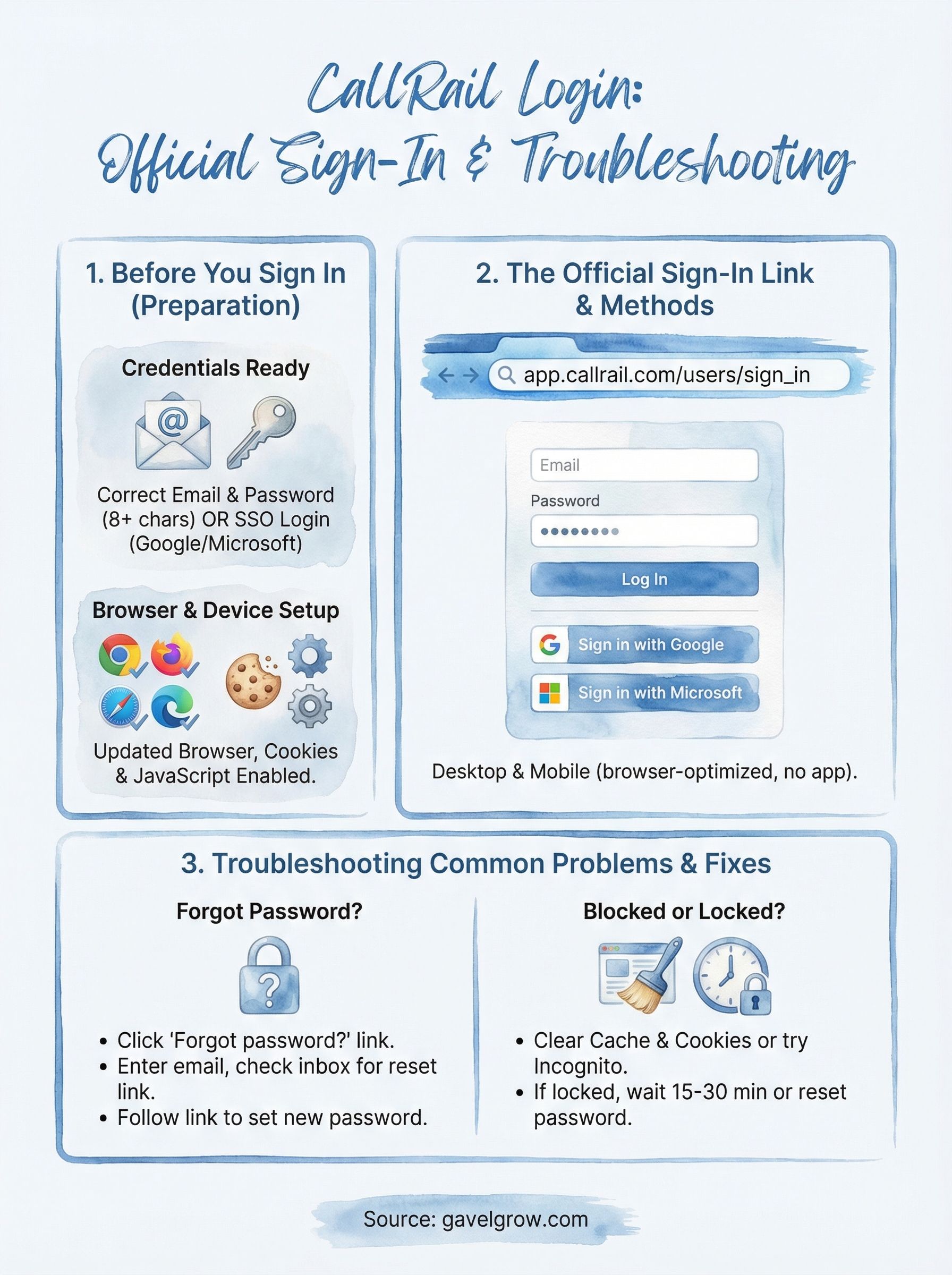
Getting through the CallRail login process comes down to a few basics: use the official URL at app.callrail.com/users/sign_in, have your registered email and password ready, and clear your browser cache if the page behaves unexpectedly. If you're locked out, the password reset link on the sign-in page resolves the issue in under two minutes. For SSO users, your Google or Microsoft credentials handle authentication directly, so no separate CallRail password is needed.
Now that you're back in your account, the data inside CallRail only delivers real value when it connects to a broader marketing strategy. Knowing which campaigns drive calls is the first step. Converting those calls into signed cases is what actually moves your firm forward. If you want a team that builds and manages that full tracking and lead conversion system for your practice, talk to a legal marketing specialist at GavelGrow to see how we grow your caseload with measurable results.
Frequently Asked Questions
What is the official CallRail login URL?
The official CallRail sign-in page is at app.callrail.com/users/sign_in. Type that address directly into your browser's address bar rather than searching for it, which avoids landing on an outdated or phishing page. Bookmark the URL so your team can reach it directly each time. The page shows an email and password form plus Google and Microsoft single sign-on buttons.
How do I reset my CallRail password?
On the sign-in page, click the "Forgot password?" link below the login form, enter the email tied to your account, and click "Send reset instructions." Open the email from CallRail, click the reset link, enter and confirm a new password that meets the eight-character minimum, then save. The reset link expires after a short window, so complete the process promptly rather than leaving it for later.
Does CallRail have a mobile app?
CallRail does not offer a standalone mobile app for download. On a smartphone or tablet, open your mobile browser and navigate to app.callrail.com, and the site loads in a mobile-optimized view. Tap the email field, enter your credentials, and tap "Log In" to reach the same dashboard and account data you would see on desktop.
Why is my CallRail account locked after failed login attempts?
CallRail temporarily locks an account after several consecutive failed login attempts as a security measure. Wait 15 to 30 minutes before retrying, or click the "Forgot password?" link immediately to reset your credentials and bypass the lockout entirely. If neither restores access, contact CallRail support through the Help option or ask your account administrator to resend your login invitation.
Why can't I get past the CallRail sign-in screen even with the right password?
A corrupted browser cache or blocked cookies is the most common technical block on the sign-in page. Clear your cache and cookies, close the browser, and reopen it, or try an incognito window to rule out extension conflicts. If incognito signs you in, a browser extension is blocking your session, so disable extensions one at a time to find the cause.
Frequently Asked Questions
What is the official CallRail login URL?
The official CallRail sign-in page is at app.callrail.com/users/sign_in. Type that address directly into your browser's address bar rather than searching for it, which avoids landing on an outdated or phishing page. Bookmark the URL so your team can reach it directly each time. The page shows an email and password form plus Google and Microsoft single sign-on buttons.
How do I reset my CallRail password?
On the sign-in page, click the "Forgot password?" link below the login form, enter the email tied to your account, and click "Send reset instructions." Open the email from CallRail, click the reset link, enter and confirm a new password that meets the eight-character minimum, then save. The reset link expires after a short window, so complete the process promptly rather than leaving it for later.
Does CallRail have a mobile app?
CallRail does not offer a standalone mobile app for download. On a smartphone or tablet, open your mobile browser and navigate to app.callrail.com, and the site loads in a mobile-optimized view. Tap the email field, enter your credentials, and tap "Log In" to reach the same dashboard and account data you would see on desktop.
Why is my CallRail account locked after failed login attempts?
CallRail temporarily locks an account after several consecutive failed login attempts as a security measure. Wait 15 to 30 minutes before retrying, or click the "Forgot password?" link immediately to reset your credentials and bypass the lockout entirely. If neither restores access, contact CallRail support through the Help option or ask your account administrator to resend your login invitation.
Why can't I get past the CallRail sign-in screen even with the right password?
A corrupted browser cache or blocked cookies is the most common technical block on the sign-in page. Clear your cache and cookies, close the browser, and reopen it, or try an incognito window to rule out extension conflicts. If incognito signs you in, a browser extension is blocking your session, so disable extensions one at a time to find the cause.