Google Review Link Generator: Create Links + QR Codes Fast
Categories: Legal Marketing Strategies
 Abram Ninoyan
Founder & Senior Performance Marketer
Credentials: Google Partner, Google Ads Search Certified, Google Ads Display Certified, Google Ads Measurement Certified, Google Analytics (IQ) Certified, HubSpot Inbound Certified, HubSpot Social Media Marketing Certified, Conversion Optimization Certified
Expertise: Google Ads, Meta Ads, Conversion Rate Optimization, GA4 & Google Tag Manager, Lead Generation, Marketing Funnel Optimization, PPC Management
LinkedIn Profile
Getting clients to leave Google reviews shouldn't require a five-step tutorial. But when you send someone a link to your Google Business Profile homepage and hope they figure out where to click "...
Key Takeaways
- Google Review Link Generator: Create Links + QR Codes Fast
- What a Google review link is and when to use it
- Step 1. Generate your link in Google Business Profile
- Step 2. Build a review link from a Maps URL or Place ID
Google Review Link Generator: Create Links + QR Codes Fast
Getting clients to leave Google reviews shouldn't require a five-step tutorial. But when you send someone a link to your Google Business Profile homepage and hope they figure out where to click "Write a review," most won't bother. A google review link generator solves this by creating a direct URL that drops the reviewer straight into the review form, no extra clicks, no confusion.
For law firms especially, reviews carry outsized weight. A prospective client choosing between three personal injury attorneys in the same city will almost always pick the one with more (and better) Google reviews. At GavelGrow, we help over 500 U.S. law firms turn their marketing into signed cases, and reputation management is a core part of that equation. We've seen firsthand how a steady stream of 5-star reviews lowers cost-per-case and lifts local search rankings, but only if you make it dead simple for satisfied clients to leave one.
This guide walks you through how to generate your Google review link, turn it into a QR code, and start using both to collect reviews consistently. No paid tools required, you can do it in under two minutes with what Google already gives you.
What a Google review link is and when to use it
A Google review link is a direct URL that skips your Business Profile homepage and opens the review form the moment someone clicks it. Without this link, a client who wants to leave a review has to search for your firm on Google, find the correct listing, scroll to the reviews section, and then locate the "Write a review" button. Most people abandon that process before they finish. With the right link, they click once and the form appears immediately.
The shorter the path between intent and action, the higher your completion rate.
What the link actually does
The URL contains your Google Place ID, a unique identifier that Google assigns to every business listing in its database. When someone opens the link, Google reads that ID, pulls up your profile, and launches the review modal automatically. You can build this URL manually or use a google review link generator to skip the lookup step entirely. Either way, the end result is a clean, shareable link that works on any device, in any browser, without the reviewer needing to do any searching.
When to send the link
Timing matters as much as the link itself. The strongest review requests go out when the experience is still fresh, which for law firms typically means within 24 to 48 hours of a positive case outcome, a signed retainer, or a resolved matter. Sending a week later cuts response rates significantly because the emotional momentum fades.
Common delivery points that work well include:
- Post-case emails sent by the attorney or paralegal the same day
- Automated follow-up sequences triggered after a consultation closes
- Printed QR codes on closing documents, thank-you cards, or lobby signage
- SMS messages sent within hours of a matter resolving
Step 1. Generate your link in Google Business Profile
Google gives you a direct review link inside your Business Profile dashboard, and it takes about 30 seconds to find. This is the fastest method and the one most law firms should start with before reaching for any third-party google review link generator.
How to find it in your dashboard
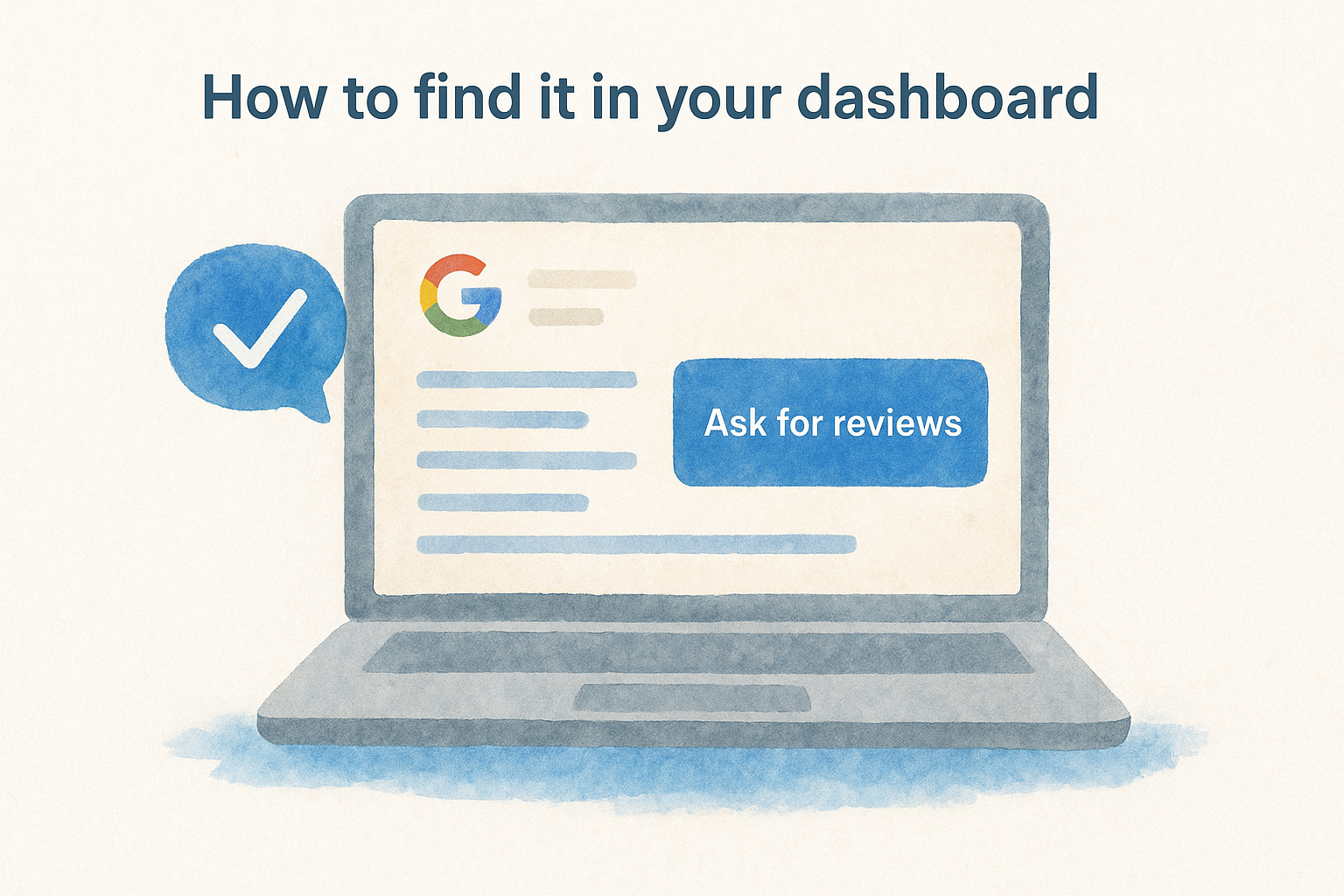
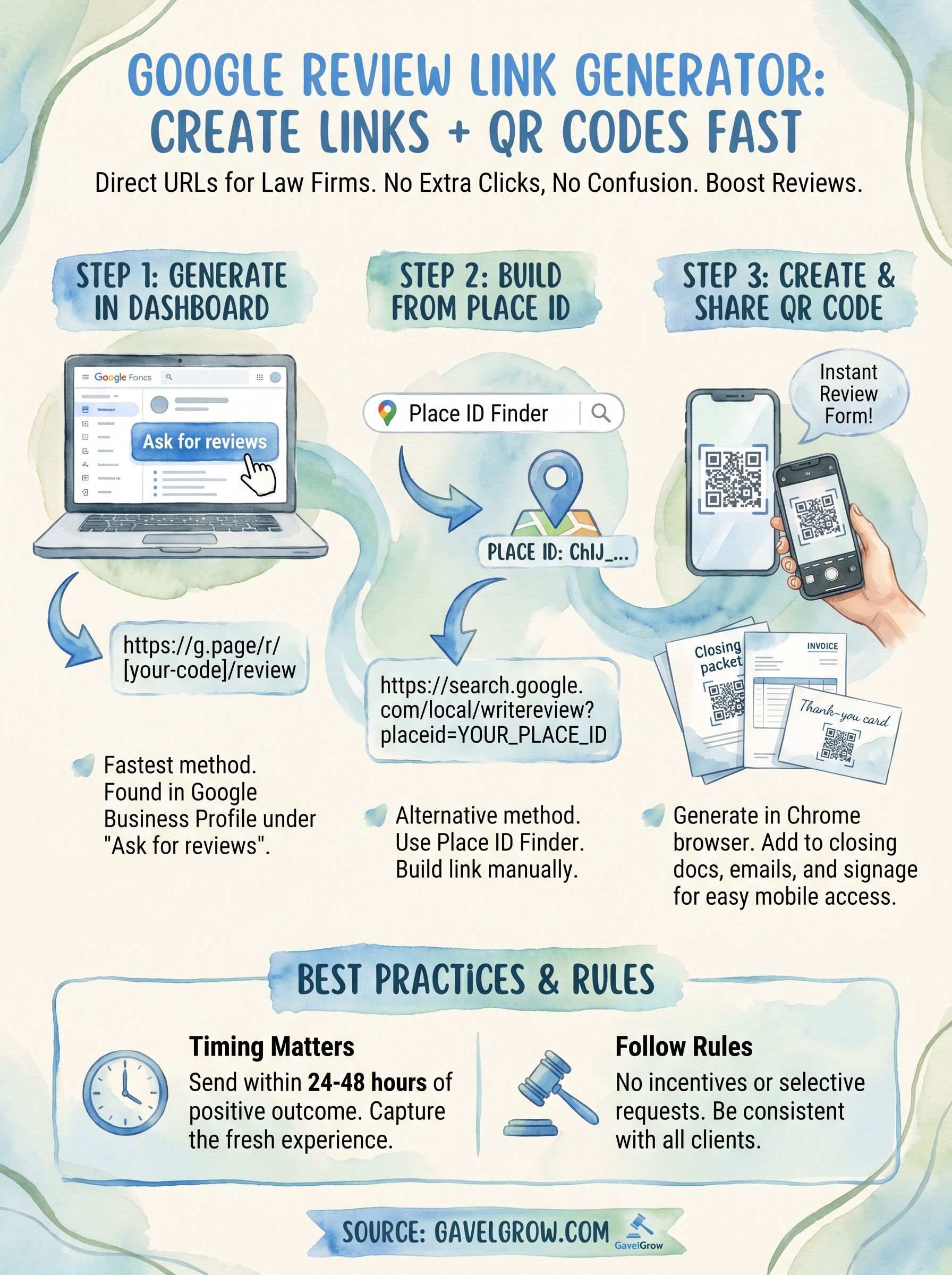
Sign in to your Google account, then go to business.google.com and select your firm's profile. In the left-hand menu, click "Ask for reviews". Google generates a short, branded link that looks like this:
https://g.page/r/[your-unique-code]/review
Copy that link and save it somewhere central, like your firm's shared drive or CRM. You'll reuse it across emails, SMS messages, and automated follow-up sequences.
This link opens the review form immediately on both desktop and mobile, with zero extra steps for the reviewer.
What to do if you manage multiple locations
If your firm has more than one office, each location has its own Business Profile and its own unique review link. Repeat the steps above for each profile separately, so you always send the correct location-specific link to clients based on which office handled their matter.
Step 2. Build a review link from a Maps URL or Place ID
If you cannot access your Business Profile dashboard, or if you want to verify that any link produced by a google review link generator points to the right profile, you can build the URL manually using your Google Place ID. This approach also works for newly claimed profiles where the dashboard link has not yet populated.
How to find your Place ID
Google maintains a free Place ID Finder at developers.google.com/maps/documentation/places/web-service/place-id. Type your firm name and city into the search field, click your listing in the results, and Google displays your unique Place ID below the map pin. Copy it exactly as shown, including the correct capitalization.
Your Place ID stays the same indefinitely, so you only need to look it up once and store it somewhere accessible.
Build the link manually
Paste your Place ID into this URL template:
https://search.google.com/local/writereview?placeid=YOUR_PLACE_ID
Replace YOUR_PLACE_ID with the string you copied. Test the link in a private browser window to confirm it opens the review form and lands on the correct business listing before distributing it to clients.
Step 3. Create a QR code and share it the right way
Once you have your review link, turning it into a QR code takes less than a minute. Clients who just signed a retainer can scan the code with their phone and reach the review form instantly, with no extra searching required.
A QR code puts your review link in physical spaces where a clickable URL cannot go.
How to generate the QR code
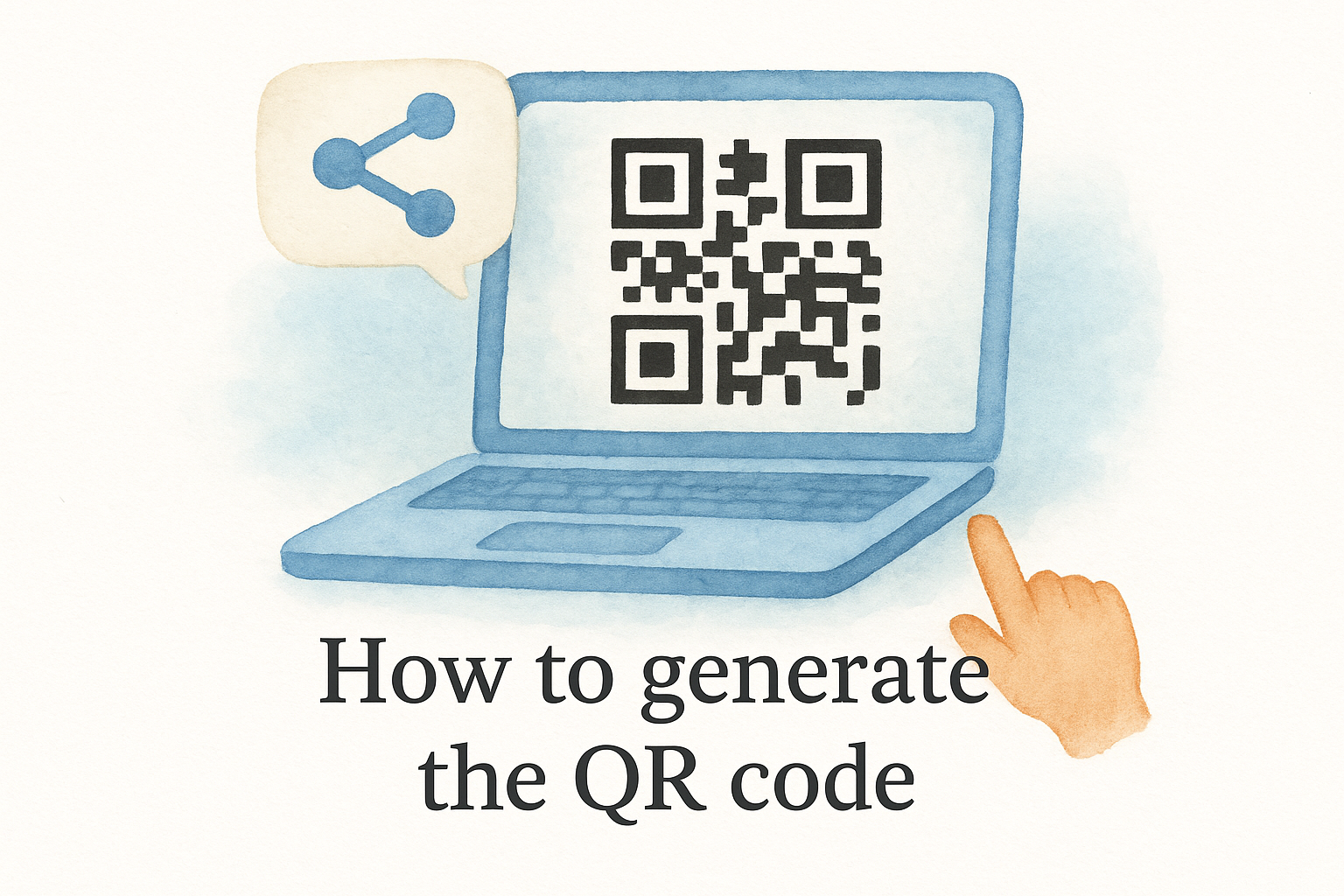
Google's Chrome browser has a built-in QR code generator you can use for free. Open your review link in Chrome, click the share icon in the address bar, and select "Create QR Code." Download the result as a PNG file. You do not need a third-party google review link generator to produce a working QR code.
Save the PNG file in your firm's shared drive so any team member can access and print it without tracking you down each time.
Where to place your QR code
Physical placement drives the highest scan rates. Print the QR code on closing packets, invoices, and thank-you cards so every client sees it while the experience is still fresh.
Digital placement works alongside physical. Add the QR code image to your email signature and post-case follow-up templates so mobile recipients can scan it directly from their screen.
Fix issues and follow review request rules
Even a correctly generated link can fail if your Business Profile is unverified or if Google has temporarily restricted your review count. Before you distribute your link, confirm your profile is fully verified in Google Business Profile and that your listing name, address, and category are accurate. An incomplete profile is the most common reason a google review link generator produces a link that redirects to an error page instead of the review form.
Common link problems and how to fix them
If your link does not open the review form, run through this checklist before rebuilding the URL from scratch:
- Broken redirect: Test in a private browser window to rule out cached login conflicts
- Wrong Place ID: Re-run the Place ID Finder and confirm you selected the correct listing
- Suspended profile: Check your Business Profile dashboard for any policy violation notices
- New listing: Wait 48 to 72 hours after verification before the review form activates
Google's rules on requesting reviews
Google prohibits incentivizing reviews in any form, including discounts, gifts, or other offers in exchange for feedback. You also cannot selectively ask only happy clients while ignoring dissatisfied ones. Send your review link consistently after every resolved matter, and let the outcome speak for itself.
Violating Google's review policies risks having your reviews removed or your Business Profile penalized.
A simple way to put this into action
You now have everything you need to generate a direct review link, build a backup URL from your Place ID, turn it into a QR code, and send requests without tripping Google's review policies. The fastest way to start is to grab your link from the Business Profile dashboard today, drop it into your next post-case email, and measure how many reviews come back within the first week. Using a google review link generator or the manual Place ID method both work fine; what matters is that you pick one approach, store the link centrally, and build it into every client follow-up you send.
Reviews do not accumulate on their own. Consistent follow-up, timed right after a positive outcome, is what separates firms with 12 reviews from firms with 300. If you want a platform that automates intake follow-up, tracks every lead from first click to signed retainer, and includes reputation management tools built for law firms, explore GavelGrow's legal marketing platform and start a free 7-day trial today.
Frequently Asked Questions
What is a Google review link and why does a law firm need one?
A Google review link is a direct URL that skips your Business Profile homepage and opens the review form the moment someone clicks it. Without it, a client has to search for your firm, find the correct listing, scroll to reviews, and locate the "Write a review" button, and many abandon that process. The shorter the path between intent and action, the higher your review completion rate.
How do I generate a Google review link for my firm?
The fastest method is inside your Google Business Profile: sign in, go to business.google.com, select your profile, and click "Ask for reviews" to get a short branded link (formatted like https://g.page/r/[code]/review). Alternatively, look up your Google Place ID using Google's free Place ID Finder and paste it into the writereview URL template. Save whichever link centrally and test it in a private browser window before sending it to clients.
How do I turn my Google review link into a QR code?
Chrome has a built-in QR code generator, so no paid tool is required. Open your review link in Chrome, click the share icon in the address bar, select "Create QR Code," and download it as a PNG. Save the file in a shared drive so any team member can print it. QR codes let you put your review link in physical spaces, like closing packets, invoices, and thank-you cards, where a clickable URL cannot go.
When is the best time to send a Google review request?
Send the request while the experience is still fresh, which for law firms typically means within 24 to 48 hours of a positive outcome, a signed retainer, or a resolved matter. Waiting a week cuts response rates because the emotional momentum fades. Effective delivery points include same-day post-case emails, automated follow-up sequences, printed QR codes on closing documents, and SMS sent within hours of a matter resolving.
What are Google's rules for requesting reviews?
Google prohibits incentivizing reviews in any form, including discounts, gifts, or other offers in exchange for feedback, and you cannot selectively ask only satisfied clients while ignoring dissatisfied ones. Send your review link consistently after every resolved matter and let the outcome speak for itself. Violating these policies risks having reviews removed or your Business Profile penalized.
Frequently Asked Questions
What is a Google review link and why does a law firm need one?
A Google review link is a direct URL that skips your Business Profile homepage and opens the review form the moment someone clicks it. Without it, a client has to search for your firm, find the correct listing, scroll to reviews, and locate the "Write a review" button, and many abandon that process. The shorter the path between intent and action, the higher your review completion rate.
How do I generate a Google review link for my firm?
The fastest method is inside your Google Business Profile: sign in, go to business.google.com, select your profile, and click "Ask for reviews" to get a short branded link (formatted like https://g.page/r/[code]/review). Alternatively, look up your Google Place ID using Google's free Place ID Finder and paste it into the writereview URL template. Save whichever link centrally and test it in a private browser window before sending it to clients.
How do I turn my Google review link into a QR code?
Chrome has a built-in QR code generator, so no paid tool is required. Open your review link in Chrome, click the share icon in the address bar, select "Create QR Code," and download it as a PNG. Save the file in a shared drive so any team member can print it. QR codes let you put your review link in physical spaces, like closing packets, invoices, and thank-you cards, where a clickable URL cannot go.
When is the best time to send a Google review request?
Send the request while the experience is still fresh, which for law firms typically means within 24 to 48 hours of a positive outcome, a signed retainer, or a resolved matter. Waiting a week cuts response rates because the emotional momentum fades. Effective delivery points include same-day post-case emails, automated follow-up sequences, printed QR codes on closing documents, and SMS sent within hours of a matter resolving.
What are Google's rules for requesting reviews?
Google prohibits incentivizing reviews in any form, including discounts, gifts, or other offers in exchange for feedback, and you cannot selectively ask only satisfied clients while ignoring dissatisfied ones. Send your review link consistently after every resolved matter and let the outcome speak for itself. Violating these policies risks having reviews removed or your Business Profile penalized.