Meta Business Suite: What It Is And How To Use It Today
Categories: Legal Marketing Strategies
 Abram Ninoyan
Founder & Senior Performance Marketer
Credentials: Google Partner, Google Ads Search Certified, Google Ads Display Certified, Google Ads Measurement Certified, Google Analytics (IQ) Certified, HubSpot Inbound Certified, HubSpot Social Media Marketing Certified, Conversion Optimization Certified
Expertise: Google Ads, Meta Ads, Conversion Rate Optimization, GA4 & Google Tag Manager, Lead Generation, Marketing Funnel Optimization, PPC Management
LinkedIn Profile
Meta Business Suite is Meta's free, centralized platform for managing everything your business does on Facebook and Instagram, from publishing posts and responding to messages to running ads and revie...
Key Takeaways
- Meta Business Suite: What It Is And How To Use It Today
- Why Meta Business Suite matters for businesses
- How Meta Business Suite works with Facebook and Instagram
- How to set up Meta Business Suite in 15 minutes
Meta Business Suite: What It Is And How To Use It Today
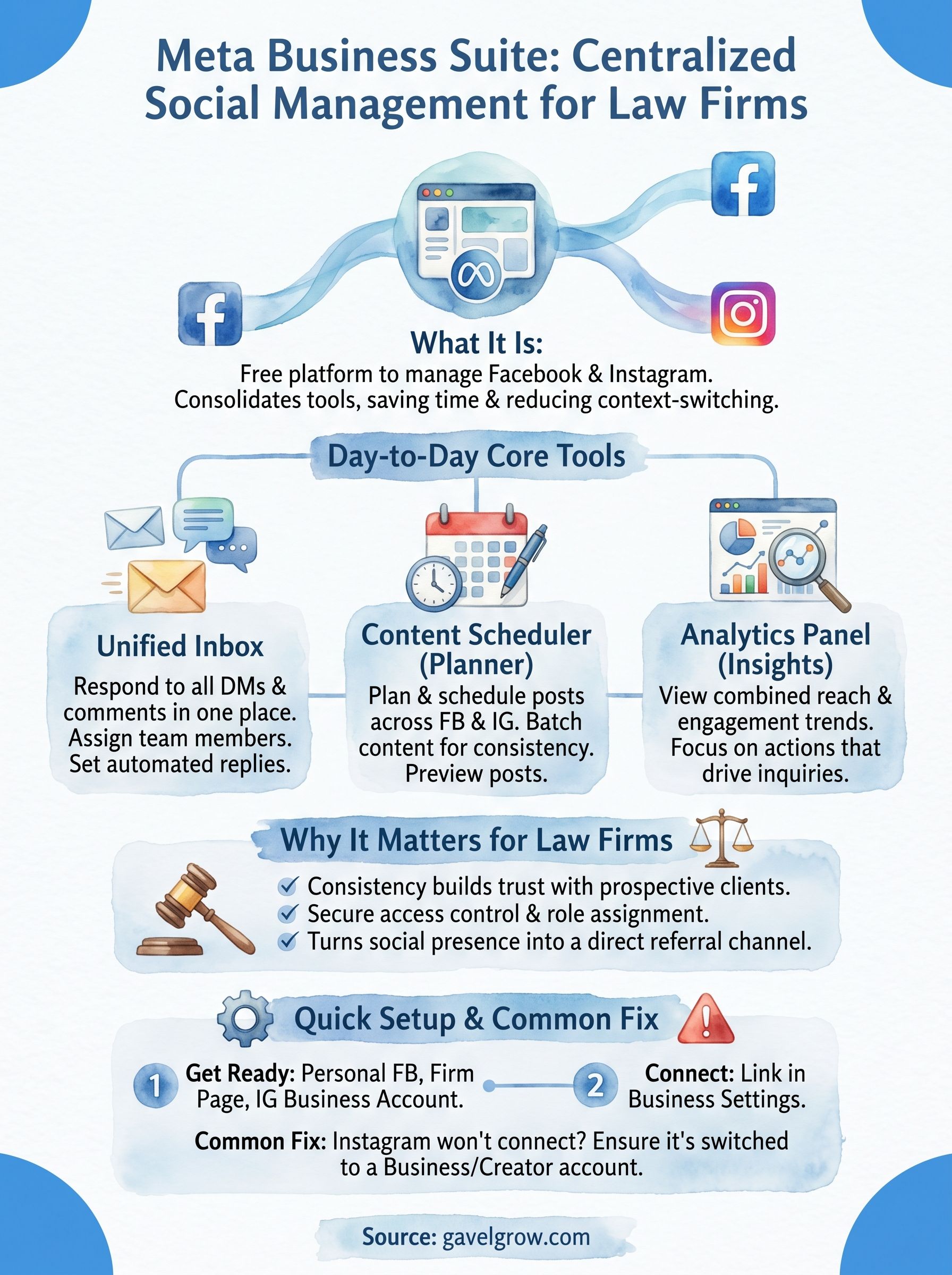
Meta Business Suite is Meta's free, centralized platform for managing everything your business does on Facebook and Instagram, from publishing posts and responding to messages to running ads and reviewing performance data. If you've ever toggled between multiple apps just to keep your firm's social profiles active, this tool consolidates all of that into one dashboard.
For law firms trying to build a consistent online presence, social media management can feel like one more thing piling onto an already packed schedule. At GavelGrow, we help attorneys turn digital channels into actual client acquisition systems, and Facebook and Instagram are often key pieces of that puzzle. But the tools only work when you know how to use them properly, which is exactly why we put this guide together.
Below, we'll break down what Meta Business Suite does, who it's built for, how to set it up, and how to get the most out of its features. Whether you're posting your first attorney bio or managing ad campaigns across multiple practice areas, this walkthrough will give you a clear, practical starting point.
Why Meta Business Suite matters for businesses
Running social media for a law firm without a centralized tool means constant context-switching: you log into Facebook to check messages, jump to Instagram to schedule a post, then open a separate browser tab to pull ad performance data. Each switch costs time, and in a firm environment where every hour carries real value, that overhead adds up faster than most attorneys realize. Meta Business Suite eliminates that inefficiency by pulling Facebook and Instagram management into a single login.
The real cost of disconnected tools
Most firms that skip a unified platform don't track how much time they actually lose to tool fragmentation. Responding to messages across two separate apps, checking post performance in one place and ad results in another, and trying to maintain a consistent posting schedule without a shared content calendar creates friction at every step. That friction doesn't just slow you down. It creates gaps: missed messages from potential clients, posts that go out at inconsistent times, and ad campaigns that don't get reviewed often enough because the data is buried in a separate interface.
When your tools are scattered, your strategy becomes scattered too, and prospective clients notice the inconsistency before you do.
Consider the intake process specifically. A prospective client sends your firm a direct message on Instagram at 7 PM asking about a personal injury case. Without a centralized inbox, that message sits unread until someone manually checks the app. With meta business suite, that message appears alongside your Facebook messages in one inbox, and you can set automated responses so the client gets an immediate acknowledgment while your team follows up during business hours.
Why law firms specifically benefit from this platform
Law firms operate in a high-trust environment where consistency in how you present your firm across digital channels directly affects whether a prospective client contacts you or moves on to another attorney. If your Facebook page shows a post from three months ago and your Instagram shows one from last week, that inconsistency signals neglect. A single platform that lets you plan, schedule, and publish across both channels at once solves that problem without adding staff.
Beyond consistency, access control and role assignment matter significantly in a legal context. Meta Business Suite lets you give your marketing coordinator the ability to schedule posts and pull reports without ever touching your ad billing information or account settings. That separation of access is something general social media tools often handle poorly, and it is a meaningful safeguard for firms managing client-facing content under professional conduct rules.
Your firm's social presence also functions as a direct referral channel that most attorneys underestimate. Former clients who follow your page and see consistent, useful content are far more likely to refer new clients than those who forget your firm exists between their case closing and a friend asking for a recommendation. The scheduling and analytics infrastructure inside the platform makes it practical to keep that presence active without dedicating hours each week to manual posting.
The platform is also free at its core. There is no subscription fee to access the dashboard, the unified inbox, the scheduling tools, or the basic analytics reports. Paid features only apply when you run ads, which means every firm, regardless of marketing budget, can use the foundational tools at no cost from day one.
How Meta Business Suite works with Facebook and Instagram
Meta Business Suite connects to your Facebook Page and Instagram business account through a single Meta Business account, acting as the operational layer that sits above both platforms. When you link both accounts, every action you take inside the suite, whether scheduling a post, sending a reply, or reviewing engagement data, pushes directly to the corresponding platform in real time. You do not manage two separate systems; you manage one unified workflow that distributes content and activity across both channels without duplication or extra logins.
How the account structure fits together
Your Meta Business account functions as the parent layer. Underneath it, you attach your Facebook Page and your Instagram professional account, and each retains its own public identity while sharing a common management interface. If your firm runs multiple Facebook Pages, for example one for personal injury and a separate one for estate planning, you can manage both from the same Business Suite dashboard without switching accounts or credentials. Instagram accounts link to Facebook Pages on an individual basis, so each pairing stays organized and clearly separated.
How content and data move between platforms
When you create a post inside meta business suite, you choose whether it publishes to Facebook, Instagram, or both simultaneously. The platform formats the content to fit each channel and schedules it to go live at whatever time you set. Performance analytics from both platforms feed back into the same dashboard, so you review reach, engagement, and follower growth in one place rather than pulling separate reports and manually reconciling numbers.
Unified analytics eliminate the guesswork: you see exactly which content drives inquiries and on which platform, without digging through two separate apps to find the answer.
Messages follow the same logic. Direct messages from Instagram and messages sent to your Facebook Page both land in a single inbox inside the platform. You can assign conversations to specific team members, label inquiries by practice area, and set up automated acknowledgment replies, all without leaving the dashboard or toggling between apps on your phone or desktop.
How to set up Meta Business Suite in 15 minutes
Getting started with meta business suite takes less time than most attorneys spend drafting a single email. Before you log in and start clicking, spend two minutes confirming you have the right accounts in place. The setup process itself is straightforward, but starting with incomplete or incorrectly configured accounts will cause you to repeat steps, which is exactly what you want to avoid.
What you need before you start
You need three things ready before you open the platform: a personal Facebook account (this is your login credential, not your public firm identity), an active Facebook Page for your firm, and an Instagram account set to either Business or Creator mode. If your Instagram is still a personal account, go into the Instagram app, navigate to Account Settings, and switch to a Professional account before proceeding. That switch is free and takes under a minute, but skipping it will block you from linking Instagram during setup.
Trying to link a personal Instagram account to the platform is the single most common setup error, and it stops the process completely until you fix it.
Connecting your accounts step by step
Once your accounts are ready, navigate to business.facebook.com and click Get Started. Log in with your personal Facebook credentials. The platform will prompt you to create a Business Account by entering your firm name, your name, and your business email address. After you confirm that email, you land inside your new dashboard.
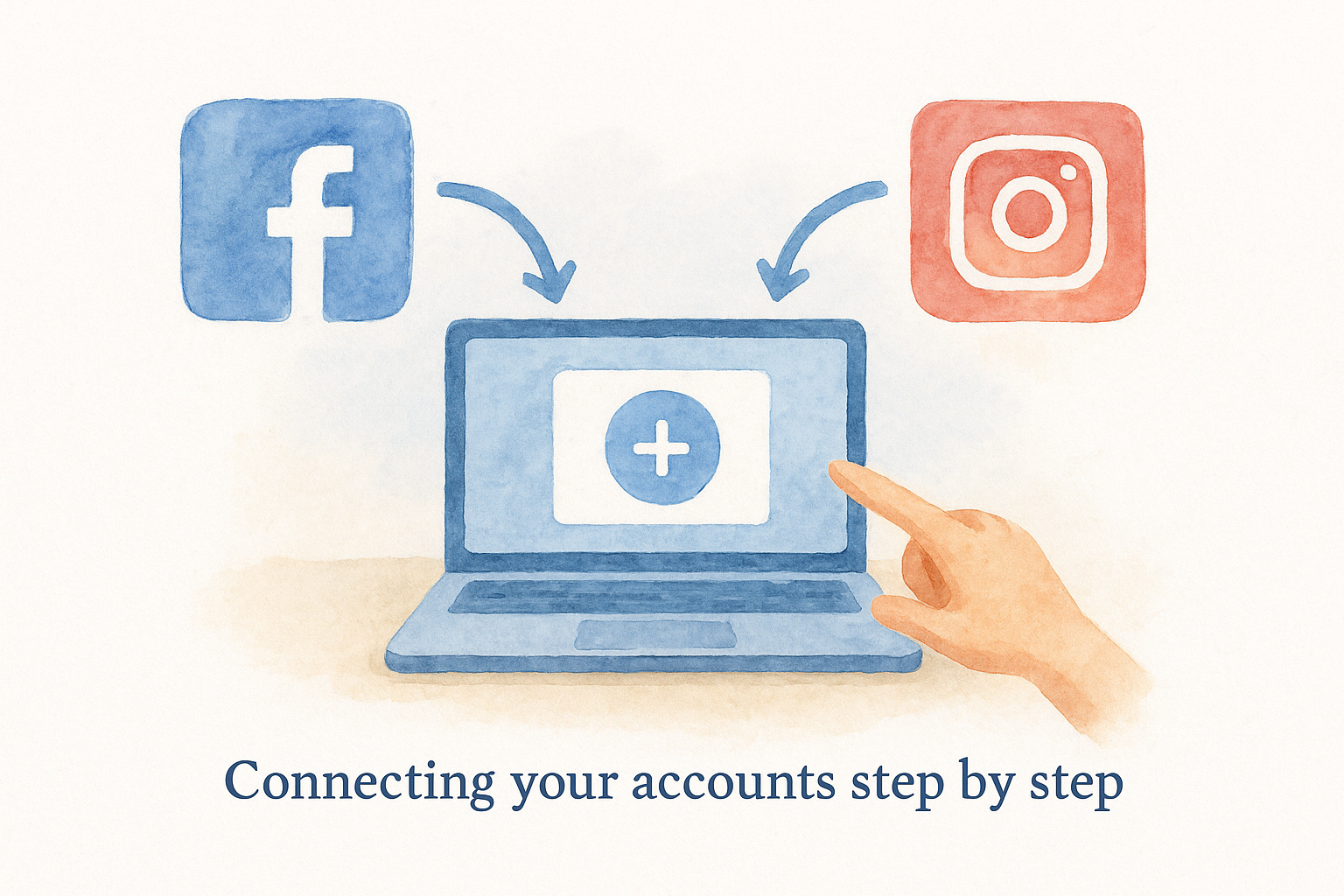
From there, go to Business Settings in the left navigation panel and select Pages. Click Add, then choose Add a Page, and search for your firm's Facebook Page by name. Confirm the connection. Next, go to Instagram Accounts within Business Settings, click Add, and log in with your Instagram credentials to link that profile. Both connections typically complete within 30 seconds each if your accounts are already configured correctly.
Confirming everything is linked correctly
After linking, return to the main dashboard and check that both your Facebook Page and Instagram account appear under your connected assets. Send yourself a test message on each platform and confirm those messages appear in the unified inbox inside the suite. If one is missing, return to Business Settings and verify the account connection shows as active rather than pending. A pending status usually means the confirmation email was not clicked, so check your inbox and complete that step.
How to use the core tools day to day
Once your accounts are connected, the day-to-day value of meta business suite comes from three core areas: your inbox, your content scheduler, and your analytics panel. Each tool is built for speed, so you can check in, act, and move on without treating social media like a second job. The key is building a short daily routine around each area rather than checking in randomly throughout the week.
Managing your inbox and messages
Your unified inbox sits in the left navigation panel and pulls in direct messages from both Facebook and Instagram, along with comments on your posts that require a response. Open it first thing each morning and work through any new conversations before your schedule fills up. You can assign messages to specific team members using the assignee feature, which keeps client-facing communication from falling through the cracks when multiple people share access to the account.
Responding to a prospective client's message within the first hour significantly increases the chance they contact your firm rather than moving on to the next search result.
Setting up an automated response for after-hours messages takes under five minutes and makes a real difference in how your firm appears to people reaching out outside business hours. Go to Inbox Settings, select Instant Reply, write a brief acknowledgment that sets response expectations, and activate it for both platforms at once.
Scheduling posts and content
The Planner tool inside the suite shows your scheduled content in a calendar view across both Facebook and Instagram. To schedule a new post, click Create Post from the dashboard, write your content, add an image or video if relevant, and choose your publish date and time. The platform lets you preview how the post will look on each channel before you confirm, which matters when image dimensions or character limits differ between platforms.

Batch your scheduling once per week rather than creating posts one at a time. Spending 30 minutes on Monday to load an entire week of content into the calendar keeps your firm's presence consistent without requiring daily attention.
Reading your analytics
Your Insights panel shows reach, engagement, and follower trends for both platforms in the same view. Check it weekly, not daily, and focus on which post types generate the most profile visits or direct messages, since those actions correlate most directly with prospective client interest rather than passive likes or impressions.
Common issues and fixes in Meta Business Suite
Even with a smooth setup, meta business suite throws a handful of recurring problems at users across different firm sizes and account configurations. Most of these issues have straightforward fixes that take under five minutes once you know what to look for. The breakdown below covers the errors that show up most often and what to do about each one.
Instagram won't connect to your account
This is the most common setup problem, and it almost always comes down to account type. If your Instagram profile is still classified as a personal account rather than a Business or Creator account, the platform will block the connection entirely without giving a clear explanation. Open the Instagram app, go to Settings, select Account, and tap Switch to Professional Account. After that switch, return to Business Settings inside the suite and retry the connection. It completes immediately in most cases.
- Confirm your Instagram email matches the one on your Meta Business account
- Make sure two-factor authentication is enabled on both accounts before linking
- Check that your Instagram account is not already connected to a different Business Suite
Scheduled posts fail to publish
When a post fails to go out at its scheduled time, the cause is usually a disconnected Instagram account or an expired permission token. The suite requires an active, authorized connection to publish on your behalf. Go to Business Settings, select Instagram Accounts, and check whether the account status shows as active or requires re-authentication. Click Reconnect and log in again with your Instagram credentials. After reconnecting, reschedule the affected post and confirm it shows a scheduled status rather than a draft status.
If posts keep failing after reconnection, check whether your Instagram account password changed recently, since a password update automatically revokes the suite's publishing permissions.
Inbox messages from one platform are missing
If messages from Facebook or Instagram stop appearing in your unified inbox, the linked account likely lost its connection after a permission change or password reset. Navigate to Business Settings, find the affected account under Pages or Instagram Accounts, and check its permission status.
Re-authorize the account by clicking through the reconnection prompt. Once reconnected, refresh your inbox and confirm new messages from both platforms appear together. This fix resolves the issue in almost every case without needing to contact support.
Next steps
You now have everything you need to get meta business suite running and producing consistent results for your firm. You know how the platform connects Facebook and Instagram, how to set up your account correctly the first time, and how to work through the most common errors without losing hours to troubleshooting. The tools are free, the setup takes under 15 minutes, and the daily workflow fits into a short routine that keeps your firm visible without disrupting your schedule.
Consistent social media management is one piece of a larger client acquisition system, and most law firms benefit from having a partner who understands the full picture. If you want a clear view of how your digital presence stacks up and where the real growth opportunities are for your practice area and market, schedule a free strategy consultation with GavelGrow to get a custom roadmap built specifically for your firm.
Frequently Asked Questions
What is Meta Business Suite and is it free?
Meta Business Suite is Meta's free, centralized platform for managing your Facebook and Instagram presence from one dashboard, including publishing posts, responding to messages, running ads, and reviewing performance data. The core tools, the unified inbox, scheduler, and basic analytics, carry no subscription fee. Paid costs only apply when you choose to run ads, so any firm can use the foundational features at no cost.
How do I set up Meta Business Suite for my law firm?
Before starting, have three things ready: a personal Facebook account for login, an active Facebook Page for your firm, and an Instagram account switched to Business or Creator mode. Then go to business.facebook.com, click Get Started, create a Business Account with your firm details, and link your Page and Instagram profile under Business Settings. With accounts configured correctly, the whole process typically takes under 15 minutes.
Why won't my Instagram account connect to Meta Business Suite?
The most common cause is that your Instagram is still a personal account rather than a Business or Creator account, which blocks the connection without a clear error. In the Instagram app, go to Settings, then Account, and switch to a Professional account, then retry from Business Settings. Also confirm your Instagram email matches your Meta Business account and that the profile isn't already linked elsewhere.
Why do my scheduled posts fail to publish in Meta Business Suite?
Scheduled posts usually fail because of a disconnected Instagram account or an expired permission token; the suite needs an active, authorized connection to publish for you. In Business Settings, check whether the Instagram account status shows active or needs re-authentication, click Reconnect, and log in again. Note that changing your Instagram password automatically revokes publishing permissions, so reconnect after any password update.
How does Meta Business Suite help a law firm manage client messages?
It pulls direct messages from both Facebook and Instagram, plus post comments that need a response, into a single unified inbox. You can assign conversations to specific team members, label inquiries by practice area, and set automated instant replies so a prospective client gets an immediate acknowledgment while your team follows up during business hours. Responding quickly increases the chance a prospect contacts your firm rather than moving on.
Frequently Asked Questions
What is Meta Business Suite and is it free?
Meta Business Suite is Meta's free, centralized platform for managing your Facebook and Instagram presence from one dashboard, including publishing posts, responding to messages, running ads, and reviewing performance data. The core tools, the unified inbox, scheduler, and basic analytics, carry no subscription fee. Paid costs only apply when you choose to run ads, so any firm can use the foundational features at no cost.
How do I set up Meta Business Suite for my law firm?
Before starting, have three things ready: a personal Facebook account for login, an active Facebook Page for your firm, and an Instagram account switched to Business or Creator mode. Then go to business.facebook.com, click Get Started, create a Business Account with your firm details, and link your Page and Instagram profile under Business Settings. With accounts configured correctly, the whole process typically takes under 15 minutes.
Why won't my Instagram account connect to Meta Business Suite?
The most common cause is that your Instagram is still a personal account rather than a Business or Creator account, which blocks the connection without a clear error. In the Instagram app, go to Settings, then Account, and switch to a Professional account, then retry from Business Settings. Also confirm your Instagram email matches your Meta Business account and that the profile isn't already linked elsewhere.
Why do my scheduled posts fail to publish in Meta Business Suite?
Scheduled posts usually fail because of a disconnected Instagram account or an expired permission token; the suite needs an active, authorized connection to publish for you. In Business Settings, check whether the Instagram account status shows active or needs re-authentication, click Reconnect, and log in again. Note that changing your Instagram password automatically revokes publishing permissions, so reconnect after any password update.
How does Meta Business Suite help a law firm manage client messages?
It pulls direct messages from both Facebook and Instagram, plus post comments that need a response, into a single unified inbox. You can assign conversations to specific team members, label inquiries by practice area, and set automated instant replies so a prospective client gets an immediate acknowledgment while your team follows up during business hours. Responding quickly increases the chance a prospect contacts your firm rather than moving on.