Meta Business Help Center: Support, Status, And Contact
Categories: Legal Marketing Strategies
 Abram Ninoyan
Founder & Senior Performance Marketer
Credentials: Google Partner, Google Ads Search Certified, Google Ads Display Certified, Google Ads Measurement Certified, Google Analytics (IQ) Certified, HubSpot Inbound Certified, HubSpot Social Media Marketing Certified, Conversion Optimization Certified
Expertise: Google Ads, Meta Ads, Conversion Rate Optimization, GA4 & Google Tag Manager, Lead Generation, Marketing Funnel Optimization, PPC Management
LinkedIn Profile
The Meta Business Help Center is Meta's official support portal where advertisers manage business accounts, troubleshoot ad delivery problems, check platform status, and contact support across Faceboo...
Key Takeaways
- Meta Business Help Center: Support, Status, And Contact
- What is the Meta Business Help Center?
- Why does the Meta Business Help Center matter?
- How to get support and contact Meta
Meta Business Help Center: Support, Status, And Contact
The Meta Business Help Center is Meta's official support portal where advertisers manage business accounts, troubleshoot ad delivery problems, check platform status, and contact support across Facebook and Instagram. If you run paid social campaigns for your law firm, you'll end up here eventually, whether it's a disabled ad account, a billing dispute, or a policy rejection on your personal injury ad copy.
The problem is that Meta's support ecosystem is sprawling and, frankly, confusing. Finding the right help article or reaching an actual human requires knowing exactly where to look. For law firms spending thousands per month on Facebook and Instagram ads, a stalled account or unresolved issue bleeds budget fast. At GavelGrow, we manage paid social campaigns for law firms daily and navigate Meta's support channels on their behalf, so we know which paths lead to real answers and which lead to dead ends.
This guide breaks down how the Meta Business Help Center is structured, where to find platform status updates, and the fastest ways to get live support when your advertising is on the line.
What is the Meta Business Help Center?
The Meta Business Help Center is Meta's centralized support hub for anyone managing a business presence on Facebook or Instagram. It lives at business.facebook.com/help and covers everything from setting up ad accounts and Business Manager to resolving policy violations, billing disputes, and account restrictions. Think of it as the primary reference point between your law firm's advertising activity and Meta's support infrastructure.
The Core Features Available to Business Accounts
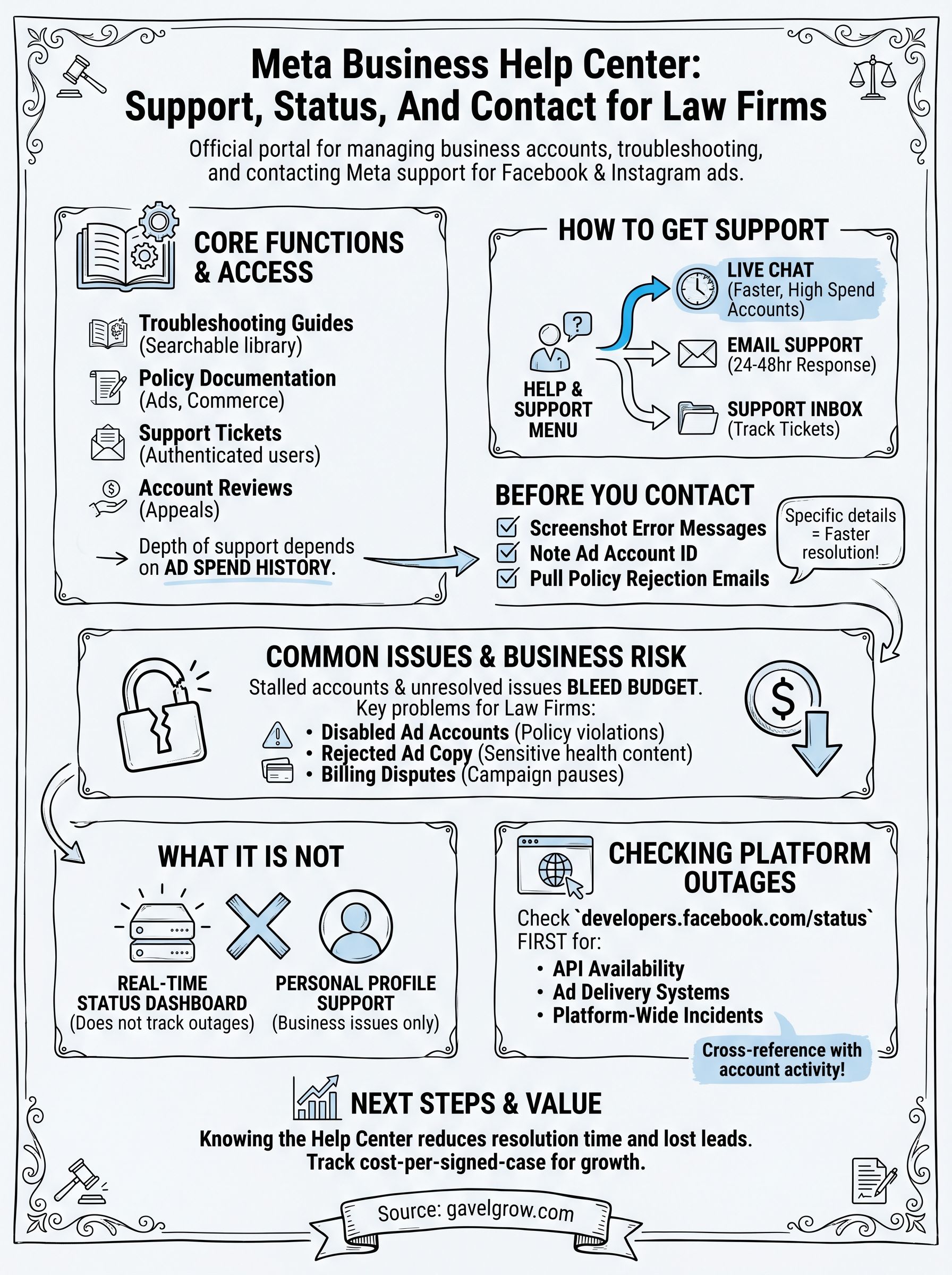
The Help Center gives you access to a searchable library of policy documentation and troubleshooting guides, organized by topic: ads, Pages, Commerce, pixels, billing, and account access. Beyond static articles, authenticated users can open support tickets, request account reviews, and in some cases connect with a live Meta representative through chat or email. The depth of support you can access depends on your ad spend history and account standing.
Business accounts with a strong spend history typically unlock faster support paths, including direct chat access, that lower-volume accounts don't see.
What the Help Center Does Not Cover
The Help Center is not a real-time status dashboard for platform outages, and it does not handle issues tied to personal Facebook profiles. If your ad account gets disabled, the Help Center is where you submit a review request, but it does not guarantee a response timeline or resolution. Many advertisers are surprised to find that policy decisions are often automated, and the Help Center is the only formal channel to dispute them. Knowing its boundaries upfront saves you from wasting time looking for a phone number that does not exist publicly for most business accounts.
Why does the Meta Business Help Center matter?
For law firms running paid social campaigns, a disabled ad account or a rejected ad does not pause your competition. Every day your ads are down, leads go to rival firms instead. The Meta Business Help Center is the only official channel Meta provides to resolve these issues, which makes knowing how to use it a practical business skill, not a nice-to-have.
A single disabled ad account stops all Facebook and Instagram campaigns simultaneously, cutting off a firm's entire paid social pipeline overnight.
The Business Risk of Ignoring It
Law firms spending $5,000 or more per month on Facebook and Instagram ads face real financial exposure when something breaks. Meta's platform flags accounts automatically for policy violations, billing anomalies, and unusual activity. Without familiarity with the Help Center, you lose days, sometimes weeks, finding the right resolution path. Knowing where to file an appeal and what documentation Meta requires puts you back in control faster.
Common situations where the Help Center is your only resolution path:
- Disabled ad accounts following automated policy reviews
- Rejected personal injury ad copy flagged for sensitive health content
- Billing disputes tied to charges after a campaign pause
How to get support and contact Meta
The Meta Business Help Center gives you several support paths, but not all of them are equally accessible. Your options depend on your ad spend history and account standing, so higher-volume advertisers typically reach a live agent faster than newer accounts.
Finding the Right Support Channel
Start at business.facebook.com/help and log into your Business Manager account. Navigate to the "Help & Support" section in the top-right menu to see which contact options are available for your account. Meta surfaces three primary methods:
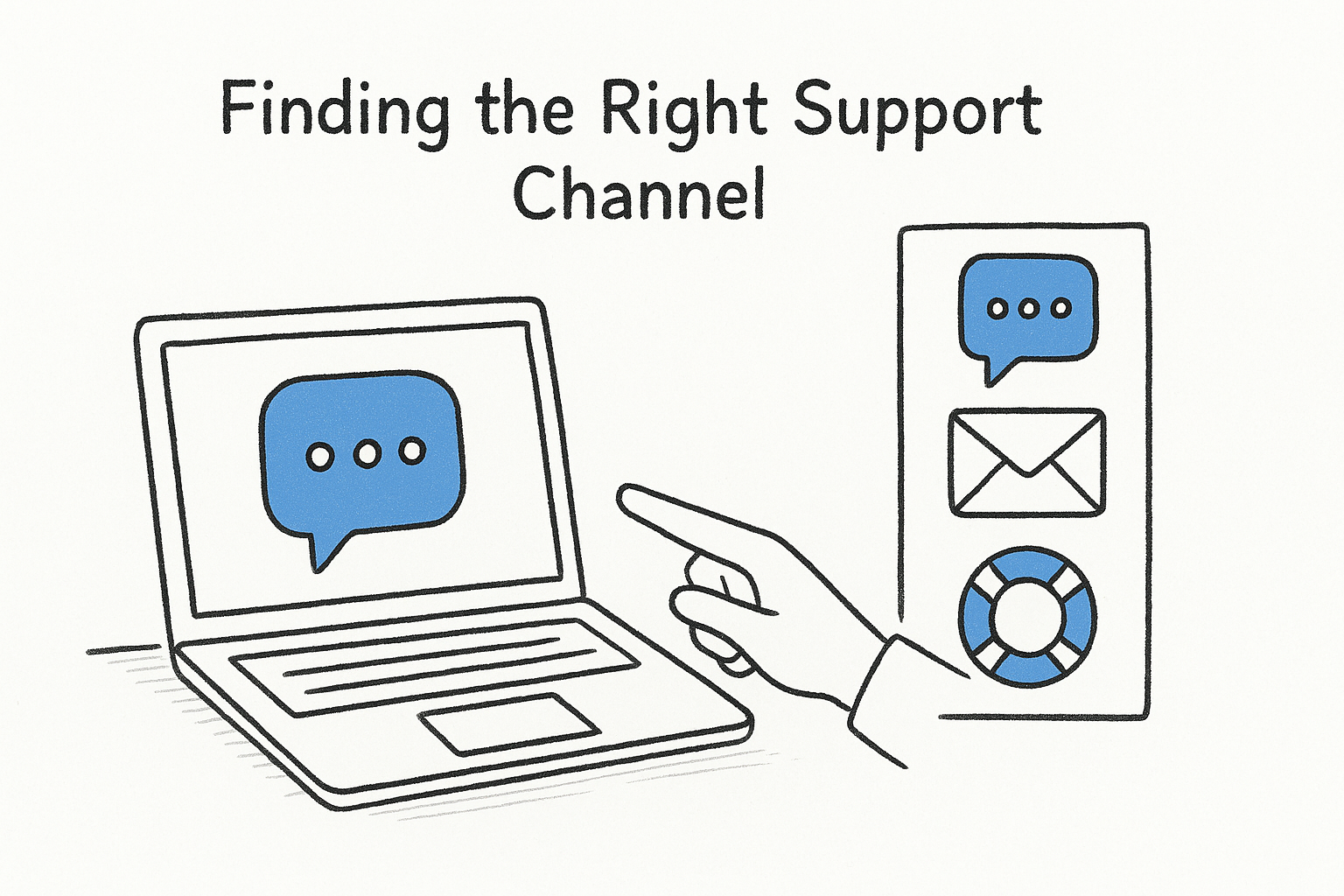
- Live chat: Available to accounts with sufficient spend history; typically the fastest resolution path
- Email support: Generates a case number and usually receives a response within 24-48 hours
- Support inbox: Tracks all open and closed tickets so you never lose a thread
What to Prepare Before You Contact Support
Before you open a ticket, document everything. Screenshot the error message, note your ad account ID, and pull any policy rejection emails. Meta's support team resolves issues faster when you provide specific account details upfront rather than during follow-up exchanges.
Submitting a vague ticket without your ad account ID is the single fastest way to extend your wait time by days.
How to check outages and known issues
The Meta Business Help Center does not include a built-in, real-time status page for platform outages. When your ads stop delivering or your Business Manager loads with errors, the issue could be account-specific or a broader platform problem affecting thousands of advertisers simultaneously. Knowing where to check first saves you from opening unnecessary support tickets on a problem Meta is already fixing.
Where Meta Posts Platform Status Updates
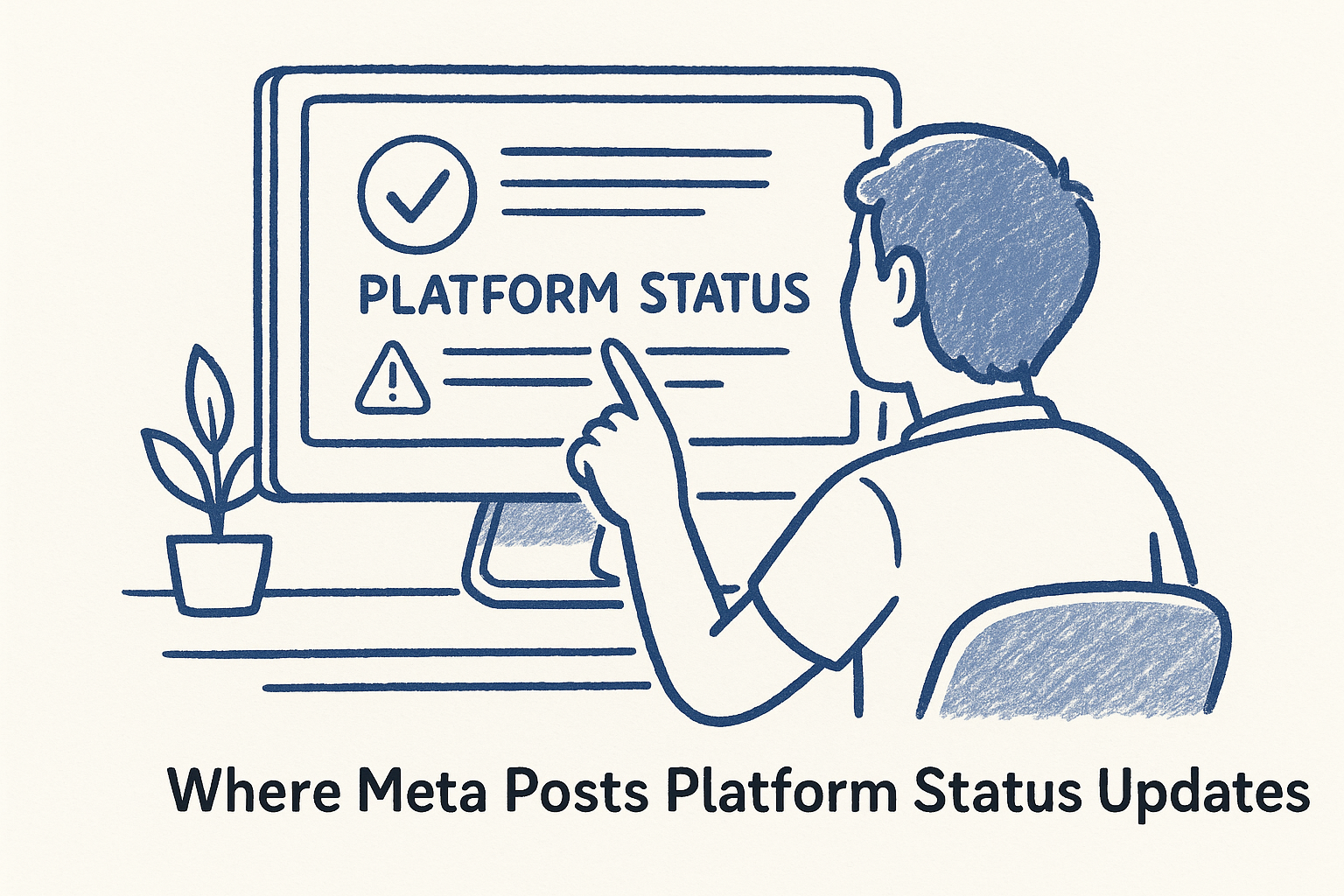
Meta publishes infrastructure status at developers.facebook.com/status, which covers API availability, ad delivery systems, and platform-wide incidents. This is the authoritative source for confirming whether a service disruption is on Meta's end or yours before you take any action.
If the status page shows an active incident, hold off on opening a support ticket until the outage resolves on its own.
Checking this page first gives you clear confirmation before you invest time building a support case. Most platform outages resolve within a few hours, and a ticket opened during an active incident rarely speeds up resolution. Cross-referencing the status dashboard with your own account activity is the fastest way to separate a platform-wide problem from an account-level issue that genuinely requires you to contact support.
Common business account problems and fixes
The meta business help center covers dozens of issue types, but law firms run into a handful of problems repeatedly. Recognizing these patterns helps you resolve them faster the next time they appear.
How do you fix a disabled ad account?
A disabled ad account almost always traces back to a policy violation flag, an unusual payment event, or a sudden spike in ad spend that Meta's automated systems mark as suspicious. Your first move is to navigate to Account Quality inside Business Manager, where Meta shows you the specific reason for the restriction and surfaces a "Request Review" button if an appeal is available.
Meta's automated systems make the initial decision, but a human review can reverse it if you provide clear context about your firm's advertising activity.
What should you do when your ad gets rejected?
Rejected ads in legal, especially personal injury and medical malpractice copy, often trigger Meta's sensitive content filters automatically. When this happens, check the rejection reason in Ads Manager and revise the specific language Meta flagged before resubmitting. If the rejection seems incorrect, use the appeal option inside the ad review detail view rather than duplicating the ad and resubmitting without changes, which rarely produces a different outcome.
Next Steps
Navigating the meta business help center takes practice, but once you know where platform status lives, which support channels match your account tier, and how to document issues before contacting Meta, your resolution time drops significantly. Every day your ads are down costs you leads, and law firms that know these processes recover faster than those learning on the fly.
If you're spending real budget on Facebook and Instagram ads for your firm, the bigger question is whether your intake system can handle the volume when your campaigns run without interruption. Tracking cost-per-signed-case, not just clicks, is what separates firms that grow from firms that guess. GavelGrow's platform gives you full-funnel attribution from ad click through signed retainer, built specifically for law firms.
Book a free 45-minute strategy call to see how your current paid social setup stacks up and where the gaps are.
Frequently Asked Questions
What is the Meta Business Help Center and what does it cover?
The Meta Business Help Center is Meta's centralized support hub at business.facebook.com/help for anyone managing a business presence on Facebook or Instagram. It offers a searchable library of policy and troubleshooting guides organized by topic, and lets authenticated users open support tickets and request account reviews. It's the primary reference point between your firm's advertising activity and Meta's support infrastructure.
How do I fix a disabled Meta ad account?
A disabled ad account usually traces to a policy violation flag, an unusual payment event, or a sudden spend spike that Meta's automated systems mark as suspicious. Go to Account Quality inside Business Manager, where Meta shows the specific reason and surfaces a 'Request Review' button if an appeal is available. Automated systems make the initial decision, but a human review can reverse it when you provide clear context about your firm's advertising.
Where do I check whether Meta is having a platform outage?
The Help Center itself is not a real-time status dashboard. Meta publishes infrastructure status at developers.facebook.com/status, covering API availability, ad delivery systems, and platform-wide incidents. Check it first, because most outages resolve on their own within a few hours and a ticket opened during an active incident rarely speeds up resolution.
What should I prepare before contacting Meta support?
Document everything before opening a ticket: screenshot the error message, note your ad account ID, and pull any policy rejection emails. Meta's support team resolves issues faster when you provide specific account details upfront rather than trading follow-up messages. Submitting a vague ticket without your ad account ID is one of the fastest ways to extend your wait.
What should I do when Meta rejects my law firm's ad?
Rejected legal ads, especially personal injury and medical malpractice copy, often trip Meta's sensitive content filters automatically. Check the rejection reason in Ads Manager and revise the specific language Meta flagged before resubmitting. If the rejection seems incorrect, use the appeal option inside the ad review detail view rather than duplicating and resubmitting the ad unchanged, which rarely changes the outcome.
Frequently Asked Questions
What is the Meta Business Help Center and what does it cover?
The Meta Business Help Center is Meta's centralized support hub at business.facebook.com/help for anyone managing a business presence on Facebook or Instagram. It offers a searchable library of policy and troubleshooting guides organized by topic, and lets authenticated users open support tickets and request account reviews. It's the primary reference point between your firm's advertising activity and Meta's support infrastructure.
How do I fix a disabled Meta ad account?
A disabled ad account usually traces to a policy violation flag, an unusual payment event, or a sudden spend spike that Meta's automated systems mark as suspicious. Go to Account Quality inside Business Manager, where Meta shows the specific reason and surfaces a 'Request Review' button if an appeal is available. Automated systems make the initial decision, but a human review can reverse it when you provide clear context about your firm's advertising.
Where do I check whether Meta is having a platform outage?
The Help Center itself is not a real-time status dashboard. Meta publishes infrastructure status at developers.facebook.com/status, covering API availability, ad delivery systems, and platform-wide incidents. Check it first, because most outages resolve on their own within a few hours and a ticket opened during an active incident rarely speeds up resolution.
What should I prepare before contacting Meta support?
Document everything before opening a ticket: screenshot the error message, note your ad account ID, and pull any policy rejection emails. Meta's support team resolves issues faster when you provide specific account details upfront rather than trading follow-up messages. Submitting a vague ticket without your ad account ID is one of the fastest ways to extend your wait.
What should I do when Meta rejects my law firm's ad?
Rejected legal ads, especially personal injury and medical malpractice copy, often trip Meta's sensitive content filters automatically. Check the rejection reason in Ads Manager and revise the specific language Meta flagged before resubmitting. If the rejection seems incorrect, use the appeal option inside the ad review detail view rather than duplicating and resubmitting the ad unchanged, which rarely changes the outcome.