Google Ads Conversion Tracking Setup for Law Firms: 5 Steps
Categories: Legal Marketing Strategies
 Abram Ninoyan
Founder & Senior Performance Marketer
Credentials: Google Partner, Google Ads Search Certified, Google Ads Display Certified, Google Ads Measurement Certified, Google Analytics (IQ) Certified, HubSpot Inbound Certified, HubSpot Social Media Marketing Certified, Conversion Optimization Certified
Expertise: Google Ads, Meta Ads, Conversion Rate Optimization, GA4 & Google Tag Manager, Lead Generation, Marketing Funnel Optimization, PPC Management
LinkedIn Profile
A Google Ads conversion tracking setup takes five steps. Pick the actions that matter, create a conversion action in your account, install its tag on your site (as code or through Google Tag Manager),...
Key Takeaways
- Google Ads Conversion Tracking Setup for Law Firms: 5 Steps
- Why does conversion tracking matter for a law firm?
- Step 1. Which actions should you track as conversions?
- Step 2. Create the conversion action in Google Ads
Google Ads Conversion Tracking Setup for Law Firms: 5 Steps
A Google Ads conversion tracking setup takes five steps. Pick the actions that matter, create a conversion action in your account, install its tag on your site (as code or through Google Tag Manager), test it, and then send signed cases back to Google. Done once and done right, Google Ads counts the form submissions and calls that come from your ads, and its bidding learns from them.
Most firms start with tracking that is wrong in one of three ways. It counts every page view as a conversion, it counts nothing at all, or it counts the same form twice. You then judge campaigns by clicks and cost per click, while the phone calls and retainers that pay for the ads never reach Google. Smart Bidding can only learn from the signals you give it, and a bad signal teaches it to buy the wrong clicks.
This guide walks through each step in the Google Ads interface. It includes copy-ready code for the Google tag and for Google Tag Manager, a testing routine, and a way to send signed cases back to Google. It comes from a team that has marketed only for law firms since 2015, so the examples use intake forms, consultation calls and retainers instead of online checkouts.
Key Takeaways
- Create a conversion action in Google Ads, then install its tag on your site.
- Count form submissions and qualified calls as primary conversions, not page views.
- Google Tag Manager lets you edit tracking without a developer.
- Test with Tag Assistant, then allow up to 24 hours for status updates.
- Send signed cases back as offline conversions so bidding learns from real retainers.
Why does conversion tracking matter for a law firm?
Conversion tracking tells Google Ads which ad clicks ended in a consultation request, a call or a booked appointment. Without it, your account reports clicks, impressions and cost, and nothing about outcomes. With it, you see cost per conversion by campaign and keyword, and automated bidding can aim at inquiries instead of traffic.
What does Google Ads conversion tracking record?
A conversion is any valuable action a person takes after interacting with your ad. You decide which actions count, and each one becomes a conversion action in your account. Google then credits the action to the ad interaction that came before it, based on the attribution model you select.
Legal matters add a wrinkle. A consultation form is not revenue, and the retainer may sign days or weeks later. So the first conversions you track are lead signals, and the signed case comes back to Google in step 5. Think of the setup as two layers: the tag records the inquiry, and your later upload records the outcome.
Is conversion tracking required, and what do you need first?
Conversion tracking is not required to run Google Ads. Search campaigns can run on a strategy such as Maximize clicks, and Google will report clicks, impressions and cost. But the strategies that optimize for conversions, such as Maximize conversions or a target cost per action, have nothing to optimize without it. For a paid click in a competitive legal market, running blind is the expensive choice.
Gather these before you start:
- A Google Ads account in your firm's own name, where you have admin or standard access
- Edit access to your website, or to its Google Tag Manager container
- A confirmation page or form event that fires only after a successful submission
- Auto-tagging switched on in your account settings
- A short list of the actions you plan to count (step 1 helps you build it)
A campaign can only learn from the outcomes you report back to it.
If you would rather have a team build and run the campaigns, GavelGrow's managed Google Ads for law firms includes this tracking work. The rest of this guide assumes you are doing it yourself.
Step 1. Which actions should you track as conversions?
Track the actions that sit closest to a signed case, and keep early signals such as page views out of your main conversion count. For most firms that means consultation forms, qualified calls and booked appointments. Everything else is secondary.

Pick primary and secondary actions
Primary actions feed bidding. Google Ads optimizes toward them and reports them in the Conversions column. Secondary actions show up only in the "All conversions" report, so you can watch them without steering the algorithm. A page view of a practice-area page is a good example of something to watch but not optimize toward.
Do not mark five overlapping actions as primary. If a visitor fills in a form and lands on a booking page, counting both as primary double-credits one person.
Set a count, a value and a cost per signed case target
For lead actions, set the count to One, so a person who submits twice after one click counts once. Use Every only for purchases, where each transaction is valuable. For value, you can choose not to use one at first, or assign a fixed number you can defend.
Here is a hypothetical worked example. You spend $12,000 in a month and record 240 form and call conversions. That is $50 per conversion ($12,000 divided by 240). If 8 of those inquiries sign, your cost per signed case is $1,500 ($12,000 divided by 8). Eight signed cases from 240 inquiries means about 1 in 30 signs. If a signed case is worth $3,000 to the firm, a fixed lead value of $100 is defensible ($3,000 divided by 30). Your own numbers will differ, so run them through the cost per acquisition calculator before you enter a value.
Count the action closest to a signed case, not the easiest one to measure.
Step 2. Create the conversion action in Google Ads
Open Goals in your account, choose to create a conversion action, select Website, scan your domain, and then set the category, value, count and window. Save it, and Google gives you the tag details you install in step 3. Menu labels move around between interface updates, so follow the intent if a label looks different.
Create a website conversion action
- In Google Ads, open Goals and select + Create conversion action. In some accounts this sits under Goals, then Conversions, then Summary.
- Choose Website, enter your domain and select Scan. Google checks whether a Google tag is already on the site.
- Choose how the action is measured. A URL-based action counts visits to a confirmation page. A manual event is the better choice for button clicks, or whenever you need to pass a value or a transaction ID.
- Select a category such as Submit lead form, then name the action in plain words, for example "Consultation form".
- Set the value, count, window and primary status using the table below.
- Select Save and continue, and keep the tag setup screen open for step 3.
Recommended settings for lead conversions
The conversion window is the time after an ad click during which a conversion can still earn credit. Choose one that matches how long your clients take to decide, because a window shorter than your sales cycle drops real conversions.
Where to find the Conversion ID and label
Open the conversion action in Goals, expand Tag setup, and choose Use Google Tag Manager. You will see two values. The Conversion ID identifies your Google Ads account and is the same for every action. The Conversion label identifies this one action. Together they look like AW-123456789/AbCdEfGhIjK. Copy both, because step 3 needs them.
The ID points to your account, the label points to the action, and you need both for a working tag.
Step 3. Install the tag with code or Google Tag Manager
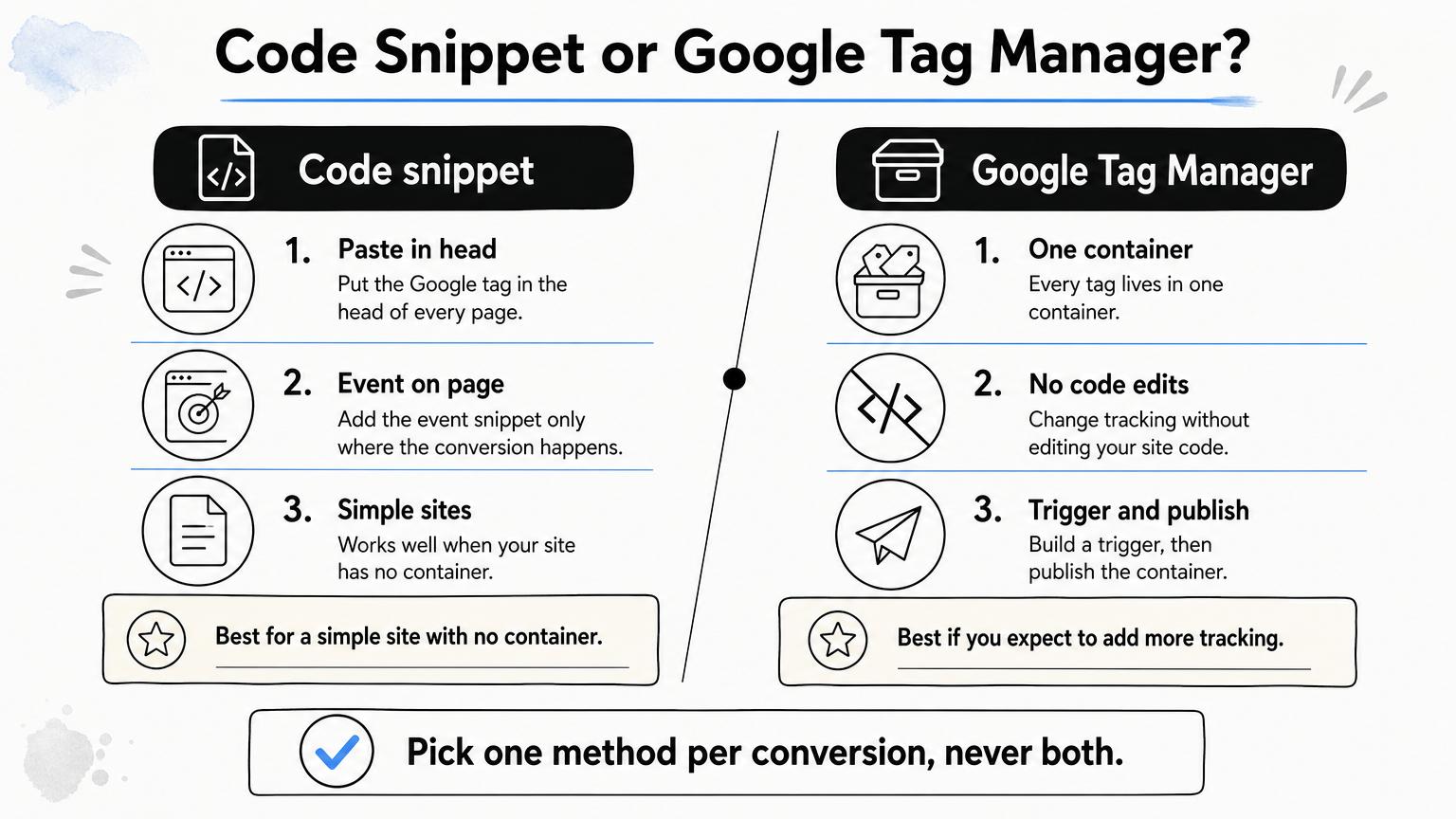
You can install the tag two ways: paste the Google tag and an event snippet into your site, or build the same thing in Google Tag Manager. Use Tag Manager if you already have a container or expect to add more tracking later. Use the snippet if your site is simple and has no container. Pick one method per conversion, never both, or you will count every inquiry twice.
Option A: install the Google tag and event snippet
The Google tag loads on every page and identifies your account. Place it in the head of every page. Replace AW-XXXXXXXXX with your own ID.
<!-- Google tag (gtag.js) -->
<script async src="https://www.googletagmanager.com/gtag/js?id=AW-XXXXXXXXX"></script>
<script>
window.dataLayer = window.dataLayer || [];
function gtag(){dataLayer.push(arguments);}
gtag('js', new Date());
gtag('config', 'AW-XXXXXXXXX');
</script>
The event snippet goes only where the conversion happens. For a confirmation page, put it on that page. Use your Conversion ID and label in send_to.
- <script>
- gtag('event', 'conversion', {
- 'send_to': 'AW-XXXXXXXXX/YYYYYYYYYYY',
- 'value': 100.0,
- 'currency': 'USD'
- });
- </script>
If you track a button click or a form that does not reload the page, call the same gtag('event', 'conversion', ...) line from the click or submit handler instead. Remove value and currency if you chose not to use a value. Keep the confirmation page out of your ad landing pages, so a direct visit does not count as a conversion.
Option B: use Google Tag Manager
Google Tag Manager keeps every tag in one container, so you can change tracking without editing site code.
- Check that your container has a Google tag with your AW- ID, firing on Initialization, All Pages. If it does not, create one under Tag Configuration, Google tag, and paste the ID.
- Create a trigger. For a confirmation page, use Page View with Page Path equal to your thank-you URL. For a form that does not reload, use a Custom Event whose name matches what your developer pushes to the data layer.
- Create a new tag, choose Google Ads Conversion Tracking, and paste your Conversion ID and Conversion label. Add a value and currency if you use them.
- Attach the trigger, name the tag clearly (for example "GAds - conversion - consultation form") and save.
- Use Preview to test (step 4), then submit and publish the container.
If you need a custom event, ask your developer to push this when the form submits successfully:
<script>
window.dataLayer = window.dataLayer || [];
window.dataLayer.push({ 'event': 'consultation_form_submit' });
</script>
Without a Google tag in the container, add a Conversion Linker tag on All Pages. It stores the click information that lets Google attribute a conversion to an ad. With a Google tag already firing on all pages, you generally do not need a separate one.
What if your intake form lives on another domain?
If your form sits in an iframe or on a platform's domain, the thank-you page falls outside your container, and a standard page-view trigger never fires. Fire the event from the form platform instead, or use a form that reports to your own tag IDs. GavelGrow's hosted intake form fires conversion events to your own GA4, Meta Pixel or Google Tag Manager IDs, so you see the conversions in your own ad accounts. Whatever you use, test it on the live page, because embedded forms are where tracking breaks most often.
One conversion needs one tracking source: pick the snippet or the container, and do not run both.
Step 4. How do you know the tag works?
Test in three places: Tag Manager's preview or Tag Assistant, your browser's network tab, and the status column in Google Ads. A working setup fires once per inquiry, sends your Conversion ID, and eventually shows "Recording conversions".
Run a live test
- Open Preview in Tag Manager. If you used the snippet, open Goals, hover over the action's status and select Troubleshoot to launch Tag Assistant.
- Enter your landing page URL and select Connect.
- Submit a test inquiry with an obvious name such as "TEST". Delete it from your pipeline afterward.
- Confirm the Google Ads conversion tag appears under tags fired for that event, and only once.
- Open your browser's developer tools, go to the Network tab, filter for "conversion", and check that the request carries your ID and value.
- Publish the container, then repeat the test on the live site.
The status often changes to Recording only after someone clicks a live ad and then converts, so a test from your own browser may not flip it. Allow up to 24 hours for a status to settle.
What the status column means
Fix an incomplete setup
When Google says your setup is incomplete, the cause is nearly always one of these:
- The Conversion ID or label has a typo or a trailing space.
- You never published the Tag Manager container after the changes.
- The trigger does not match the real page path or event name.
- A consent banner or ad blocker stopped the tag during your test.
- A cached page serves an old version without the tag.
- Two tags fire for the same inquiry, which inflates counts.
Fix the cause, retest, and wait. If conversions look too high, add a unique transaction ID or review for duplicate tags, because duplicates teach the bidding system a false picture.
Test on the live site with a real submission, because preview mode can pass while the published page fails.
Step 5. Send calls and signed cases back to Google
Form tracking covers only part of your intake. Add call conversions so phone inquiries count, then upload signed retainers as offline conversions so Google bids toward real cases. This step is what separates tracking leads from tracking outcomes.
Add call conversions
Google Ads can track three kinds of calls: calls made from your ads through a call asset, calls to a number on your website that Google forwards after an ad click, and taps on a number on your mobile pages. Set a minimum call length so a wrong number or a hang-up does not count as a conversion. Pick a duration that reflects a real intake conversation at your firm, then review it after a month.
You can also use your own tracking numbers. GavelGrow's built-in call tracking assigns a tracking number per campaign, records every call, credits it to the campaign that rang the phone, and lets you tag each call as qualified, callback, unqualified or spam. Every tracked call opens with a recording notice. Check your state's call-recording rules as well.
Upload signed cases as offline conversions
Capture the Google click ID (GCLID) in a hidden field on your form and store it with the lead. When the lead signs, upload that click ID with the conversion name, time and, if you use one, a value. Auto-tagging must be on for the click ID to exist. Google also recommends enhanced conversions for leads, which match hashed contact details such as an email address to improve matching.

Doing this by hand means a spreadsheet and a weekly upload. GavelGrow's Smart Conversions sends signed cases back to Google Ads as offline conversions, by click ID when there is one. Sending is included on Optimize and Managed, and Track has a preview. It does not change Local Services Ads bidding, because Local Services Ads cannot accept that signal.
Handle client data with care
Enhanced conversions and offline uploads send personal data to Google. Send only contact identifiers from people who submitted an inquiry, never case details. Your state bar's confidentiality rules and Google's customer data policies both apply, and consent may be required where the law demands it. Check the rules with whoever handles your firm's ethics compliance.
Uploading signed cases teaches Google to find more people who sign, not just more people who click.
Frequently Asked Questions
These are the questions firms ask most often once the tag is live.
A conversion that never reaches Google cannot improve your bidding.
How long does it take for Google Ads conversions to show up?
Allow up to 24 hours after setup for the first conversions to appear. A new action usually shows as inactive until someone clicks a live ad and then converts on your site, so a test from your own browser may not change the status. After that click and conversion, the status should move to Recording conversions. If nothing changes after a day, recheck your Conversion ID, label and trigger, and confirm you published the container.
Where do you find the Google Ads Conversion ID and label?
Open Goals in your Google Ads account, select the website conversion action, and expand Tag setup. Choose Use Google Tag Manager and Google shows both values. The Conversion ID identifies your account and stays the same for every action, while the label identifies the specific action, such as your consultation form. Paste both into a Google Ads Conversion Tracking tag, and keep a copy in your documentation for later.
Should you count every form submission or just one?
Count One for lead forms. If a prospect submits twice after a single ad click, it still represents one person and one chance to sign, so one conversion keeps your cost per conversion honest. Google's Every setting suits purchases, where a customer buying three times produces three valuable transactions. For consultation forms, calls and booked appointments, One is almost always right.
Can you track conversions without Google Tag Manager?
Yes. You can paste the Google tag into every page and add an event snippet on your confirmation page, as shown in step 3. You can also link Google Analytics 4 and import its key events as Google Ads conversions, though imported events can arrive slower than data from the native Google Ads tag. Choose one source per conversion to avoid duplicates.
Does conversion tracking work for Local Services Ads?
Local Services Ads report leads inside their own dashboard, so you do not install a Google Ads conversion tag for them the way you do for Search. They also cannot accept the offline conversion signal that step 5 describes, which means signed-case uploads will not change how Local Services Ads bid. Track those leads through the Local Services Ads lead data and your own intake records.
Do you need Consent Mode for conversion tracking?
If your visitors come from the European Economic Area, the UK or Switzerland, Google expects you to implement Consent Mode when you use its advertising products. A law firm that serves only US clients and receives no traffic from those regions generally does not face that requirement, but you should still match your privacy policy to what your tags collect. Review your analytics for non-US traffic before you decide.
Start measuring signed cases
A reliable Google Ads conversion tracking setup comes down to choosing the right actions, creating the action, installing the tag once, testing on the live site, and sending signed cases back to Google. Do those five things and your account stops reporting clicks and starts reporting inquiries and retainers.
If you want click-to-retainer reporting, call tracking and Smart Conversions in one place, you can start a 7-day free trial of the GavelGrow platform on Track or Optimize with no credit card.
Frequently Asked Questions
How long does it take for Google Ads conversions to show up?
Allow up to 24 hours after setup for the first conversions to appear. A new action usually shows as inactive until someone clicks a live ad and then converts on your site, so a test from your own browser may not change the status. After that click and conversion, the status should move to Recording conversions. If nothing changes after a day, recheck your Conversion ID, label and trigger, and confirm you published the container.
Where do you find the Google Ads Conversion ID and label?
Open Goals in your Google Ads account, select the website conversion action, and expand Tag setup. Choose Use Google Tag Manager and Google shows both values. The Conversion ID identifies your account and stays the same for every action, while the label identifies the specific action, such as your consultation form. Paste both into a Google Ads Conversion Tracking tag, and keep a copy in your documentation for later.
Should you count every form submission or just one?
Count One for lead forms. If a prospect submits twice after a single ad click, it still represents one person and one chance to sign, so one conversion keeps your cost per conversion honest. Google's Every setting suits purchases, where a customer buying three times produces three valuable transactions. For consultation forms, calls and booked appointments, One is almost always right.
Can you track conversions without Google Tag Manager?
Yes. You can paste the Google tag into every page and add an event snippet on your confirmation page, as shown in step 3. You can also link Google Analytics 4 and import its key events as Google Ads conversions, though imported events can arrive slower than data from the native Google Ads tag. Choose one source per conversion to avoid duplicates.
Does conversion tracking work for Local Services Ads?
Local Services Ads report leads inside their own dashboard, so you do not install a Google Ads conversion tag for them the way you do for Search. They also cannot accept the offline conversion signal that step 5 describes, which means signed-case uploads will not change how Local Services Ads bid. Track those leads through the Local Services Ads lead data and your own intake records.
Do you need Consent Mode for conversion tracking?
If your visitors come from the European Economic Area, the UK or Switzerland, Google expects you to implement Consent Mode when you use its advertising products. A law firm that serves only US clients and receives no traffic from those regions generally does not face that requirement, but you should still match your privacy policy to what your tags collect. Review your analytics for non-US traffic before you decide.