Google Local Services Ads Management for Law Firms: 4 Steps
Categories: Legal Marketing Strategies
 Abram Ninoyan
Founder & Senior Performance Marketer
Credentials: Google Partner, Google Ads Search Certified, Google Ads Display Certified, Google Ads Measurement Certified, Google Analytics (IQ) Certified, HubSpot Inbound Certified, HubSpot Social Media Marketing Certified, Conversion Optimization Certified
Expertise: Google Ads, Meta Ads, Conversion Rate Optimization, GA4 & Google Tag Manager, Lead Generation, Marketing Funnel Optimization, PPC Management
LinkedIn Profile
Google Local Services Ads management comes down to four jobs: get your firm verified, set a budget and bidding style you can defend, work every lead in the dashboard within minutes, and decide whether...
Key Takeaways
- Google Local Services Ads Management for Law Firms: 4 Steps
- Why do Local Services Ads need active management?
- Step 1. Verify your firm and set up access
- Step 2. Set your budget, bidding and service area
Google Local Services Ads Management for Law Firms: 4 Steps
Google Local Services Ads management comes down to four jobs: get your firm verified, set a budget and bidding style you can defend, work every lead in the dashboard within minutes, and decide whether to hire help. Do them in that order and you control a pay-per-lead channel instead of reacting to it.
The trouble is that the account looks simpler than it is. Google builds the ad from your profile, so you cannot tweak copy the way you would in a search campaign. You pay for leads that never sign, and a missed call can cost you a client and hurt your ranking. The screens also keep moving as Google folds Local Services Ads into Google Ads. A busy intake line and an unwatched dashboard get expensive fast.
This guide walks through setup and daily management in four steps. It includes a worked cost-per-signed-case example, a tour of the dashboard, and a checklist for deciding whether to hire a manager. GavelGrow has marketed only for law firms since 2015, so every example is written for attorneys. Check your state bar's advertising rules before you publish anything in your profile.
Why do Local Services Ads need active management?
Local Services Ads need active management because you pay for each lead Google counts, not for clicks. Every wrong-fit inquiry, missed call and slow reply comes out of your budget. A search campaign lets you pause a bad keyword. Here you manage the people and processes behind the listing.
What Local Services Ads are and how you pay
Local Services Ads are pay-per-lead listings that appear above the regular search ads and organic results. Each one shows your firm name, reviews, hours and a Google Verified badge. Searchers call or message you straight from the listing. Older guides mention the Google Guarantee and Google Screened badges. Google has since folded those into the single Verified badge, so do not be thrown by the old labels.
Are they still a thing? Yes, but how you manage them keeps shifting. Google has been moving Local Services Ads into Google Ads, where a pay-per-lead goal runs inside a Performance Max campaign. Many accounts still use the standalone Local Services Ads dashboard. Which screens you see depends on your account, so this guide describes the jobs rather than exact button labels.
With pay-per-lead, your budget buys conversations, so the quality of your intake decides what a signed case really costs.
What management covers
Four jobs make up the work, and each of the next steps takes one in turn:
- Verification and access: documents, background checks and who can log in (Step 1).
- Budget and targeting: bidding style, practice areas and service area (Step 2).
- Lead handling: answering, tagging, disputing and collecting reviews (Step 3).
- The build-or-buy call: whether you keep it in-house or hire help (Step 4).
None of this is a one-time setup. Plan on a short daily check and a weekly review, because a profile that no one watches keeps spending.
Step 1. Verify your firm and set up access
Start at the Local Services Ads sign-up page and enter your business location and practice area. Google offers the product only for certain categories in certain markets, and the eligibility check tells you whether yours qualifies before you build anything.
Check eligibility and gather documents
Google screens law firms before the ad can run, so have your paperwork ready. The sign-up flow shows the exact checklist for your category and state. Expect to need most of the following:

- Firm name, address, phone number and website
- Business registration details
- License details for each attorney who will appear on the profile
- Proof of insurance, where Google asks for it
- Consent to background checks on the people Google names
Complete every field at this stage. A thin profile slows the screening, and approval can take anywhere from a few days to several weeks.
Link your Business Profile and switch the ad on
Link a Google Business Profile whose name, address and phone number match your registration exactly. Google pulls your reviews from that profile and expects it to match during verification. Fix any mismatch before you submit.
Approval does not start the ads. You usually have to activate the ad manually from your profile, so check the status toggle once you are verified. Many firms wait weeks for approval and then lose more weeks to a paused ad.
Control who has access
Local Services Ads use Google Ads manager accounts, so you can assign roles that decide who can make payments, change payment methods or edit the profile. Google's help page on managing access covers the options. Keep the firm as the owner of the account. Give intake staff the access they need to see leads. Give a marketer or agency user access rather than a shared password, and remove access the day someone leaves.
Put the account in the firm's name and grant everyone else access, never the other way around.
Step 2. Set your budget, bidding and service area
Set your budget by working backward from what a signed case is worth to your firm, and choose automatic bidding unless you will watch the account every day. Everything else in this step narrows who can trigger a paid lead.
Choose a budget and bidding style
Google asks for a weekly budget during setup and lets you change it later under your profile and budget settings. Read Google's help text in your account to see exactly how the figure is applied. Automatic bidding is the default. Google adjusts your bid to get as many leads as it can within your budget.
You can switch to a manual maximum bid for more control. One drawback is that manual bidding has no safety mechanism against overspending, so use it only if you check spend daily. Legal matters close slowly, so judge any budget over 60 to 90 days rather than a single week. A budget too small to produce a few leads a week gives you nothing to learn from.
Pick practice areas and service area
Every job type you leave switched on can send a paid lead. Narrow the profile to what you actually want:
- Select only the practice areas you take. Turn off matters you refer out.
- Set the service area to where your attorneys are licensed and willing to work.
- Match business hours to when a person really answers the phone.
Work out your cost per signed case
A cost per lead only shows what Google charged. The number that matters is what you pay per retainer. The table below uses hypothetical figures for illustration. They are not benchmarks, so replace them with your own.
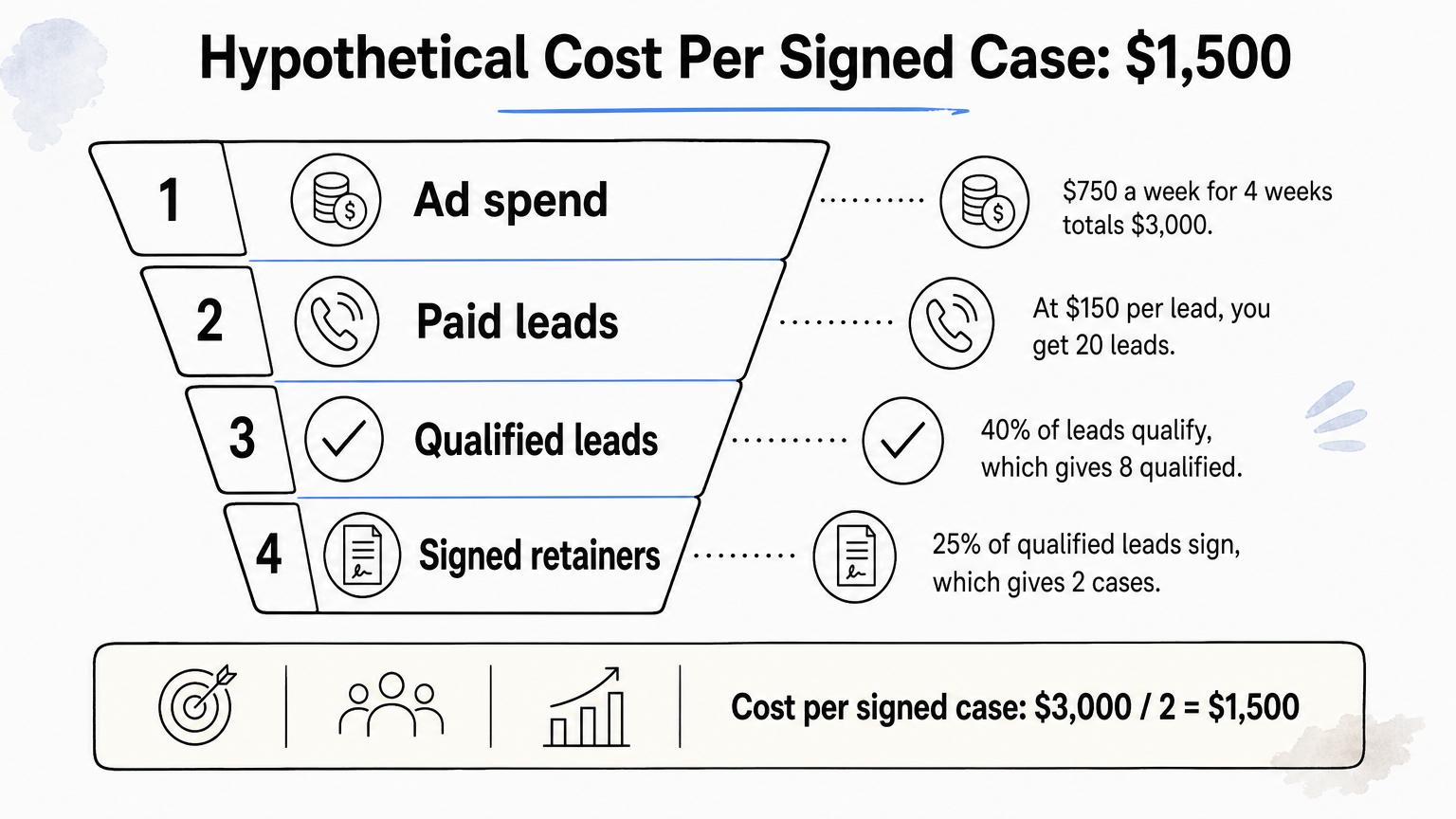
Run your own numbers through the cost-per-acquisition calculator. If the result is higher than a case is worth to your firm, fix intake and targeting before you raise the budget.
A cost per lead tells you what Google charged, and only a cost per signed case tells you whether the channel works.
Step 3. Work the dashboard and your leads daily
Open the Local Services Ads dashboard every day, start with the leads view, and treat every message like a live phone call. The account rewards fast, organized responses and punishes silence.
What each part of the dashboard does
The dashboard splits into a few areas. Labels vary as Google moves accounts into Google Ads, but the jobs stay the same.
Answer leads fast and dispute the bad ones
Speed matters twice. The Lead Response Management Study found that leads contacted within five minutes are far more likely to be qualified than those first reached at thirty minutes. That measures the odds of qualifying a lead, not signed cases. Google also treats responsiveness as a ranking input, along with your reviews and review score.

Some leads will not fit. If one is spam, outside your area or about a practice area you do not handle, dispute it for a credit. Listen to the call recording first so your description is accurate. Google makes the final call. Tag every lead with an outcome such as qualified, unqualified, spam or signed. Local Services Ads cannot accept a signed-case signal back from you, so Google never learns which leads became clients unless you track that yourself.
Build reviews and know how to pause
Reviews from your Business Profile appear in your listing, so they feed directly into your ranking. Ask every client for a review, resolve complaints directly with the client, and reply professionally to every public review. Never offer incentives, and never screen out unhappy clients first. Google's review policies prohibit both. Keep replies free of case details, because many state bars treat client information as confidential.
To turn the ad off, open your profile settings and switch the ad to paused. Pausing stops new leads from being sent while you fix staffing or budget. Closing the account entirely is a separate action, so check Google's help center before you try it.
A lead you answer in minutes is worth more than one you pay for and call back tomorrow.
Step 4. Decide whether to hire a management service
Run Local Services Ads yourself if one person can answer leads within minutes and review the account weekly. Hire help when nobody owns that job, or when several practice areas and offices split the budget. The decision is about attention, not skill.
When running it yourself makes sense
If you stay in-house, tracking is the gap to close. The GavelGrow platform connects a Local Services Ads account, assigns built-in call tracking numbers and traces calls through to signed retainers. The Track plan is $199/month with a 7-day free trial and no credit card.
What to ask a management service before you sign
Fees vary widely, so compare structures rather than headline numbers. Get every answer to these questions in writing:
- Will the account be in my firm's name, with me as owner?
- How are you paid, and do you add a markup to my ad spend?
- Do you work for competing firms in my market?
- Will reports show cost per signed case, not only leads?
- Who disputes invalid leads, and who is my named contact?
- How do you check profile and ad content against my state bar's rules?
GavelGrow's managed service is scoped on a strategy call, plus ad spend. Ad accounts stay in your name, GavelGrow charges no markup on ad spend, you get a named contact, and it does not run marketing for two direct competitors in the same market. GavelGrow has served 500+ law firms since 2015.
Start with verification, judge by signed cases
Good Local Services Ads management is a loop. Verify the firm, set a budget you can defend, answer every lead within minutes, tag the outcomes, and review cost per signed case on a 60 to 90 day window. Then decide honestly whether your team can keep that loop running or whether someone else should own it.
Whichever way you go, keep the account in your firm's name and measure retainers rather than leads. If you want a legal-only team to build and run the account for you, see how GavelGrow manages Local Services Ads for law firms.